Display security
Displays whose firmware supports it offer an encrypted connection and can be given an access key of their own. SiteManager uses both. This page describes the screens, the states a display can be in, and what each action does. For the order to do things in, see Secure your displays, Manage SSH keys and Set where displays look for firmware.
Securing a display locks other tools out
Securing a display locks out older SiteManager versions, SiteManager 2.x and other tools until it is released. Upgrade every SiteManager on a site before securing displays.
What the screens show depends on what each display's firmware says it can do (see Capabilities). A display whose firmware supports none of this behaves as before: SiteManager reads and controls it on the usual port, and its Security panel says This display's firmware cannot be secured. Update it to the latest MultiTaction firmware.
The Security page
Open Security in the menu (the Maintain group). The page has two parts.
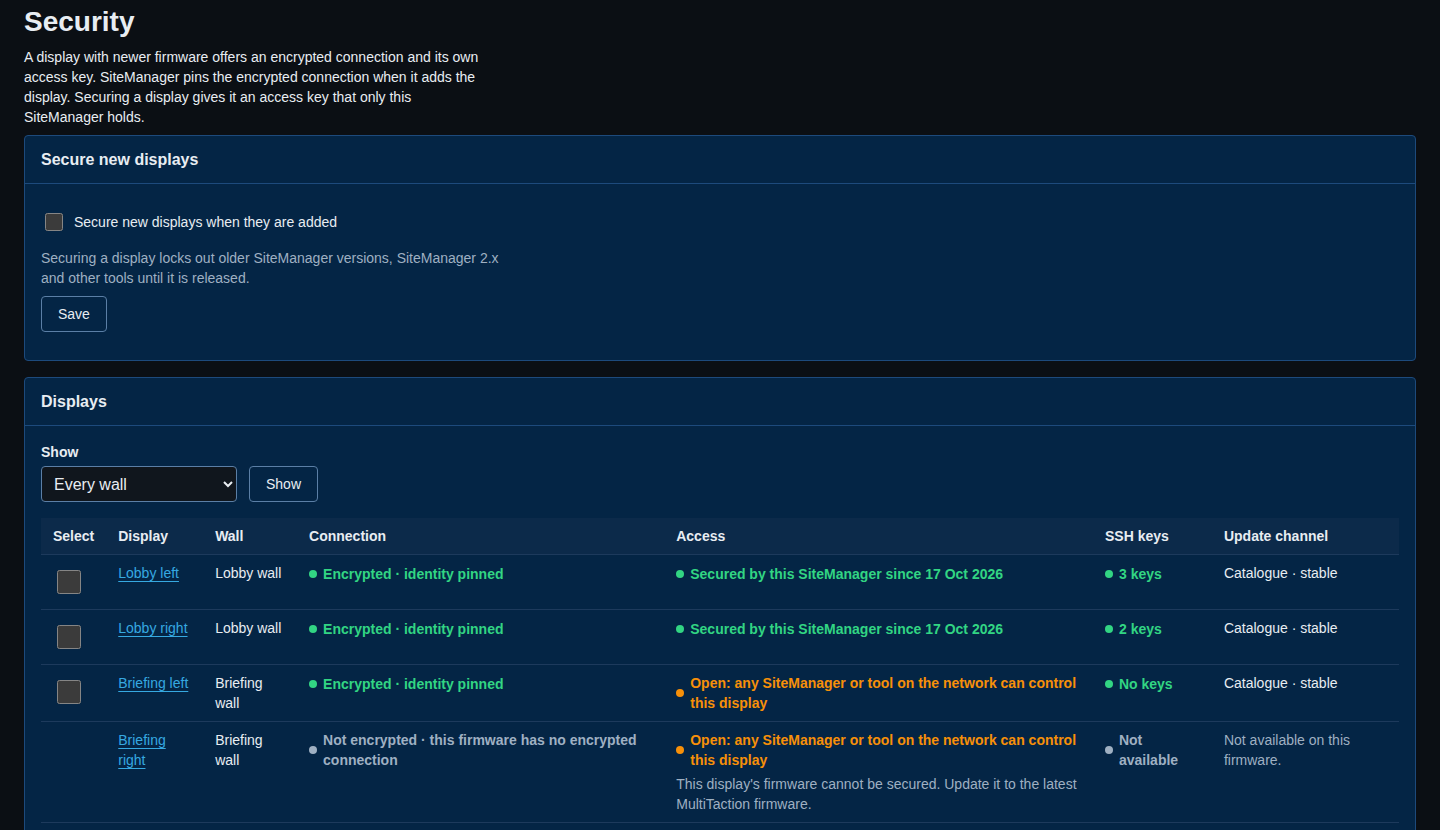
Secure new displays
A tick box, Secure new displays when they are added, and Save. It is off by default. When it is on, SiteManager secures a display when it is added to the site. Leave it off until every SiteManager and tool that uses your displays is ready, because a secured display refuses all others. Only an administrator can change it. Everyone else sees On or Off.
On the command line, sitemanager access policy --secure-new-displays on or off.
Displays
A list of every display that has a SiteManager interface, with one row each. The filter at the top (Show: Every wall, one wall, or Not on a wall) narrows it. The columns are:
- Display and Wall.
- Connection: how SiteManager reaches the display, in words (see Connection).
- Access: who may control the display, in words (see Access), with a note when something needs doing.
- SSH keys: how many keys the display accepts. The count fills in a moment after the page opens, so a display that is off does not hold the page up. A display that is off says Display is offline. A display whose firmware does not manage keys says Not available.
- Update channel: the update server and branch the display uses, filled in the same way.
An administrator also sees a box at the start of each row, and the following under the list:
- SSH key for the selected displays: Add SSH key and Remove SSH key. See SSH keys.
- Update channel of the selected displays: Set update channel. See Update channel.
- The buttons Secure, Change access keys and Release (see The four actions).
When the list is filtered to one wall, an extra box, Every managed display on the wall, selects all of them.
Each of these starts a job. It appears in the running order and on the Jobs page as Secure displays, Change access keys, Release displays, Add SSH key and Remove SSH key. These jobs do not disturb a wall, so they do not wait on Standby. Release and Remove SSH key ask you to confirm first.
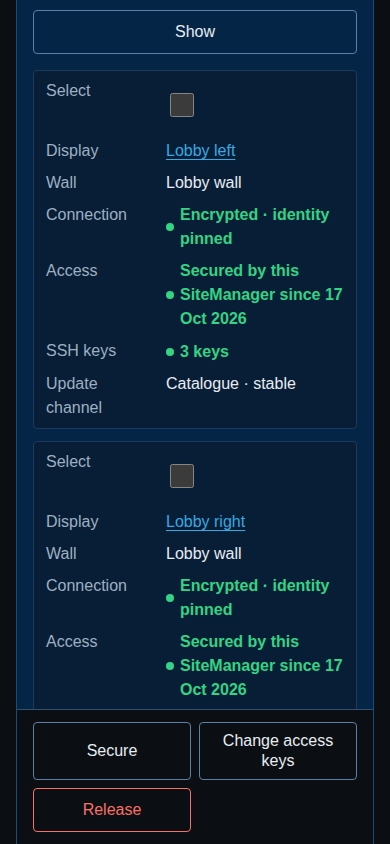
On a phone each display is a card with the same lines, and the buttons stay at the bottom of the screen.
A wall's page links to this page, filtered to that wall (Security of these displays).
The Security panel on a display page
Each display's page has a Security panel, followed by the panels Firmware updates on the display and SSH keys. A display without a SiteManager interface has none of them.
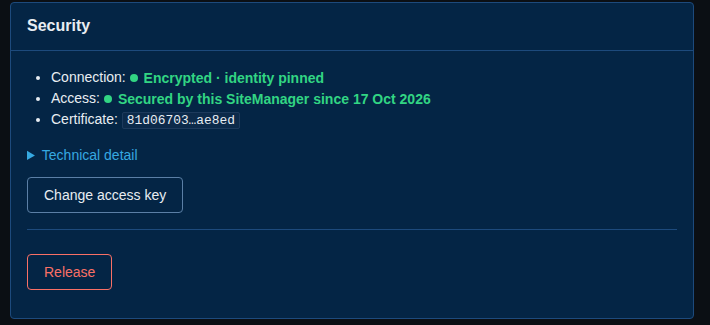
The panel shows:
- Connection, in words and a colour.
- Access, in words and a colour.
- Certificate: the first and last digits of the certificate SiteManager remembers for this display.
- A sentence about what to do, when something needs a look.
- Technical detail: the whole certificate fingerprint (SHA-256), the port, when it was remembered, the certificate the display presents now (when it differs) and what the display says its own access is.
- Only the buttons that can work now (see The four actions). A person who can only view sees the states and no buttons.
Connection
SiteManager reads the certificate a display presents on its encrypted port (8443) the first time it probes the display, and remembers it. From then on it talks to that display over the encrypted port only, and accepts that one certificate and no other. It remembers a certificate only when the display presented it on the encrypted port and its own information names the same one. This is called pinning. The words for the connection are:
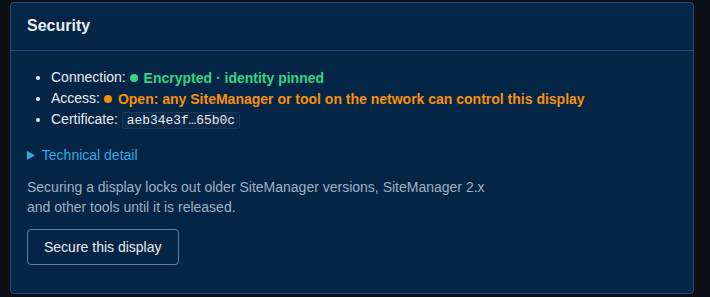
- Encrypted · identity pinned (green). Normal.
- Not encrypted · this firmware has no encrypted connection (grey). The display has older firmware. Nothing to do here. It cannot be secured.
- Not encrypted · the encrypted connection is not set up yet (orange). The display lists an encrypted connection but SiteManager could not set it up. It keeps working over the unencrypted connection, the panel says why, and SiteManager tries again every five minutes. Restart the display if it does not come right.
- Identity changed (red). The display presented another certificate than the one SiteManager remembers. See Identity changed.
- Returned from older firmware · new identity (orange). See Returned from older firmware.
- Encrypted · same certificate after a return from older firmware (red). See Returned from older firmware.
- Encrypted connection unavailable (orange, or red for a secured display). See Encrypted connection unavailable.
- Unknown: SiteManager cannot read its security record (red). See The security record cannot be read.
Access
- Open: any SiteManager or tool on the network can control this display (orange). No access key. Anything on the network that knows the display's address can read and change it.
- Secured by this SiteManager since a date (green). The display answers only requests that carry the key SiteManager holds.
- Checking the new key… (orange). SiteManager sent a new key and has not yet heard the display confirm it. The display's next answer settles it.
- Secured by another SiteManager or tool (red). The display refuses SiteManager's key. See Claimed elsewhere.
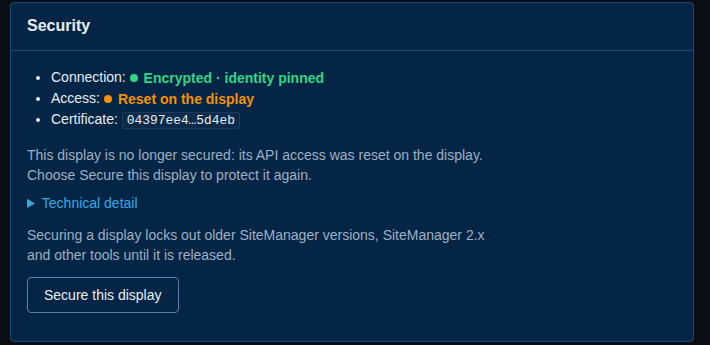
- Reset on the display (orange). See Reset on the display.
- Key held by this SiteManager; not used until the new identity is trusted. (orange). SiteManager holds a key but will not send it to a display whose certificate it no longer trusts.
The Security page, the command line (sitemanager access) and the JSON API use shorter words for the same states: not encrypted, encrypted, secured, identity changed, returned from older firmware, encrypted connection unavailable, claimed elsewhere, reset on the display and security record unavailable.
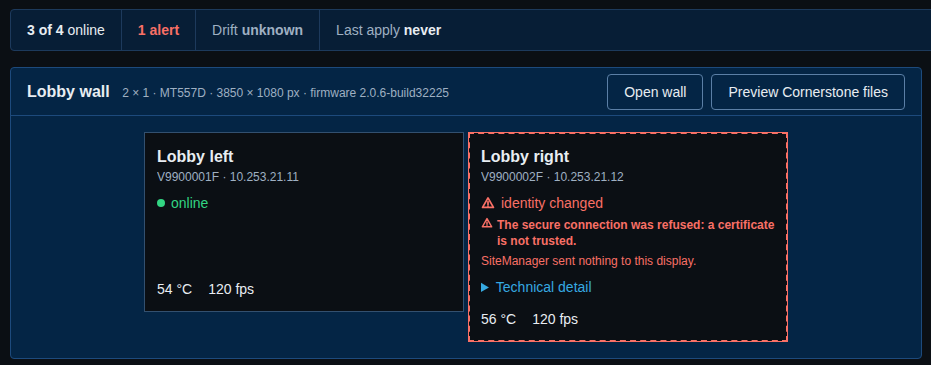
An orange or red state raises a Display security alert (see The alerts) and, on the overview, the display's tile shows the state in words in place of offline.
The four actions
Secure this display. Makes a new random access key, sends it to the display over the pinned encrypted connection, and keeps it. From then on the display answers only requests that carry the key. SiteManager saves the key before it sends it, so a display that confirms is never left with a key SiteManager has lost. A display whose firmware cannot be secured is skipped, with the reason. A display that another SiteManager or tool has secured is left alone: its result says it must be reset on its on-screen menu first (see Claimed elsewhere). The button is shown for a display that is Open or Reset on the display, and not for one whose identity is in question.
Change access key. Makes a new key and sends it with the current one. Use it when someone who had access leaves, or when you suspect the key was seen. SiteManager changes a key only when you ask, never on a schedule. It is shown for a secured display.
Release. Removes the key. The display is open to every tool again. SiteManager keeps the certificate it remembers, so the connection stays encrypted. It asks you to confirm, and the question says that older SiteManager versions, SiteManager 2.x and any other tool on the network will be able to control the display again.
Trust the new identity. Tells SiteManager to accept the certificate the display now presents. It is shown only when SiteManager has said the identity changed, or the display came back from older firmware. It asks you to confirm, and the question is stronger after a return from older firmware (see below). See Identity changed.
Each action is written to the audit log, without the key.
What each problem means and how to recover
Identity changed
The display presented a different certificate from the one SiteManager remembers. SiteManager stopped controlling it, and sends it nothing but the open reads that ask who it is. This is critical.
The usual cause is a display that was repaired or reset, or whose storage was replaced. Another cause could be a different device answering at the same address.
- Check that the display is the one you expect: the serial number in its name, and its address.
- If the display was repaired or reset on purpose, open its page and choose Trust the new identity. Confirm.
- If you did not expect it, do not trust it. Find out what is answering at that address.
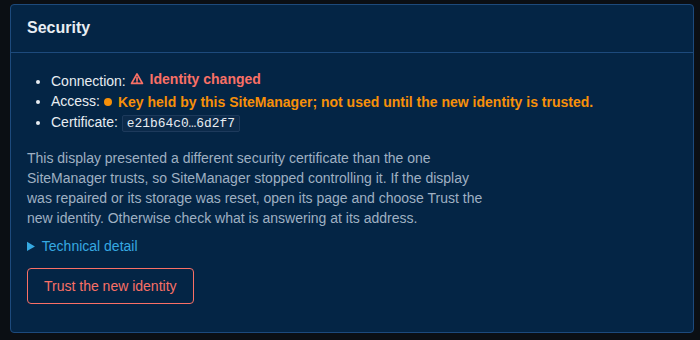
The same display on the overview:
If SiteManager held a key for the display, it keeps it. After you trust the new identity, a secured display answers again with that key.
Returned from older firmware
The display ran firmware without the encrypted connection and now presents a new certificate. Every return from older firmware brings a new certificate, so this is expected after a downgrade and a new update. But while the older firmware ran, anyone on the network could have replaced the certificate. SiteManager does not trust it by itself and sends nothing until you decide. This is a warning.
Trust it only if the display was updated on purpose and nobody else could reach it in the meantime. When you trust it, SiteManager also changes the display's access key at once, and the panel asks you to check the display's SSH keys (a note, Check needed, with the link Check the SSH keys), because the older firmware could have changed them. Look at the list on the same page and choose I have checked these keys. Adding or removing a key does not clear the note. If SiteManager could not change the key, the panel says Key change owed until a change succeeds.
If a display returns from older firmware with the same certificate it had before, the panel says Encrypted · same certificate after a return from older firmware and the alert is critical. A real return always brings a new certificate, so the old key may have been copied. Use Reset API access on the display's on-screen menu, then secure the display again.
Encrypted connection unavailable
The display no longer offers the encrypted connection.
- If SiteManager holds a key for it (red): SiteManager never sends the key unencrypted, so it can only watch the display. Restart the display. If that does not help, use Reset API access on the display's on-screen menu, then choose Secure this display.
- If SiteManager holds no key (orange): SiteManager carries on over the unencrypted connection, because nothing secret is sent, and warns you. Restart the display if it does not come back.
Claimed elsewhere
The display refuses SiteManager's requests. Either another SiteManager or tool secured it, or its access was reset on the display, or this SiteManager was restored from a backup older than the last key change. To manage it from here, use Reset API access on the display's on-screen menu, then choose Secure this display.
Reset on the display
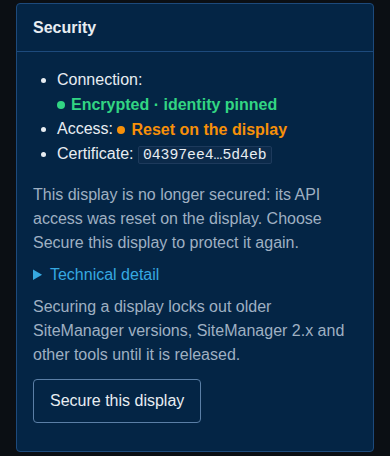
Someone used Reset API access on the display's own on-screen menu. The display is no longer secured: it is open to every tool, and the key SiteManager holds is useless. Choose Secure this display to protect it again. If nobody at the site did this, treat it as a warning that someone was at the display.
The security record cannot be read
SiteManager keeps the remembered certificates and access keys in one file, display-access.json, in its state directory. If that file cannot be read, the connection of every display with an encrypted connection reads Unknown: SiteManager cannot read its security record. Those displays are given nothing protected, nothing new is remembered, and Secure, Change access keys, Release and removing a secured display are refused. The message names the file and the way out: restore display-access.json from a backup of the state directory, or use Reset API access on each secured display's on-screen menu and secure it again. A critical Display security alert names the file too.
Display with firmware that cannot be secured
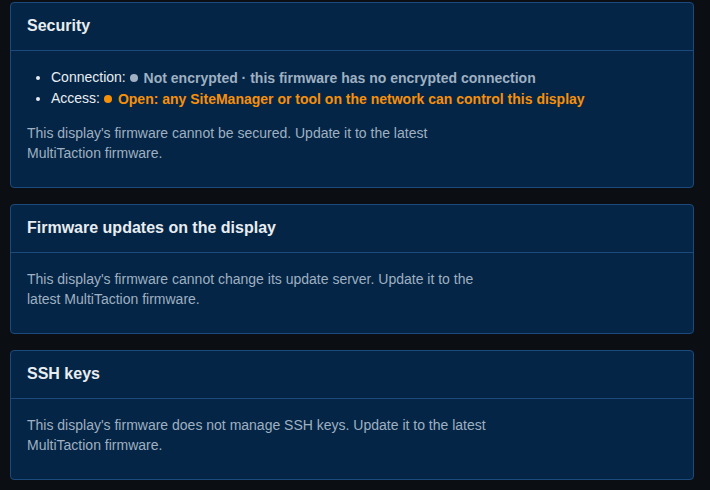
The panel, and the panels below it, say plainly that the firmware cannot do this and to update it to the latest MultiTaction firmware. No buttons are drawn, and SiteManager sends it nothing new.
An open, encrypted display
Removing a secured display
Remove from site under Details on a display page normally just removes the display. For a display SiteManager holds a key for, removing needs a choice, because a display removed while it is secured stays locked.
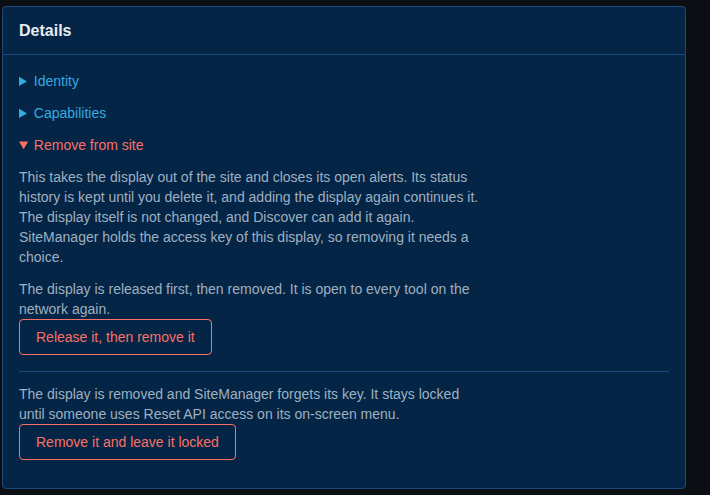
- Release it, then remove it releases the display first, so it is open to every tool again, and then removes it. If the release fails, the display stays in the site.
- Remove it and leave it locked removes the display and forgets its key. The display stays locked until someone uses Reset API access on its on-screen menu.
From the command line, sitemanager displays remove SERIAL --release-first or --keep-locked. Without one of them, SiteManager refuses a display it holds a key for and says to release it before removing it. See Command reference.
SSH keys on the display page
A display whose firmware manages SSH keys has an SSH keys panel.
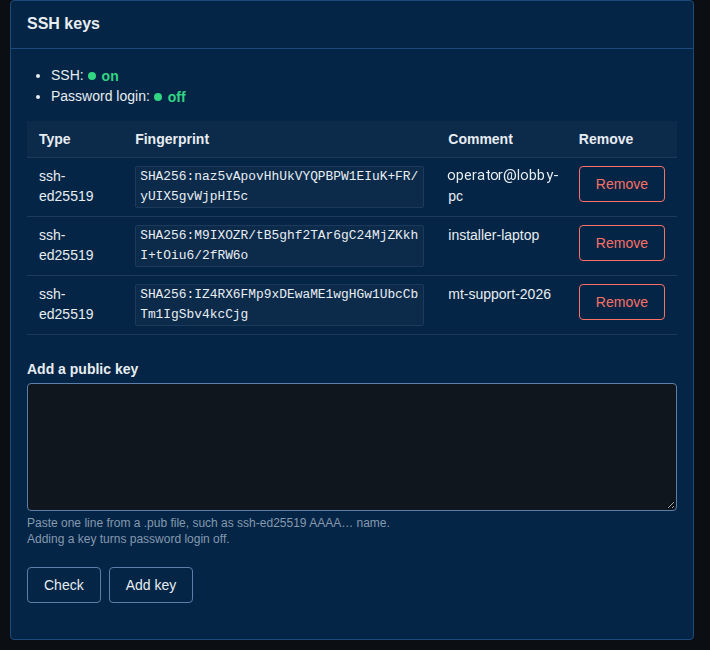
- SSH is on or off.
- Password login is off, or on while the one-hour window opened on the display's on-screen menu is running. SiteManager can never turn password login on, because the display allows that only from its on-screen menu. While it is on, Turn off now closes the window. Adding a key closes it too.
- The list shows each key's Type, Fingerprint and Comment, and a Remove button. Remove asks you to confirm and names the key.
- Add a public key takes one line from a
.pubfile, such asssh-ed25519 AAAA… name. Check says what the line is, or why the display would refuse it, before anything is sent. Add key adds it. - After you trust a display that came back from older firmware, the panel shows Check needed and the button I have checked these keys.
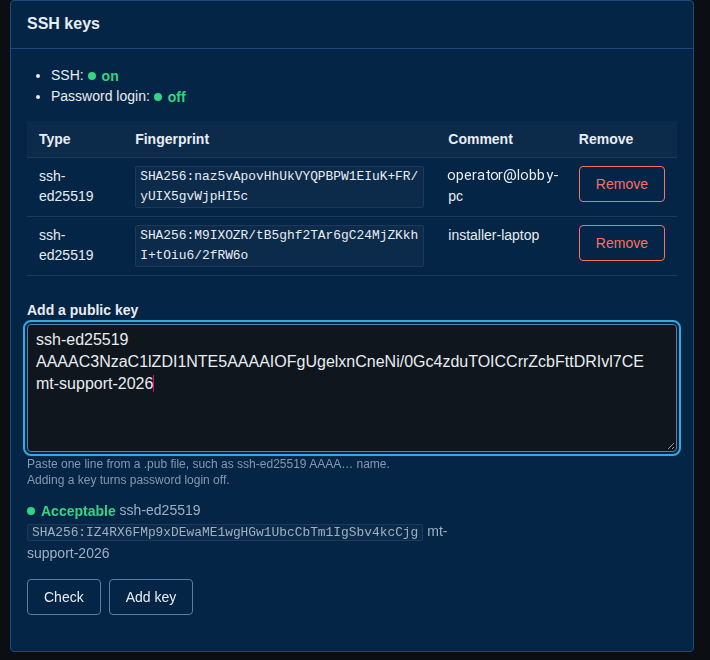
SiteManager refuses a pasted private key with This looks like a private key. Never paste a private key here. Paste the public key (the .pub file). It does not send or repeat what you pasted. Paste only the public key.
A key's comment is kept in the audit log and shown there. Do not put secrets in key comments.
On the Security page, the box SSH key for the selected displays adds a key to, or removes a key from, every ticked display or a whole wall. Key to remove takes the key's fingerprint, as ssh-keygen -l prints it (SHA256:…), or its 16-character id from the list. Each display gets a step in the job: Added, Already there, Removed or Not on this display. A display whose firmware does not manage SSH keys is skipped with This display's firmware does not manage SSH keys. Update it to the latest MultiTaction firmware. and is sent nothing.
On the command line: sitemanager ssh-keys. See Command reference.
Update channel
A display whose firmware lets you change where it looks for firmware has a Firmware updates on the display panel. This is the display's own setting. It is not the catalogue SiteManager uses for its own downloads, which you set on the Firmware page.
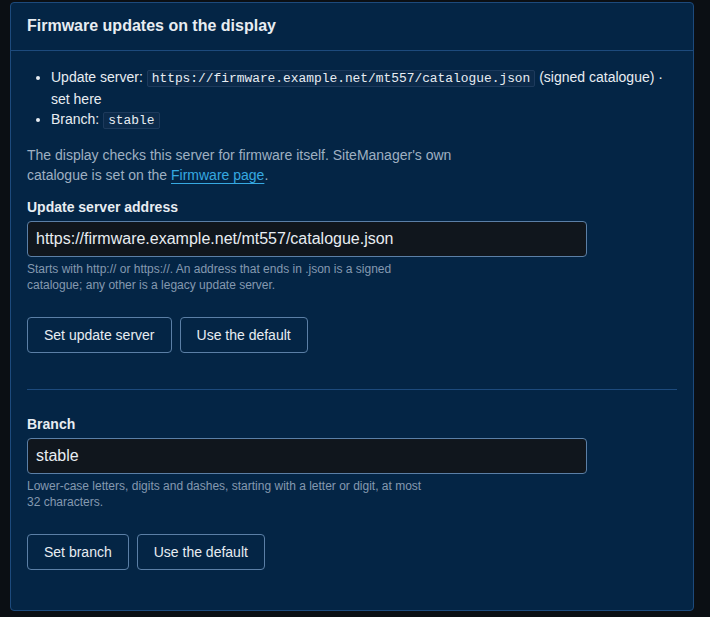
The panel shows:
- Update server: the address, whether it is a signed catalogue (the address ends in
.json) or a legacy update server (any other), and where it comes from: default, set here (set from SiteManager or on the display's menu), or set by the display's environment. - Branch.
- Fixed by the environment, when the display's environment fixes the address. A change you make then is stored but takes effect only once the environment's address is removed.
Two forms change it: Update server address with Set update server and Use the default, and Branch with Set branch and Use the default. A value the display would refuse is explained under its field and nothing is sent. The rules are: an address that starts with http:// or https:// and names a host, with no user name or password, no ? part and no # part, at most 512 characters; a branch of lower-case letters, digits and dashes, starting with a letter or digit, at most 32 characters.
If an environment fixes an address that has a user name or password in it, SiteManager shows it with those replaced by …@ on pages, in the API, on the command line, in the audit log and in job steps.
On the Security page, the Update channel column shows each display's setting, and Update channel of the selected displays sets the address and branch of every ticked display or a whole wall in one job. An empty field keeps what each display has. Use the default address and Use the default branch return a value to the display's default. A display whose firmware cannot change its update server is skipped with This display's firmware cannot change its update server. Update it to the latest MultiTaction firmware.
Each change is recorded in the audit log as display.update-channel.set, with the old and new address and branch.
On the command line: sitemanager update-channel. See Command reference.
The alerts
All of the states above raise one kind of alert, Display security. SiteManager adds its rule, Display security, with severity critical, to alert settings that already exist, once, when it is upgraded. If you delete the rule, it stays deleted. See Alerts.
The alert names the display and says what to do. The card on the Alerts page shows the alert's own sentence, the same words as in the JSON API (the alert's message) and in the notifications sent to your channels, so the steps to take are in front of you without opening anything.
- Identity changed: critical. The display presented a different security certificate than the one SiteManager trusts, so SiteManager stopped controlling it…
- Returned from older firmware: warning. The display came back from older firmware with a new security certificate…
- Same certificate after a return from older firmware: critical.
- Encrypted connection unavailable: critical when SiteManager holds a key, warning when it does not.
- Claimed elsewhere: critical.
- Reset on the display: critical. The display is no longer secured: its API access was reset on the display…
- Security record unavailable: critical, naming
display-access.json.
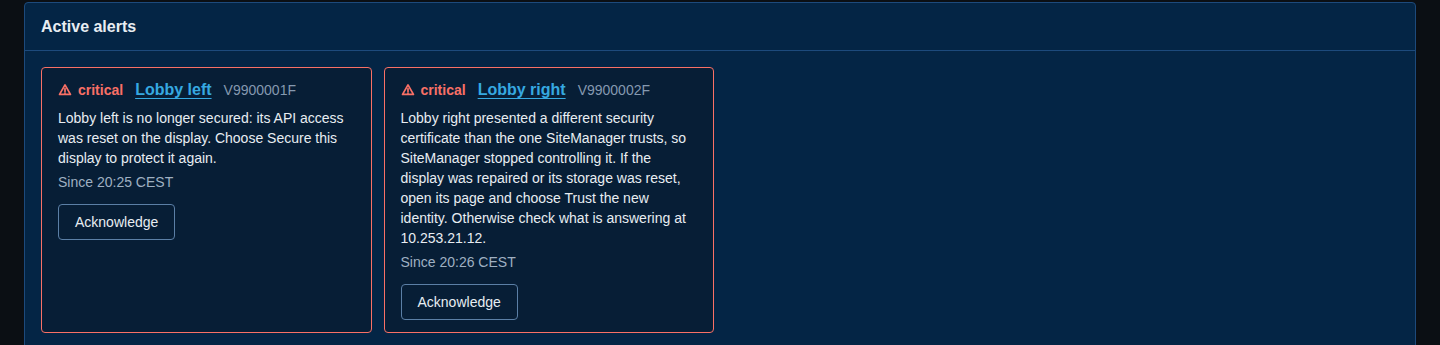
An alert clears when the state is fixed, and sends the all-clear if the rule says so.
What a reset on the display means
The display's own on-screen menu has Reset API access. Choosing it makes the display forget its access key and its secured state at once. It is the way back when SiteManager cannot help: a lost computer, a lost state directory, a display secured by another tool. After a reset the display is open to every tool, and SiteManager shows Reset on the display. Secure it again if you want it protected. See Secure your displays.
Where the keys are kept
SiteManager keeps each display's remembered certificate and access key in display-access.json in the state directory. The file is readable only by the account that runs the service (and SYSTEM and Administrators on Windows). The keys never leave it. They are not in the web pages, the JSON API, the command line, the logs, the audit log, the diagnostics bundle, or wall and room exports. You cannot see a key, and SiteManager cannot show it to you. See Why the state directory backup matters.
Who can do what
An administrator can use every button on these pages. In local mode everyone at the computer is an administrator. A viewer sees the states and the notes but no buttons and no forms. See Who can do what.
A command that talks to a display directly (--direct, --hosts and the SiteManager 2.x flags) cannot hold a key. When the display asks for one, the command says: This display is secured by a SiteManager service. Run the command through that service, or release the display there first.