Manage SSH keys
Displays whose firmware manages SSH keys list the keys that may sign in to them. SiteManager shows that list, adds a key to one display, a wall or many displays at once, and removes a key by its fingerprint. It also turns off password login when the display has it on. This page says how. The SSH keys section of the Display security reference lists every field.
Public keys only
Paste only the public key, the file that ends in .pub. Never paste a private key. SiteManager recognises a private key, refuses it with This looks like a private key. Never paste a private key here. Paste the public key (the .pub file)., and does not send or repeat it. If you pasted one by mistake anywhere else, treat that key as lost and make a new one.
Do not put secrets in a key's comment. The comment is the last part of the line (ssh-ed25519 AAAA… comment). SiteManager keeps it in the audit log and shows it there, and it is shown in the list of keys.
Before you start
- You are an administrator (in local mode everyone is).
- You have the public key as one line. To make a pair on a computer with OpenSSH, run
ssh-keygen -t ed25519 -C "your-name@your-computer". The.pubfile it makes holds the line to paste.ssh-keygen -l -f file.pubprints its fingerprint. - The displays' firmware manages SSH keys. A display whose firmware does not shows This display's firmware does not manage SSH keys. Update it to the latest MultiTaction firmware. and is never sent anything.
See the keys on a display
Open the display's page. The SSH keys panel is at the bottom.
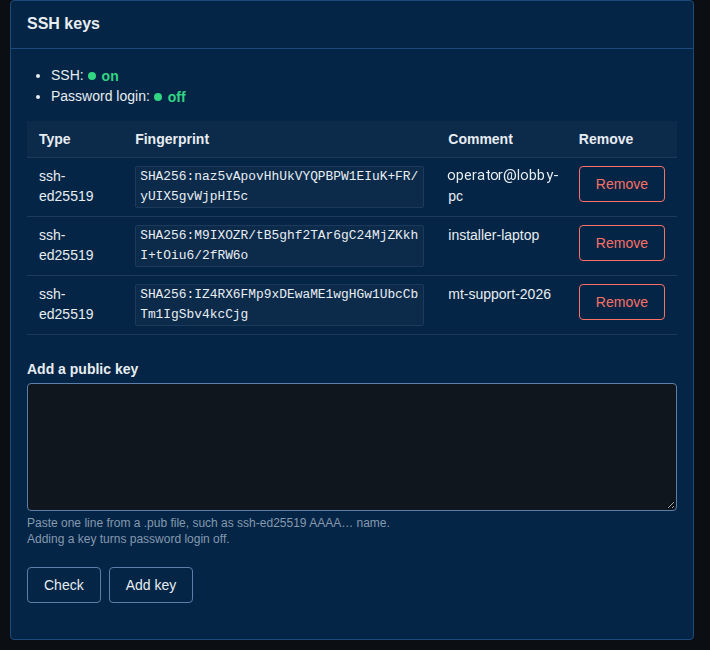
- SSH says whether the display's SSH is on or off.
- Password login says off, or on while the one-hour window opened on the display's on-screen menu is running.
- Under them is the list: Type, Fingerprint and Comment for each key.
The panel fills in a moment after the page opens. If the display is off, it says SiteManager could not read the keys.
On the Security page, the SSH keys column shows how many keys each display has: 3 keys, No keys, Display is offline or Not available.
Add a key to one display
- Open the display's page and find Add a public key.
- Paste the line from the
.pubfile. - Select Check. SiteManager says what the line is, for example Acceptable, the type, the fingerprint and the comment, or why the display would refuse it. Nothing is sent by Check.
- Select Add key.
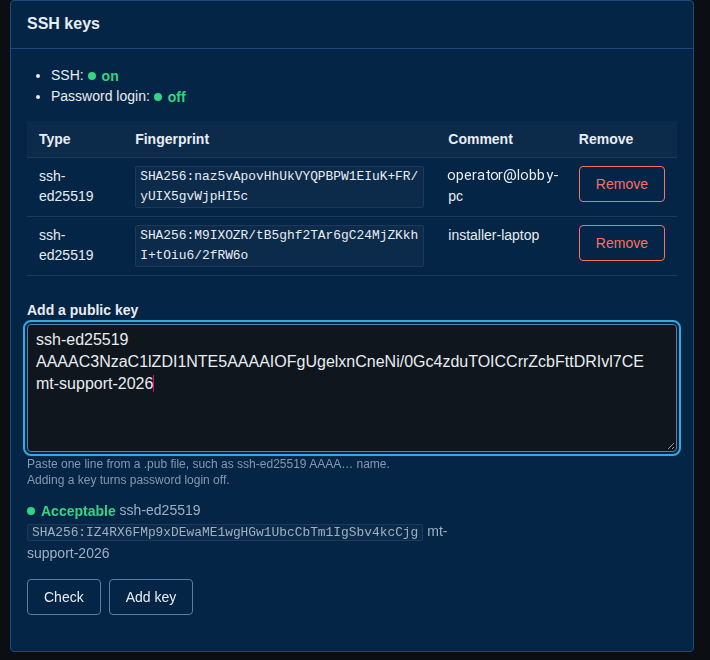
Adding a key also turns password login off.
Add a key to a wall, or to many displays
- Open Security in the menu. To work on one wall, choose it next to Show and select Show.
- Tick the displays. On a filtered list, tick Every managed display on the wall to take them all.
- Under SSH key for the selected displays, paste the line in Public key to add.
- Select Add SSH key.
- Follow the job Add SSH key. Each display gets a step: Added, or Already there if it had the key. A display whose firmware does not manage keys is skipped with the reason.
You can run it again: a display that has the key says Already there.
From the command line, a whole site is --all:
sitemanager ssh-keys add --all --key-file ~/.ssh/id_ed25519.pub --wait
sitemanager ssh-keys add --wall lobby-wall --key "ssh-ed25519 AAAA… name" --wait
sitemanager ssh-keys add V9900001F V9900002F --key-file key.pub
Remove a key
Remove a key by its fingerprint, or by the id the list shows.
From one display. Select Remove on the key's row, read the question (it names the key) and confirm.
From a wall or many displays. On the Security page, tick the displays, type the fingerprint in Key to remove (as ssh-keygen -l prints it, SHA256:…, or the key's 16-character id), and select Remove SSH key. Confirm. Each display's step says Removed or Not on this display.
sitemanager ssh-keys remove --wall lobby-wall SHA256:naz5vApovHhUkVYQPBPW1EIuK+FR/yUIX5gvWjpHI5c --wait
Removing the last key leaves the display with none. Make sure someone can still sign in some other way before you remove the last one.
Turn password login off
Password login is a short window that someone opens on the display's own on-screen menu. It closes by itself after an hour. SiteManager can never turn it on. It can only turn it off.
- Open the display's page. If Password login is on, select Turn off now.
- The status changes to off.
On the command line: sitemanager ssh-keys password-login-off SERIAL.
After a display came back from older firmware
When you trust a display that came back from older firmware (see Returned from older firmware), the older firmware could have changed its SSH keys. SiteManager asks you to check them: the Security page and the display's page show Check needed, and the SSH keys panel shows I have checked these keys.
- Read the list of keys. Remove any you do not know (see Remove a key).
- Select I have checked these keys.
Adding or removing a key does not clear the note. Only that button does. On the command line: sitemanager ssh-keys reviewed SERIAL.
Check a key line without a display
sitemanager ssh-keys check --key-file key.pub
It prints the type, the fingerprint and the id, or says why the line is refused. It sends nothing to any display.
If something goes wrong
- This looks like a private key. You pasted the wrong file. Paste the one that ends in
.pub. - This is not an SSH public key line. The line is cut, has extra lines, or is not a key. Paste the whole line, on one line.
- A display says it cannot read the keys. It is off or not reachable. Check it on the overview and try again.
- A display is skipped. Its firmware does not manage SSH keys. Update it (see Update display firmware).