Update display firmware
This page takes you through a firmware update from start to finish: getting an image, reading its signature label, checking what would happen, and running the rollout. The Firmware reference lists every field. This page tells you what to do, in order, and what to do when SiteManager says no.
A firmware update restarts each display and takes it out of use for several minutes. Plan it for a time when nobody is using the wall. SiteManager helps with that: it updates one display first, checks that the wall is idle before each step, and stops at the first failure.
Before you start
- The displays you want to update are in the site and online. See Set up a wall for adding displays.
- You are an administrator, or in local mode (where everyone is). A viewer can open the rollout page and press Check, but cannot start a rollout.
- Either this computer can reach MultiTaction's firmware servers (see Ports and firewall), or you have a
.swufirmware file to import.
1. Look at the catalogue
Open Firmware in the menu. The Catalogue part of the page lists the firmware versions you can download. Each version has a card that shows the display model it is for (MT556 or MT557), the firmware it can be installed over (For firmware), and whether it is already in the cache (In the cache).
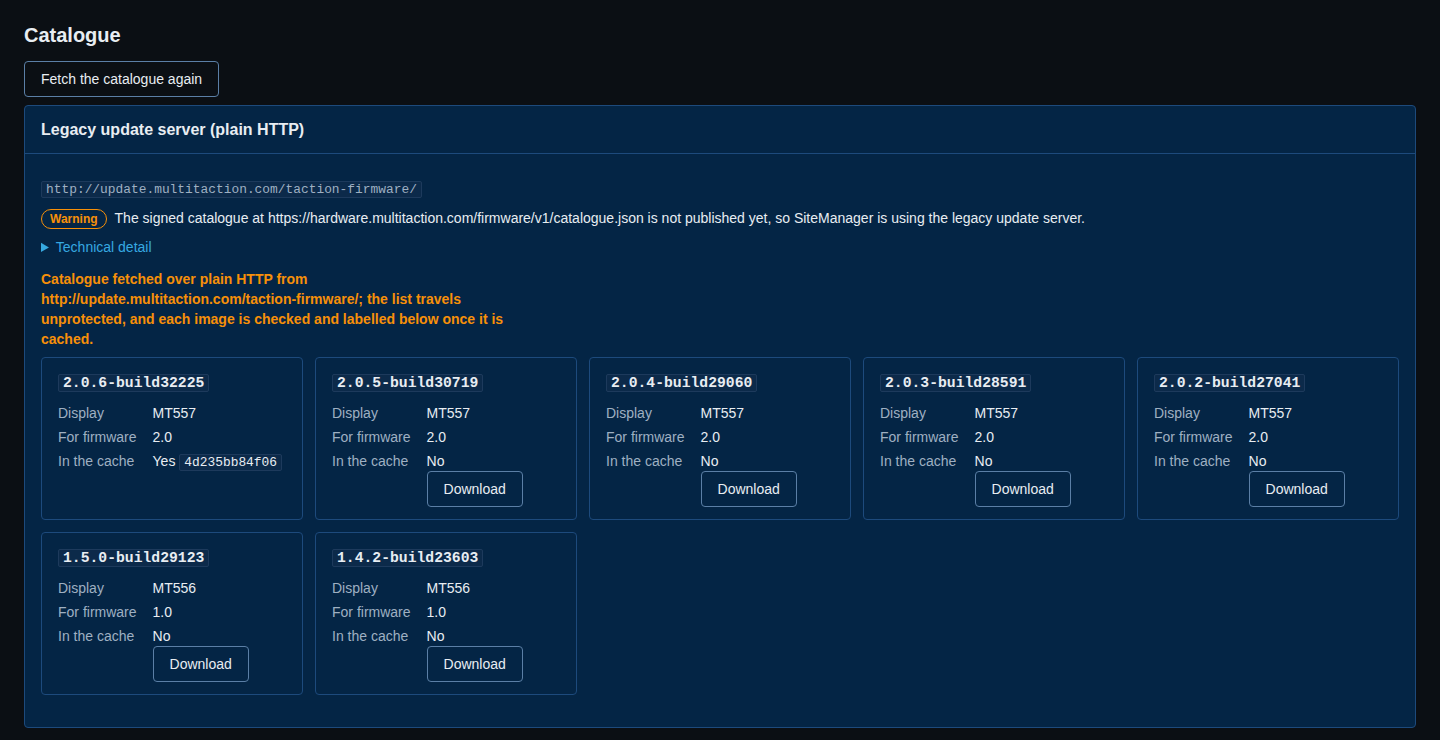
SiteManager knows two kinds of catalogue.
- The signed catalogue. By default SiteManager asks MultiTaction's signed catalogue first. It checks the catalogue's signature, its expiry and its date before it lists anything. When the check passes, the page says so in one line: the catalogue's name, checked, the date it was made and the date it is valid until.
- The legacy update server. This is the older list, fetched over plain HTTP, which cannot be checked. SiteManager uses it when the signed catalogue cannot be fetched, for example because it is not published yet or this computer cannot reach it. The page then shows a Warning line: The signed catalogue at ... is not published yet, so SiteManager is using the legacy update server. (or ... could not be reached, so ...). Open Technical detail to see the exact reason. The screenshot above shows this case, which is what you see while the signed catalogue is not published.
A signed catalogue that was fetched but failed its check is never replaced by the legacy list. The page shows a Critical line, The firmware catalogue failed its check and was not used., with the reason, and lists nothing from it. Do not work around that. Contact MultiTaction support and include a diagnostics bundle.
Select Fetch the catalogue again to reload the list. SiteManager reuses a list it fetched in the last 10 minutes.
Using your own catalogue address
The service options --firmware-catalogue, --firmware-legacy and --firmware-branch change where the list comes from. A service started with an explicit legacy address (for example --firmware-catalogue http://...) uses only that legacy list. Remove the option to use the signed catalogue. See sitemanagerd reference.
2. Get an image into the cache
SiteManager only sends images from its own cache, a folder named firmware in the state directory. There are two ways to fill it.
Download from the catalogue
Select Download on a version's card. The download runs as a job, so you can leave the page. When it finishes, the card shows In the cache: Yes and the first characters of the image's checksum, and the image appears under Cached images.
For an image from the signed catalogue, SiteManager compares the download with the checksum and size the catalogue lists. A download that does not match is refused and nothing is kept.
Import a .swu file
Use this when this computer has no route to the firmware servers, or when MultiTaction support sent you an image.
- Under Import a .swu file, choose the file next to Image file.
- Select Import.
A file can be up to 2 GiB. SiteManager checks that it is an update image with a version and the firmware it is for, and checks its signature, before it keeps it. If the file does not match the catalogue entry for its version, a warning says so.
If the cache already holds a different image with the same version, the import is refused: the cache already has a different image with this version. Select Remove on the old image first if you are sure you want to replace it.
3. Read the signature label
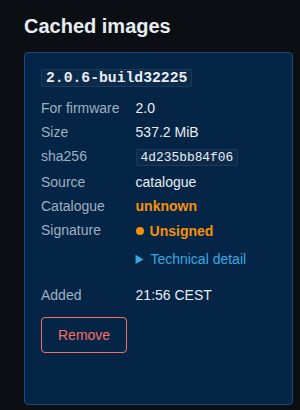
Every image under Cached images has a Signature line. SiteManager reads the image's signature when it keeps the image, and labels it with one of these.

- Signed by MultiTaction (green). The image carries a valid signature from MultiTaction's certificate authority. Every display can take it.
- Unsigned (orange). The image has no signature. Displays whose firmware checks signatures refuse it. Other displays take it.
- Signed by another CA (refused) (red, with a warning mark). The image is signed, but not by MultiTaction. Displays whose firmware checks signatures would refuse it, so SiteManager does not send it to them.
- Not checked yet. SiteManager has not read this image's signature. It happens briefly after an upgrade of SiteManager, which labels the images an earlier version cached. An image with this label is not sent to any display. Try again in a moment.
Select Technical detail under a label for the reason in full.
Which displays "check signatures"? The ones whose firmware says so. SiteManager asks each display what its interface can do (see Capabilities), and the rollout check marks a display that advertises signature checking with Checks signatures. SiteManager never goes by a version number.
Next to the label, each card shows Catalogue: match (the image is the catalogue's), mismatch (the image has the catalogue's version but different content), unknown (the catalogue lists no checksum to compare, as in the legacy list) or not-in-catalogue (an imported file).
4. Choose the displays and open the rollout page
There are three ways in.
- Open Select displays, tick the displays or Whole wall, and choose Update firmware.
- On a display page, select the line under the tile: Newest in the catalogue for this display: ... or Up to date with the catalogue. It opens the rollout page for that display.
- Give the displays in the address:
/firmware/rollout?displays=SERIAL1,SERIAL2.
The page is titled Update firmware. It starts with the list of displays it applies to, each by its name or its position on the wall.
From the catalogue
When the catalogue offers images that are not in the cache yet for the selected displays, a From the catalogue block lists them. SiteManager groups displays that were offered exactly the same, so a wall of identical displays is one group, headed by the model and firmware revision, for example MT557 · firmware revision 2.0.
Each version has a Download button, which puts the image in the cache. The versions are newest first. A version the display runs now carries the note running now, and a version below it is marked older. These notes are hints. Nothing is hidden or refused because of a version here.
Choose the update
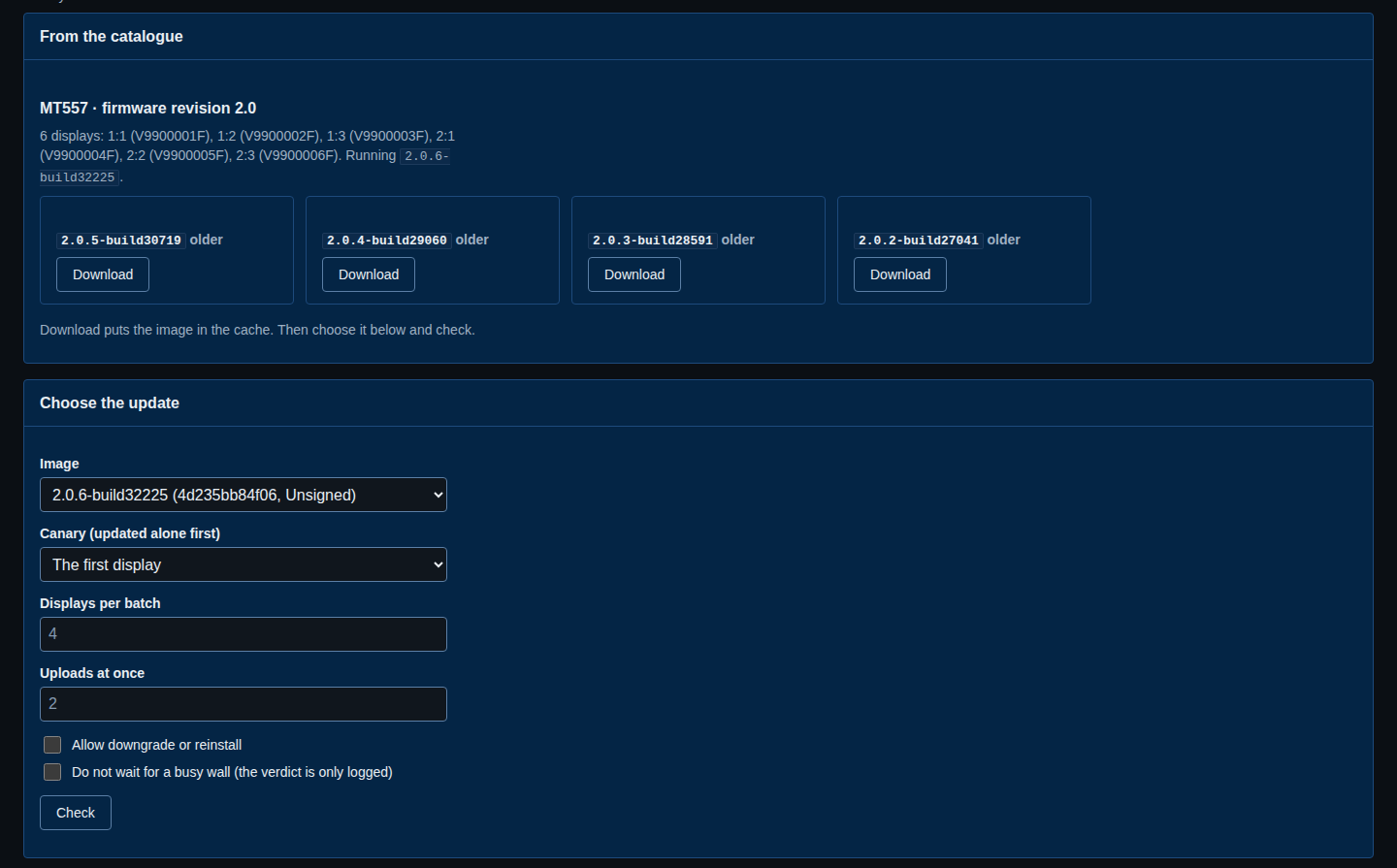
Fill in the form.
- Image: a cached image. The list shows each image's version, the start of its checksum and its signature label.
- Canary (updated alone first): the display that is updated alone before all the others. The default is The first display. Pick one that is easy to reach and is not critical, so a bad update shows up where you can see it.
- Displays per batch: how many displays are updated in each group after the canary. The default is 4.
- Uploads at once: how many displays receive the image at the same time within a batch. The default is 2, never more than the batch size.
- Allow downgrade or reinstall: see Downgrades and reinstalls.
- Do not wait for a busy wall (the verdict is only logged): see The idle-wall check.
If the cache is empty, the page says No images in the cache and sends you to the Firmware page.
5. Check
Select Check. SiteManager reads every selected display and shows What would happen. This sends nothing to any display.
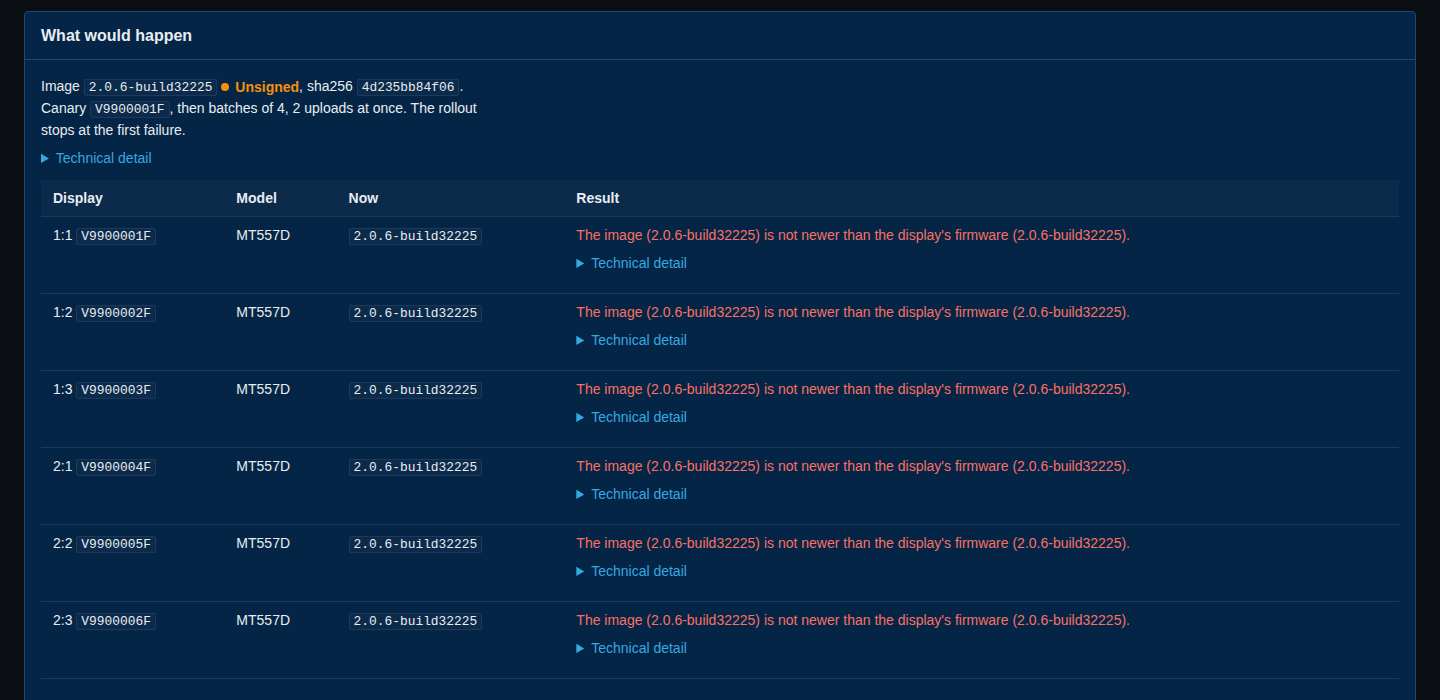
The page names the image, its signature label and the start of its checksum, then the canary and the batch plan. A row for each display shows:
- the display and its serial number, and Checks signatures under it when the display's firmware checks signatures;
- the Model;
- Now, the firmware version the display runs;
- the Result: ready, downgrade or reinstall, as asked, or the problem that stops the update, in plain words.
If any display has a problem, nothing can start. The page says Nothing was sent. Fix the displays above, or leave them out, and check again. Fix the problem, or go back with Change selection and leave that display out, then select Check again.
What a refusal means
A refusal always appears here, before anything is sent. The common ones:
- the image (X) is not newer than the display's firmware (Y). The image is the same version or older than what the display runs. Tick Allow downgrade or reinstall if you meant that, or choose a newer image.
- the display does not report its firmware version, so the image cannot be compared with it. SiteManager will not guess. Check the display's state and try again.
- the display cannot be reached: ... The display is offline. Fix its power or network, or leave it out.
- A message that the image is not for this model or firmware revision. Choose the image for that display's model (MT556 or MT557).
- This display installs only firmware signed by MultiTaction. This image is unsigned. The display checks signatures and the image has none. Download the image from the firmware catalogue, or ask MultiTaction support for a signed copy. To go back to an earlier firmware, ask MultiTaction support for a copy signed by MultiTaction.
- This display installs only firmware signed by MultiTaction. This image is signed by another certificate authority. The same, for an image with the wrong signer.
- This display installs only firmware signed by MultiTaction. This image has not been checked for a signature yet. Wait a moment and select Check again.
No option lifts a signature refusal. Not Allow downgrade or reinstall, and not Do not wait for a busy wall. A display whose firmware does not check signatures still accepts an unsigned image.
6. Go
When every display is ready, a Standby block appears under the table.
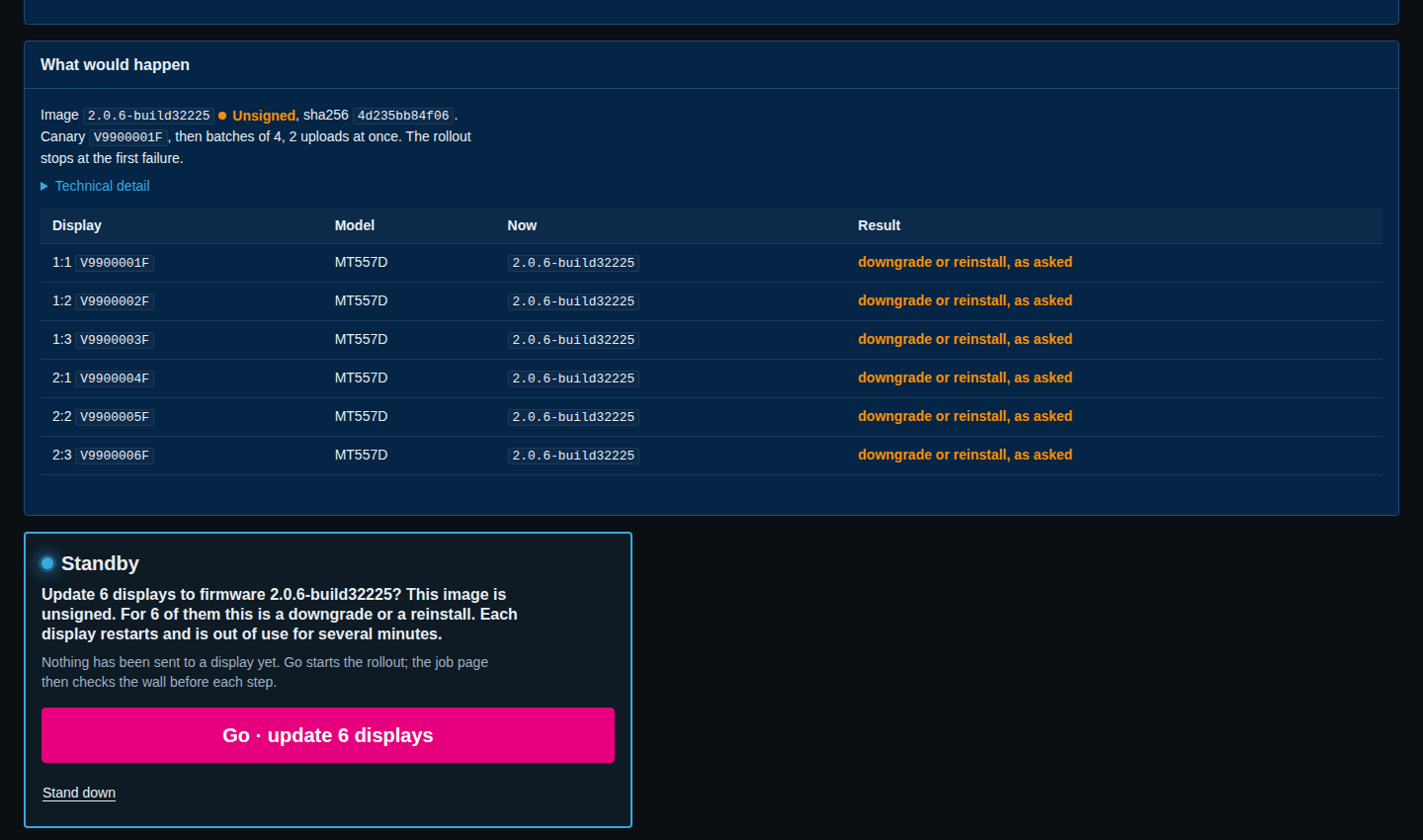
It repeats the plan in one sentence: Update N displays to firmware X? This image is signed by MultiTaction. ... It says how many of the displays get a downgrade or a reinstall, and that each display restarts and is out of use for several minutes. It also says that nothing has been sent to a display yet.
- Go · update N displays starts the rollout and opens its job page.
- Stand down goes back to the form. Nothing was sent.
This is the same Standby and Go as everywhere in SiteManager. See Standby and Go.
During the rollout
The job page shows a row for each display with its state and progress.
- The canary display is updated first, alone.
- Then the other displays follow in batches. In each group, SiteManager uploads the image to every display, checks the wall is idle again, flashes the displays, and waits for them to come back with the new version.
- When a display comes back, the job page shows the display's own verdict on the image's signature, one of Signature checked by the display, The display found no signature or The display could not verify the signature.
The rollout stops at the first failure. Displays already flashing finish. The rest are not started. A rollout that failed or was cut short has a Retry button on its job page. It opens the rollout page with the displays that did not finish and the same image filled in, and you check again before anything is sent.
To stop a rollout yourself, select Cancel on the job page. A display that is already flashing is not interrupted: it finishes, restarts and is checked. Displays not yet started are skipped, and images already uploaded to them are removed.
The idle-wall check during the rollout
Before each upload and before each flash, SiteManager checks whether the wall is in use. See The idle-wall check. If the wall looks busy, or SiteManager cannot tell, the job pauses and shows a block that says it is waiting for your go-ahead, with the Go button. It checks again every minute and carries on by itself when the wall is idle. Press Go to continue at once, or Stand down to stop the rollout.
Tick Do not wait for a busy wall (the verdict is only logged) on the form if you do not want these pauses, for example for a wall that nobody uses overnight. SiteManager still takes the reading and writes the verdict to the job's log.
After the update: the re-check
A firmware update is not finished when the display restarts on the new version. A display whose firmware tries a new version once starts on it in a trial, and goes back to the firmware it had, and restarts, if the new firmware does not start properly. So SiteManager waits for the display to confirm the new firmware, and checks again later when it cannot wait. The Firmware reference lists every wording.
While the job runs
After the display restarts and runs the new version, its row on the job page reads Waiting for the display to confirm the new firmware. SiteManager asks the display every 5 seconds, also while it is offline, for up to 10 minutes.
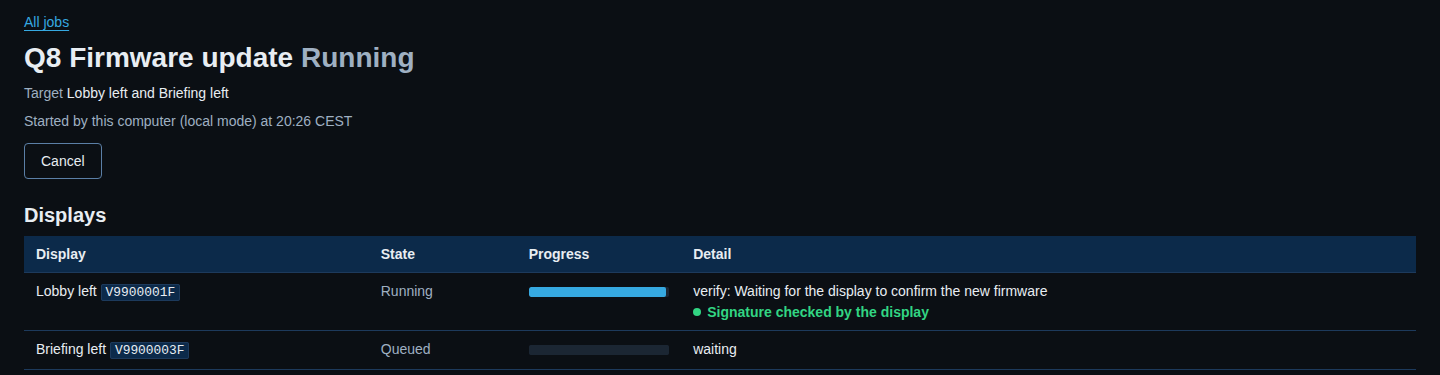
- When the display confirms, the row ends with Running and the version, then · confirmed.
- If the display reports another firmware than the one SiteManager installed, the update fails for that display. See If a display went back.
- If 10 minutes pass and the display is still in its trial, the update ends and SiteManager checks that display again 5 minutes later. The row says Running and the version, then · not confirmed yet; SiteManager will check again.
- A display that does not say whether it confirmed (older firmware, or its confirm service has not started) is given 30 seconds, if its firmware has an encrypted connection or access keys, and otherwise none. The row then ends with running and the version, and SiteManager checks that display again 15 minutes later.
A display is put on the watch list as soon as it has restarted, so a restart of the SiteManager service during the wait does not lose it.
After the job: the watch list
Once a minute, SiteManager looks at each display on the watch list that is due, and asks it for its information, nothing else. It then does one of these:
- The display runs the new version and says confirmed (or says nothing): it comes off the list. Its row on the job page becomes Running and the version, then · confirmed (or · the display did not report a confirmation). An open Firmware went back alert for that display clears.
- The display is still in its trial: SiteManager checks again 5 minutes later.
- The display runs the version it had before the update, or another version: see If a display went back.
- The display cannot be reached: SiteManager tries again the next minute. After 24 hours it gives up on that display and writes could not re-check to the audit log.
A display that you remove from the site is forgotten. A new update of a display replaces its entry. The list is kept in firmware-watch.json in the state directory, so a restart of the service does not lose it.
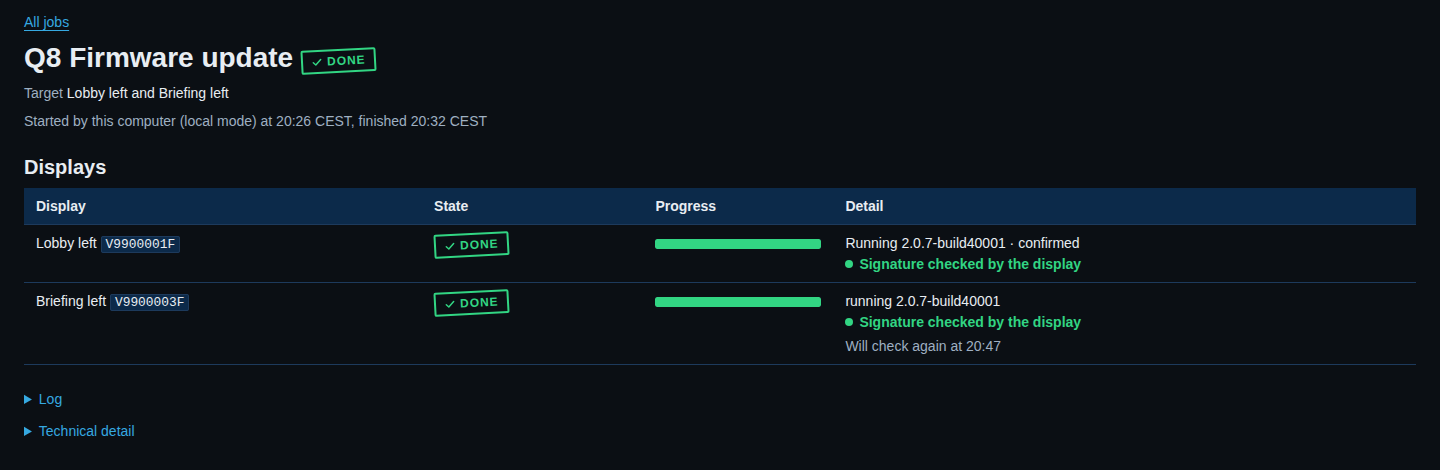
When a job has finished and a display is still to be checked, its row on the job page, and the running order under the finished entry, say Will check again at a time in your local time. The line is gone once the display has been checked.
On the display's page
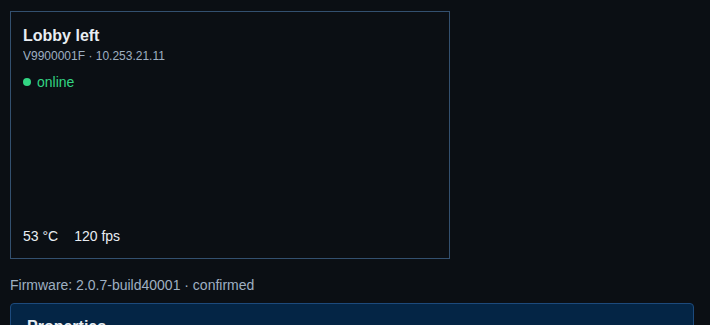
A display's page shows how its firmware started, after the firmware version:
- confirmed: the new firmware proved itself. No check time is shown.
- waiting for the display to confirm; SiteManager checks again at 20:33: the display is in its trial and is on the watch list.
- SiteManager checks again at 20:47: the display does not say how its firmware started, and is on the watch list.
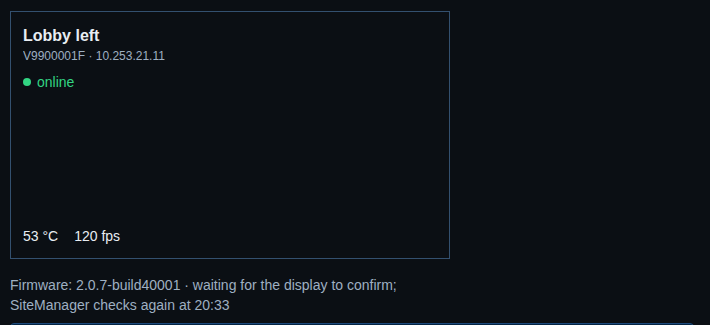
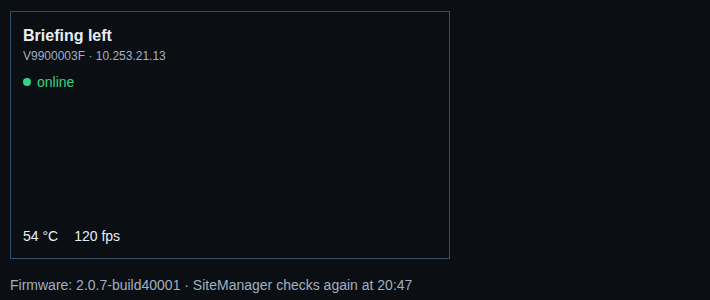
When the display does not say and nothing is waiting, the page shows only the version. The page reads the state when it opens, so reload it to see a change.
If a display went back
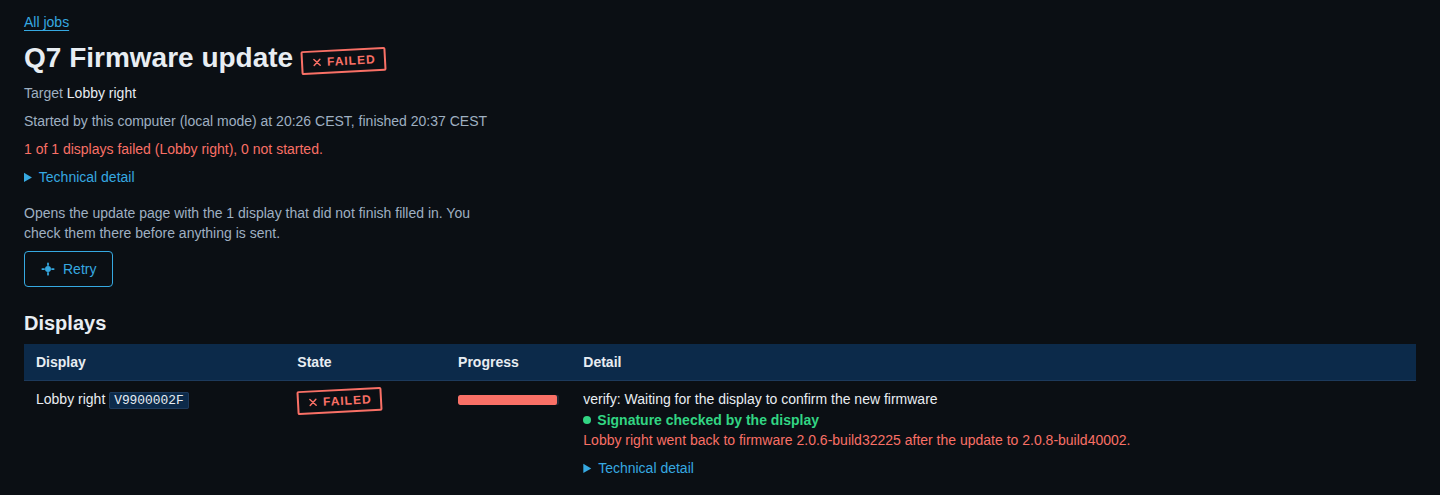
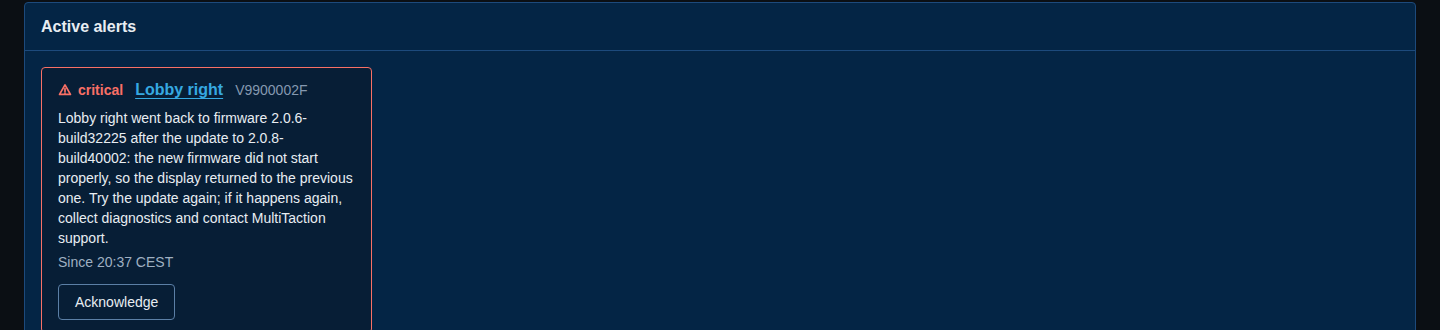
If the display runs the version it had before the update, the new firmware did not start properly and the display returned to the previous one. SiteManager says so in three places:
- The row of that display on the job page fails and says Lobby right went back to firmware
after the update to . If the job was still running, the rollout stops at this failure like any other, and the job has a Retry button.
- The critical alert Firmware went back is raised with the whole sentence: Lobby right went back to firmware
after the update to It is in the notification too (the subject says Firmware went back).: the new firmware did not start properly, so the display returned to the previous one. Try the update again; if it happens again, collect diagnostics and contact MultiTaction support. - The audit log has a
firmware.recheckentry with the outcomereverted.
What to do:
- Try the update again.
- If the display goes back again, take a diagnostics bundle and send it to MultiTaction support, with the firmware version and the time.
The alert clears by itself when that display next updates successfully, or when a later check finds the expected version confirmed. You can also acknowledge it on the Alerts page.
If the display runs a third version, neither the new one nor the old one, the alert says the display runs another firmware than the one SiteManager installed, and that it may have been updated with another tool. Find out who or what else manages the display, and check the firmware version on its page.
From the command line
sitemanager firmware watch
sitemanager displays show V9900001F
firmware watch lists the displays still to be checked. The line firmware start in displays show uses the same words as the display's page. See Command reference.
Downgrades and reinstalls
SiteManager refuses to install an image that is not newer than what a display runs, unless you tick Allow downgrade or reinstall before you check. The check then shows downgrade or reinstall, as asked for those displays, and the Standby sentence says how many displays are affected.
Two limits stay in force:
- The display must report its current firmware version. Without it the image cannot be compared, and the tick does not help.
- A display whose firmware checks signatures takes only an image Signed by MultiTaction, whatever the version. To go back to an earlier firmware on such a display, ask MultiTaction support for a copy signed by MultiTaction and import it as described in Import a .swu file.
From the command line
sitemanager firmware does the same: catalogue, cache, download, import, remove, check and rollout. Use sitemanager firmware check to see what a rollout would do without sending anything. sitemanager firmware download --display SERIAL lists what the catalogue offers that display. See Command reference.
If something goes wrong
- The page says the catalogue could not be read. This computer cannot reach the server. Check the network, or import a
.swufile. - Nothing is offered for a display. Under From the catalogue the page says Nothing could be offered for the display, with the reason, when its model, firmware revision or version could not be read. Check that the display is online.
- A download or an import is refused. Read the message under the label. It names the cause: size over 2 GiB, a checksum that does not match the catalogue, or a different image with the same version.
- A display went back to its old firmware. See If a display went back.
- The rollout failed on a display. Open the job page and read the row of that display. The raw error is under Technical detail. Send a diagnostics bundle to MultiTaction support.
See also Troubleshooting.
Displays whose firmware supports it also keep their own update server and branch, which they check for firmware themselves. That is a separate setting: see Set where displays look for firmware.