Keyboard
When a visitor taps an editable text field in MT Showcase, for example the address field of a web browser, an on-screen keyboard appears. Several text fields can be active at the same time, each with its own on-screen keyboard.
You can also connect a physical keyboard to the application computer, wirelessly or with a cable. See Keyboard focus for how to choose which text field receives what is typed on it.
To speed up typing and avoid mistakes, you can give the on-screen keyboard a list of predefined texts, called snippets. Visitors tap a snippet to insert its text. See Snippets.
Keyboard focus
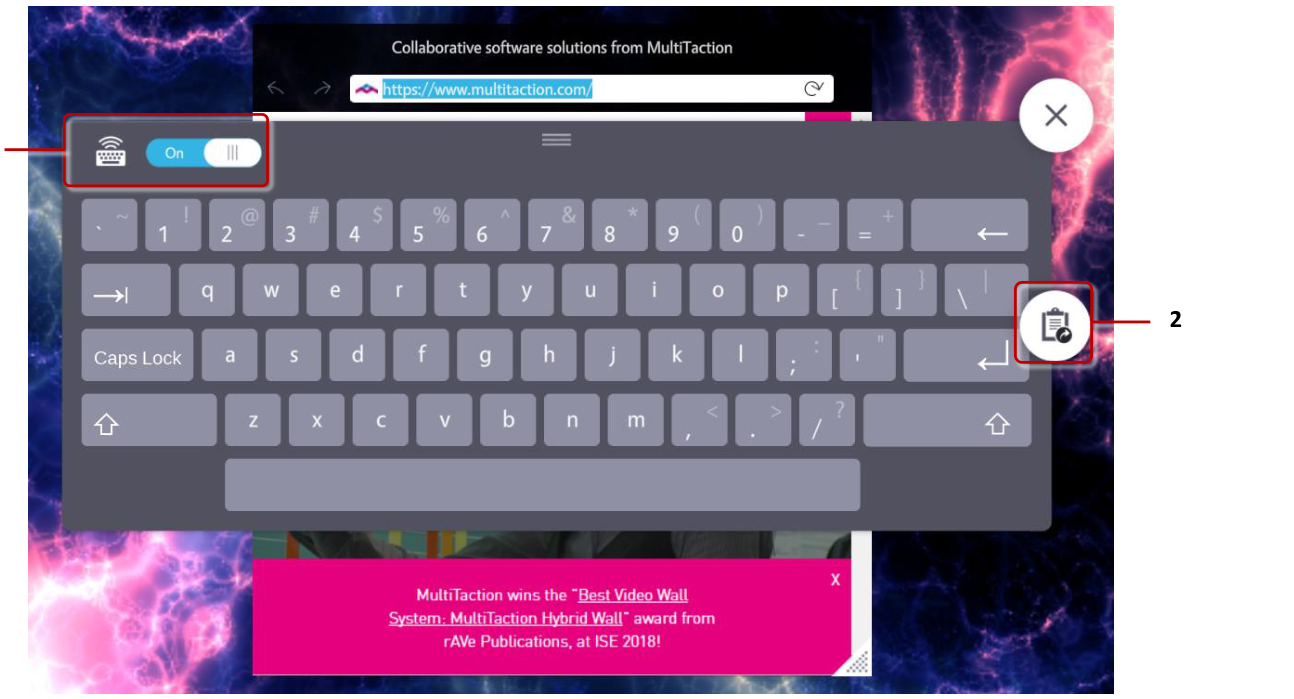
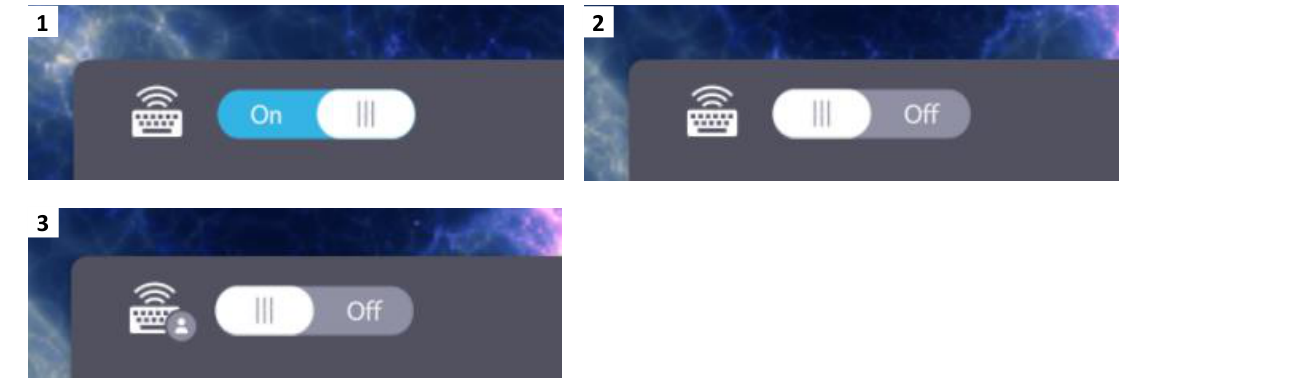
Only one text field at a time receives what is typed on a physical keyboard: the field with the physical keyboard focus. When a visitor taps a text field and no other field has the focus, the field takes it automatically. Otherwise, use the focus switch on the field's on-screen keyboard to move the physical keyboard focus to that field.
Snippets
To speed up text entry and avoid typing errors, MT Showcase supports predefined text, also known as "Snippets". When you use an on-screen keyboard to type, you can insert predefined snippets. This is useful when you need to repeatedly enter the same text string such as a web site URL or email address.
Add snippets to your app
Snippets are set up in a Snippets service, which belongs to a service set. See Service Sets.
- Click Services in the left navigation.
- Click Add Service. In the New Service dialog, set Type to Snippets, choose the Service Set your app uses, enter a Name (for example My Snippets), and click Create.
- Click the new service in the list to edit it.
- In Snippets, click New to add a snippet, then fill in:
- Name (optional): the name shown in the snippets list. If you leave it empty, the list shows the start of the text instead.
- Text: the text that is inserted when a visitor taps the snippet.
- Repeat for each snippet. To remove one, select it and click Delete.
Changes save automatically. If the app does not use this service set yet, assign it in App Launcher: open the app's … menu, choose Edit, and pick the set in the Services column.
Insert snippets to text fields
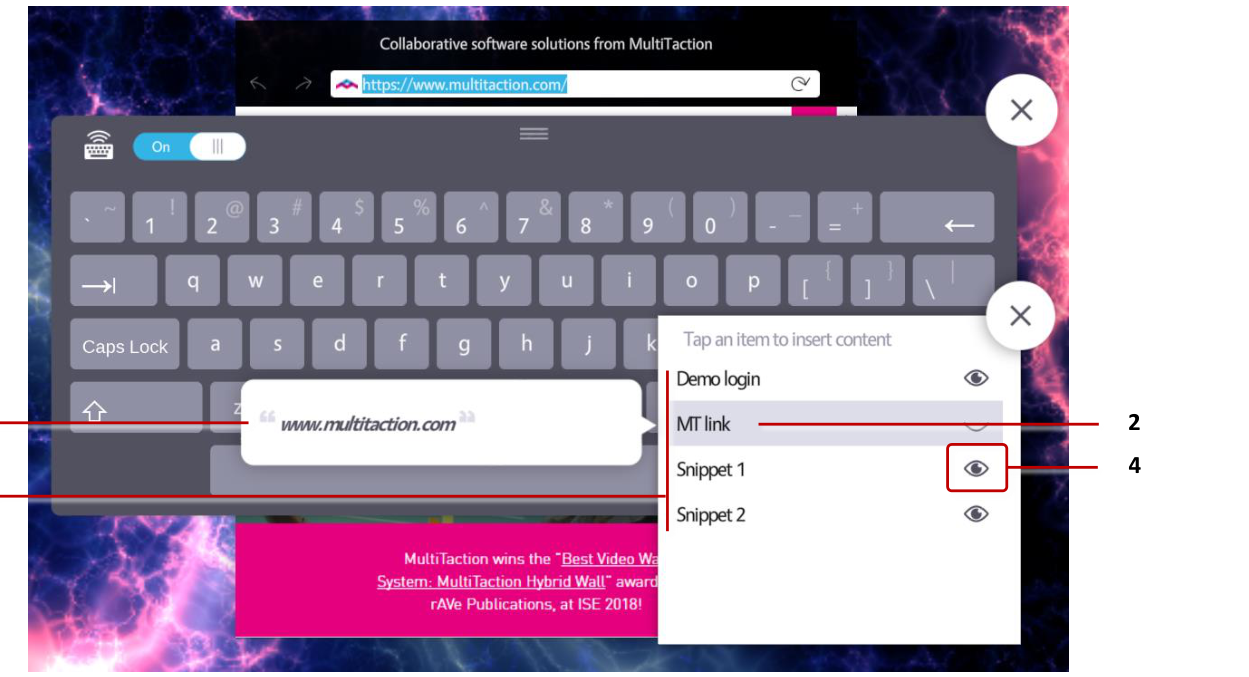
When the app's service set has a Snippets service, the on-screen keyboard shows a snippets list button. Tap it to open the list of snippets.
Tap a snippet to insert its text into the text field. Tap the eye button next to a snippet to see the text it inserts.