Alerts
SiteManager turns display states and check results into alerts. A rule decides when something is an alert, and channels deliver it by email, webhook or syslog. A log records what happened.
For step-by-step help, see Day-to-day care.
Open Alerts in the menu. The alert pill in the black band on every page shows the active alerts by severity, for example 2 warnings, or No alerts. The page has four parts: active alerts, rules, delivery channels and recent events.

Active alerts
Active alerts shows the alerts that are open now as cards: the severity, the display's label and serial number, the message and when it started. Select Acknowledge to record that you have seen an alert. Acknowledging does not close the alert and does not stop it. The alert closes when the condition is gone.
An alert marked restored was read back from the alert log after the service restarted. It stays until the next reading of the display confirms or clears it.
Rules
A rule has a kind, a severity (info, warning or critical) and a wait time. An alert starts only after its condition has lasted for the wait time, and it clears only after the value has moved past a margin (the hysteresis). A value that hovers around the limit does not make the alert flap.
SiteManager starts with these rules. You can change them, switch them off, or add up to 64 rules.
offline, critical: the display is offline, answers as a different display, or cannot be identified, and has not given a good reading for 60 seconds. It clears when the display answers, and sends the all-clear.temperature, warning: the VM temperature is over 60 °C for 120 seconds. It clears when the temperature falls to 57 °C or lower.temperature-critical, critical: the VM temperature is over 70 °C. There is no wait, so it fires on the first reading. It clears when the temperature falls to 68 °C or lower. It means the display has already dimmed.frame-rate, warning: the camera or the tracker runs under 100 frames per second for 60 seconds. It clears when the rate rises to 105 or more.tracker-restarts, warning: the tracker restarts 3 times within 600 seconds. It clears when the restarts in the window fall below the threshold.profile-drift, warning: a drift check finds settings that differ from the profile. It clears when the next check finds the display right again.config-drift, warning: a drift check finds a Cornerstone file that differs from what the site generates. It clears when the next check finds the file right again.firmware-reverted, critical (named Firmware went back), no wait: a display runs its previous firmware again after an update, because the new firmware did not start properly and the display fell back, or it runs another firmware than SiteManager installed. The message names the display and says to try the update again, and to collect diagnostics and contact MultiTaction support if it happens again. It clears when that display next updates successfully or a later check finds the new firmware confirmed, or when you acknowledge it. Notifications carry it with the subject Firmware went back. When SiteManager is upgraded, this rule is added once to alert settings that already exist, and a rule you delete stays deleted. See After the update: the re-check.display-security, critical (named Display security): a display's connection or access needs a look. The display's identity changed, it came back from older firmware, its encrypted connection is gone, it refuses SiteManager's key, it was reset on its own menu, or SiteManager cannot read the file that holds the keys. The message says what happened and what to do. Returning from older firmware, and a lost encrypted connection when SiteManager holds no key, raise it as a warning. It clears when the state is fixed and sends the all-clear. When SiteManager is upgraded, this rule is added once to alert settings that already exist, and a rule you delete stays deleted. See Display security.
The temperature limits follow the display's own. At 70 °C the display dims its backlight to 10 percent. At 75 °C it powers itself off. A healthy display reads between 39 and 45 °C. Displays report their temperature about once a minute. So the 120 second wait of the warning spans about two readings, and the critical alert can come up to a minute after the display crossed 70 °C.
A site that already has saved alert rules keeps them. It does not gain temperature-critical or the new temperature numbers by itself. Add or edit them on this page.
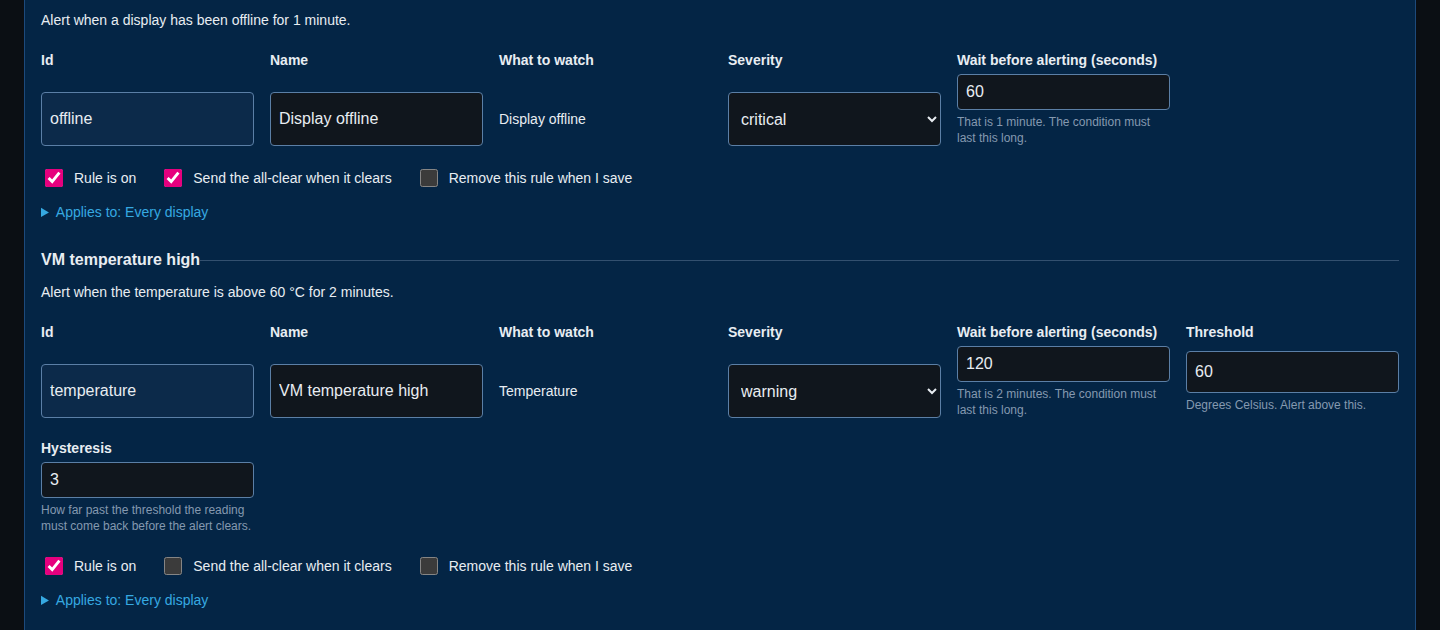
An administrator edits rules on this page. Each rule is a card with a one-line summary, for example Alert when the temperature is above 60 °C for 2 minutes. The card has these fields, depending on its kind:
- Id and Name: the rule's identifier (fixed after creation) and its name.
- What to watch: the kind of the rule.
- Severity:
info,warningorcritical. - Wait before alerting (seconds): how long the condition must last, from 0 to 86400.
- Threshold: the limit, in degrees Celsius, frames per second or restarts.
- Hysteresis: how far the value must move back before the alert clears. It applies to temperature and frame-rate rules.
- Window (seconds): for
tracker-restarts, the time window, from 60 to 86400. - Frame rate to watch: for
frame-rate, the camera, the tracker or either. - Rule is on, Send the all-clear when it clears and Remove this rule when I save.
- Applies to: limit the rule to some walls or displays. Leave both empty to cover every display.
Select Add a rule to add a card at the end, then Save rules.
Delivery channels
A channel sends alerts somewhere. You can set up to 16 channels. Each has a lowest severity it will send, so you can send only critical alerts to a pager and everything to a log.
emailsends a message through an SMTP server. Settings: Mail server, Port, Security (starttls,tlsornone), From address, Recipients, separated by commas, and an optional User name and Password. If you leave Port empty, it is 587 forstarttls, 465 fortlsand 25 fornone.webhooksends an HTTP POST with a JSON body. Settings: Address, an optional Header name and Header value (for exampleAuthorization), and an optional Signing secret.syslogsends a syslog message from the service itself to a collector you choose. Settings: Address ashost:port, Protocol (udp,tcportls), Facility (0 to 23) and App name. The format is RFC 5424.
For encrypted connections you can add Extra certificate authorities in PEM format, for a private authority. You can also tick Do not check the server's certificate. Use that only on a network you trust: anyone on the path could read the alerts and any password sent.
Credentials, meaning the SMTP password, the webhook address, the header value and the signing secret, are write-only. After you save them, SiteManager never shows them again, in the page, the API, the command line, the logs or a diagnostics bundle. A box left empty keeps the stored value. To remove a credential, tick the matching clear box, for example Clear the password. A webhook address is shown to others only as scheme and host. A webhook address can use plain HTTP or HTTPS. Use HTTPS, because with plain HTTP anyone on the path can read the alerts.
Each channel has two buttons:
- Send a test message sends one message through the channel at once. It works even when the channel is disabled, and it does not count towards the limit of 10 messages. You can send one test message every 5 seconds for each channel.
- Remove channel deletes it.
Under each channel, the page shows how many messages were sent and failed, and the last error.
Delivery limits
- A temporary failure is tried up to 3 times, after 5 seconds and then 30 seconds. A permanent refusal, such as an HTTP 4xx answer other than 408 or 429, is not tried again. A webhook answer that is not a success counts as a failure, and redirects are not followed.
- Each channel sends at most 10 messages in 10 minutes. After that, messages are held and sent as one summary message when the window ends. The status shows how many were held, failed or lost.
Webhook messages
A webhook request is a POST with Content-Type: application/json. The body holds the event:
{
  "event": {
    "time": "2026-10-11T18:23:34Z",
    "type": "fired",
    "alert": {
      "id": "a-1b2c3d4e",
      "rule": "temperature",
      "kind": "temperature",
      "severity": "warning",
      "subject": "R0000001A",
      "message": "...",
      "started": "2026-10-11T18:21:34Z"
    }
  },
  "site": "Site",
  "display": "lobby-left (R0000001A, 192.0.2.11)",
  "serial": "R0000001A",
  "address": "192.0.2.11",
  "serviceUrl": "https://wallpc:8790/"
}
The event type is fired or resolved. A message that stands for several held-back ones carries a digest count. A test message carries "test": true.
If you set a signing secret, every request also carries two headers:
X-SiteManager-Timestamp: the time in Unix seconds;X-SiteManager-Signature:sha256=followed by the hex HMAC-SHA256 of the timestamp, a dot and the request body, with your secret as the key.
Compute the same value on your side, compare it, and reject requests whose timestamp is too old.
In network mode, the address in serviceUrl is the one set by the --public-url option of the service, which defaults to https://<computer name>:<port>/. In local mode there is no --public-url, and the address is http://127.0.0.1:<port>/ by default.
Recent events
Recent events lists what the alert log holds: alerts that fired, were resolved, were acknowledged, or were not listed because too many were active. The log is the file alerts.log in the state directory, with up to two older files kept.
If alerts are not working, the page says Alerts are off and gives the reason, and the alert pill reads Alerts off.
Who can change alerts
Everyone who can use SiteManager can see alerts. In network mode that means everyone who can sign in; in local mode it is everyone at the computer, who are all administrators. A viewer sees the rules read-only and the channels as a summary. Changing rules or channels, sending a test message and acknowledging an alert needs a user who may change the site, an administrator.
From the command line, use sitemanager alerts. See Command reference.