Diagnostics and capabilities
For step-by-step help, including where the service log is, see Logs and diagnostics.
Diagnostics bundle
When you contact support, attach a diagnostics bundle. It is one download that collects what support needs from the displays and from the service.
Open Diagnostics in the menu, tick the displays you want, and select Download bundle. Under Files from this computer you can also tick the MultiTaction products whose configuration files and logs support should see (see Files from this computer). None is ticked at first. Any user may collect a bundle, including a viewer, so customer staff can attach one to a support case. A viewer cannot include crash dumps; only an administrator can. The request is written to the audit log, with the product categories named.
What is in the bundle
The bundle is one zip file. These are the files it can contain.
At the top of the zip
manifest.json: every item in the bundle and whether it isok,truncated,failed,timeoutorskipped. A display with no SiteManager interface is listed as skipped.
From the service, in the service/ folder
service/site.json: the site file (displays, walls, rooms, profiles), with touch secrets masked.service/generated/screen.xml,service/generated/config.txtandservice/generated/mt-canvus.ini: the Cornerstone files SiteManager would write now. A file is missing when the layout has errors or nothing is placed yet; the manifest says why.service/on-disk/screen.xml,service/on-disk/config.txtandservice/on-disk/mt-canvus.ini: the same three files as they are on this computer at the moment.service/sitemanagerd.log: the end of the service log (up to the service-log limit).service/alerts.log: the most recent alert events.service/alerts-active.json: the alerts that are active now.service/polling.json: how often SiteManager is reading each display, and when it last did.service/version.txt: the SiteManager version.
For each display you tick, in a displays/<serial>/ folder
info.json: its identity (model, serial, firmware, addresses).status.json: its live status (temperatures, frame rates, video signal).firmware.json: its firmware version.unsaved.json: settings that are changed but not saved on the display.capabilities.json: what the display's interface offers.settings/<group>.json: one file for every settings group.tracker/schema.jsonandtracker/params.json: the touch tracker's schema and parameters.syslog.txt: the display's system log.diagnostics.gz: the display's own diagnostics dump.errors.txt: what could not be read from this display, and why. Present only when something failed.
SiteManager only reads. It never writes anything to a display to make a bundle.
Files from this computer
These files are in the bundle only if you ask for them. They come from the computer SiteManager runs on, not from the displays. In the zip they are under computer/<category>/<place>/, for example computer/canvus/user-config/mt-canvus.ini. Not every file exists on every computer. A category whose product is not installed is one skipped line in manifest.json, computer/<category>/, whose note starts with not found and lists the places SiteManager looked. Each file's line in the manifest has a source that says where on this computer it was read from.
The five categories are canvus, canvus-server, showcase, launcher and crash-dumps. In this list, <home> is the home folder of the Cornerstone user (the user whose mt-canvus.ini SiteManager writes; see The Cornerstone user), and %ProgramData% is normally C:\ProgramData.
canvus (MultiTaction Canvus)
computer/canvus/user-config/mt-canvus.ini: the Cornerstone user'smt-canvus.ini. Linux:<home>/MultiTaction/canvus/. macOS:<home>/Library/MultiTaction/canvus/. Windows:<home>\AppData\Roaming\MultiTaction\canvus\.computer/canvus/system-config/mt-canvus.ini: the system-wide one. Linux and macOS:/etc/MultiTaction/canvus/. Windows:%ProgramData%\MultiTaction\canvus\.computer/canvus/cornerstone-user/audio-config.xmlandaudio-devices.xml: from the user's Cornerstone folder. Linux:<home>/.MultiTouch/. macOS:<home>/Library/MultiTouch/. Windows:<home>\AppData\Roaming\MultiTouch\. (The user'sconfig.txtandscreen.xmlare inservice/on-disk/already.)computer/canvus/cornerstone-system/config.txt,screen.xml,audio-config.xmlandaudio-devices.xml: from/etc/MultiTaction/(Linux and macOS) or%ProgramData%\MultiTaction\(Windows).computer/canvus/logs/: Canvus's own logs. Linux and macOS, from<home>/MultiTaction/canvus/logs/:mt-canvus-*.log,mt-canvus-*.txt,mt-canvus-daemon-log*.txt,mt-canvus-macos.logandlog*.txt. Windows, from<home>\AppData\Local\MultiTaction\canvus\logs\:mt-canvus-*.log.computer/canvus/pipeline-logs/mt-canvus-<version>/*.log: the logs of the launcher's Canvus pipeline. Linux and macOS:<home>/MultiTaction/mt-canvus-<version>/logs/. Windows:<home>\AppData\Local\MultiTaction\mt-canvus-<version>\logs\.
canvus-server (MultiTaction Canvus Server)
computer/canvus-server/system-config/mt-canvus-server.ini: from/etc/MultiTaction/canvus/(Linux and macOS) or%ProgramData%\MultiTaction\canvus\(Windows).computer/canvus-server/env-config/<file>: the file named by theMT_CANVUS_SERVER_CONFIGsetting, when the service has that setting.computer/canvus-server/logs/mt-canvus-server-*.log: the folder named bylog-pathin the ini; if there is none,/var/lib/mt-canvus-server/logs/server(Linux and macOS) or%ProgramData%\MultiTaction\canvus\logs\server(Windows).- Windows only:
computer/canvus-server/installer-log/installer.logandcomputer/canvus-server/logs-default/mt-canvus-server-*.log, both from%ProgramData%\MultiTaction\canvus\logs\. - The folders that hold the server's certificate and licence keys are looked at only to list the private keys in them as left out.
showcase (MultiTaction Showcase)
- Linux:
computer/showcase/operator-config/production_users.yaml(from/etc/MultiTaction/mt-showcase/server/),computer/showcase/packaged-config/<folder>/production.yamlandproduction_users.yaml(from/opt/mt-showcase-*/server/),computer/showcase/logs/*.log(from/var/lib/mt-showcase-server/MultiTaction/showcase/logs/). - Windows:
computer/showcase/install-server/withproduction.yaml,production_win.yaml,production_macos.yamlandproduction_users.yamlas they exist (fromC:\Program Files\MT Showcase\server\), andcomputer/showcase/logs/*.log(from%ProgramData%\MultiTaction\showcase\logs\). - macOS:
computer/showcase/app-server/<app>/production_macos.yamlandproduction_users.yaml(from inside/Applications/MT *.app/Contents/Resources/server/),computer/showcase/app-player/<app>/showcase-config.json(from/Applications/MT *.app/Contents/Resources/) andcomputer/showcase/logs/showcase.log(from<home>/.mt-showcase/). - All systems:
computer/showcase/player-cache/mt-showcase-cache.iniandcomputer/showcase/player-logs/*.log. Linux and macOS:<home>/MultiTaction/showcase/cache/and<home>/MultiTaction/showcase/logs/. Windows:<home>\AppData\Local\MultiTaction\showcase\cache\and...\showcase\logs\. computer/showcase/pipeline-logs/mt-showcase-<version>/*.log: the logs of the launcher's Showcase pipeline, in the same place as the Canvus pipeline logs above.- Showcase's key folders are looked at only to list private keys as left out.
launcher (MultiTaction launcher)
computer/launcher/user-config/launcher.ini. Linux and macOS:<home>/MultiTaction/launcher/. Windows:<home>\AppData\Roaming\MultiTaction\launcher\.computer/launcher/system-config/launcher.ini: from/etc/MultiTaction/launcher/(Linux and macOS) or%ProgramData%\MultiTaction\launcher\(Windows).computer/launcher/user-pipelines/andcomputer/launcher/system-pipelines/: the*.pipelineand*.inifiles of theappsfolder next to each of those twolauncher.inifiles.computer/launcher/logs/:launcher-*.log, and on macOSmt-launcher-macos.log. Linux and macOS:<home>/MultiTaction/launcher/logs/. Windows:<home>\AppData\Local\MultiTaction\launcher\logs\.computer/launcher/pipeline-logs/<name>/*.log: the logs of the launcher's other pipelines. The Canvus and Showcase pipelines are filed under their own category.
crash-dumps (administrator only)
- Linux:
computer/crash-dumps/breakpad/*.dmp(from<home>/cornerstone-crash-dumps/) andcomputer/crash-dumps/breakpad-canvus-server/*.dmp(from/var/lib/mt-canvus-server/cornerstone-crash-dumps/). - Windows:
computer/crash-dumps/crashpad/(from<home>\AppData\Local\MultiTaction\CrashDumps\, with its report folders),computer/crash-dumps/windows-error-reporting/(from<home>\AppData\Local\CrashDumps\), and the same two for the system account,crashpad-system-account/andwindows-error-reporting-system-account/(from the system account's profile underC:\Windows\System32\config\systemprofile\AppData\Local\). - macOS: none. Canvus and Showcase keep no crash dumps there, and the manifest says so.
SiteManager only opens these files to read them. It does not follow symbolic links, and on Windows it reads files in a way that never blocks a product that is rotating or deleting its log.
Who can include them
Anyone who can take a bundle can include canvus, canvus-server, showcase and launcher. Only an administrator can include crash-dumps, because a crash dump is a copy of the program's memory and cannot be cleaned of secrets. In local mode everyone is an administrator. In network mode a viewer sees that box greyed out, with the reason. A viewer who asks for crash dumps from the command line or the API (or for all) is refused, and nothing is collected.
Passwords and other secrets
SiteManager replaces every secret it knows of with * characters of the same length: passwords, tokens, and the credentials of alert channels and profiles. It also masks every value under a key whose name looks like a secret. This applies to settings, configuration files, logs, and inside the display's own dump. Display access keys are never in a bundle.
In the files from this computer, SiteManager replaces with <hidden>:
- the value of a key named like a password, secret, token, key, auth, credential, licence or connection string;
- the password in a connection string, and the user name and password in a web address;
- the path of a webhook address (Slack, Teams, Discord and the like);
- an
Authorizationheader and any bearer token, and the value of a parameter namedauth,sid,sig,signatureorsession; - the arguments of a launcher pipeline that are named for a secret.
Logs are cleaned line by line. Files that are private keys (*.key, *.p12, *.pfx, *.jks, *.keystore, *.ppk, id_*, *.key.pem, private-key.pem, *-report-key.pem, .auth-kek, and a *.pem that holds a private key) are never read. The manifest lists them as left out: private key. A private key block inside a text file is replaced.
What masking cannot do. A crash dump is a copy of a program's memory, so it can hold a password, a key or a document that no rule can find. In crash dumps SiteManager replaces only the secrets it holds itself. A bundle with crash dumps is confidential: send it only to MultiTaction support, by the way they tell you.
The display's own dump comes from the display, and may hold a secret that SiteManager does not know about. Treat a bundle as confidential and send it only to support.
What is cut
Every product file is limited, and manifest.json has a note for each cut. Newest files come first.
- A configuration file over 1 MiB is skipped. A category keeps at most 200 configuration files and 8 MiB of them.
- A log keeps its last 8 MiB. A category keeps at most 40 logs and 32 MiB of them.
- Crash dumps: the newest 5, a dump over 64 MiB is skipped, and all dumps together stay under 256 MiB.
- A folder with more than 5000 matching files, or a place with more than 500 folders, is looked at newest first, and the manifest says so.
A log that was cut to its last part makes the bundle "not complete" (the command line exits with 2). A file skipped for its size, one skipped because newer ones came first, not found, and no permission to read do not.
A product's folder is often private to that product. A folder or file the service has no permission to read is a skipped item in the manifest with the note no permission to read <path>. It is not a failure, and it does not make the bundle incomplete or the command exit with 2. If support needs that file, send it to them yourself. The 2 GiB limit of the whole zip still applies.
How long it takes
Every item is limited in time and size, so a slow display produces a timeout or truncated entry in the manifest instead of making you wait without end.
- Displays in one bundle: 64
- Time for one display: 150 seconds
- Each display's diagnostics dump: 90 seconds and 256 MiB
- The whole zip: 2 GiB
- Bundles at once: 1. A second request is refused until the first has finished.
Displays are read four at a time. One display is usually done in under a minute, and a full bundle of 64 displays can take about 40 minutes.
While a bundle is built, the dumps wait in a temporary folder in the state directory. A folder left behind by a crash is deleted the next time the service starts.
From the command line
sitemanager diagnostics --out bundle.zip
sitemanager diagnostics --displays R0000001A,R0000002A
sitemanager diagnostics --include canvus,launcher --out bundle.zip
--include takes canvus, canvus-server, showcase, launcher, crash-dumps, or all, separated by commas. The JSON API takes the same names in the include parameter of GET /api/v1/diagnostics/bundle.
See Command reference for direct mode and the exit codes.
Capabilities
The Capabilities page shows what each display's firmware says its interface can do. You reach it from the link at the bottom of the overview, and each display page has a Capabilities section.
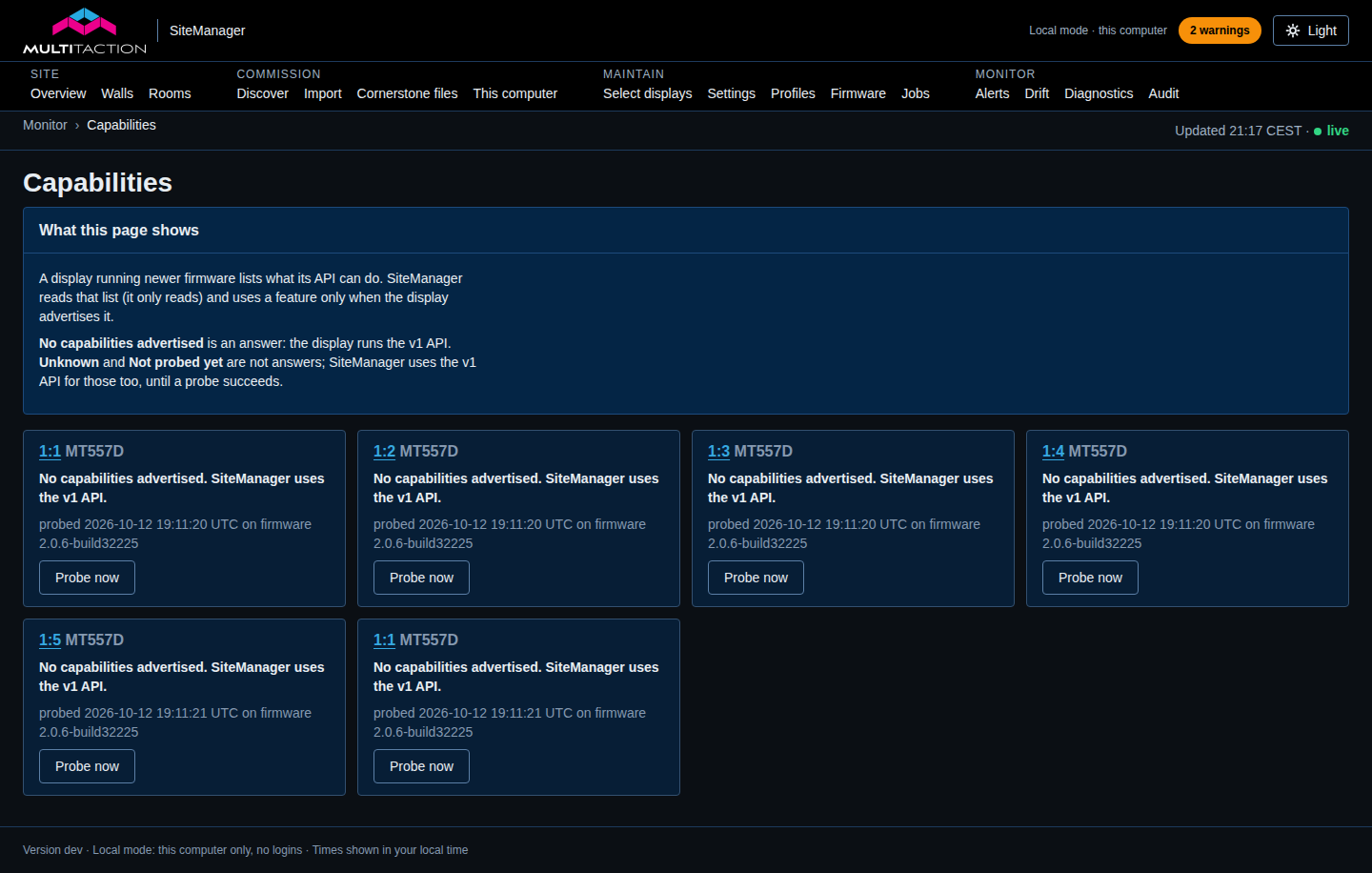
SiteManager asks a display for its list of capabilities, only reading, and uses a feature that needs one only when the display advertises that exact capability. SiteManager works with a display that advertises nothing, through the standard display interface. A feature that needs a capability is used only on displays that advertise it.
For each display the page shows one of four states.
- none: the page says No capabilities advertised. SiteManager uses the v1 API. The display answered, and its firmware advertises nothing. SiteManager uses the standard display interface, which the page calls the v1 API. This is an answer, not a problem.
- advertised: the page shows the list of capabilities, with the API and firmware versions. The display listed what it can do. An entry SiteManager does not know is listed as not used by this SiteManager.
- unknown: the page says Unknown: and the reason. The probe could not tell: a timeout, another display at that address, an error reply, or a reply that could not be read. Nothing is known about this display.
- not probed: the page says Not probed yet. No probe has finished yet. Nothing is known.
unknown and not probed are never shown as No capabilities advertised.
A display is probed when it is added, when the service starts, when its firmware version changes, and when you select Probe now. The service also checks every online display once a minute and probes the ones that need it. A discovery reply that shows changed capabilities starts a probe too. A display in the unknown state is tried again at most every 5 minutes while it is online. A request made within 10 seconds of the last probe of the same display returns the stored result. The results are kept in memory only, so after the service restarts every display reads not probed for a few seconds until it is probed again.
From the command line:
sitemanager capabilities
sitemanager capabilities R0000001A --probe
See Command reference.