Schedules
You can control when apps and widgets run by creating scheduled events.
- App events say when an app runs. For example, you can run a particular app every Monday morning. When a scheduled app starts, it replaces the app on the screen. A countdown can warn visitors before it starts, and you can let them cancel it. You manage app events on the App Schedule page.
- Widget events say when a widget is active. For example, a video viewer can play a film at the same time every day. You manage widget events on the Widget Schedule page and assign them to widgets in a structure.
Note
While a scheduled app is running, visitors can still switch to another app with an App switcher, and you can still choose a different app for the player on the Dashboard.
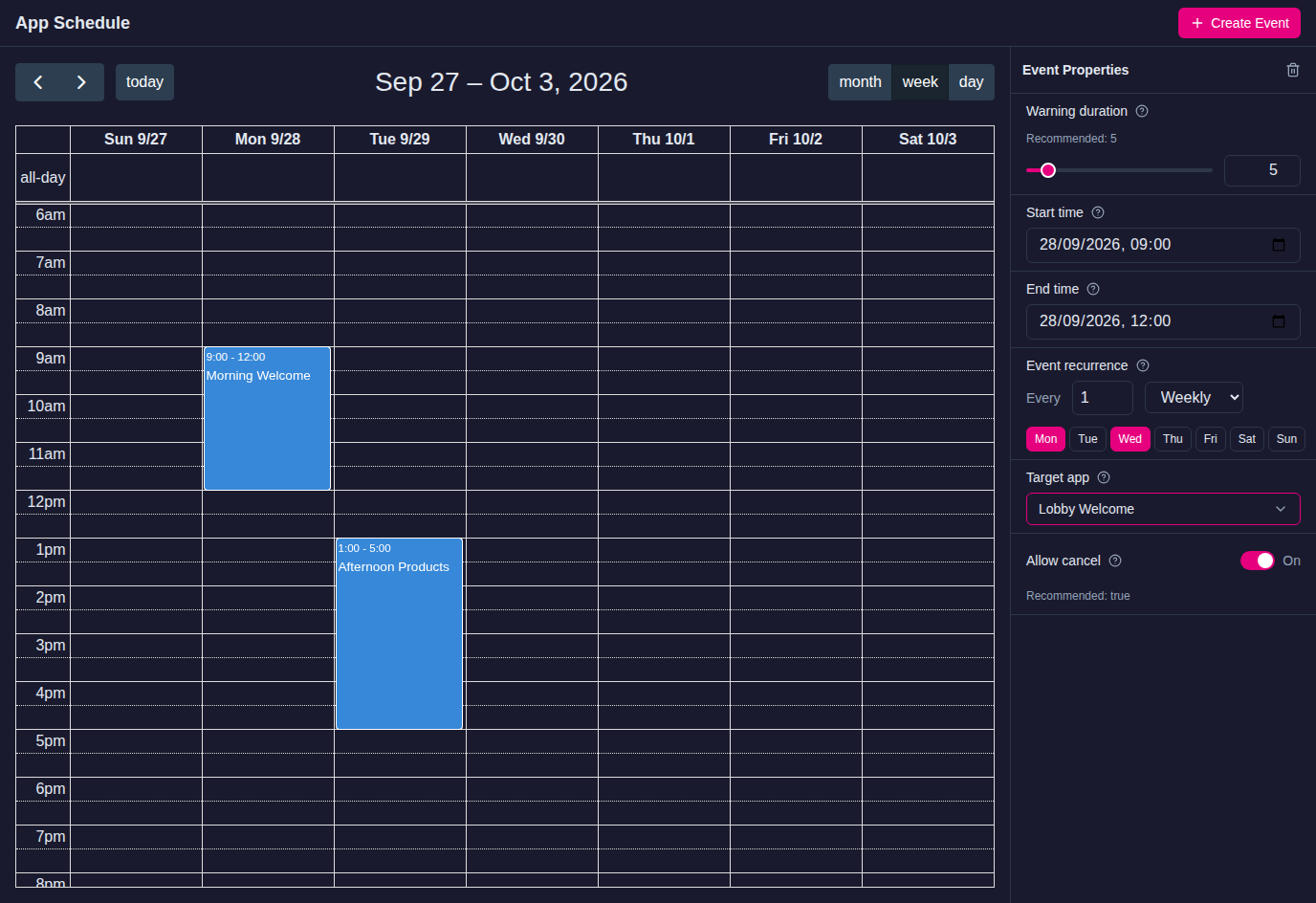
Both schedule pages show a calendar. Use the arrows and today to move through it, and switch between month, week and day views. Changes save automatically.
Create an app event
An app event runs one app. To run several apps on a schedule, create one event for each.
- Click App Schedule in the left navigation.
- Click Create Event.
- In the Create Event dialog, enter a Name, set the Start and End date and time, and click Create.
- Click the event in the calendar. Its settings appear in the Event Properties panel:
- Start time and End time: when the app starts, and when its scheduled time ends.
- Event recurrence: how often the event repeats: every so many days, weeks, months or years. For a weekly repeat, choose the days of the week.
- Target app: the app that runs.
- Warning duration: how long, in seconds, the countdown is shown before the app starts. The default is 5. Set it to 0 to start the app with no warning.
- Allow cancel: shows a Cancel button on the countdown so visitors can cancel the scheduled app. On by default.
The target app now runs automatically at the scheduled times.
Note
A scheduled app keeps running after its End time until someone switches to another app or another scheduled app replaces it. The End time matters when MT Showcase starts in the middle of an event: MT Showcase uses the start and end times to work out whether the app should be running now, and if so starts it.
Create a widget event
A widget event sets when a widget is visible or active. A widget can have one event, but you can assign the same event to several widgets. For example, one event can play a particular film and show a matching background at the same times each day.
- Click Widget Schedule in the left navigation.
- Click Create Event.
- In the Create Event dialog, enter a Name (for example Monday morning), set the Start and End date and time, and click Create.
- Click the event in the calendar and set its Start time, End time and Event recurrence in the Event Properties panel. The widget becomes active at the start time and stops or closes at the end time.
To see only the events used in one app, choose its structure in Filter by structure.
Assign a widget event
- Click Structures and select the structure.
- Select the widget in the structure tree, for example a Video viewer in the Main layer.
- In its attributes, open the Schedule drop-down list and choose the event, for example Monday morning.
The widget now appears only while the event is active. To remove the schedule, choose — None —. To go to the Widget Schedule page from here, choose + Manage schedules....
Widgets in the Overlay layer, Menu layer, Main layer and Background layer can have a schedule.
Edit or delete an event
- Click App Schedule or Widget Schedule.
- Click the event in the calendar.
- Change its settings in the Event Properties panel. To delete it, click the delete (trash) button at the top of the panel and confirm with Delete. Deleting an event cannot be undone.