Bezel compensation
On video walls, bezels (also known as mullions) break up the continuous appearance of content that is scaled across multiple displays. Bezel compensation makes up for the width of the display bezels. Bezel compensation is optional.
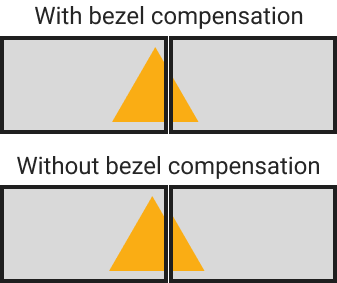
With bezel compensation, an image that spans multiple displays appears normal, as if it is located "behind" the bezels. Most installations use bezel compensation, because the visual appearance matters and it does not matter if small parts of the content are hidden behind the bezels.
For applications where every pixel must be visible, leave bezel compensation out. Every pixel is then viewable and no content is ever hidden behind the bezels.
How it works
Bezel compensation adds a gap of invisible pixels between neighbouring displays, as wide as the bezels. MultiTaction Canvus renders the canvas across the whole area, including the gaps, and the pixels in the gaps are never shown.
You set the gaps at two levels:
- Between displays on the same GPU: in the operating system display layout (NVIDIA Mosaic on Windows, the X Screen layout on Linux).
- Between GPUs: in
screen.xml, with thegraphicslocationof each area.
Work out the gap in pixels
- Measure the distance between the visible image of one display and the visible image of the next, in millimetres. This is the width of both bezels together.
- Divide it by the pixel pitch of the display (the size of one pixel in millimetres) and round to a whole number.
The example configurations use a gap of 8 px.
Set the gap between displays on the same GPU
Windows
Give the gap with the bezel= option of configuremosaic when you create the Mosaic group. For a row of three portrait displays with an 8 px gap:
configuremosaic set rows=1 cols=3 out=0,0 out=0,1 out=0,2 rotate=270 bezel=8,0
Mosaic then reports a desktop that is wider than the displays by the gaps. See display layout in Windows.
Linux
Place each display inside the X Screen with an offset that includes the gap. In the metamodes option of xorg.conf, the position of each display is the position of the previous one plus its width plus the gap. For three portrait displays 1080 px wide with an 8 px gap:
Option "metamodes" "DP-6: 1920x1080 +0+0 {rotation=right}, DP-4: 1920x1080 +1088+0 {rotation=right}, DP-0: 1920x1080 +2176+0 {rotation=right}"
1080 + 8 = 1088, and 1088 + 1080 + 8 = 2176. The X Screen is then 3 × 1080 + 2 × 8 = 3256 px wide. See display layout in Linux.
Warning
Do not add gaps between X Screens. This can make the system unstable and can stop the mouse pointer from moving between X Screens. Set the gap between GPUs in screen.xml instead.
Set the gap between GPUs
Each GPU has its own window in screen.xml. Use the graphicslocation of the area in each window to start that window's part of the canvas one gap further on. The value is in application graphics coordinates.
For a 5 × 1 wall of portrait displays with an 8 px gap, the first GPU drives three displays (3256 px wide, as above) and the second GPU drives two (2 × 1080 + 8 = 2168 px wide). The area of the second window starts at 3256 + 8 = 3264:
<GPU2 type="window">
  <location>3256 0</location>
  <size>2168 1920</size>
  <Area1 type="area">
    <location>0 0</location>
    <size>2168 1920</size>
    <graphicslocation>3264 0</graphicslocation>
  </Area1>
  <frameless>1</frameless>
</GPU2>
See graphics coordinates and screen.xml file format.
Bezels are not seams
The seams attribute in screen.xml is for projectors. It makes neighbouring areas render an overlapping band and blends it. Do not use seams for display bezels. See display layout in Linux.
Touch input
Set the input-translate of each touch source in config.txt to the location of its display in graphics coordinates, including the gaps, so that a touch lands where the content appears. See input mapping.