First-Run Setup
MT Showcase has no default user name or password. Before anyone can use the Editor, you create the first administrator account in the setup wizard. Until that account exists, the server offers only the setup wizard.
Do this as soon as MT Showcase is installed.
Run the setup wizard
The setup wizard can be completed only in a web browser on the application computer itself. Setup requests from other computers are refused, so nobody else on the network can create the first administrator.
-
On the application computer, open a web browser and go to:
- Ubuntu and Windows: https://localhost/editor/
- macOS: https://localhost:8443/editor/
Use
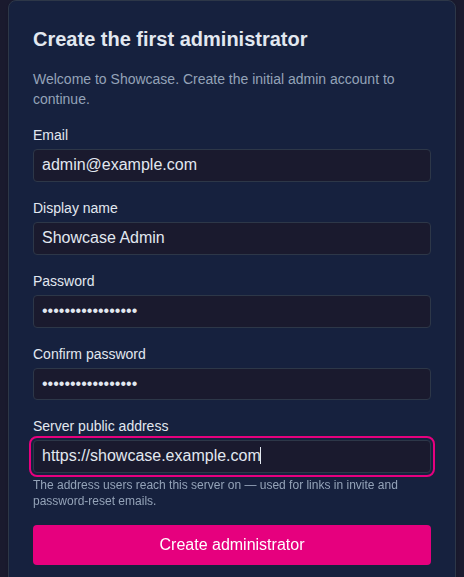
localhostexactly. The computer's network addresses, such as the ones listed on the MT Showcase welcome screen, are refused for setup even in a browser on the application computer, and the wizard then reports Could not create admin: setup_create_failed:403. Once the administrator exists, those addresses work normally.The page Create the first administrator opens.
-
Enter:
- Email: the administrator's email address. It is the user name for signing in.
- Display name: the name shown in the Editor.
- Password and Confirm password: at least 12 characters.
- Server public address: the address other people use to reach this server, for example
https://showcase.example.comorhttps://192.0.2.10. It is used in the links in invitation and password-reset emails.
Change the public address from localhost
The Server public address field starts with the address you opened the wizard on, such as
https://localhost. Replace it with the application computer's network address or DNS name. Otherwise the links in invitation and password-reset emails point atlocalhostand do not work for anyone else. You can change it later in Network & Public Access. -
Click Create administrator.
The Editor sign-in page opens. Sign in with the email address and password you just set. The setup wizard cannot be used again once an account exists.
Headless installations
If the application computer has no screen or browser you can use, you have two options:
- Create the administrator from the command line. On the application computer, run
showcase-server users:create-admin; see Server CLI. Then sign in to the Editor from any computer and set the public address in Network & Public Access. -
Allow setup from another computer, temporarily. Add this line to
production_users.yamland restart the MT Showcase server:setup_allow_remote: trueComplete the setup wizard from another computer, then remove the line and restart the server again. Complete setup before the application computer is connected to a shared network. For the file location, see File locations.
After setup
- License MT Showcase, so that the MT Showcase client can run.
- Set up email, so that invitations and password resets can be sent.
- If designers will use the Editor from other computers, set the public addresses and certificate.
- Invite your designers and give each one a role.
Lost administrator access?
If nobody can sign in as an administrator, create a new administrator or reset a password with the server CLI on the application computer.