macOS
This section describes the steps required to install the Canvus client on macOS.
Note
On macOS, the Canvus client requires macOS 13 (Ventura) or later on Apple Silicon (ARM64). Intel Macs are not supported. Nothing else needs to be installed — the application bundle ships every library it needs.
The client is distributed as a .dmg disk image, signed with a MultiTaction Developer ID and notarized by Apple.
Install Canvus client
To install the Canvus client:
-
Browse to the MultiTaction Downloads page:
a. Register on the MultiTaction apps web site: https://apps.multitaction.com/ b. Launch a browser on the designated application computer and log on to the MultiTaction web site (see step 1.a). c. Browse to the macOS downloads page.
-
Download the Canvus client
.dmgdisk image. The file name has the formmt-canvus-client-<version>-macOS-arm64.dmg. -
Double-click the downloaded
.dmgto open it. A window appears containing the MT Canvus application, an Applications shortcut, and a short install guide.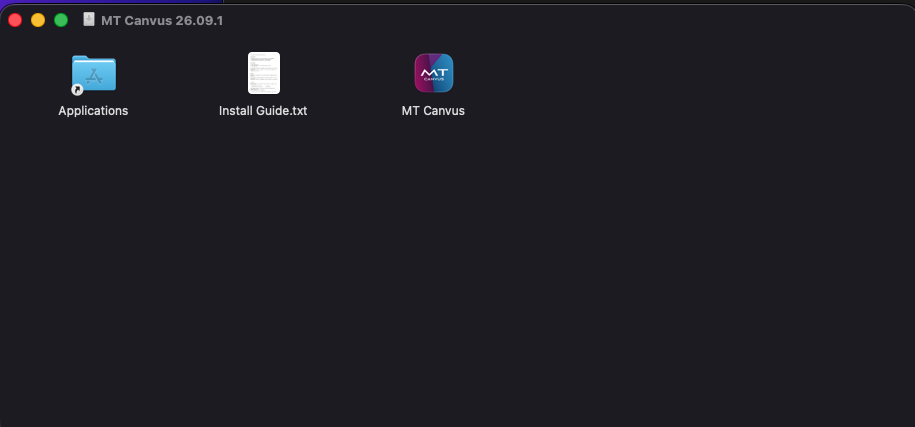
-
Drag MT Canvus onto the Applications shortcut. The client is installed to
/Applications/MT Canvus.app. -
Eject the disk image.
Upgrading
If an older MT Canvus is already installed, drag it to the Bin before copying the new one across. Your canvases, settings and licenses live outside the application and are not touched by removing it.
Never copy files into the application bundle
Nothing is ever written inside MT Canvus.app. Adding or changing files there breaks the code signature, after which macOS refuses to open the application and reports that it is damaged. Configuration belongs in ~/MultiTaction/canvus/ — see Where are my files?.
Verify the install
Run the following checks in Terminal to confirm the application is intact and accepted by macOS:
# Signature — should print "satisfies its Designated Requirement"
codesign --verify --deep --strict --verbose=2 "/Applications/MT Canvus.app"

# Gatekeeper assessment — should print "accepted" and "source=Notarized Developer ID"
spctl --assess --type execute --verbose "/Applications/MT Canvus.app"
Start or stop Canvus client
This section describes how to start and stop the Canvus client.
To start Canvus client:
- Double-click MT Canvus in the Applications folder (or launch it from Spotlight or Launchpad).
First launch
The first time the application is opened, macOS briefly shows "Verifying…" while it checks the notarization ticket. This happens once and takes a few seconds.
Launch the application, not the binary inside it
The bundle also contains the raw binary at /Applications/MT Canvus.app/Contents/MacOS/mt-canvus-app. Do not run it directly for normal use. The wrapper that macOS runs when you open the application sets up the environment the client depends on:
- points the asset search path at the bundle's
Contents/Resources - sets the Qt plugin path so the platform plugin is found
- loads the bundled
gflagsinterposer, without which the process exits during start-up - passes the required browser flags for the embedded web view
- writes console output to
~/MultiTaction/canvus/logs/mt-canvus-macos.log
Running the binary directly is only useful for the command-line licensing options described below.
To stop the client:
With the Canvus client window focused, press Cmd-Q, or use the Exit control in the Canvus user interface.
After the Canvus client has started, log entries record client activity. For details about where to find the log files, see client-log-file.
Activate your license
Canvus will not start without a valid license. If no valid license is found, the activation wizard opens automatically when you launch the client.
You can also activate from Terminal:
"/Applications/MT Canvus.app/Contents/MacOS/mt-canvus-app" --activate <KEY>
For an air-gapped machine, produce an offline activation request instead:
"/Applications/MT Canvus.app/Contents/MacOS/mt-canvus-app" --create-license-request <KEY>
License files are read from ~/MultiTaction/Licenses/ (per-user) and /etc/MultiTaction/Licenses/ (system-wide). See client-licensing for details.
The license wizard appears on every launch
That means the activation did not persist. Check that ~/MultiTaction/Licenses/ is writable and contains a license file (extension .cslicense, .v2license, or .html).
Further customization (optional)
Canvus reads mt-canvus.ini from ~/Library/MultiTaction/canvus/ first, then /etc/MultiTaction/canvus/. Commented example files ship inside the bundle — copy them out to create your own configuration:
mkdir -p ~/Library/MultiTaction/canvus
cp -R "/Applications/MT Canvus.app/Contents/Resources/lib/Examples/"* ~/Library/MultiTaction/canvus/
Library here is inside your home folder
Finder hides it by default. To open it, choose Go → Go to Folder in Finder and paste ~/Library/MultiTaction/canvus. Note this is not the same directory as the logs, which are written to ~/MultiTaction/canvus/logs/.
You can further customize the Canvus client by modifying its client-configuration.
Known limitations on macOS
Warning
- The Auxiliary PC / RDP integration is untested on this platform.
- Crash reporting (Crashpad) is Windows-only. On macOS, failures are visible only in
~/MultiTaction/canvus/logs/mt-canvus-macos.log.
Troubleshooting
Nothing happens when you double-click the application. There is no console when an application is launched from Finder, so check the console log first:
cat ~/MultiTaction/canvus/logs/mt-canvus-macos.log
"MT Canvus is damaged and can't be opened". The copy in /Applications has been modified after signing. Delete it and reinstall from the disk image, and do not copy files into the bundle.