Collect and moderate audience uploads
Audience Upload lets a visitor scan a QR, send a photo or video, and wait for approval. Nothing reaches the media library or presentation before an authorized person approves it.
Before you begin: complete Make Showcase reachable from phones.
Add Audience Upload to a presentation
- Edit the target widget in Showcase.
- Add the Audience Upload action to its toolbar.
- Choose Images or Images and videos.
- Save and run the presentation in the packaged player.
- Confirm the normal toolbar upload icon appears on that target.
Supported targets are Cloud Widget, Video Carousel, Screensaver, and Animated Content. A Group cannot be a target: groups have no toolbar, so there is nowhere to put the button. A widget without the toolbar action does not accept audience uploads. Visitors add files to their own Personal Folder from its page instead; see Create a Personal Folder with an Access QR. Those uploads are moderated in the same Moderation queue.
Where approved uploads go
Each target sends approved uploads to its own place:
| Target | Approved uploads are added to |
|---|---|
| Cloud Widget | The content set in the cloud's Content slot |
| Video Carousel | The folder set in the carousel's Video folder attribute |
| Screensaver and Animated Content | The content set chosen in the widget's Audience upload destination attribute. Set it before you add the button; without a destination the button shows no QR code, so the target does not accept uploads. |
Test the phone journey
- Tap the Audience Upload toolbar icon on the wall/player.
- Scan the displayed QR with a phone.
- Choose an allowed photo or video.
- Submit it.
- Confirm the phone says the upload is waiting for moderation.
Submission does not publish the file. Each QR is tied to that exact target and, by default, stays valid for 10 minutes and for up to 10 uploads. After that the phone shows "This QR code has expired. Scan a fresh one." and the visitor taps the upload icon again for a new QR. Unlike a Personal Folder Access QR, an Audience Upload QR is not a persistent link.
Approve or reject it
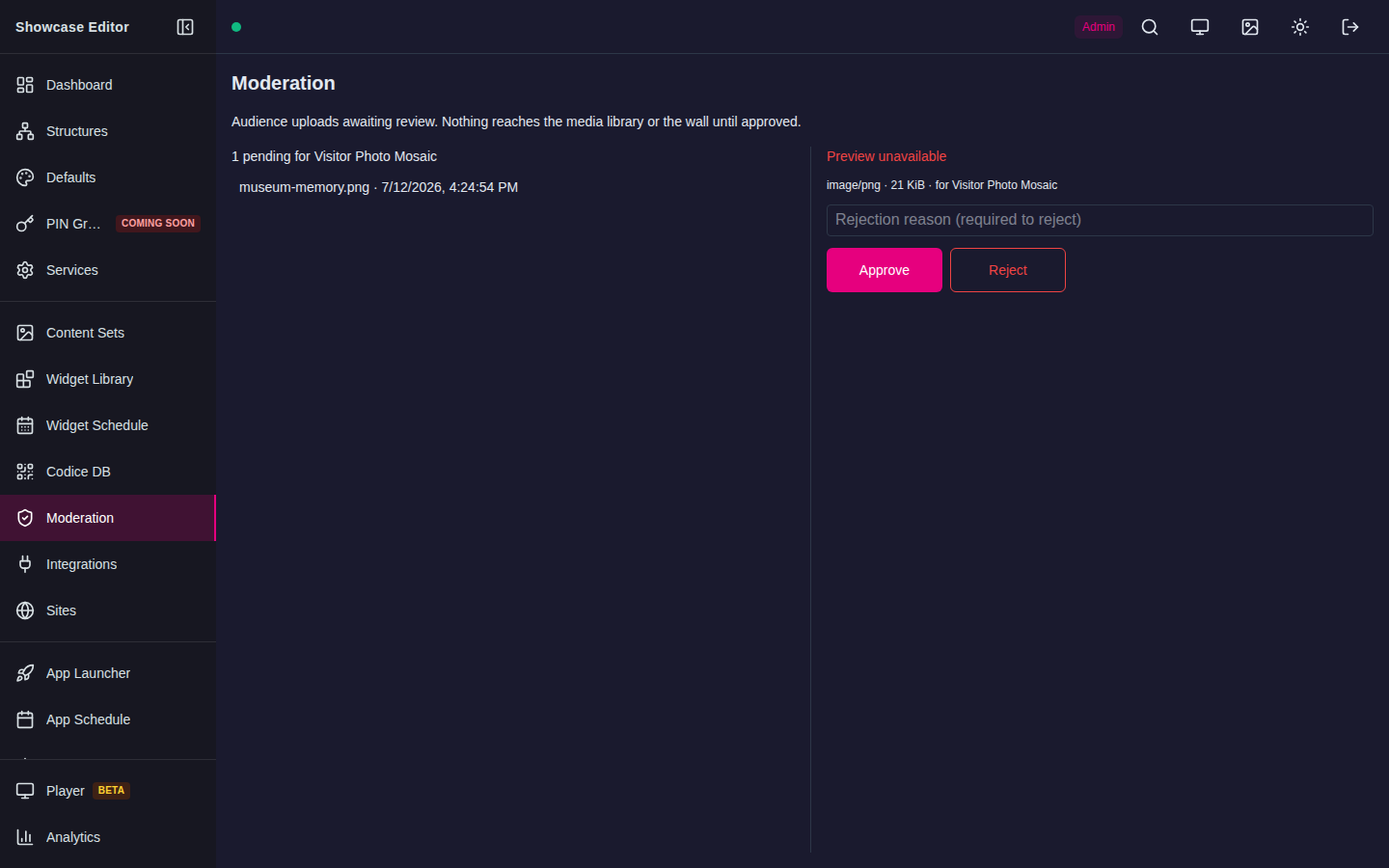
- Sign in to the Editor as an Administrator or Author.
- Open Moderation.
- Find the pending upload under the named Showcase target.
- Preview it and verify that it is appropriate and belongs on that target.
- Select Approve to normalize the media, create the Showcase asset, and attach it to the target.
- Confirm it disappears from the queue and appears on the wall/player.
To reject it, select Reject, enter a useful reason, and confirm no asset appears in the presentation.
Safety behavior
- Files remain quarantined until approval.
- Unsupported, corrupt, oversized, or over-quota files are rejected before publication.
- Expired or used-up upload QR links cannot upload.
- By default, each file can be up to 10 MB and images up to 50 megapixels. Each target holds up to 50 uploads awaiting moderation, and each phone's network address can upload up to 30 files per 10 minutes. See Audience settings reference.
- If the target has been removed, approval fails as
target-gonerather than attaching the file somewhere else. - Presenters and visitors cannot approve content.
Troubleshooting
| Symptom | What to check |
|---|---|
| Upload icon is missing | The Audience Upload toolbar action is on this exact widget |
| QR does not appear | Player/server connection and whether the target still exists. Before MT Showcase 26.10.0, an install using the built-in self-signed certificate, or a button on a toolbar shared between widgets or on the theme's default toolbar, could not show the QR at all; upgrade |
| The button shows "Uploads are not set up on this wall yet" | The server has no public address that phones can open. Set the Public Showcase URL, or the Audience and phone URL, on Network & Public Access; see Admin setup. The same message appears if the widget has no upload target |
| The button shows "Upload is unavailable right now" | The server could not make a QR code. Check the player/server connection and the server log, then tap the button again |
| Phone cannot open the page | Network & Public Access, visitor-network routing, DNS, and certificate |
| Phone rejects the file | Allowed media type, size, image dimensions, QR expiry, and quota message |
| Queue is empty | The phone completed submission and you are viewing the correct server |
| Approval succeeds but the wall does not change | Target name, player connection, and live-update status; do not approve repeatedly |