Using MT Cast in Canvus and Showcase
MT Screencast appears to Canvus and Showcase as a camera named MT Cast. You use it like any other video input.
Start a cast session
- Open the main menu and choose Video inputs.
- Choose MT Cast and place it on the canvas.
The wall now shows the card with the room name and up to three ways to cast: AirPlay (with the PIN while a device pairs), MT Caster (its download link and QR code, and the join code) and a browser (the join page address and its own QR code). From version 0.9.7 the bottom-right corner shows the MT Screencast version, for example "MT Cast 0.9.7".
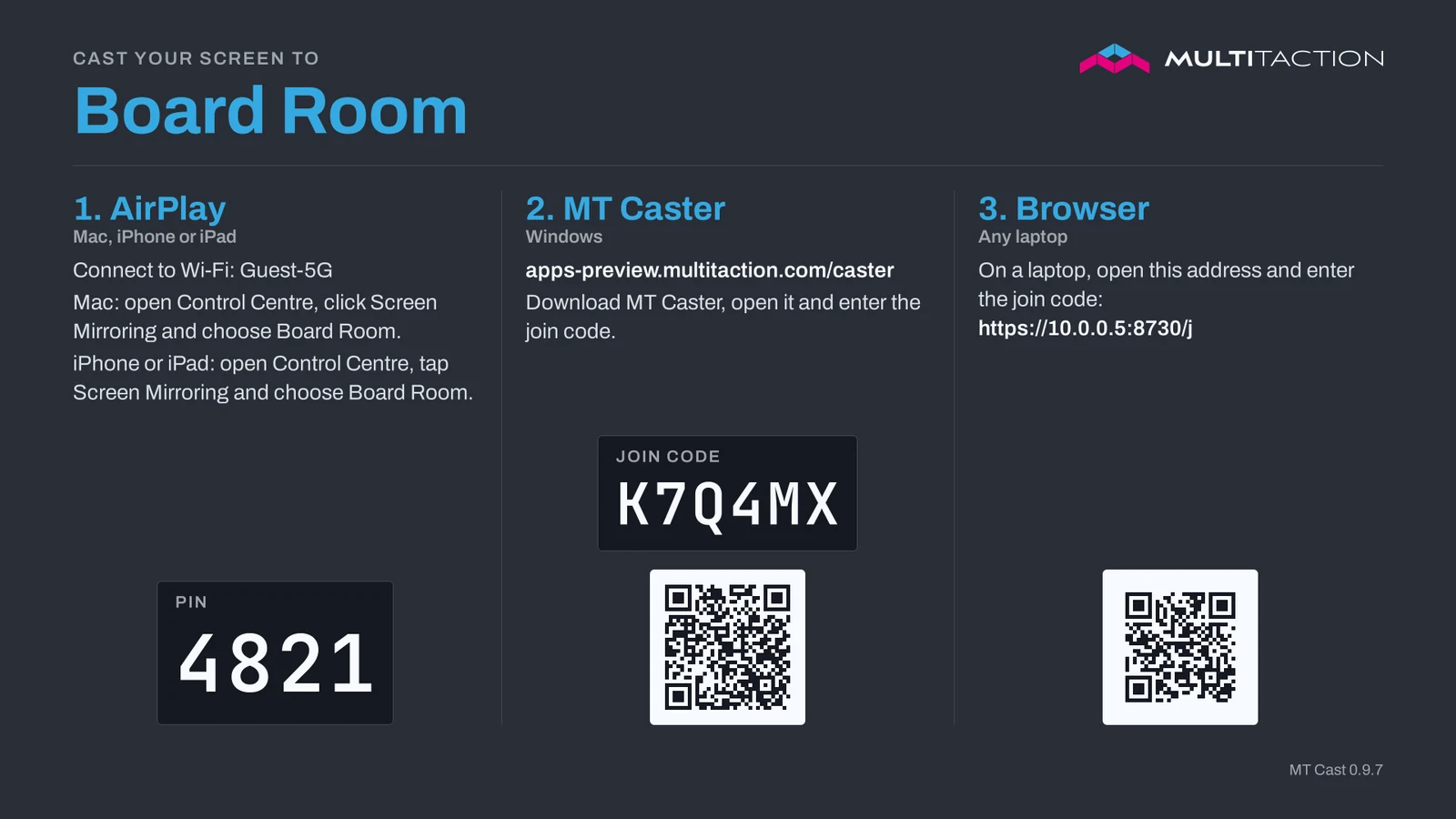
- Ask your visitor to cast. See the pages for Mac and iPhone, Windows and browsers.
When the visitor connects, the card gives way to their screen. When they stop, the card comes back.
Stop casting
Remove MT Cast from the canvas. The wall stops advertising itself for AirPlay, so it disappears from visitors' lists. A cast in progress ends.
Things to know
- The PIN is part of the picture. Anyone who sees the canvas sees the PIN, including remote sites. It only works for people on the wall's network.
- Opening the main menu advertises the wall for a short time. The menu shows a live preview of video inputs, so the wall counts as "in use" for about 15 seconds. This is harmless.
- One cast at a time. A new cast replaces the current one.
- Remote sites see the cast like any other video widget on the canvas.
- Sound comes with the cast, muted at first. See Sound.
- Touch on the cast does not reach the sender. You can move and scale the cast and annotate around it.
- Picture format. The camera is 1920 x 1080 at 30 frames per second unless you choose 1440p or 4K under Cast resolution (from 0.9.8). After a change, close MT Cast on the canvas and add it again.
Sound
The sound of a cast comes with the picture through MT Cast: from version 0.9.4 for AirPlay (Mac, iPhone, iPad), from version 0.9.6 also for MT Caster and browsers. Canvus and Showcase find it on their own: MT Cast is listed once, with its sound.
| Sender | Sound |
|---|---|
| Mac, iPhone, iPad (AirPlay) | Yes |
| MT Caster | Yes, when Share sound is on in its tray menu (it is on by default) |
| Chrome or Edge | Yes, when the visitor turns on the audio option in the browser's sharing window: Also share tab audio for a tab, or on Windows Also share system audio for the entire screen |
| Firefox, Safari | No, the picture only |
MT Cast starts muted, like other screen-share inputs. The visitor may not know their sound is on, or how loud it is for the room. When they are ready, tap the speaker button on the MT Cast widget to unmute it. When nobody casts, MT Cast is silent.
- MT Cast placed before 0.9.4 on Windows has no sound. Remove it from the canvas and place it again once.
- Ubuntu walls: each desktop user gets the sound through the user service
mt-cast-audio, which the package installs. In Canvus 26.11 the sound is about 2 seconds behind the picture; Canvus builds from 26.11.3.1780 on fix this. From version 0.9.6 the MT Cast sound path itself adds about 0.1 s instead of about 0.2 s. - Picture only: set
audio=falsein Settings. If the sound is ahead of the picture,audio-delay-msdelays it.
The status page shows whether sound is coming in and how loud it is, so you can check it without listening.
Change what the card says
Set the room name, the Wi-Fi hint and the instructions in Settings. Changes show on the card within a second or so. The card fills the whole picture; a background image set in Settings shows only behind the "not licensed" card.
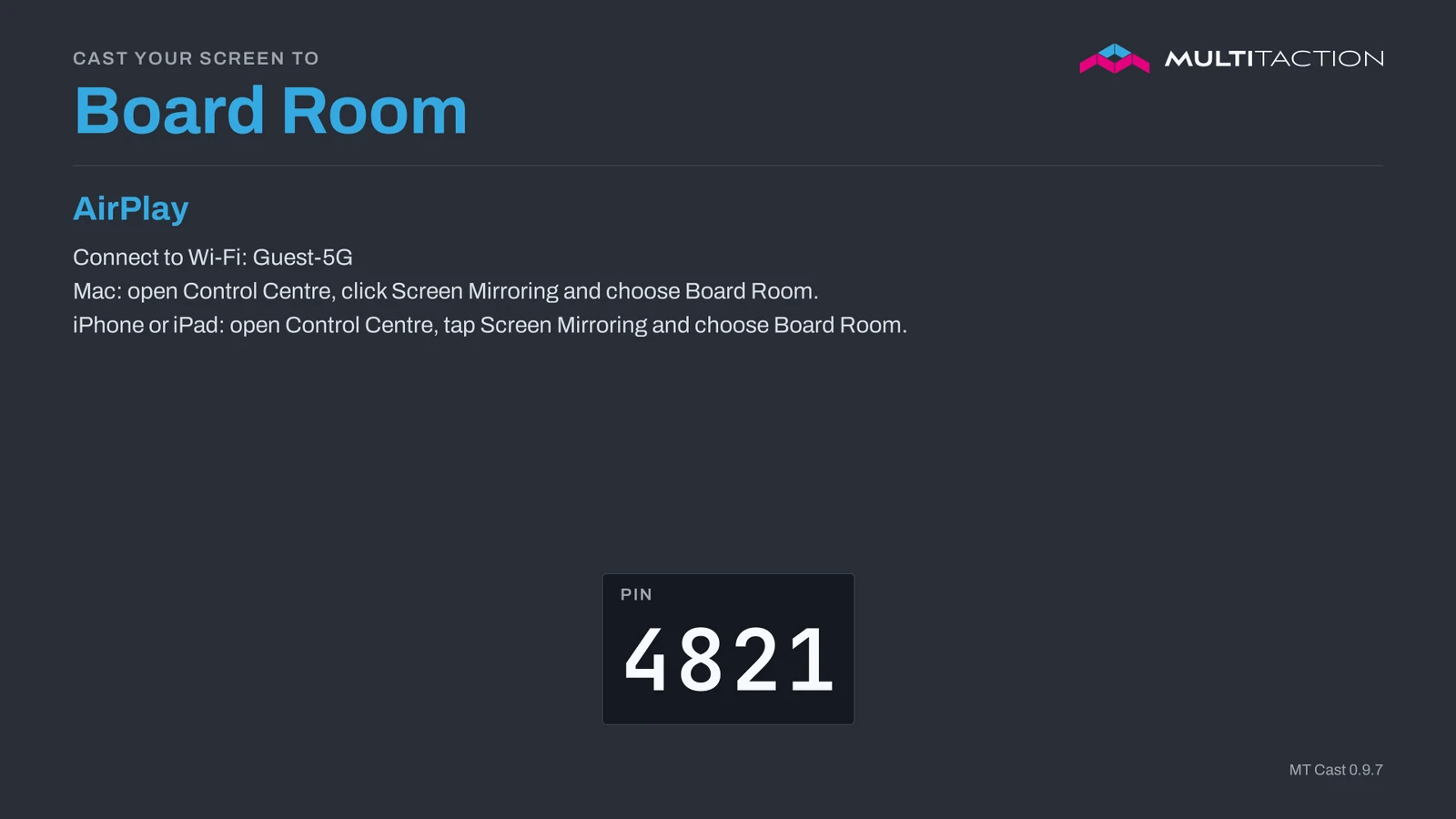
When MT Caster is off, the card shows only the AirPlay column.