Connect an outside system
Connectors are not finished yet
Connectors work end to end, but the configuration vocabulary is still developer-facing and the dry-run flow is being revised. Showcase marks Integrations as coming soon in the editor for that reason. The rest of Audience Integrations is generally available.
Use a connector when another system owns a list of people, members, exhibits, products, or media that should appear in Showcase. A connector saves how to read that source and where each field belongs in Showcase.
You do not need to write mapping JSON for the normal workflow.
Pick the outcome first
Under What do you want to import?, the Goal list offers two options:
- People and Personal Folders — creates or updates people and their private folders. Use this for memberships, event registrations, CRM exports, and named visitors.
- Content items into a widget/folder — creates or updates material under a chosen Showcase content folder. Use this for catalogs, exhibits, products, schedules, and media metadata.
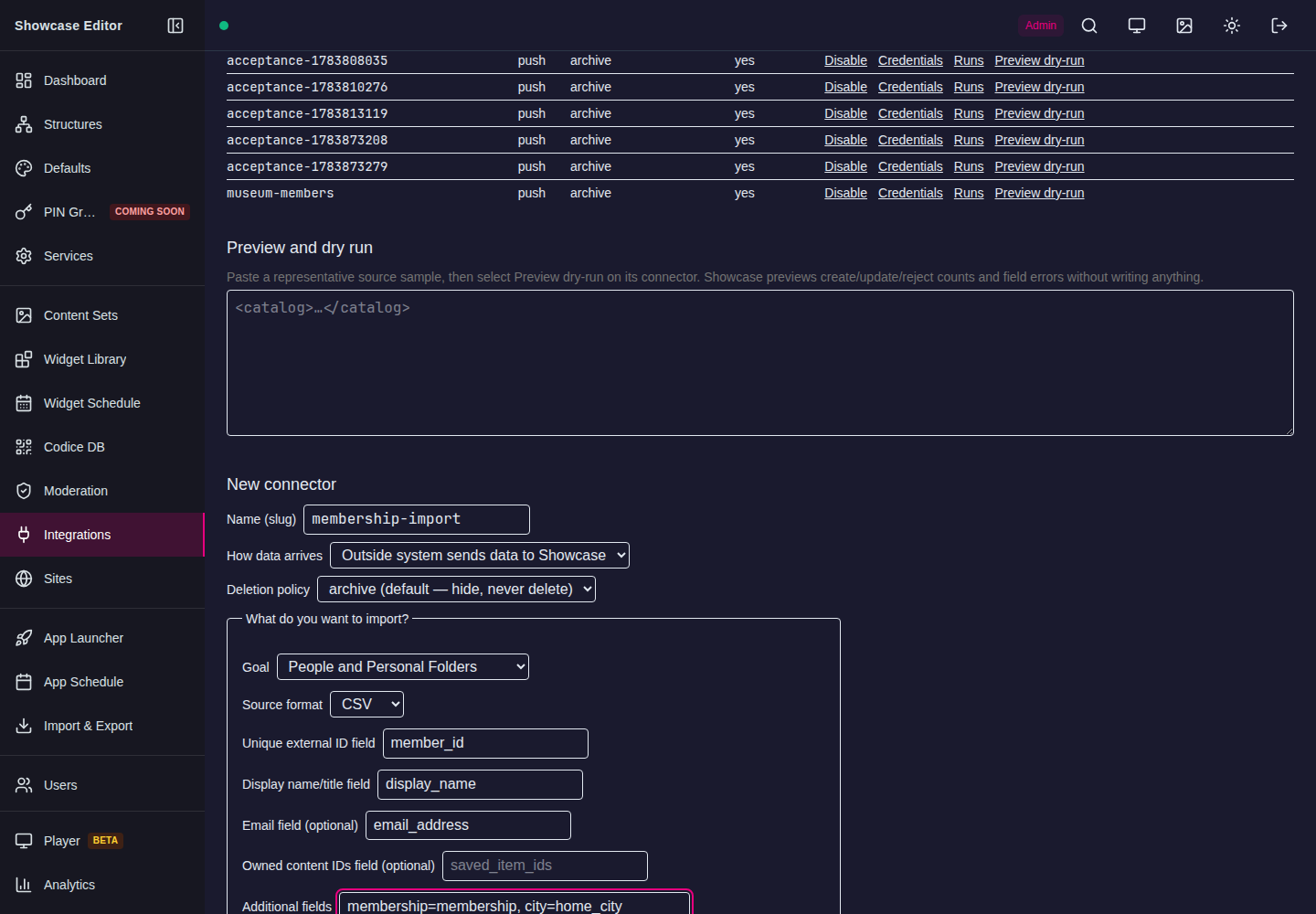
Example: import people from a CSV export
Suppose the source starts like this:
member_id,display_name,email_address,membership,home_city
M-1001,Ada Lovelace,ada@example.com,Gold,London
M-1002,Grace Hopper,grace@example.com,Silver,New York
- Open Integrations and go to the New connector section.
- In Name (slug), enter a recognizable name such as
membership-import. - Under How data arrives, choose Showcase fetches data from a URL or Outside system sends data to Showcase. For a fetched source, enter its Source URL and Refresh every (minutes).
- Check the Deletion policy. The default, archive, is right for most imports; see When records disappear from the source.
- Under What do you want to import?, set Goal to People and Personal Folders.
- Set Source format to CSV.
- Map:
- Unique external ID field →
member_id - Display name/title field →
display_name - Email field →
email_address - If the source contains IDs of content owned by each person, fill in Owned content IDs field. This puts those Showcase items in that person's Personal Folder.
- In Additional fields, add
membership=membership, city=home_city(Showcase field = source field). - Select Create connector. This only saves the recipe; it does not import anything.
- In the Preview and dry run section, paste a representative sample of the source, then select Preview dry-run on the connector's row.
- Confirm the counts, destination, and field errors are correct.
- When the dry run is clean, run or send the source.
- Open Codice DB and confirm the expected people and Personal Folders exist.
The source's external ID lets later runs update the same person instead of creating duplicates. Showcase also records it as that person's external Codice alias, so approved event integrations can refer to the source ID without knowing the physical Codice number.
Example: import content into a Showcase folder
- Create or choose the destination folder in Showcase Content.
- Open Integrations and go to the New connector section.
- Set Goal to Content items into a widget/folder.
- Set Source format to JSON, XML, or CSV.
- For JSON or XML, enter the Record path that contains the repeating records, such as
catalog.items. - Fill in Unique external ID field and Display name/title field.
- Choose the Showcase destination folder.
- To create a folder/group per category, fill in Group/folder field with the relevant source field.
- Add any extra source-to-Showcase fields needed by the content design in Additional fields.
- Select Create connector, then use Preview dry-run, correct any errors, and run.
- Open the destination content folder and inspect several imported items.
Source format tips
- CSV: the first row must contain column names. Quoted values and commas are supported. A malformed or unterminated CSV is rejected and recorded as a failed run; it cannot erase the current snapshot.
- JSON: use dot-separated paths for nested values. Confirm the repeating record path in Preview.
- XML: map attributes and child values according to the labels shown by Preview.
Credentials for systems that push data
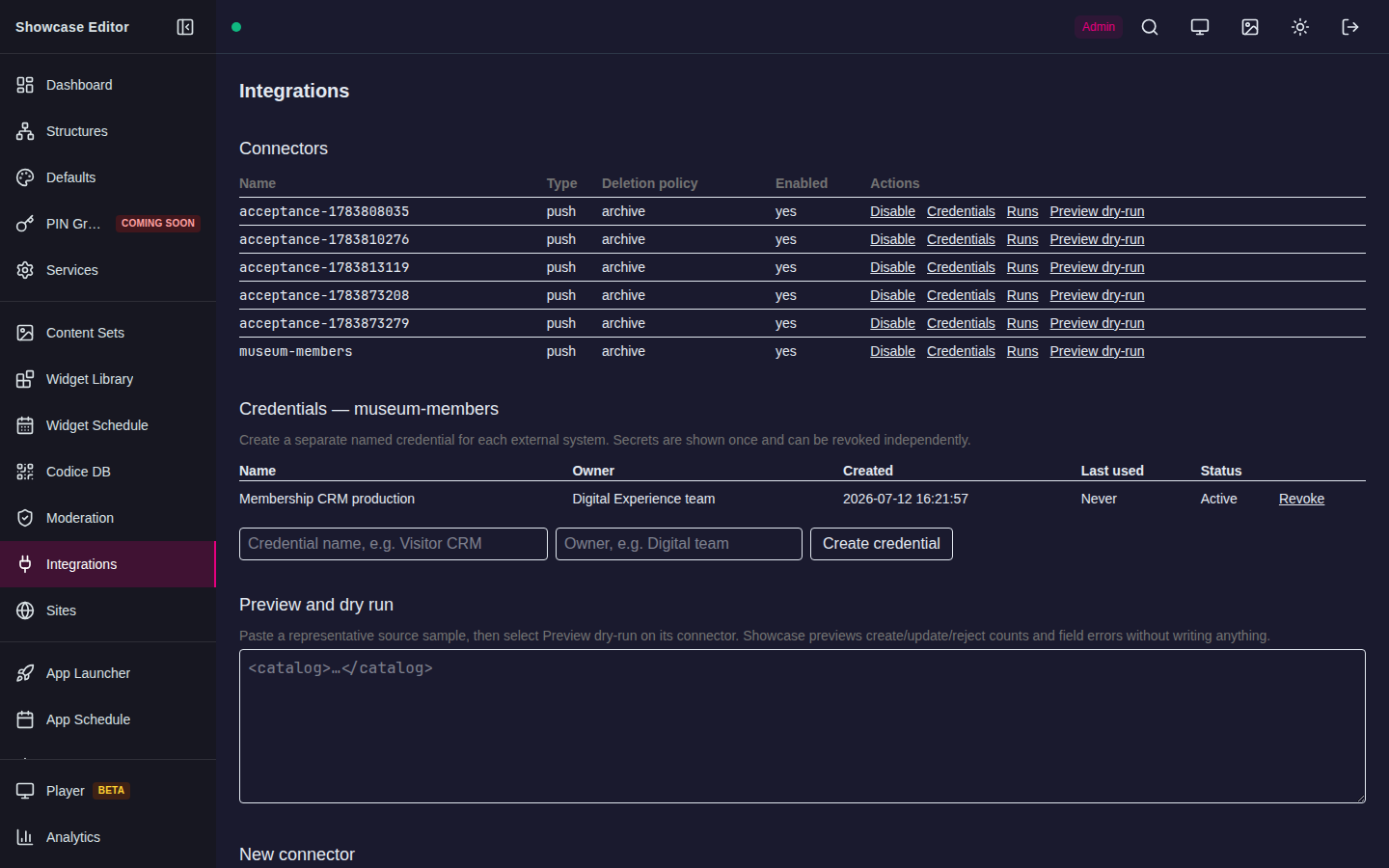
An Administrator or Author creates a named credential from the connector's Credentials action:
- Select Credentials on the connector's row.
- Enter a credential name and owner, such as
Museum CMS productionandDigital team. - Select Create credential and immediately copy or download the secret. Showcase displays it only once.
- Store it in the sending system's secret manager.
The credential list shows each credential's name, owner, creation time, last use, and status. For rotation, create a replacement, update and test the sending system, then revoke the old credential. This overlap prevents an avoidable outage.
Preview dry-run and live import are different
- Preview dry-run reads a representative payload and shows what would be created, updated, archived, or rejected without applying it.
- A live pull run fetches and applies the configured source. A live push occurs when the outside system sends data using its named credential.
- Run history records counts, warnings, and errors from applied imports. It shows the most recent 50 runs.
Do not send or schedule a live source until its representative preview dry-run is clean.
When records disappear from the source
Each connector has a Deletion policy that decides what happens to a person or item that an earlier run created but a later run no longer contains:
| Policy | What happens |
|---|---|
| archive (default) | Content items move to a hidden Integrations Archive: <connector> folder, and people are archived so their code no longer resolves. Nothing is deleted. A person who reappears in a later run is restored. |
| never | Nothing happens. Records stay in Showcase until you remove them yourself. |
| mirror | The record is deleted from Showcase, exactly as if you deleted it yourself. For people, this deletes the Personal code and its folder. |
Use mirror only for a source that is always complete. A partial or truncated export with mirror deletes everything it leaves out. Preview dry-run reports these records in its archive count, whichever of archive or mirror is set, so check that number before you apply a run.
Advanced mapping JSON
The wizard generates the parser and mapping documents used by the import engine. Advanced mapping JSON exposes them for unusual schemas and developer-led integrations. Keep it closed for standard people and content imports. If advanced JSON is edited, Preview and dry run are required again.
For endpoint-level details, see Push API reference and Pull connectors and Binder.