Network, HTTPS and Email
This page covers how designers and visitors reach the MT Showcase server, the certificate the Editor is served over, and the email settings used for invitations and password resets. Administrators make most of these changes in the Editor, without editing configuration files.
How designers reach the Editor
The MT Showcase server serves the Editor over HTTPS:
| Platform | Editor address | Port |
|---|---|---|
| Ubuntu, Windows | https://<application-computer> |
443 |
| macOS | https://<application-computer>:8443 |
8443 |
Replace <application-computer> with the application computer's IP address or DNS name.
The server listens on all network interfaces. Make sure the computers that need the Editor can reach this port:
- Ubuntu: the package does not change firewall rules. If
ufwor another firewall is enabled, allow TCP 443, and TCP 80 if people typehttp://addresses. - Windows: the installer adds an inbound firewall rule for TCP 443 and, from 26.10.0, TCP 80 for the redirect.
- macOS: allow incoming connections for MT Showcase if the macOS firewall asks.
When port 443 is already in use
On Ubuntu and Windows, if another program already uses port 443 when the server starts (for example, MT Canvus Server on the same computer), MT Showcase uses port 8443 instead and the Editor is at https://<application-computer>:8443. On Windows, the installer's firewall rule covers ports 443 and 80 only, so add a rule for TCP 8443 if other computers need to reach the Editor. To choose the port yourself, see https_port. See also Troubleshooting.
The control channel between the MT Showcase client and the server (TCP 9299) is local to the application computer. Do not open it in the firewall. For all ports and outbound connections, see Showcase technical information.
Plain HTTP redirects to HTTPS
From MT Showcase 26.10.0, the server also answers on the plain-HTTP port (80 on Ubuntu and Windows, 8080 on macOS), but only to redirect: a browser that opens http://<application-computer>/ is sent to the same address over https://, on whichever port the Editor is using (443, or 8443 if 443 was in use). Nothing is served over plain HTTP. If another program already uses the HTTP port, the server starts without the redirect and notes it in its log; use https:// directly.
Earlier versions did not listen on plain HTTP at all, so always use https:// with them.
Network & Public Access
Administrators set the server's public addresses and HTTPS certificate on the Network & Public Access page, at the bottom of the Editor sidebar.
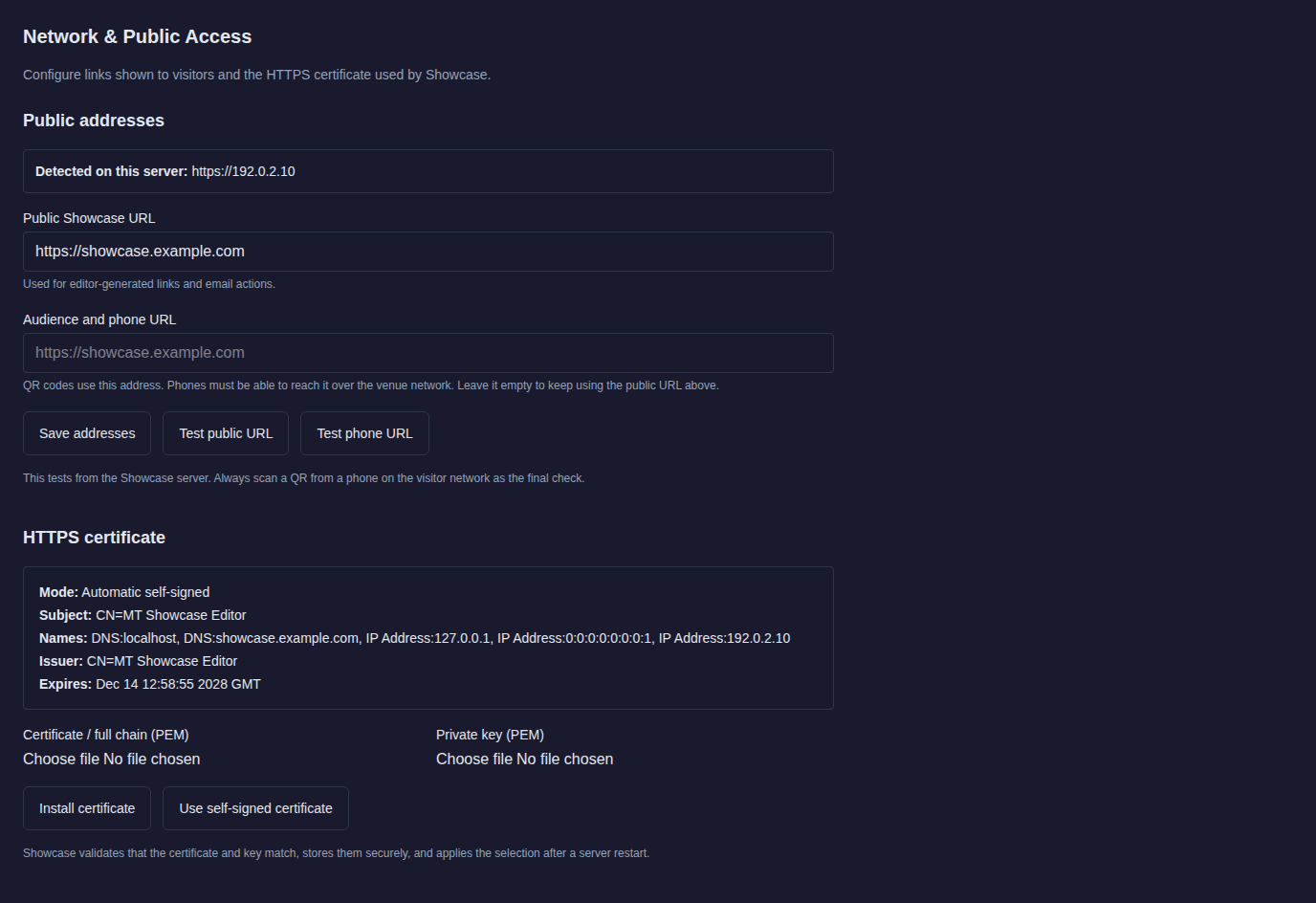
Public addresses
| Field | What it is used for |
|---|---|
| Public Showcase URL | The address people use to reach this server, for example https://showcase.example.com. Links in invitation and password-reset emails, and other links the Editor generates, use it. You first set it in the setup wizard. |
| Audience and phone URL | The address visitors' phones use for QR codes, upload pages and personal folders. Set it only if phones reach the server by a different address, for example over venue Wi-Fi or through a reverse proxy. Leave it empty to use the Public Showcase URL. |
The page also lists the addresses Detected on this server, to help you choose.
Click Save addresses. The change takes effect immediately, without a restart.
To check an address, click Test public URL or Test phone URL. The server tries to reach the address itself and reports the result. This does not prove that phones can reach it, so always scan a QR code from a phone on the visitor network as the final check. For the audience features, see Admin setup.
HTTPS certificate
On first start the server generates a self-signed certificate for the Editor, covering localhost, the computer's host name and its IP addresses. It renews it automatically before it expires. On Ubuntu and Windows the installer adds it to the application computer's trusted certificates, so a browser on the application computer does not warn.
Browsers on other computers show a warning the first time they open the Editor, because nothing they trust has vouched for the certificate. Designers can accept the warning once and continue; the connection is still encrypted. To avoid the warning, install a certificate from a certificate authority your organization's computers already trust.
Install your own certificate
You need two files in PEM format:
- the certificate, including any intermediate certificates (full chain);
- the matching private key.
The certificate must be valid for the address people use to reach the Editor: its subject alternative names must include that host name or IP address. Otherwise browsers still warn.
- In the Editor, go to Network & Public Access.
- Under HTTPS certificate, choose the certificate file for Certificate / full chain (PEM) and the key file for Private key (PEM).
- Click Install certificate. MT Showcase checks that the certificate and key match, and stores them.
- Restart the MT Showcase server; see Start and stop MT Showcase. The new certificate is used from then on.
The page shows the certificate's mode, subject, names, issuer and expiry date. To go back to the self-signed certificate, click Use self-signed certificate and restart the server.
Set the certificate in the configuration file
You can instead point the server at certificate and key files in production_users.yaml:
tls_cert_path: /etc/ssl/showcase/fullchain.pem
tls_key_path: /etc/ssl/showcase/private-key.pem
Both settings are required, and the MT Showcase server must be able to read both files. Restart the server after changing them. For the file location, see File locations.
Which certificate wins
A certificate installed on the Network & Public Access page takes precedence over tls_cert_path and tls_key_path. If neither is set, the server uses its self-signed certificate.
Email settings
The MT Showcase server sends email for user invitations and password resets. Administrators set this up in the Editor: go to Users and click Email settings.
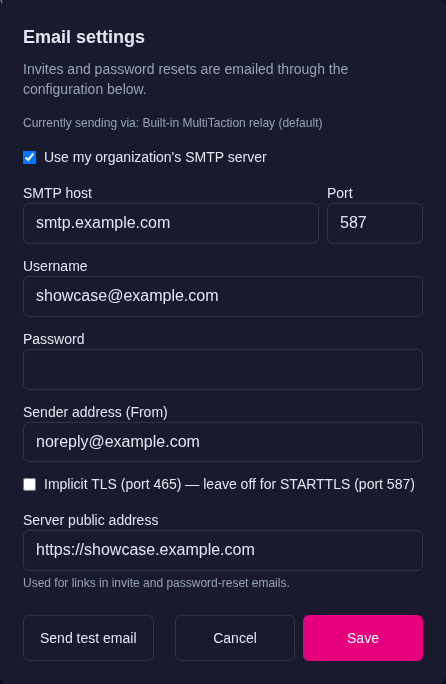
The dialog shows which configuration is currently used (Currently sending via).
- Select Use my organization's SMTP server.
-
Enter:
Field Description SMTP host and Port Your mail server and its submission port, usually 587 Username and Password The account MT Showcase signs in to the mail server with. Leave them empty if your server does not require authentication. Sender address (From) The address the emails come from, for example noreply@example.comImplicit TLS (port 465) Select for servers that use implicit TLS on port 465. Leave it cleared for STARTTLS on port 587. Server public address The address used in links in the emails. It is the same setting as the Public Showcase URL. -
Click Save.
- Click Send test email to check the settings, then look for the test message in your inbox.
If you do not set up your own SMTP server, MT Showcase sends email through a relay operated by MultiTaction, from no-reply@multitaction.com. We recommend your own SMTP server for production installations. If the dialog shows Not configured, no mail server is available and invitations and password resets cannot be sent until you add one.
SMTP settings can also be set in production_users.yaml with the smtp_* settings; see Settings reference. Settings saved in the Email settings dialog take precedence over the configuration file. The password you enter in the dialog is stored encrypted; a password in the configuration file is stored as plain text, so prefer the dialog.
Visitor email is set up separately
These settings are only for the server's own emails. Emails that visitors send from the wall use the Email Sending service in the app's service set, which has its own SMTP settings; see Services.
Next step
Invite your designers and review the security settings.