Create a Personal Folder with an Access QR
A Personal Folder gives one person a private area in Showcase. Showcase creates the required identity and access link automatically. The person does not need an account, API token, or browser developer tools.
Before you begin: complete Make Showcase reachable from phones.
What the visitor gets
Scanning the Access QR opens Showcase's built-in My Personal Folder page. It shows:
- the person's name;
- details the operator has allowed them to edit (Edit details);
- each file in their folder, with Preview and Download links;
- an Add a file option for sending a photo, video or PDF to their own folder. New files are reviewed before they appear.
Each person's Access QR is a persistent link. It stays valid until an operator selects Reset link, so it can be printed on a card and handed to the person.
Create a Personal Folder
- In the Showcase Editor, open Codice DB.
- Select New Code.
- Set Type to Personal.
- Enter the Code Number of the physical Codice marker.
- Add the person's First Name, Last Name and Email when known. Email is useful profile information but is not required for Access QR access.
- Select Save Code.
The saved Personal code is now the person's identity. There is no separate "create identity" step.
View, share or print the Access QR
- In Codice DB, select Personal and then the person's code.
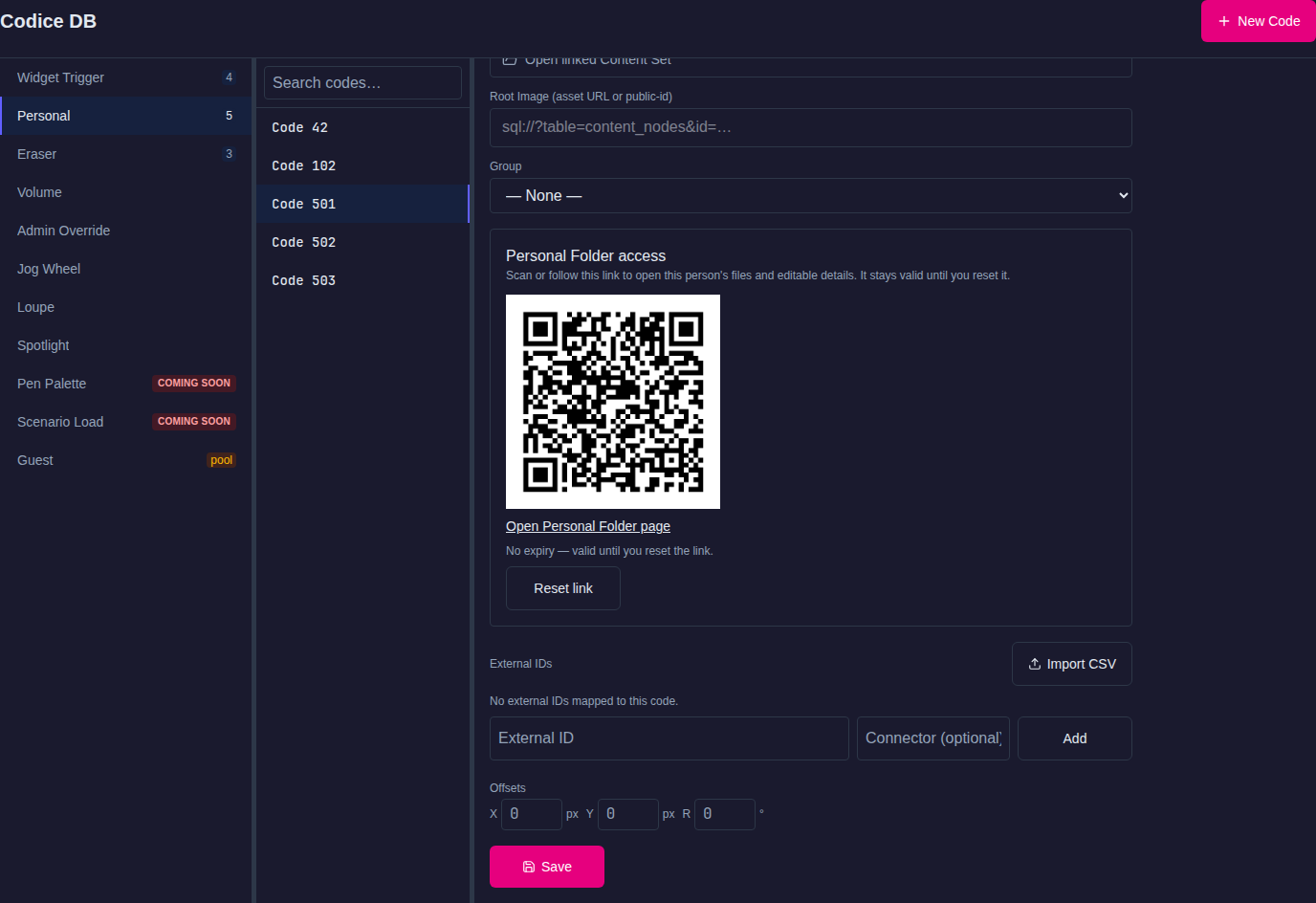
- Scroll to the Personal Folder access panel. It shows the person's Access QR automatically, with an Open Personal Folder page link and the note "No expiry — valid until you reset the link."
The panel shows the same QR every time you open it, and it is the same link the wall shows for that person. Use it for desk-side testing or to print the QR on a card.
Put it in a presentation
- Open the presentation structure where the Personal Folder should appear.
- Add the Personal space widget.
- Leave Personal space collection mode as Show Personal Folder access QR. This is the default for new widgets.
- Run the presentation and place or scan the person's Codice.
The personal space shows the person's Access QR. Tapping the QR on the wall opens the person's Personal Folder page in a Showcase browser.
Other collection modes are Email contents to user, which uses the envelope button instead of the QR, and Show QR and email envelope, which offers both. A Personal code can override the collection mode, title and info text for its own personal space in the Personal space section of its entry in Codice DB.
Test the complete visitor journey
- Add a picture, PDF, video, or other downloadable item to the Personal Folder.
- Scan its Access QR with a phone.
- Confirm the person's name and files are correct.
- Select Preview on one file.
- Select Download and confirm the phone receives it.
- Select Edit details, change an allowed field, and select Save details.
- Reopen the folder in the Editor and confirm the change.
- Under Add a file, choose a small photo and select Upload. Confirm the page shows it as awaiting approval.
- In the Editor, open Moderation, find the upload under the person's Personal Folder, and approve it. Confirm it appears in the folder.
Visitor uploads to a Personal Folder
From the My Personal Folder page, a visitor can upload JPEG, PNG, WebP, MP4 or PDF files into their own folder. Uploads are held for moderation: they appear in Moderation under the person's Personal Folder and are added to the folder only after an Administrator or Author approves them. Each folder accepts a limited number of uploads per hour and a limited number of files awaiting review. See Collect and moderate audience uploads for the moderation steps.
Reset a link
Reset the link when a card is lost, when a QR has been shared more widely than intended, or when a folder should no longer be reachable from the old QR.
- In Codice DB, open the person's code.
- In the Personal Folder access panel, select Reset link and confirm.
The old QR and link stop working immediately and show "This access QR has expired. Scan a new one." The panel shows the new QR, which the wall also uses from then on. Reprint any card that carried the old QR.
Access and privacy rules
- Each QR is scoped to one Personal Folder.
- Anyone holding the QR or link can open the folder, edit the allowed details and upload files for review until the link is reset. Treat printed cards accordingly.
- The visitor can edit only the fields listed in the
audience_person_fieldsserver setting (by default, first and last name). See Audience settings reference. - Visitor uploads are moderated before they are added to the folder.
- Connector credentials are for outside systems and must never be given to visitors.
- Deleting the Personal code invalidates its link.
If it does not work
| Symptom | Action |
|---|---|
| Player says it is offline | Confirm the player is connected to Showcase Server |
| QR points to localhost or an old host | Correct Network & Public Access, then reopen the Personal Folder |
| Phone cannot open the QR | Follow the phone test in Make Showcase reachable from phones |
| "This access QR has expired. Scan a new one." | The link was reset or the Personal code was deleted. Scan the current QR from the wall or the Personal Folder access panel |
| No files are listed | Confirm items were actually added to this person's folder and have finished processing |
| An uploaded file does not appear | It is waiting in Moderation, or it was rejected |
| A field cannot be edited | It is not listed in the audience_person_fields server setting |