Secure your displays
Displays whose firmware supports it can be secured. A secured display answers only requests that carry its own access key, and only SiteManager holds that key. This page takes you through securing displays, what to do when SiteManager reports a problem, and how to keep your way back if the computer is lost. The Display security reference lists every state and button.
Read this before you secure anything
Securing a display locks out older SiteManager versions, SiteManager 2.x and other tools until it is released. Upgrade every SiteManager on a site before securing displays.
A locked-out tool is refused by the display, so it can no longer read or control it. What it shows depends on the tool; it may show the display as offline or as an error. The way back is Release in SiteManager, or Reset API access on the display's own on-screen menu.
Securing is never automatic unless you turn on the setting Secure new displays when they are added, which is off by default. Without it, a display stays open until you secure it.
Before you start
- Every SiteManager that manages these displays is upgraded to this version. Also check for other tools that use the displays' interface, such as scripts or the SiteManager 2.x desktop app. They stop working on a secured display.
- You are an administrator (in local mode everyone is).
- You know where the display's on-screen menu is and have someone who can reach it. It is the way back if something goes wrong. See If the computer is lost.
- The displays are in the site and online. See Set up a wall.
- You have a plan for the state directory backup. See Back up the state directory.
1. See which displays can be secured
Open Security in the menu (the Maintain group).
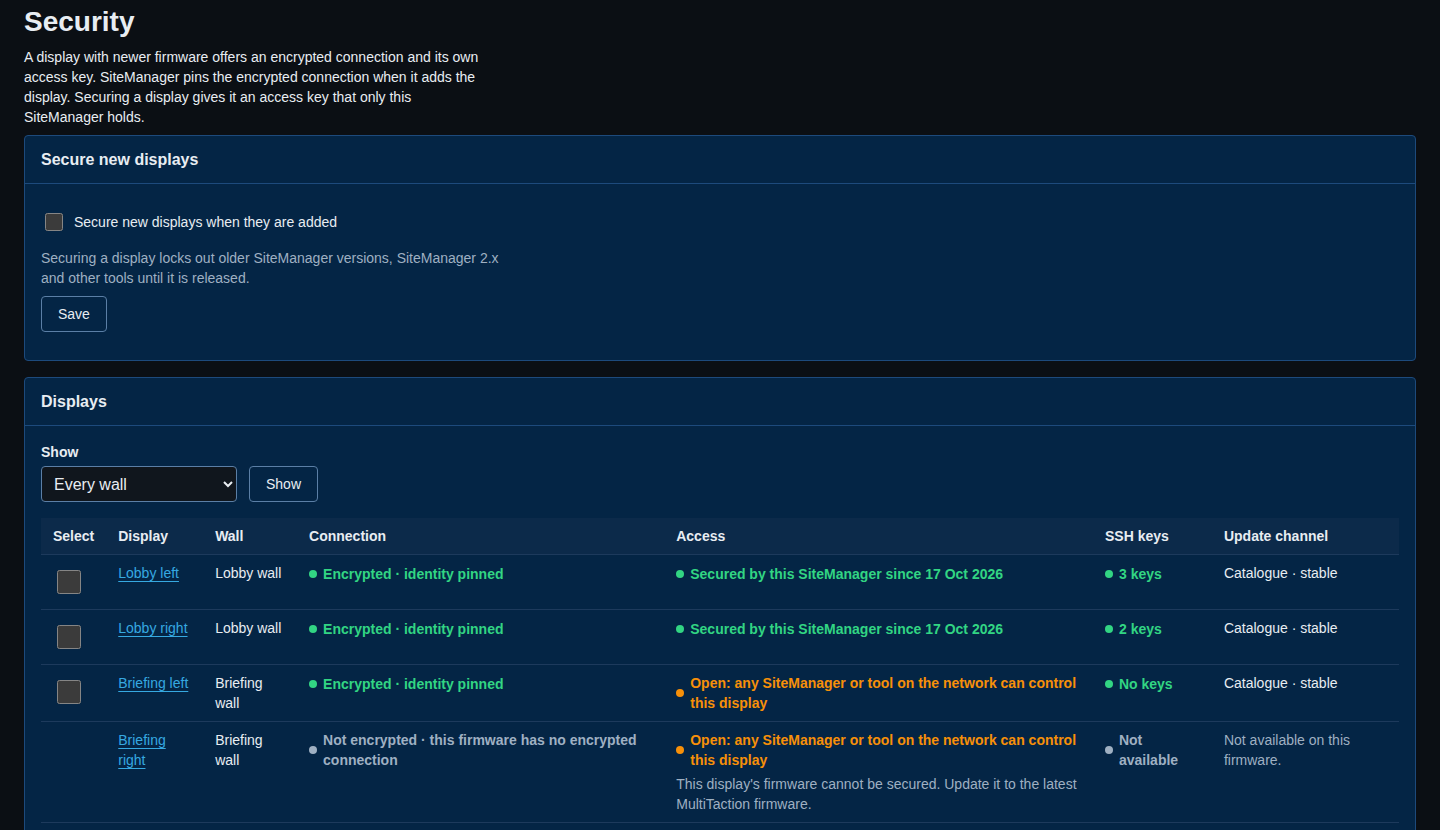
Look at the Connection and Access columns.
- Encrypted · identity pinned and Open: any SiteManager or tool on the network can control this display: the display can be secured. SiteManager already uses an encrypted connection to it.
- Not encrypted · this firmware has no encrypted connection, with the note This display's firmware cannot be secured. Update it to the latest MultiTaction firmware.: this display cannot be secured. It has no tick box. Update its firmware first (see Update display firmware).
A display that cannot be secured keeps working as before.
2. Secure displays
- Tick the displays you want. On a filtered list, tick Every managed display on the wall to take all of them.
- Under the list, select Secure.
- A job named Secure displays starts. Follow it in the running order on the right of the overview, or on the Jobs page. Each display gets a step. It does not wait on Standby, because it does not disturb the wall.
- When the job is done, the Access column says Secured by this SiteManager since and the date.
To secure one display, open its page and choose Secure this display in the Security panel.
SiteManager makes a new random key, sends it to the display over the encrypted connection and keeps it. You never see the key and are never asked to type it. If SiteManager cannot confirm the display took it, the access line says Checking the new key… and the display's next answer settles it.
If a step does not say Secured:
- This display's firmware cannot be secured. The display was skipped. Nothing was sent.
- The display is Secured by another SiteManager or tool. SiteManager left it alone. Use Reset API access on the display's on-screen menu, then secure it from here.
- The display is offline. Fix its power or network and try again.
3. Check that it worked
Open a secured display's page. The Security panel says Encrypted · identity pinned and Secured by this SiteManager since the date.
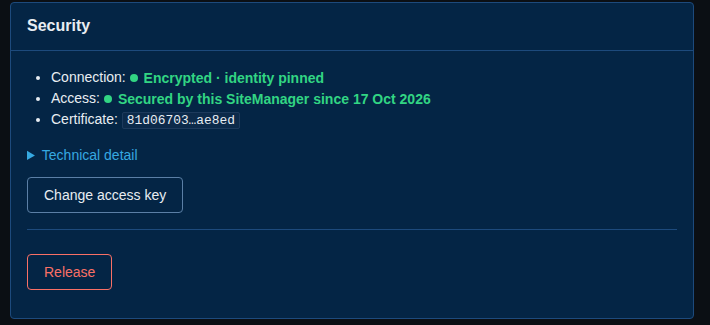
The audit log has one line for each display, display.access.secure, without the key.
Secure new displays automatically
On the Security page, tick Secure new displays when they are added and select Save. From then on, a display is secured when it is added to the site. The setting is off by default, because adding a display then locks out every other tool on that display. Leave it off while you are still upgrading other SiteManagers on the site.
Change an access key
Use this when someone who had access leaves, or when you think the key was seen.
- On the Security page, tick the displays and select Change access keys. Or open a display's page and choose Change access key.
- Follow the job Change access keys. SiteManager sends a new key with the current one. The display takes it, and SiteManager keeps it.
SiteManager never changes a key on a schedule. A key changes only when you ask, or when you trust a display that came back from older firmware.
Release a display
Releasing removes the access key. The display is open to every tool again, and SiteManager keeps its remembered certificate, so the connection stays encrypted.
- Tick the displays on the Security page and select Release, or open a display's page and choose Release.
- Read the question. It says that older SiteManager versions, SiteManager 2.x and any other tool on the network can control the display again. Confirm.
- Follow the job Release displays.
Release a display before you hand it to a tool that cannot use a key, and before you move a site to another computer (see below).
Remove a secured display
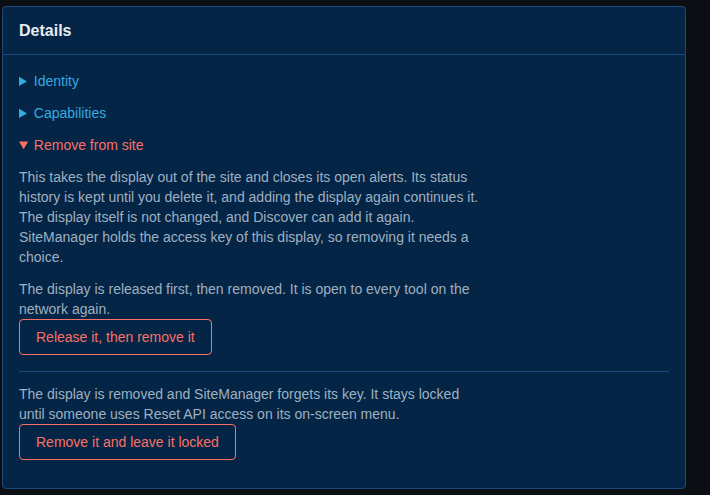
A display SiteManager holds a key for cannot just be removed, because it would stay locked. On its page, open Remove from site under Details and choose:
- Release it, then remove it. The display is released, and then removed. If the release fails, the display stays in the site.
- Remove it and leave it locked. The display is removed and SiteManager forgets its key. The display stays locked until someone uses Reset API access on its on-screen menu.
On the command line, sitemanager displays remove SERIAL --release-first or --keep-locked.
When SiteManager reports a problem
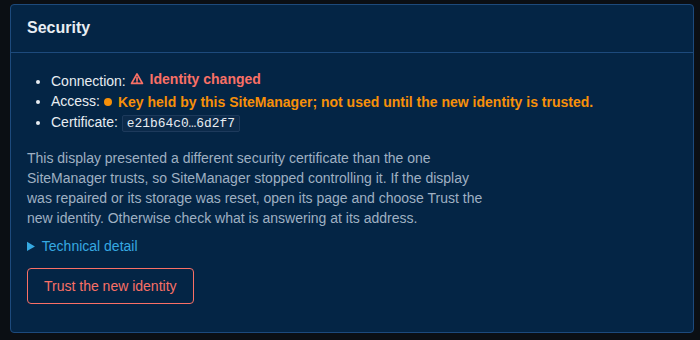
A display whose security needs a look shows the problem in words in place of offline, raises a Display security alert and says what to do. The common ones:
- Identity changed: the display presented another certificate. If it was repaired or reset, choose Trust the new identity. If not, find out what is answering at its address.
- Reset on the display: someone used Reset API access at the display. It is open again. Choose Secure this display to protect it.
- Secured by another SiteManager or tool: use Reset API access at the display, then secure it from here.
- Encrypted connection unavailable: restart the display. For a secured display, if that does not help, use Reset API access and secure it again.
Every state, what it means and how to recover is in the Display security reference.
On a phone, the Security page and each display's panel show the same information in cards.
Back up the state directory
SiteManager keeps each display's remembered certificate and access key in one file, display-access.json, in its state directory. The state directory is the one place that holds the keys, and the keys are never exported. They are not in wall or room exports, in the diagnostics bundle, in the JSON API, on the command line, in the logs or in the audit log, and there is no screen that shows a key.
That is why a backup of the state directory matters. A copy of the whole directory carries display-access.json, so a SiteManager started from the copy keeps access to the secured displays. Nothing else carries the keys. If the file is lost and there is no copy, the displays stay secured and SiteManager can no longer control them: each one needs Reset API access on its own on-screen menu.
- Include the whole state directory in your computer's normal backup. Where it is: Files, folders and logs.
- Take a copy after you secure or change keys, so the copy has the current keys. A copy older than the last key change gives Secured by another SiteManager or tool: the display holds a newer key than the copy.
- For a copy you can restore from, stop the service, copy the directory, and start the service again.
- Keep the copy private. It holds the access keys of your displays.
If display-access.json cannot be read, SiteManager says so (Unknown: SiteManager cannot read its security record, and a critical Display security alert). It refuses to secure, change or release a display until it can. Restore the file from a backup, or reset each secured display on its on-screen menu and secure it again.
Move a site to another computer
Two ways keep the displays working.
Copy the state directory. This keeps every key.
- Install the same or a newer SiteManager on the new computer (see Installing SiteManager).
- Stop the service on both computers. Never run two SiteManagers on one copy of the state.
- Copy the old state directory over the new one, then start the new service. The displays show Secured by this SiteManager with the same keys.
- Do not start the old service again. Remove its state directory, or take the old computer off the touch network, so that only one SiteManager holds the keys.
In network mode, also see How do I move SiteManager to another computer?.
Start fresh. Release the displays from the old SiteManager first (see Release a display). Then add them on the new computer and secure them there. If the old computer is gone, use Reset API access on each display's on-screen menu instead.
If the computer is lost
If the computer that holds the keys is gone, and there is no backup of its state directory, the displays are still locked. SiteManager cannot get them back, and neither can anyone else without visiting each display.
- On each secured display, open its on-screen menu and choose Reset API access. The display forgets its key and is open to every tool.
- On a new SiteManager, add the displays again (see Find and add displays). They show Open.
- Secure them again from the new SiteManager.
A reset done at the display is also what raises Reset on the display in a SiteManager that still holds a key. It is the right way back, and a sign for the people who look after the site that someone was at the display.
From the command line
sitemanager access                                # every display: connection, access, certificate
sitemanager access show V9900001F                 # one display in full
sitemanager access secure --wall lobby-wall --wait
sitemanager access change-key --displays V9900001F,V9900002F --wait
sitemanager access release --wall lobby-wall --wait
sitemanager access trust V9900002F
sitemanager access policy --secure-new-displays on
See Command reference.
Next
- Manage SSH keys: who can sign in to the displays.
- Set where displays look for firmware.
- Display security reference.