Branching Menus
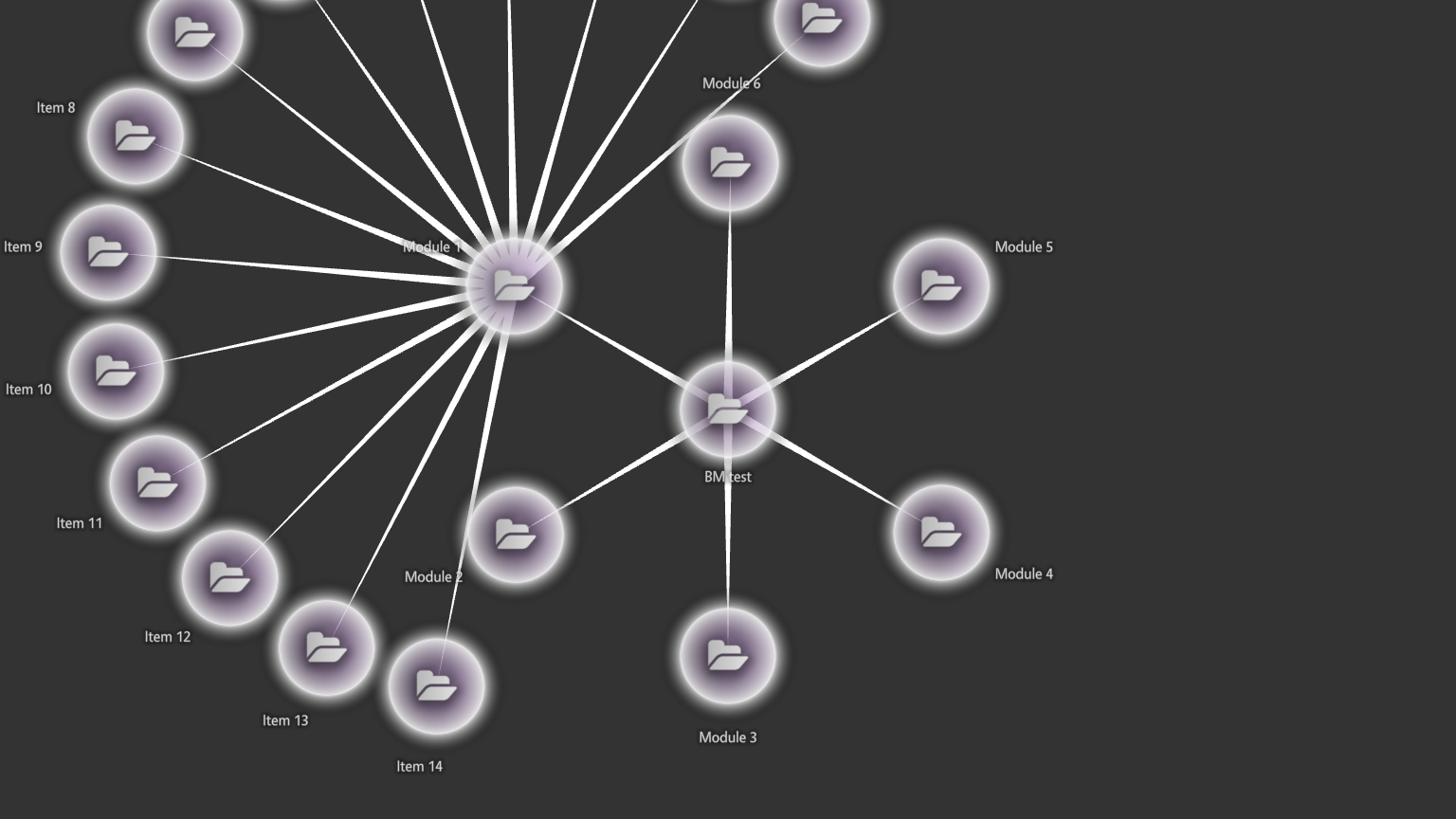
A branching menu is a finger menu that grows like a tree. When a visitor opens a folder, its items appear around it, and every folder opened before stays open. Visitors can see several levels of a content set at once, and they can open more than one branch at the same time.
A finger menu shows one level at a time: opening a folder replaces the level it came from. Use a branching menu when visitors should see how the levels relate, for example a topic, its sections and the items in each section, all on screen together.
Branching menus need MT Showcase 26.10.6 or later.
Step 1: Create the content set
A branching menu shows a content set, exactly like a finger menu. Folders in the content set become the branches. See Finger Menus: Step 1.
Step 2: Add the branching menu
- Click Structures and select the app's structure.
- On the Menu layer row, open the … menu and choose Add Widget, then select Branching menu.
- With the branching menu selected, set its Content slot to the content set.
On the wall, tap and hold an empty area of the screen. After a brief delay, the menu opens.
Build it from a folder in one step
You can also drag a media library folder straight onto the Menu layer row. The Editor asks what to build; one of the choices is a new content set shown by a branching menu.
Using a branching menu on the wall
- Open a folder: tap it. Its items appear around it, and the rest of the menu stays open.
- Open another branch: tap another folder, at the same level or deeper. Any number of branches can be open at once.
- Fold a branch: tap a folder that is open. Its items close, along with any branches opened from them. The rest of the menu stays open.
- Open an item: tap it. It opens in the widget for its type, as from a finger menu, and the menu stays open.
- Close the menu: tap the first bubble, the one the menu opened with. The menu also closes by itself after the Menu idle timeout.
How branches find space
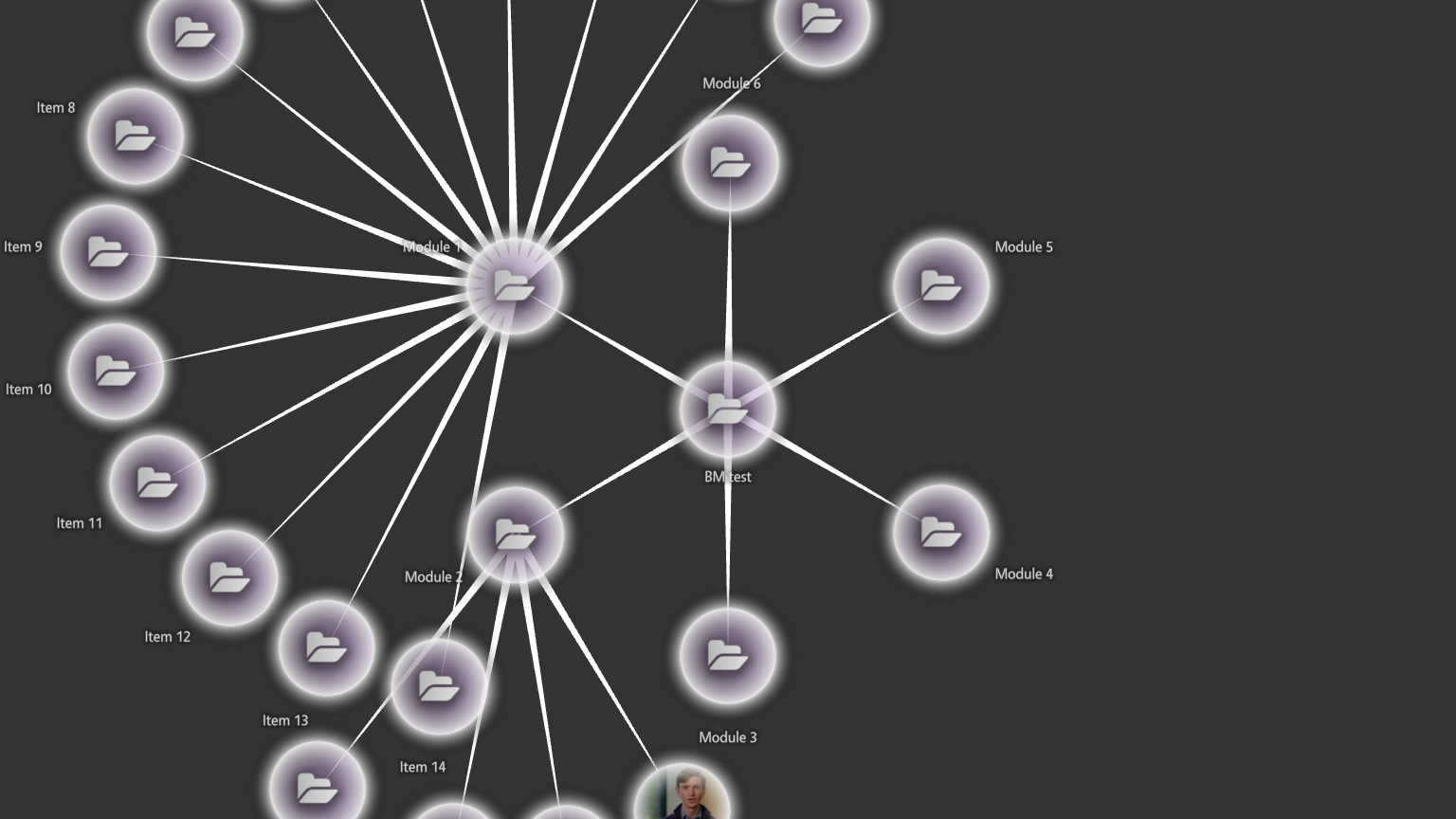
Each open folder has its items on a circle around it. A newly opened folder only uses the part of its circle that is not already taken by the circles of the folders open before it, including the folder it came from. So a new branch never lands on the trunk or on another open branch: it uses the space that is left, on the side away from the rest of the menu. The circle grows until all of the folder's items fit side by side, with a small gap between them.
An open folder stays where it opened, so its branch does not drift into its neighbours. When a branch is folded, its space is free again for the next branch.
Large branches on a small screen
Each item needs room for its bubble, so a folder with many items needs a large circle, and two large branches open side by side need a lot of screen. On a small screen, turn on One open branch per level, or make the bubbles smaller in the theme.
Style the menu in the theme
A branching menu uses the same bubbles and connectors as finger menus, so the theme styles both kinds of menu the same way:
- Click Defaults and open the app's theme.
- Under Components, use these entries:
- Menu bubbles and Menu bubble connectors: the bubbles and the lines between them. See Finger Menus: Step 3.
- Branching menu: the menu itself, with the same settings as Finger menu, such as Menu idle timeout, Close content on next tap? and Exclusive mode, plus:
- One open branch per level: when on, opening a folder folds any other open folder at the same level, so only one branch is open at each level. Off by default.
You can also change these settings on one branching menu only: select it in the structure.