Set an operator PIN
A display has an on-screen menu that people open at the screen. An operator PIN (personal identification number) makes that menu ask for a number first. This page says what the PIN guards, how to set it and remove it, and what to do when SiteManager reports a problem. The Settings section of the Displays reference lists every field.
Only displays whose firmware supports it have this setting. For any other display, the On-screen display tab and the command line say so, and SiteManager sends it nothing.
What the PIN guards
With a PIN set, the display asks for it before it shows the on-screen menu. That includes:
- the menu opened by touch at the screen;
- the menu opened with a USB keyboard or mouse plugged into the display;
- the menu shown while the display starts.
The display shows a keypad first. The menu opens only after the right PIN is entered, by touch, a keyboard or a mouse. Cancel closes the keypad and leaves the menu closed.
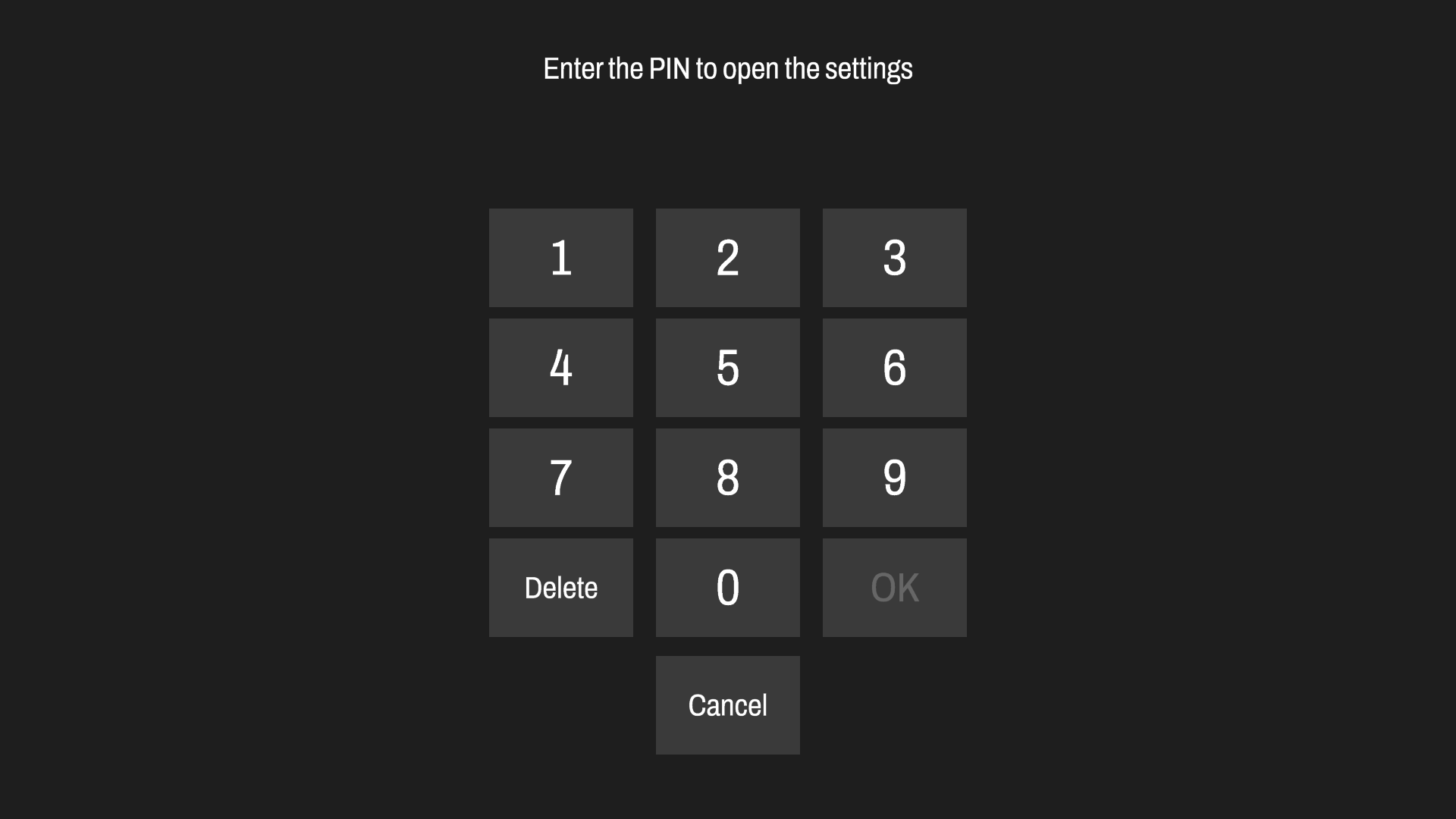
Without the PIN, whoever stands at the display can open the menu and change its settings, including Reset API access (see Secure your displays).
The PIN is 4 to 8 digits. Use 6 or more. The display pauses after wrong entries, but turning the display off and on again clears the count, so a longer PIN is safer.
Before you start
- You are an administrator (in local mode everyone is).
- The display is online and its firmware supports the PIN.
- You will tell the people who work at the display the PIN. SiteManager never shows it again after you set it.
Secure the display first if the PIN matters
On a display that is not secured with an access key (open or unclaimed), anyone on the network can set or remove its PIN. A PIN protects the menu at the screen, but only a secured display protects the PIN itself. See Secure your displays.
Set a PIN
- Choose the displays under Select displays, then open Settings and the On-screen display tab. See Settings.
- Under Operator PIN, type the PIN. The line above the box says PIN set or No PIN. With several displays it says how many of them have a PIN.
- Select Apply settings to N displays.
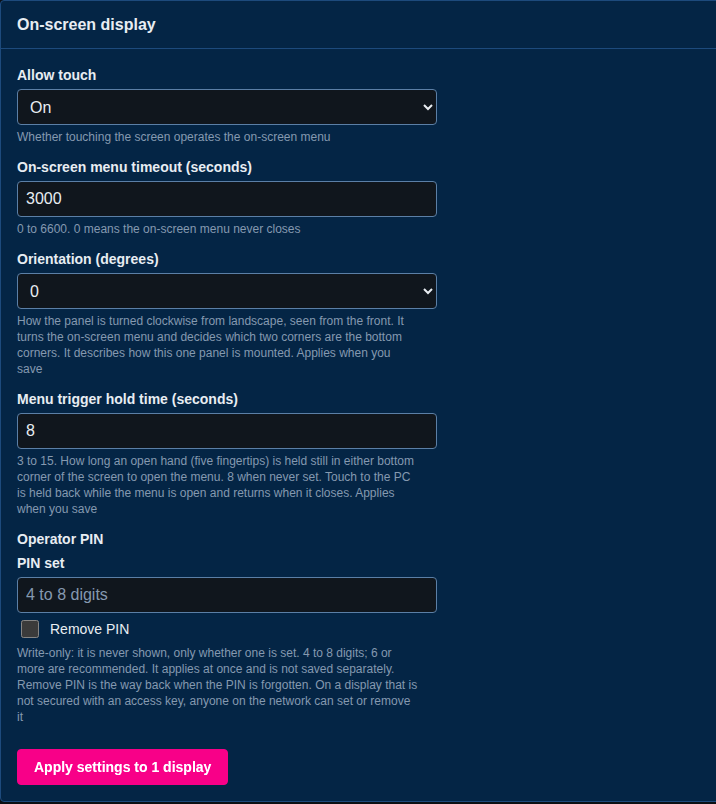
A PIN applies at once. It is not saved separately, so there is no Save to the displays step for it, and a change that sets only a PIN does not offer one. If you change other settings in the same step, those stay unsaved until you save them, as always.
SiteManager checks the length before it sends anything. A PIN that is not 4 to 8 digits is refused with a PIN has 4 to 8 digits (6 or more are recommended), and nothing is sent.
From the command line:
sitemanager settings set --displays R0000001A --settings.osd.pin 135790
The PIN is never shown, returned, printed or kept in the audit log. The audit log says PIN set or PIN removed, and a diagnostics bundle shows only whether a PIN is set.
Remove a PIN
Removing the PIN is its own action. A blank PIN box never removes it.
- On the On-screen display tab, tick Remove PIN and leave the PIN box empty.
- Select Apply settings to N displays.
The result row says what changed, without the PIN itself:

Do not type a PIN and tick Remove PIN together. SiteManager says Enter a new PIN or tick Remove PIN, not both. Nothing was changed.
sitemanager settings set --displays R0000001A --remove-pin
If the PIN is forgotten
Remove it, then set a new one. Nobody needs the old PIN to remove it, which is why the display should be secured: see the warning above. You do not need to be at the display.
Profiles never carry a PIN
A PIN belongs to one display, and a profile applies to many. A profile cannot set a PIN or remove one, so applying a profile never changes a display's PIN. See Profiles and drift.
If something goes wrong
Each message says whether anything was changed.
- The display refused the values: … The display gave a reason, and nothing was changed. Fix the value and try again.
- The display is busy checking a PIN. Nothing was changed. Someone is entering a PIN at the display. SiteManager already tried a few times. Wait a few seconds and try again.
- The display's settings could not be reached or did not answer in time. Usually nothing was changed, but some settings may have been stored. SiteManager reads the display again and shows what it holds now. Check that, then try again if you need to.
- The display stored the other settings of this request but could not store the PIN. The PIN is unchanged. The other settings are applied and still unsaved. Save or discard them, then set the PIN again.
- The PIN storage on this display cannot be used, so nothing was changed. The display needs service. Trying again will not help. Contact MultiTaction support.
- This display's firmware does not have: Operator PIN. The display cannot hold a PIN. Update its firmware (see Update display firmware).
- The display's capabilities have not been read yet. Try again in a few seconds.