The web interface
The web interface is where most people use SiteManager. On the computer that runs SiteManager, open http://127.0.0.1:8790/ in a browser. No login is needed. If SiteManager is open to the network, open https://<computer>:8790/ from another computer and sign in. If you have not done this yet, see First start.
For a guided tour of every page, and the order of work on your first day, see A tour of SiteManager.
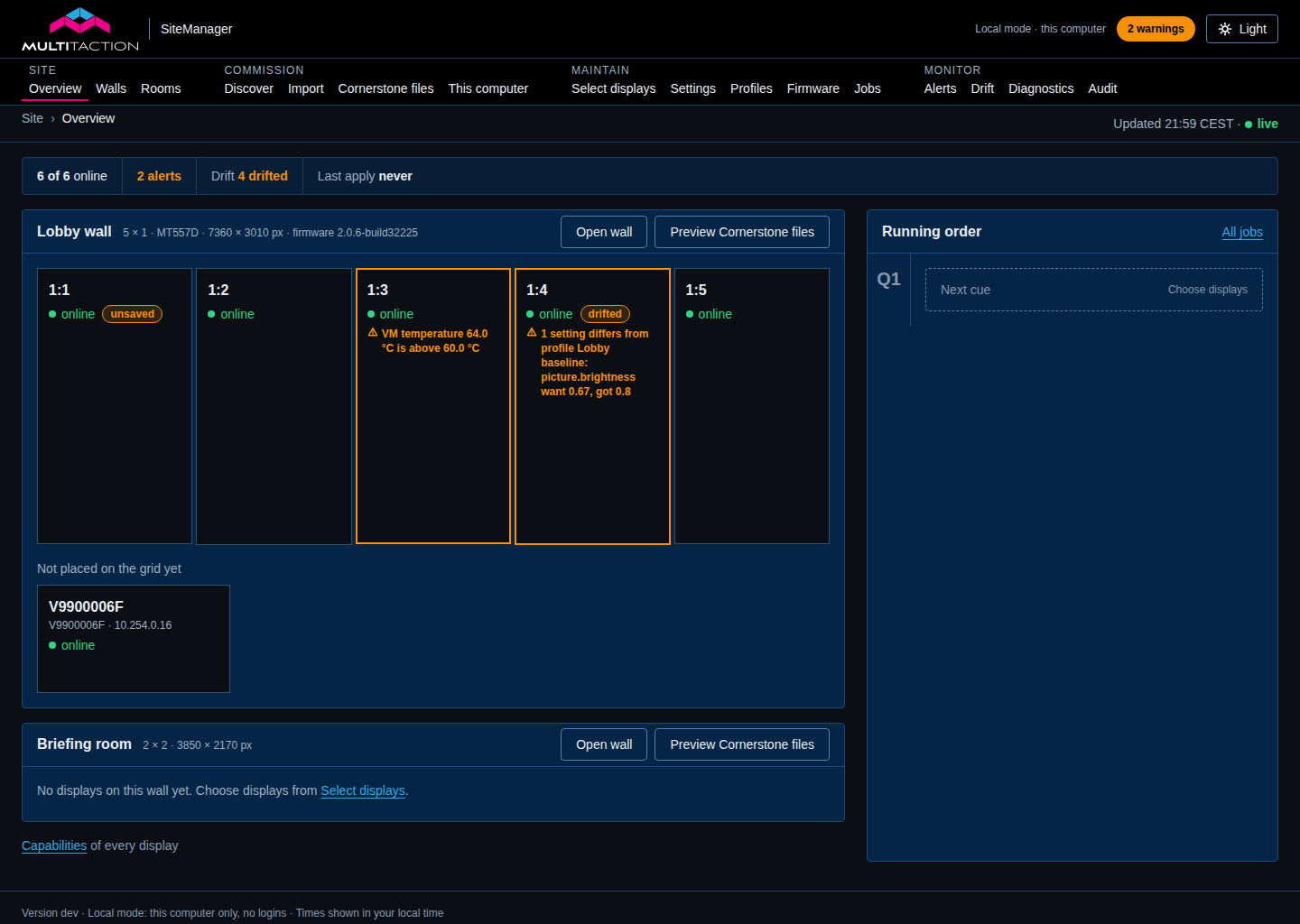
The screenshot shows the overview of a site with two walls. A reboot is waiting for a go-ahead in the running order on the right.
Dark and light
SiteManager is dark by default. Select Light at the top right of any page to switch to the light theme, and Dark to switch back. The page remembers your choice in your browser. It does not follow the setting of your computer.
The menu
The black band at the top of every page holds the MultiTaction logo, a line that says whether SiteManager is in local mode, the alert pill and the theme button. Under it, the menu is grouped by what you are doing. The current page is underlined. On a narrow screen the menu folds behind a Menu button.
Site is for looking at the whole site.
- Overview: every wall and display with its live status, and the running order of jobs. See Displays.
- Walls: the list of walls, and where you make a new one. Each wall opens in a designer. See Walls and Cornerstone files.
- Rooms: layouts for projector installations. See Projector rooms.
Commission is for setting up a site.
- Discover: find displays on the network and add them. See Find and add displays.
- Import: read a project file saved by SiteManager 2.x. See Moving from SiteManager 2.x.
- Cornerstone files: the files SiteManager generates, with a preview and backups. See Write the Cornerstone files.
- This computer: the video outputs and touch settings of the computer that runs the service. See This computer.
Maintain is for changing displays.
- Select displays: choose displays to change together. See Change several displays at once.
- Settings: the settings of the displays you chose. See Settings.
- Profiles: named sets of settings. See Profiles and drift.
- Firmware: the firmware catalogue and the images SiteManager holds. See Firmware.
- Security: each display's encrypted connection and access key, SSH keys and update server. See Display security.
- Jobs: reboots, calibrations, firmware updates and profile applications, running or finished. See Jobs.
Monitor is for watching the site.
- Alerts: active alerts, alert rules and delivery channels. See Alerts.
- Drift: displays and files that no longer match what they should be. See Profiles and drift.
- Diagnostics: download a support bundle. See Diagnostics and capabilities.
- Audit: the log of changes. Administrators only. See Users, roles and security.
In network mode the black band also has an account menu with Account, Users (administrators only) and Log out. In local mode those are not shown. See Users, roles and security.
The alert pill reads No alerts, or counts the active alerts by severity, for example 2 warnings. It reads Alerts off when alerting is not working. It links to the Alerts page.
Under the menu, a line shows where you are, for example Site › Overview, and when the page was last updated. A green live means the page is receiving updates.
A link to the Capabilities page is at the bottom of the overview.
The overview
Under the menu, one strip, the health line, sums up the site: how many displays are online, how many alerts are active, how many displays have drifted, and when files were last applied. Each figure links to its page.
Each wall is drawn as a row or grid of tiles, like the real wall. A tile shows the display's name, its state in words, any alert, and the temperature and frame rate. A tile with a warning has a solid orange outline. A critical one has a dashed red outline. Displays that are not on a wall are listed under Not on a wall.
An unnamed display on a wall is shown by its position, as row:column counting from 1. 1:2 is the top row, second column. Any other unnamed display is shown by its serial number. SiteManager works the label out from the site, so it follows the display when you move it. If two displays in one list have the same label, SiteManager adds the serial number, for example 1:1 (V9900006F).
Standby and Go
Some actions disturb a wall: rebooting, calibrating, updating firmware, applying a profile that changes the video source, and the blend check. SiteManager does not do these at once. Each one becomes a numbered cue in the Running order, and waits on Standby.
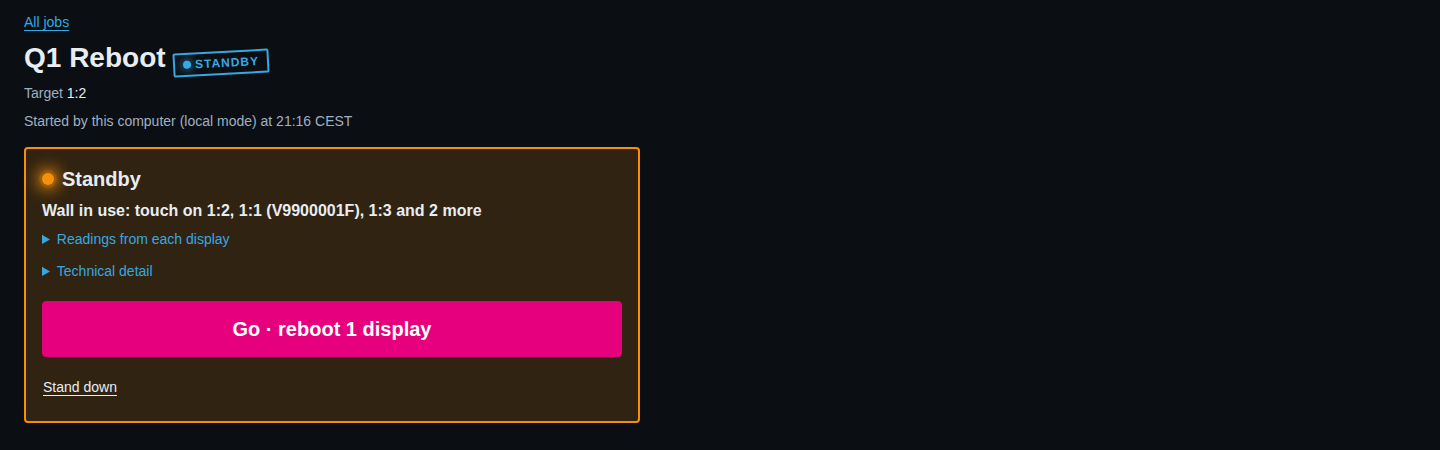
A cue on Standby shows you what will happen before it happens. In the screenshot the wall looked in use, so the block is orange. When the wall is idle, the block is blue.
- It says whether the wall is in use. Wall idle · nobody touching means no one is touching the wall. Wall in use names the displays being touched. Can't tell whether the wall is in use means SiteManager could not read the touch traffic. SiteManager never counts "can't tell" as idle.
- It lists settings that would be lost, for example unsaved changes on a display that is about to reboot.
- One Go button says exactly what it will do, for example Go · reboot 1 display.
- Stand down cancels the cue. Nothing has been sent to a display at that point.
When the wall was idle at Standby, SiteManager checks again when you press Go, because you may press it a long time later. If someone has started touching the wall in the meantime, the cue goes back to Standby with the new reading, and you press Go again. When the wall already looked busy at Standby, Go goes ahead, because you have seen the warning.
Finished cues get a stamp: DONE, FAILED or CANCELLED. A failed cue says in plain words what went wrong and has a Retry button. The raw error is under Technical detail.
The command line and the API do not wait on Standby when the wall is idle. See Command reference.
Pages update by themselves
The overview, a display page, a wall page, a room page and the job pages update live. When a display goes offline or a job moves on, you see it without reloading the page. You do not need to refresh to follow a reboot or a firmware update.
A page you have open also tells the service to read those displays more often. See Monitoring and history.
Who can do what
In local mode there are no roles. Everyone at the computer is the administrator, and the page has no account menu. The footer of every page ends with Local mode: this computer only, no logins. In network mode the footer shows the version and the fingerprint of the certificate instead.
In network mode SiteManager has two roles.
- An administrator can do everything.
- A viewer can look at everything except the audit log and the users page, and cannot change anything. A viewer sees secret values, such as passwords, as hidden. A viewer can download a diagnostics bundle, change their own password and tokens, and ask SiteManager to read displays more often for a while.
If you are a viewer, buttons that change something are not shown, or the fields are disabled. See Users, roles and security.
Reading the pages in this manual
The pages in this part follow the menu. Each page names the buttons and fields as they appear in the interface. Many of these things can also be done from the command line, and the manual says which command does the same.