Content Sets
A content set supplies the items shown by finger menus, rotating menus, teasers and clouds. Items are usually images, videos and PDFs from the media library, but a content set can also hold web addresses and widgets, such as a cloud, an app switcher or an Exit Showcase button. Items can be organized into folders that become the menus and submenus of your app.
For an overview, see Concepts.
Create a content set
- Click Content Sets in the left navigation. The list shows each content set and, in Used in, where it is used.
- Click New Content Set, enter a name, and confirm.
- Open the new content set.
The content set editor shows the set's items as a tree. Above the tree are three buttons:
- Content set settings: the content set's own name, preview image and menu settings.
- New Folder: adds a folder, which becomes a submenu.
- Add Widget: adds a widget as an item.
Changes save automatically.
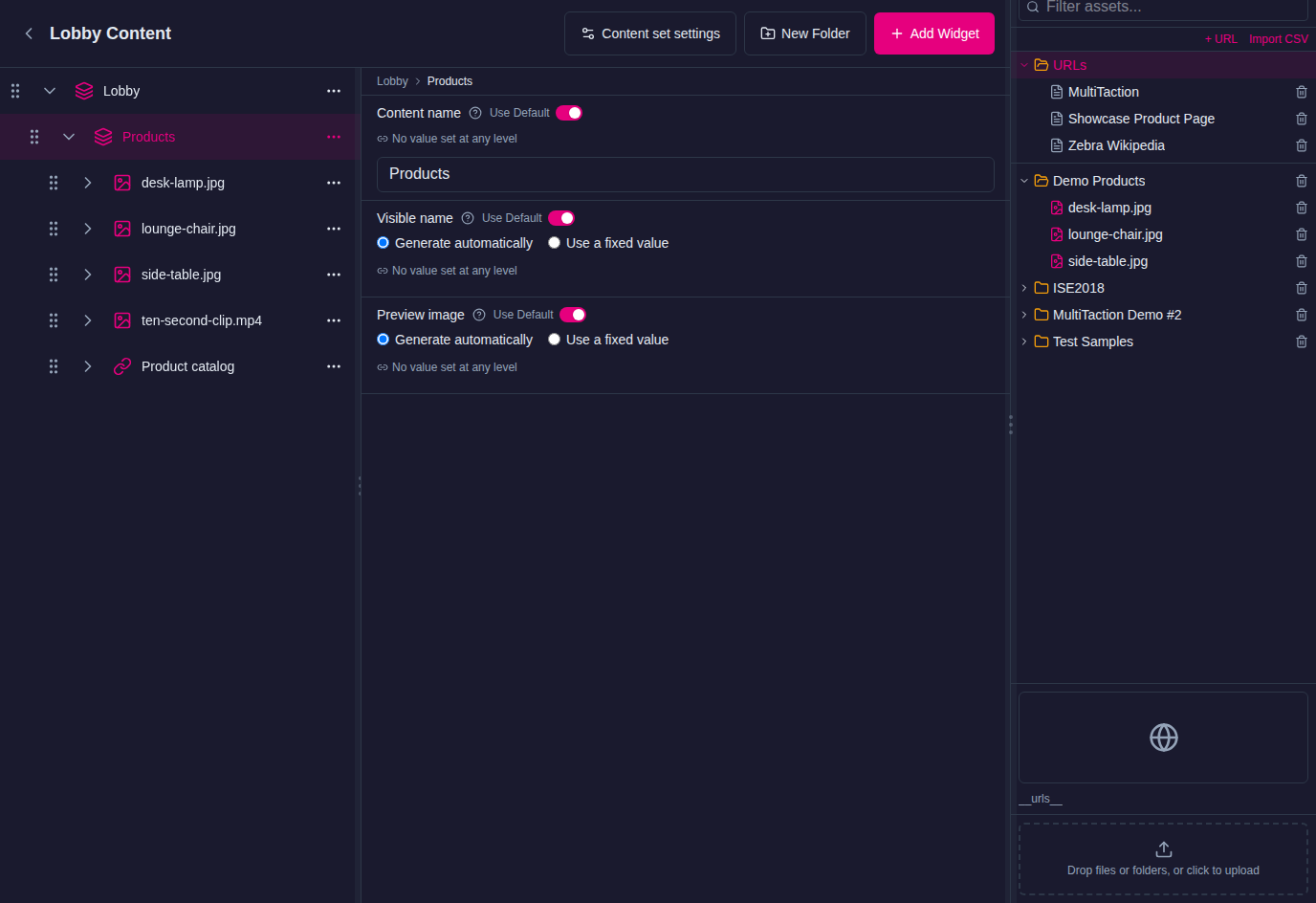
Add media
Drag images, videos and PDFs from the Media Library panel into the content set tree. Drop them on a folder to put them in that folder.
To add files from your computer, upload them to the media library first. You cannot add files directly from your computer to a content set.
Folders and subfolders
Folders become submenus. There are two ways to build them:
- From the media library: if a media library folder is already organized the way you want, drag the whole folder into the content set. Its subfolders and files become a matching menu tree.
- By hand: select the folder that should contain the new one, click New Folder, and rename it from its … menu (Rename). Then drag items into it.
Add a web address
Web addresses live in the media library's URL Library. To add one, use Add URL; to add many, use Import URLs from CSV. Then drag the address into the content set like any other item. It opens in a web browser widget.
Add a widget
Use Add Widget to put a widget into a content set, for example:
- Cloud widget: a rotating ball of items inside a menu.
- Input visualizer: a menu item for staff to check touch input and read Codice code numbers.
- Group: several widgets shown together as one item. A group does not create a submenu; use New Folder for that. See Groups and Logic.
To add a widget:
- Select the folder the item should go in.
- Click Add Widget and choose the widget.
- Select the new item and set its attributes. Its name in the menu comes from its Visible name.
Note
You can add almost any widget this way, including image and video viewers. For plain images, videos and PDFs, it is quicker to drag them from the media library.
Use a content set
A menu, teaser or cloud shows a content set through its Content attribute. Select the widget in the structure and choose the content set in Content. To stop using it, choose another content set, or use Remove from slot on the content set's row in the structure tree. The content set itself is not deleted.
Build from a folder in one step
You can also drag a media library folder straight onto a slot in the structure tree. The Editor asks what to build, for example a new content set shown by a finger menu, a teaser that opens a finger menu over the folder, or a group with one viewer per file.