Install on macOS
MT Showcase for macOS is an application bundle, distributed as a disk image (.dmg). It is available from MT Showcase 26.09.1.
Requirements
- macOS 13 (Ventura) or later.
- A Mac with Apple Silicon. Intel Macs are not supported.
- No additional software. Everything MT Showcase needs is inside the application bundle.
The macOS build is signed with a MultiTaction Developer ID certificate and notarized by Apple.
Not available in the macOS build
These features work on Ubuntu and Windows but are not available on macOS:
- Barcode and scanner input
- Audio capture from streaming video
- RDP viewing
Install from the disk image
-
Download the MT Showcase disk image from the macOS downloads page.
-
Open the downloaded
.dmgfile. The disk image window opens: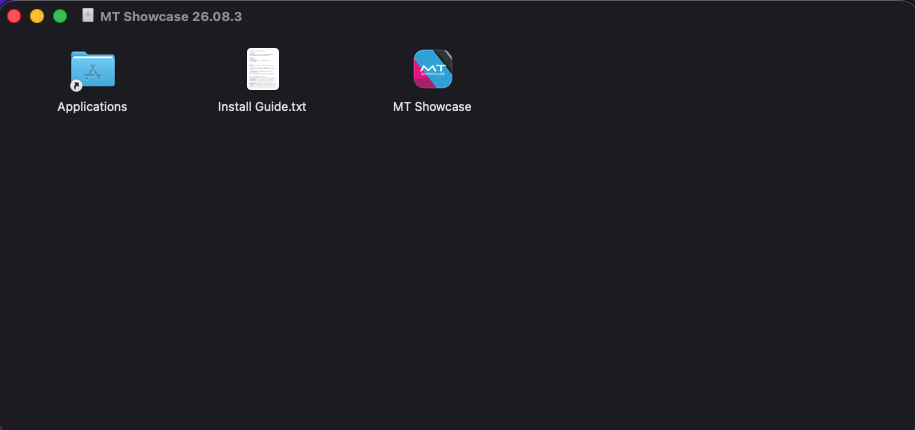
-
Drag MT Showcase onto the Applications folder alias.
-
Eject the disk image.
MT Showcase is installed at /Applications/MT Showcase.app.
Never change files inside the application bundle
Do not edit or add files inside /Applications/MT Showcase.app. Changing the bundle breaks its code signature, and macOS then refuses to open the app. MT Showcase keeps all of its data in your home folder, under ~/.mt-showcase/; see File locations.
Start MT Showcase for the first time
Double-click MT Showcase in the Applications folder.
On macOS the app starts both parts of MT Showcase:
- The server, which serves the Editor over HTTPS at https://localhost:8443.
- The client, the touch-screen presentation window.
There is no separate service or server command to start.
The first launch takes longer than later ones:
- macOS briefly shows Verifying... while it checks the notarization with Apple. This happens once.
- MT Showcase creates its database, so the client window can take noticeably longer to appear.
The MT Showcase client then asks for a license; see Licensing.
Accept or trust the HTTPS certificate
The server generates a self-signed certificate on first launch and stores it in ~/.mt-showcase/certs. Because it is self-signed, your browser warns you the first time you open the Editor:
- Safari: "This Connection Is Not Private". Click Show Details, then visit this website.
- Chrome: "Your connection is not private". Click Advanced, then Proceed.
- Firefox: "Warning: Potential Security Risk Ahead". Click Advanced, then Accept the Risk and Continue.
To trust the certificate permanently on this Mac, run this command in Terminal and authenticate when prompted:
sudo security add-trusted-cert -d -r trustRoot -k /Library/Keychains/System.keychain ~/.mt-showcase/certs/server.cert.pem
If you delete ~/.mt-showcase, a new certificate is generated and you need to trust it again. To use a certificate from your own certificate authority instead, see Network, HTTPS and email.
Open the Editor from another computer
The server listens on all network interfaces, so other computers on your network can open the Editor at https://<this-mac-address>:8443. Find the Mac's address in System Settings > Network, or run:
ipconfig getifaddr en0
Each computer that connects sees the certificate warning once, unless you install a certificate it already trusts.
If the macOS firewall is turned on, allow incoming connections for MT Showcase when macOS asks.
Next step
Complete the first-run setup. To start and stop MT Showcase on macOS, see Start and stop MT Showcase.