Start and Stop MT Showcase
MT Showcase has two parts that you start and stop separately on Ubuntu and Windows:
- The MT Showcase server, which serves the Editor. It starts automatically and normally keeps running.
- The MT Showcase client, which plays apps on the screen. You start it from MT Launcher or directly.
On macOS, one app starts both; see macOS.
MT Launcher
MT Launcher gives users of a video wall a simple way to start applications such as MT Showcase and MT Canvus. The MT Showcase installer registers MT Showcase with MT Launcher on Ubuntu and Windows, so an MT Showcase tile appears in MT Launcher if it is installed. For setting up MT Launcher, see the MT Launcher manual.
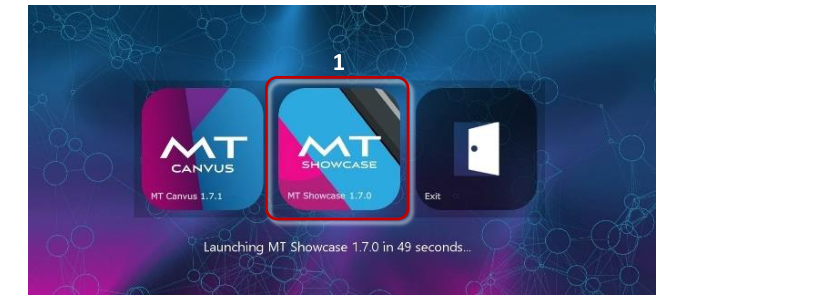
When MT Launcher starts MT Showcase, it:
- shows an Exit button on the MT Showcase welcome screen, so users can return to MT Launcher;
- restarts MT Showcase automatically if it stops unexpectedly;
- starts MT Showcase with the license wizard turned off. Start an unlicensed client directly instead; see Licensing.
Start the MT Showcase client
Do one of the following:
- From MT Launcher: tap the MT Showcase tile. This is the usual method on a video wall.
- Ubuntu: open a terminal and run
mt-showcase, or choose MT Showcase from the applications menu. -
Windows: double-click the MT Showcase desktop shortcut, or choose it from the Start menu.

MT Showcase Windows desktop shortcut
By default the client runs the app that was running in the previous session. To choose a different app, see Client command-line options.
Stop the MT Showcase client and return to the desktop
Use one of these methods. They return you to MT Launcher, if you started MT Showcase from it, or to the desktop.
- Tap the app and press Ctrl+Q.
- Tap the Exit Showcase widget in your app, if the app has one. See the Editor guide.
- Tap the App Switcher widget, if it is set up to quit to the MT Showcase welcome screen, then tap Exit on the welcome screen. The Exit button appears when MT Showcase was started from MT Launcher or with
--show-exit. - (Ubuntu computers with the MultiTaction base image only) Press Ctrl+Alt+Esc. This quits MT Showcase and MT Launcher and returns you to the desktop.
If you started MT Showcase from MT Launcher, press Ctrl+Q in MT Launcher to reach the desktop.
Return to MT Showcase from the desktop
- From MT Launcher: restart MT Launcher (on Ubuntu, run
mt-launcherin a terminal; on Windows, double-click the MT Launcher desktop shortcut), then tap the MT Showcase tile. - Directly: start the client as described above.
Client command-line options
You can pass these options to the MT Showcase client when you start it directly, or add them to the MT Showcase tile's arguments setting in MT Launcher.
| Option | What it does |
|---|---|
--app <name> |
Runs the named app instead of the most recent one. Enclose the name in double quotes if it contains spaces. |
--schedule <name> |
Runs the named app schedule. App schedules are managed in the Editor. |
--show-exit |
Shows an Exit button on the MT Showcase welcome screen. |
--audio-config <file> |
Uses an audio configuration file for positional audio. |
--disable-license-wizard |
Exits instead of opening the license wizard when there is no valid license. |
--activate <key> |
Activates a license online and exits; see Licensing. |
--create-license-request <key> |
Creates an offline license request file and exits; see Licensing. |
--help |
Lists the MT Showcase options and exits. |
Examples:
-
Ubuntu:
mt-showcase --app "My First App" -
Windows: edit the properties of an MT Showcase desktop shortcut and set Target to:
"C:\Program Files\MT Showcase\bin\showcase.exe" --app "My First App" -
macOS (Terminal):
"/Applications/MT Showcase.app/Contents/MacOS/mt-showcase" --app "My First App"
Start on the welcome screen
MT Showcase remembers the last app it ran and opens it again on the next start, even if you started that app with --app. To show the app selector menu on the welcome screen instead, enter an app name that does not exist, for example ___app_selector_menu___:
mt-showcase --app ___app_selector_menu___
MT Showcase cannot find an app with that name, so it shows the welcome screen and its app selector menu. Any name that matches no app works the same way. MT Showcase remembers the name you passed, so later starts without --app also open the welcome screen, until you choose an app.
Start and stop the MT Showcase server
Ubuntu
The server runs as the mt-showcase-server systemd service. It starts when the computer starts and restarts automatically if it stops.
sudo systemctl start mt-showcase-server     # start
sudo systemctl stop mt-showcase-server      # stop
sudo systemctl restart mt-showcase-server   # restart, for example after changing settings
systemctl status mt-showcase-server         # check whether it is running
Windows
The server is started by the MT Showcase Editor scheduled task when a user signs in to Windows. It runs hidden, as the signed-in user.
- Start the server: sign out of Windows and sign back in. To start it without signing out, double-click
run-editor-hidden.vbsin theserverfolder of the installation folder, for exampleC:\Program Files\MT Showcase\server\run-editor-hidden.vbs. -
Stop the server: open Task Manager, go to the Details tab, and end the
node.exeprocess whose path is inside the MT Showcase installation folder (right-click the column headers and add Image path name to see it). From PowerShell you can run:Get-Process node | Where-Object { $_.Path -like "*\MT Showcase\server\node\node.exe" } | Stop-Process -
Restart the server: stop it, then start it.
Run only one server at a time
Do not start a second server, for example by running mt-showcase-server.bat, while the server is already running. The two compete for the same ports.
macOS
Double-click MT Showcase in the Applications folder. The app starts the server if it is not already running, then the client.
Quitting the client (close its window or press Cmd+Q) does not stop the server. It keeps running in the background, so the Editor stays available, and the next launch of MT Showcase reuses it. To stop the server, quit MT Showcase and run this in Terminal:
kill $(cat ~/.mt-showcase/server.pid)
Stop the server before you upgrade MT Showcase or reset its data.
Log files
The server and the client write log files each time they start. See File locations.