Tips and tricks
Small things that save time. The command lines use the names from the demonstration site (Lobby wall, serial V9900001F). Replace them with yours.
In the wall and room designers
Use the keyboard
Click the layout once, or Tab to it, and the keyboard works on the canvas:
- Tab moves between displays. Enter or Space selects the one that has the focus.
- The arrow keys move the selected display: by one slot for a display on the grid, by 10 pixels for a display placed freely. Hold Shift to move by one pixel.
- R turns the selected display by 90 degrees.
- Delete (or Backspace) takes it off the wall.
- Escape deselects, or cancels a drag.
- Ctrl+Z undoes and Ctrl+Shift+Z (or Ctrl+Y) redoes. On a Mac use Cmd instead of Ctrl. Undo goes back 50 steps. Undo works in the room designer too.
The keys do nothing while the cursor is in a form field, so typing a name never moves a display.
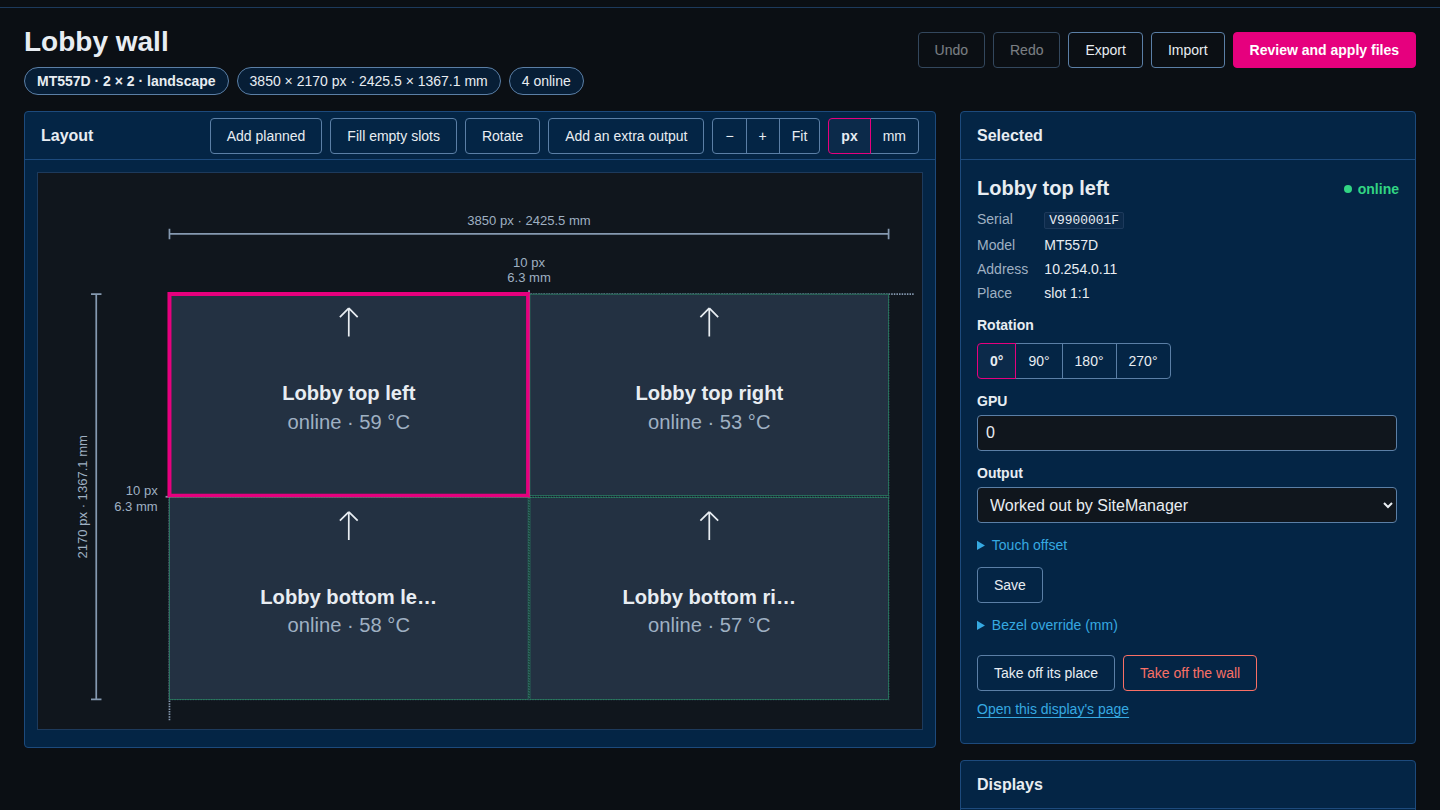
The same page tells you the shortcuts in the Selected panel: "Arrow keys nudge it, R turns it, Delete takes it off."
Zoom and pan with the mouse
Turn the mouse wheel over the canvas to zoom. Drag an empty part of the canvas to pan. Fit brings the whole wall back into view, and − and + zoom in steps.
See millimetres or pixels
The px and mm buttons on the toolbar switch every position and size between pixels and millimetres. SiteManager stores pixels. The two units show the same layout, so switching is safe at any time.
Design before the hardware arrives
Use Fill empty slots to plan a display in every slot, and lay the wall out while the displays are still in boxes. You can preview and download screen.xml already, but SiteManager refuses to apply the files until every planned display is bound to a real one. Identify to bind and Identify to place show a message on one display at a time, so you never have to read serial numbers off the back of a display.
Copy or download screen.xml
The screen.xml tab of a wall or a room shows the file as SiteManager would generate it now, with the wall's own windows marked. Copy screen.xml and Download are on the tab. They need no apply and write nothing to the computer.
Use the tab keys
On any tab strip (Problems, screen.xml, Desktop map, Layout settings), the left and right arrow keys move to the previous and next tab.
Selecting displays
Select by wall
On Select displays, tick Whole wall to include every managed display on that wall, or tick single displays. You can mix them: a whole wall and one display from another wall.
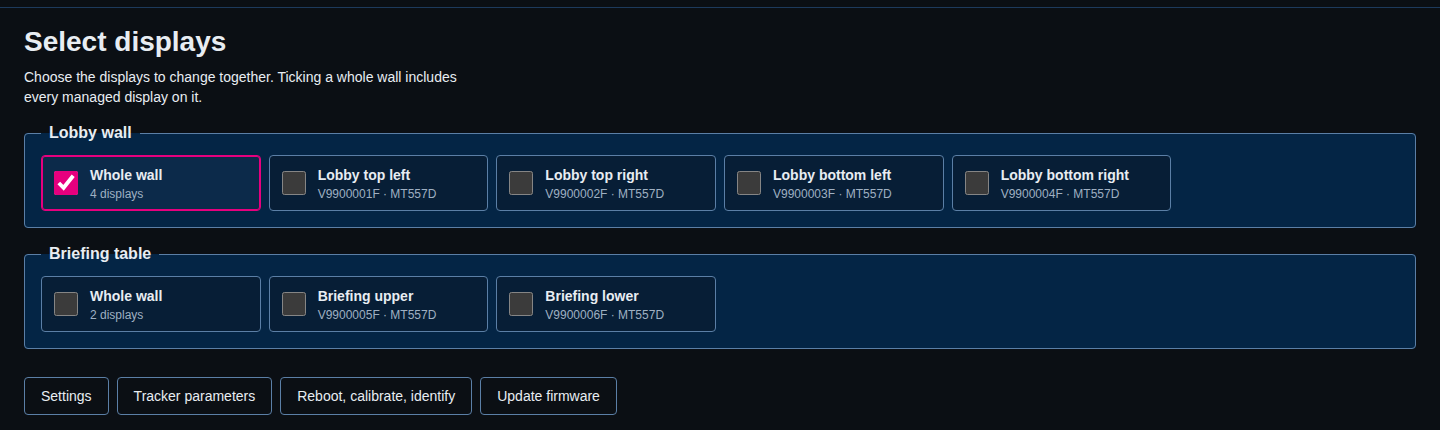
Bookmark a selection
The address of Settings, Tracker parameters and the actions page carries the selection. For example /settings?displays=wall:lobby-wall opens the settings of the whole Lobby wall, and /settings?displays=V9900001F,V9900002F opens two displays. Add a bookmark for the walls you change often. The address uses the wall's id, which sitemanager walls lists.
Skip the list: use the display's own page
A display's page has Settings, Tracker parameters and History as tabs, and Identify, Reboot and Calibrate on its overview tab. Open it by selecting a tile. For one display it is quicker than Select displays.
Let "varies" help you
On Settings, a field that is different on the chosen displays shows varies. SiteManager leaves it alone unless you change it, so you can change one setting on a whole wall without flattening the others. When you have applied settings, they stay pending until you select Save to the displays (or Discard). A display with pending changes shows an unsaved pill on its tile.
The command line for repeat jobs
Anything you do more than twice is a good candidate for the command line. On the computer that runs SiteManager in local mode it needs no login. See The command line and the Command reference.
If your service does not listen on port 8790, tell the command line where it is:
export SITEMANAGER_LOCAL_SERVICE=127.0.0.1:8800
Read the site
sitemanager displays          # every display, with its wall, state and label
sitemanager walls             # walls and their ids
sitemanager --json displays   # the same as JSON, for scripts
Name displays in one go
sitemanager displays rename V9900001F "Lobby top left"
sitemanager displays rename V9900002F "Lobby top right"
Change a setting on a whole wall
sitemanager settings set --wall "Lobby wall" --settings.osd.timeout=30
sitemanager settings save --wall "Lobby wall"
--wall takes the wall's name or its id.
Do it only when nobody is touching the wall
sitemanager idle exits with 0 only when the wall is idle, so you can chain a command to it:
sitemanager idle --wall "Lobby wall" && sitemanager reboot --wall "Lobby wall" --wait
Run from a scheduled task at night, this restarts the wall only if nobody is using it. See the idle-wall check.
Build a wall from a script
A big wall is quicker to set up from a script than by hand:
sitemanager walls add "Atrium wall" --model MT557D --columns 4 --rows 3
sitemanager walls plan atrium-wall --fill
sitemanager walls bind atrium-wall p1 V9900001F
walls plan --fill plans every slot, and walls bind ID PID SERIAL puts a real display in a planned place. sitemanager walls show atrium-wall lists the planned displays and their numbers.
Place a wall made on the command line
A wall made with sitemanager walls add starts at the origin 0,0, not beside the other walls. If the site already has a wall, move the new one with sitemanager walls layout atrium-wall --origin X,Y. The New wall form in the web interface does this for you. See Walls, rooms and the Cornerstone files.
Check the files without applying
sitemanager config preview            # a comparison with the files on the computer
sitemanager config apply --yes        # write them, with a backup
sitemanager config backups            # the list of backups
sitemanager config restore ID --yes   # put one back
Without --yes, config apply shows the comparison and asks Apply these files? [y/N].
Fail a script when something has drifted
sitemanager drift check exits with 2 when a display differs from its profile or a file differs from the site. A monitoring script can run it and alert on that exit code. See drift for all the exit codes.
Identify, then look
sitemanager identify --wall "Lobby wall"
Each display shows its name for 10 seconds. Add --text "Check me" --seconds 30 to show your own text for longer. --seconds goes from 1 to 60.
Watch one display closely, or chart it
sitemanager monitor focus V9900001F --seconds 300     # read it every 2 seconds for 5 minutes
sitemanager history V9900001F --range 7d --csv > lobby-top-left.csv
monitor focus is useful while a display reboots or while you tune a setting. history --csv writes every metric of the display as CSV, ready for a spreadsheet.
Collect a support bundle
sitemanager diagnostics --out support.zip
See Logs and diagnostics.
The JSON API
Everything the web interface does has a JSON equivalent, and the web interface itself uses it. In local mode, curl needs no login:
curl -s http://127.0.0.1:8790/api/v1/overview        # walls, displays and their state
curl -s http://127.0.0.1:8790/api/v1/drift           # the last drift check
curl -s http://127.0.0.1:8790/api/v1/config/backups  # the Cornerstone file backups
curl -s http://127.0.0.1:8790/healthz                # "ok", for a monitoring system
The service describes its own API, with every path and every answer, at /api/v1/openapi.yaml. In network mode send an API token from the Account page:
curl -sk -H "Authorization: Bearer $SITEMANAGER_TOKEN" https://wallpc:8790/api/v1/overview
See The JSON API. Some paths accept only a POST or PUT, for example /api/v1/displays. The OpenAPI file lists the methods.
Names that help
- Name every display. Tiles, alerts, jobs, the audit log and the Identify message all use the name. Without a name, a display on a wall is shown as
row:column(for example1:2for the top row, second column), and any other display as its serial number. A name is up to 64 characters and cannot hold a line break. Renaming never writes to the display. - Name displays for where they are, not for what they are. "Lobby top left" is still right after you swap a display. A serial number is not. Because SiteManager follows a display by its serial number, you can swap a broken display for a new one and rename it, and nothing else changes.
- Keep wall names short and plain. SiteManager makes the wall's id from its name when you create the wall: lower case, with every run of other characters turned into a hyphen. The id of Lobby wall is
lobby-wall. You type that id on the command line. A second wall with the same id gets-2. A name is up to 64 characters. - Put the place in the wall name, not the model. "Atrium wall", "Boardroom", "Briefing table". The model is in the chip next to the name.
- Rooms and profiles need an id you type. Use letters, digits, dots, hyphens and underscores. A profile's id cannot change later, so choose it with care. Its name can say more, for example id
baselineand nameSite baseline. - Name the extra outputs by what they are: "Teams screen", "Table controller". The name appears in
mt-canvus.inias[output:Teams screen], and Canvus uses it.
Backups before a change
- Cornerstone files back themselves up. Every apply makes a backup first, and SiteManager keeps the 50 newest. See Backups and restore.
- Export a wall or a room before an experiment. Export in the designer saves the design as a file. Import puts it back. Undo history is kept only in memory and is gone when the service restarts, so an exported file is the only safe copy. From the command line:
sitemanager walls export lobby-wall --out lobby-wall.json. - Try an import first. Import starts as Check only: show what would change, save nothing. On the command line, add
--dry-run:sitemanager walls import lobby-wall lobby-wall.json --dry-run. - Preview before you apply. The Cornerstone files page shows the exact lines that will change. Read them. If the preview says The files on this computer already match what SiteManager generates, there is nothing to apply.
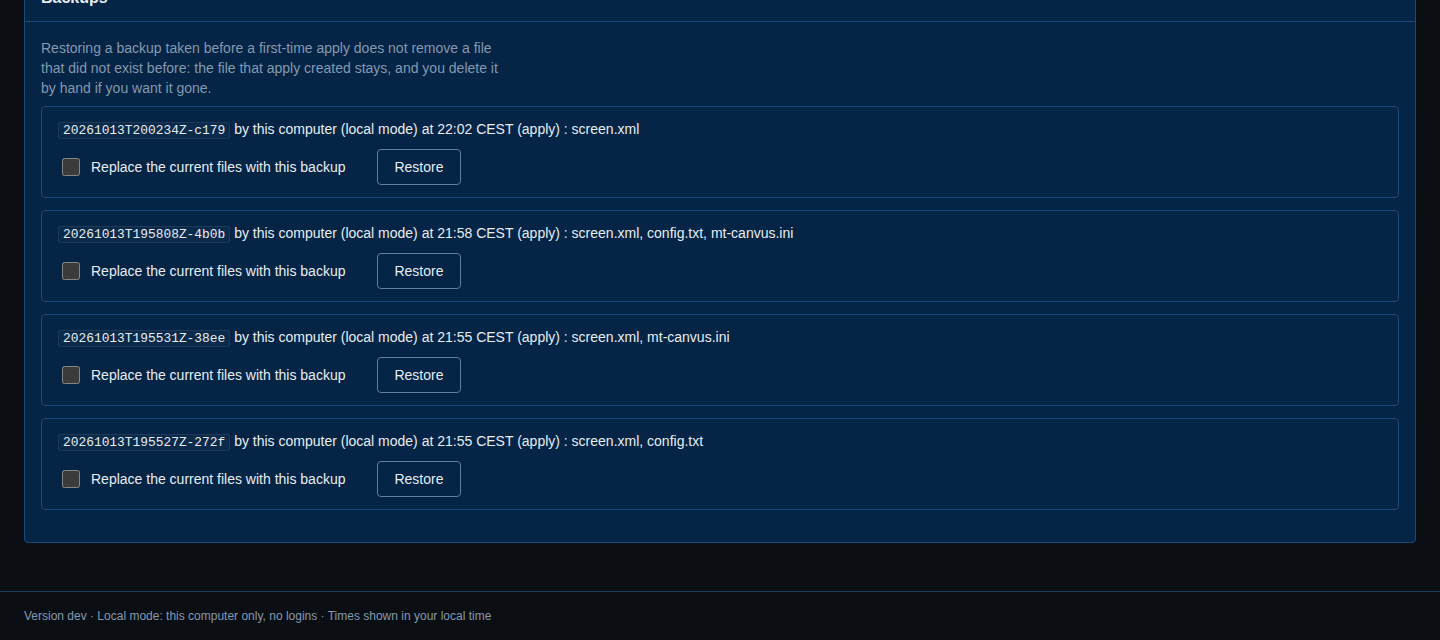
- Keep the backup list in mind when you restore. A restore never deletes a file that did not exist when the backup was made. See Backups and restore.
The touch preview
The touch preview checks that touch input is mapped to the right display before anyone starts Canvus. Open the wall page, choose how long to watch (1, 2, 5 or 10 minutes) and select Preview touch. Touch a display, and its tile lights up in the layout. If the wrong tile lights up, or none does, the touch mapping of that display is wrong: check its Rotation, its Touch offset and its place in the grid.

The preview only reads. It never sends anything to a display. The Cornerstone files page has the same preview. A user who may change the site starts and stops it. Everyone can watch one that is running. See Touch preview.
Using SiteManager from a phone
- Open the same address you use on a computer. In network mode that is
https://<computer>:8790/. In local mode the service answers only on the computer it runs on, so use an SSH tunnel on the same port number. - The menu is behind the Menu button. Escape closes it again.
- The overview lists a wall's displays in one column, with a slot 1:2 note for where each one is. See the phone screenshots in A tour of SiteManager.
- In the wall designer, tap a display and then tap a slot instead of dragging. This is used on any screen narrower than 901 pixels and on every touch screen.
- In the room designer the canvas pans and zooms, and you type values in the inspector and under Room settings.
- Use a phone for the quick jobs: Identify a display, read an alert, press Go or Stand down on a cue. Do the layout work on a computer.
Dark and light
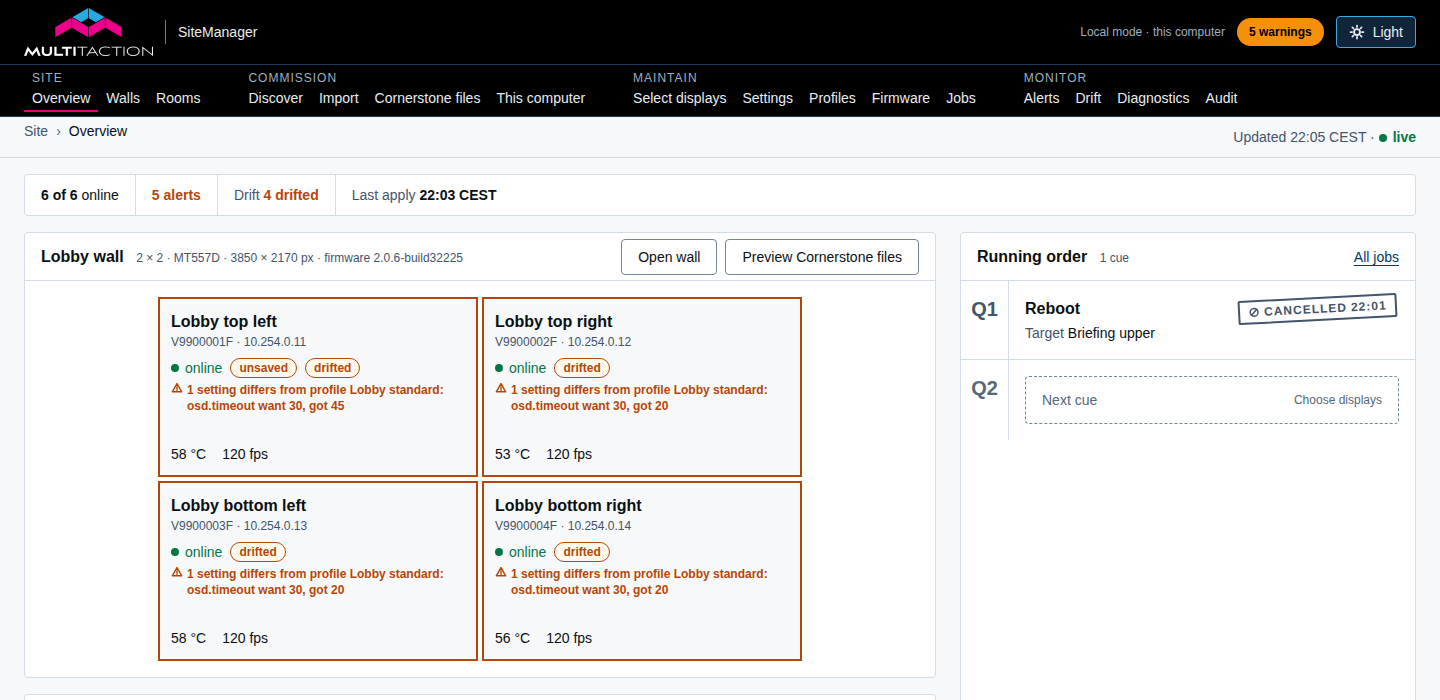
SiteManager is dark by default. Select Light at the top right to switch to the light theme, and Dark to go back. The page remembers your choice in your browser. It does not follow the setting of your computer, so a projector in a bright room can use the light theme while the wall computer stays dark.
Other small things
- Pages update by themselves. Leave the overview open while a display reboots. The green live next to the time means the page is receiving updates. It turns to reconnecting if the connection drops.
- Do not open too many tabs in local mode. A browser allows 6 connections to one address over plain HTTP, and every SiteManager page keeps some of them open. About 5 tabs fit. See First start.
- Acknowledge, do not ignore. Acknowledge on an alert records that you have seen it. It does not hide the problem. See Alerts.
- Limit a rule to one wall. Each alert rule can apply to every display, to chosen walls or to chosen displays. A rule such as "Lobby wall running hot" with a lower temperature than the site-wide rule warns early about one place only.
- The web interface always waits for your go-ahead. A reboot or calibration there becomes a cue on Standby, even when the wall is idle, and the cue shows whether the wall is in use. The command line and the API do not wait when the wall is idle:
sitemanager rebootthen restarts the displays at once. Runsitemanager idlefirst if you are not sure. - See which files differ from the design. After a change in the designer and before you apply it, the Drift page shows the Cornerstone files as
differs.