Set where displays look for firmware
Displays whose firmware supports it keep their own setting for where they look for firmware: an update server address and a branch. SiteManager shows both and can change them, for one display, a wall or many displays at once. This page says how. The Update channel section of the Display security reference lists every field.
This is the display's own setting. It is not the catalogue SiteManager downloads firmware from for its own cache. That one is set with the service option --firmware-catalogue, and is described in Update display firmware. Change the display's setting when the display itself checks for updates, for example when your site runs its own update server.
Before you start
- You are an administrator (in local mode everyone is).
- The displays' firmware lets you change where they look for firmware. A display whose firmware cannot says This display's firmware cannot change its update server. Update it to the latest MultiTaction firmware. and is sent nothing.
- You know the address of the update server you want, and the branch. An address that ends in
.jsonis a signed catalogue. Any other address is a legacy update server.
See a display's setting
Open the display's page. The panel Firmware updates on the display shows:
- the Update server address, whether it is a signed catalogue or a legacy update server, and where it comes from: default, set here, or set by the display's environment;
- the Branch.
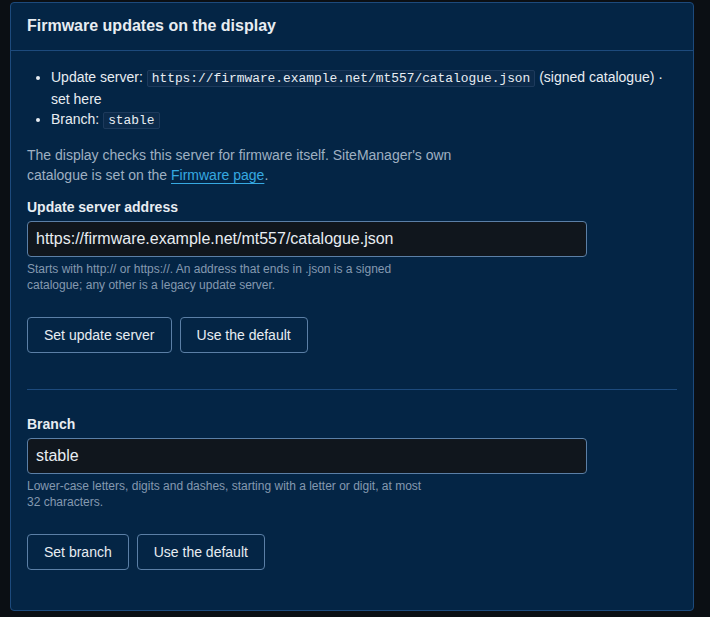
Default is what the display uses when nobody has set anything. Set here means it was set from SiteManager or on the display's menu.
On the Security page, the Update channel column shows the same for every display, in short form. It fills in after the page opens, so a display that is off does not hold the page up.
Set one display
- Open the display's page and find Firmware updates on the display.
- To change the address, type it in Update server address and select Set update server. It must start with
http://orhttps://and name a host. - To change the branch, type it in Branch and select Set branch. Use lower-case letters, digits and dashes, starting with a letter or digit, at most 32 characters.
- The panel shows the new values. The display uses them at its next update check.
If SiteManager would be refused, it says so under the field and sends nothing. The rules: no user name or password in the address (Leave the user name and password out of the address.), no ? part (Remove the ?… part of the address.), no # part, at most 512 characters.
To go back, select Use the default next to the address, or next to the branch. Each field has its own button.
An address that the display's environment fixes
Sometimes a display's address is fixed by its own environment. The panel then says Fixed by the environment, and the source reads set by the display's environment. A change you make in SiteManager is stored, but the display ignores it until the environment's address is removed. The panel says so.
If the fixed address carries a user name or password, SiteManager shows it with those replaced by …@, everywhere: on pages, in the API, on the command line, in the audit log and in job steps. The password never appears.
Set a wall or many displays
- Open Security in the menu. Choose a wall next to Show if you want one, and tick the displays. On a filtered list, tick Every managed display on the wall.
- Under Update channel of the selected displays, type the address, the branch, or both. A field you leave empty keeps what each display has.
- To return to the default, tick Use the default address or Use the default branch.
- Select Set update channel.
- Follow the job. Each display gets a step that says what was set. Displays whose firmware cannot change their update server are skipped with the reason.
From the command line:
sitemanager update-channel V9900001F                      # show one display
sitemanager update-channel set --wall lobby-wall --url https://firmware.example.net/mt557/catalogue.json --branch stable --wait
sitemanager update-channel set --all --default-url --wait
sitemanager update-channel check --url https://firmware.example.net/x.json
check applies the same rules and sends nothing.
Every change is written to the audit log as display.update-channel.set, with the old and the new address and branch.
If something goes wrong
- SiteManager could not read the update server from this display. The display is off, not reachable, or its security needs a look (see the Security panel above it). Try again once the display is online.
- The panel says the firmware cannot change its update server. Update the display's firmware first.
- My change does not take effect. Check the panel for Fixed by the environment.