Several casts at once
From MT Screencast 26.11.4, one wall can take up to four casts at the same time. Each cast arrives on its own video input, so people can place them side by side on the canvas. With the default setting the wall has one input and works exactly as before.
Switch it on
Set the number of inputs (1 to 4) under [companion] in the settings file and restart the companion:
[companion]
max-inputs = 4
- Ubuntu:
/etc/mt-screencast/companion.ini, thensudo systemctl restart mt-screencast. - Windows:
C:\ProgramData\MultiTaction\ScreenCast\companion.ini, then restart the MT Cast Companion service.
Then restart Canvus once, so it picks up the new inputs' names.
The inputs
| Input | Camera name | In Canvus | AirPlay and MT Caster list it as |
|---|---|---|---|
| 1 | MT Cast | <room> |
<room> |
| 2 | MT Cast 2 | <room> Input2 |
<room> Input2 |
| 3 | MT Cast 3 | <room> Input3 |
<room> Input3 |
| 4 | MT Cast 4 | <room> Input4 |
<room> Input4 |
The status page lists every input with its camera, sound and touch control state:
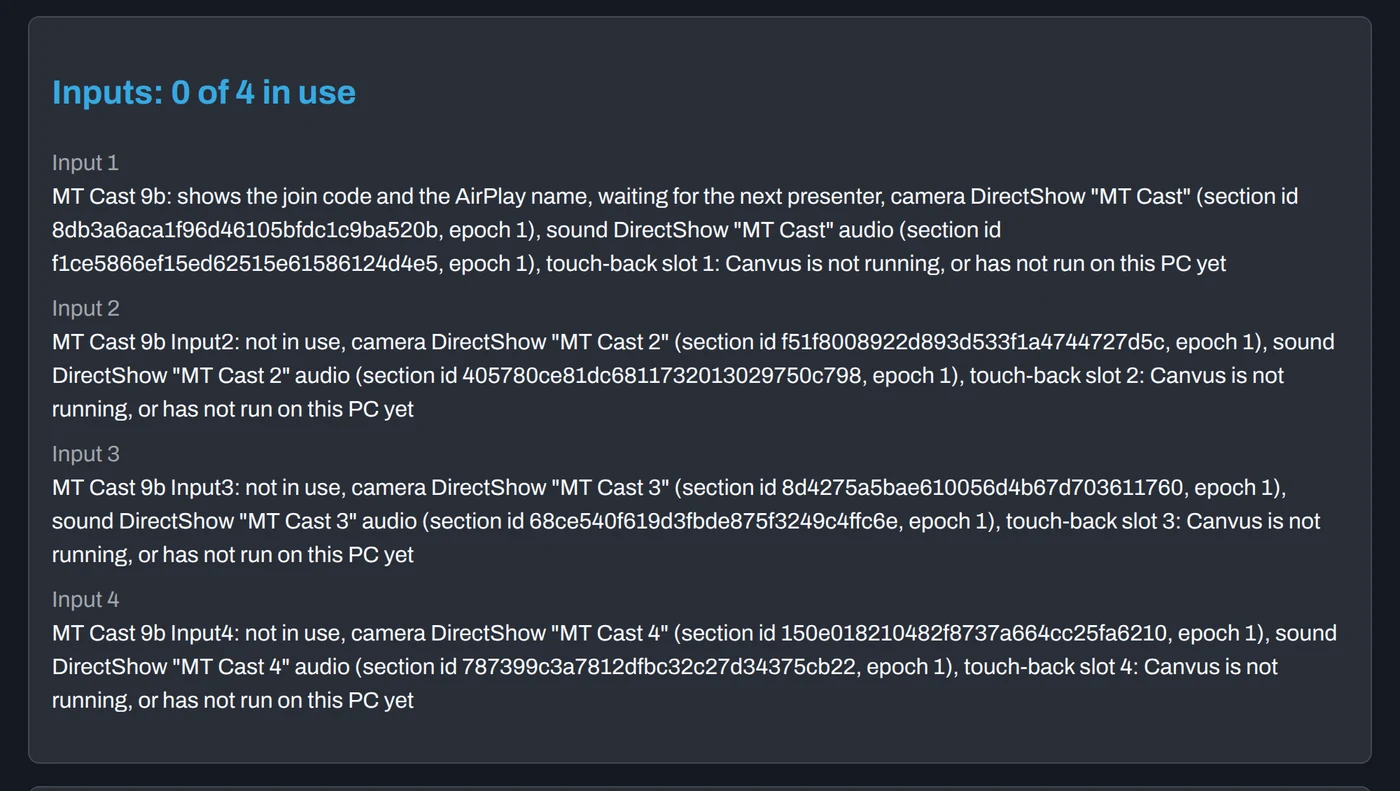
- Each input has its own sound, paired with its own camera, and its own touch control port (5100 for input 1, 5101 to 5103 for inputs 2 to 4; see Controlling the laptop from the wall).
- With more than one input, a room name longer than 43 bytes is shortened in the AirPlay list and in Canvus, and the status page warns about it. Shorten the room name to keep it whole.
- On Ubuntu, inputs 2 to 4 appear in VIDEO INPUTS as they are needed (see below). On Windows they are always listed, showing "Not in use" when free.
How visitors join
The join code on the card always belongs to the next free input. When someone starts casting with it, that input becomes busy and the next free input shows a new code at once, so the next visitor reads the code from the card as usual.
- Place the next input on the canvas when you want the next cast to show: the free input with the code is the one to place. On Ubuntu it appears in VIDEO INPUTS when the input before it is in use.
- When every input is busy, MT Caster and the browser page say "All inputs on
<room>are busy. Try again when someone stops." AirPlay shows the busy input's name but cannot connect. - A code someone else has just used gets "Someone else just used that code. Type the new code shown on the wall."
- Stopping frees the input at once. A cast whose connection drops keeps its input for 30 seconds, so the same laptop can come back to the same place on the canvas.
- An older MT Caster still casts to the wall; when the room is full it shows its usual "isn't ready" message.
Input names in Canvus
The companion writes the names above into Canvus's system settings file ([video-input:…] sections), marked as its own, and removes them again when you lower max-inputs or uninstall. It never changes a name you set yourself.
If Canvus's settings file belongs to an installed Canvus package, the companion leaves it alone: the inputs then keep Canvus's default names, and the companion's status page says how to name them by hand.
After a restart or an upgrade
When the companion restarts while an input is placed on a canvas, that input keeps working. Once the widget is closed, the input disappears from VIDEO INPUTS for about 30 seconds and then comes back, so Canvus sees it as a new camera.