Logic Examples
These recipes use groups, signals and counters to build common interactive patterns. Each one starts from an app whose structure is open on the Structures page. Changes save automatically, so keep a player running the app and try each step on the wall as you go.
In every recipe, a "button" is a Content hotspot with something visible in its Hotspot visualization widgets slot, such as a Text viewer with a label or an Image viewer with an icon. The hotspot itself is invisible.
Add a widget to a slot
Everywhere below, "add X to Y" means: in the structure tree, open the … menu on the Y row, choose Add Widget, and select X in the dialog.
Example 1: Unlock content when every hotspot has been touched
Visitors explore three features of a product. When all three have been touched, a video unlocks. A Start over button resets the exhibit for the next visitor.
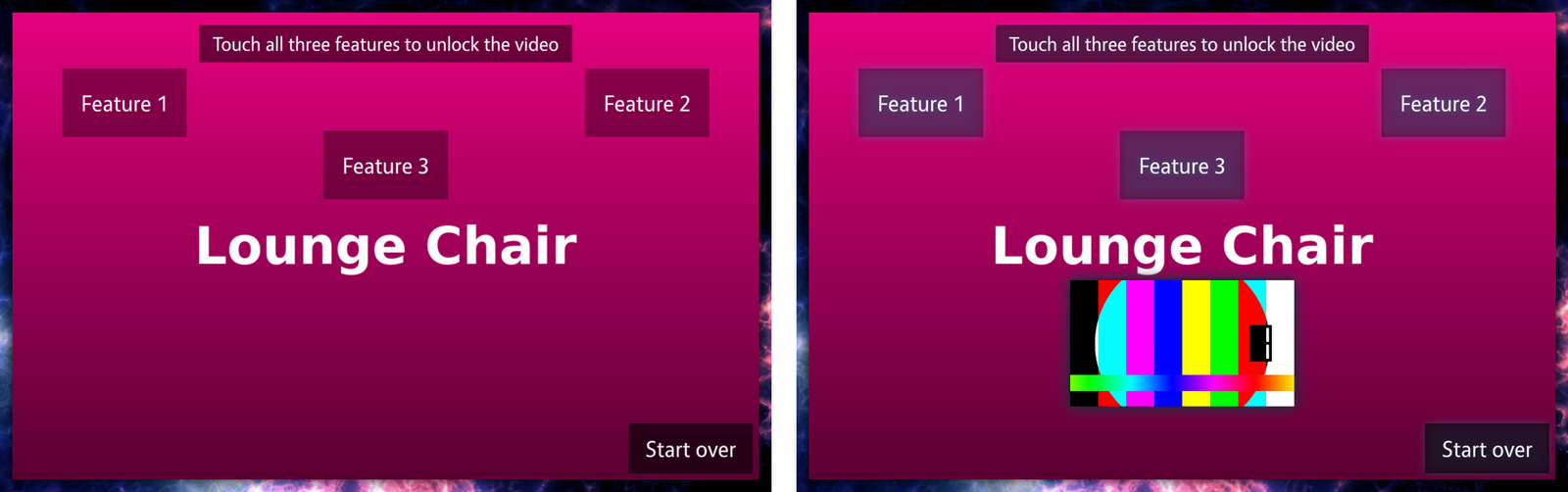
- Add an Image viewer with the product photo to the Background layer, so the hotspots can sit on top of it.
- Add a Group to the Main layer. Set:
- Group Name: Feature unlock
- Location and Size: cover the product photo.
- Logic mode: AND (all active)
- Add three Content hotspots to the group's Triggers slot, one on each feature. For each hotspot:
- Set Hotspot location (measured from the group's top-left corner) and Hotspot size.
- Set Trigger mode to Toggle (on/off), so the feature stays "found" after one tap.
- Optionally add a short caption to Hotspot visualization widgets.
- Add a Video viewer to the group's Outputs slot and choose the video. It stays hidden until all three hotspots are active.
- Add a Content hotspot to the group's Resets slot and label it Start over in its visualization slot. Tapping it switches all three features off and hides the video.
- Optionally, add a Text viewer to Passive Widgets with an instruction such as Touch all three features to unlock the video.
On the wall, each feature glows when it is touched, using the group's Default tint for children. The default tint is faint over bright photos; to make the glow easier to see, raise its alpha, for example to rgba(52,180,228,0.5). When the third feature is touched, the video appears.
Variations
- Any order vs. a fixed order: change Logic mode to Sequence (in order) to make visitors touch the features in their tree order. A wrong tap starts the sequence again.
- First touch commits: change Logic mode to Latch (first locks) to reveal the video on the first touch and keep it open until Start over is tapped.
- Unlock something elsewhere: give the group a Signal name such as
features-found. Then set another hotspot's Condition signal tofeatures-found, so it only works once the group is complete.
Example 2: Reset automatically after a timeout
The same unlock exhibit resets itself when visitors walk away, so no one has to tap Start over. It also makes a short challenge: visitors must touch all three features within 20 seconds.
- Build Example 1, or open it.
- Select each of the three trigger hotspots and change:
- Trigger mode: Timed (auto-off)
- Timed duration (seconds): 20
- Leave Logic mode on AND (all active).
Each feature now stays active for 20 seconds after it is touched and then switches off by itself. The video appears only while all three are active at once, so visitors must find them all within the time limit. When the time runs out, the features switch off, the group goes LOW, and the video hides again. The exhibit is ready for the next visitor.
Note
The timeout runs from the moment each hotspot is touched, not from when the video appears. To keep content open longer after the unlock, launch it from a separate hotspot with a Condition signal on the group, and control how long it stays open with that content's Close after idle attribute.
Example 3: Reveal bonus content with a counter
Visitors tap exhibits around the wall. After five taps in total, a bonus panel appears. A staff hotspot resets the count.
- Add a Counter to the Main layer. Set:
- Counter name: Visits
- Counter location: where the progress label (
0 / 5) should appear. - Activation threshold: 5
- Under Advanced, Signal name: visits
- Add the bonus content, for example an Image viewer, to the counter's Widgets launched at screen location slot, and set its Location in screen coordinates.
- For each exhibit hotspot that should count, open Advanced and set Counter target to visits. The hotspots keep launching their own content as usual.
- Add a small Content hotspot in a corner for staff. Under Advanced, set its Signal name to visits-reset.
- Select the counter again and, under Advanced, set Reset signal to visits-reset.
Each tap on a counted hotspot adds one to the counter. On the fifth, the counter goes HIGH and launches the bonus panel. Taps after that launch it again, until the count is reset. Tapping the staff hotspot sets the count back to zero and closes the bonus panel.
A Screen wipe also sets the counter back to zero. To stop visitors moving the progress label, turn on the counter's Pin the widget when it opens?. The Activation threshold, the Reset signal, the pin setting and the reset on a screen wipe need MT Showcase 26.10.0 or later; in earlier versions every counter fired on its first count.
Tip
A counter can also be a trigger in a group. For example, put the counter and a Hold hotspot in the Triggers slot of an AND group. The group's output then appears only when the count is reached and someone is holding the hotspot.
Example 4: Radio-button selector
Three language buttons, of which only one can be active. The active button's content is shown, and a shared panel stays visible while any language is selected.
- Add a Group to the Main layer. Set Logic mode to Exclusive (radio) and leave Trigger children on group HIGH on.
- Add three Content hotspots to Triggers, arranged as a row of buttons. For each one:
- Set Trigger mode to Toggle (on/off).
- Add a label to Hotspot visualization widgets, for example English, Deutsch, Français.
- Add the content for that language to Widgets launched from hotspot at absolute screen locations, all at the same screen position.
- Optionally, add a shared element, such as a "Now showing" frame, to the group's Outputs.
Tapping a language shows its content and hides the previously selected language's content. Tapping the active language again deselects it and hides everything.