Services
A service set adds optional services to an MT Showcase app, such as usage tracking or sending content by email. Each installation can have several service sets, so you can run the same app with different services. For example, you can deploy one app in your London and Paris offices, with a service set in each that uses the local SMTP server.
You create service sets and add them to apps in the MT Showcase Editor; see Service sets. This page describes each service and any preparation it needs.
| Service | What it does |
|---|---|
| Data Gathering | Records how visitors use the app, for review and export in the Editor |
| Email Sending | Lets visitors email content from the wall to themselves |
| Media Server | Not used in the current release; use Personal Folders |
| Snippets | Adds ready-made text snippets to the on-screen keyboard |
Separately, the Codice Input service on the Editor's Services page turns a keyboard-wedge or serial barcode or marker scanner into Codice events. It is not part of a service set; see Codice Input Services.
Data Gathering service
The Data Gathering service records how visitors use your apps, so you can see which content is opened, watched and shared.
Enable data gathering
Add the Data Gathering service to a service set, then add that service set to your app. The service has two settings:
- Site name: recorded with every event. Use it to tell apart the data from different walls, for example the building or room name. The app name is recorded automatically.
- Enable input tracking: on by default. Records every finger, hand, pen and Codice touch. This produces a lot of data and can affect app performance on busy walls. Turn it off to record only widget events, such as a widget opening or closing.
What is recorded
When an app with the Data Gathering service is running, MT Showcase records:
- Sessions: when a wall was in use and when an app was running.
- Touches: individual screen contacts, where they happened and which widget was involved (when input tracking is on).
- Widget and content events: for example a video being played or a PDF page being viewed.
- Marker (Codice) events: when a visitor presents a marker.
- Visitor details: where a visitor has given a name and email address, for example in a personal space, those details are stored against their marker so their activity can be recognized across visits.
Visitor details are personal data
If your apps collect visitor names or email addresses, the reporting database contains personal data. Handle it under your organization's data protection policy. See Personal data and privacy.
Where the data is stored
Usage data is saved in the reporting database, showcase-reporting.db, beside the main database on the application computer. There is nothing to install and no database server to set up, and usage data does not leave the application computer unless you export it. For the location, see File locations.
Note
MT Showcase 1.x used a separate PostgreSQL database for reporting. 26.x does not need PostgreSQL.
Review and export
Administrators review usage data on the Editor's Analytics page, which shows sessions, touches, content engagement and visitor leads, and can export it as CSV files. See Analytics.
Retention
MT Showcase keeps usage records until you remove them. There is no automatic purge. If your organization has a retention period for visitor data, back up and clear the reporting database when needed, and remove visitor records you no longer need.
Email Sending service
The Email Sending service lets visitors send content from the wall, for example items in their personal space, to an email address they enter.
In the service settings, enter your SMTP server details:
| Setting | Description | Default |
|---|---|---|
| SMTP host, SMTP port | Your mail server and its submission port | MultiTaction relay, port 587 |
| SMTP username, SMTP password | The account MT Showcase signs in to the mail server with. Enter both when you use your own SMTP server. | |
| Connection encryption | How the connection to the mail server is encrypted | TLS |
| Ignore SSL errors | Send even if the mail server's certificate cannot be verified. Turn on only if you trust the connection. | Off |
| Email sender name, Email sender address | Who the email appears to come from | Showcase, no-reply@multitaction.com |
| Email subject, Email template | The subject and body of the email | |
| SMTP connection, response and send message timeouts | Seconds to wait before giving up | 60, 60 and 120 |
If you leave the SMTP settings at their defaults, email is sent through a relay operated by MultiTaction. We recommend configuring your own SMTP server so that mail is delivered by your organization's infrastructure.
Note
This service is separate from the email the MT Showcase server sends for user invitations and password resets. That is set up in the Editor's Email settings; see Network, HTTPS and email.
Media Server service
The Media Server service can still be added to a service set, with a Server URL and a System name. The current release does not send collected items to a media server, so this service has no effect on the wall.
To let visitors collect items without an email address, use Personal Folders: visitors open the items they collected on their phone from a QR code, served directly by the MT Showcase server. See Audience identity.
Snippets service
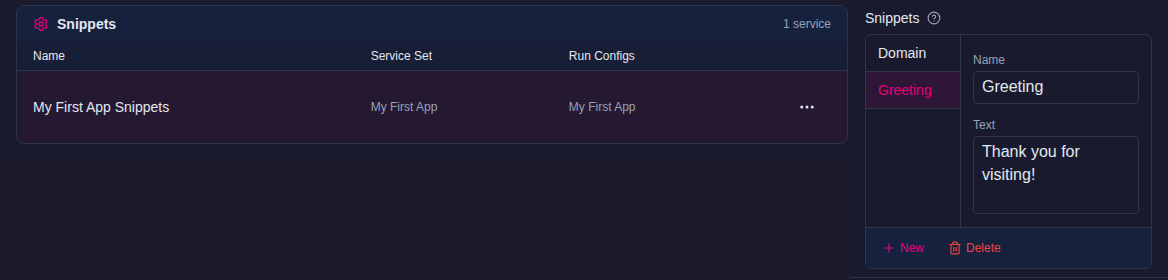
The Snippets service adds a list of ready-made text snippets to the on-screen keyboard. A user taps a snippet to insert its text into the active text field, for example a standard greeting, an email domain or a legal notice.
In the service settings, under Snippets, click Create new, enter the text and, optionally, a name for each snippet. If you leave the name empty, one is generated.