Profiles and drift
A profile is a named set of display settings, for example your site baseline. You give a profile to a wall or to single displays, then apply it. SiteManager keeps checking the displays against their profile and tells you when one drifts.
For step-by-step help, see Day-to-day care.
Profiles
Open Profiles in the menu. The list shows each profile with the number of values it holds, the displays and walls it applies to, and its drift state. A site can have up to 32 profiles.
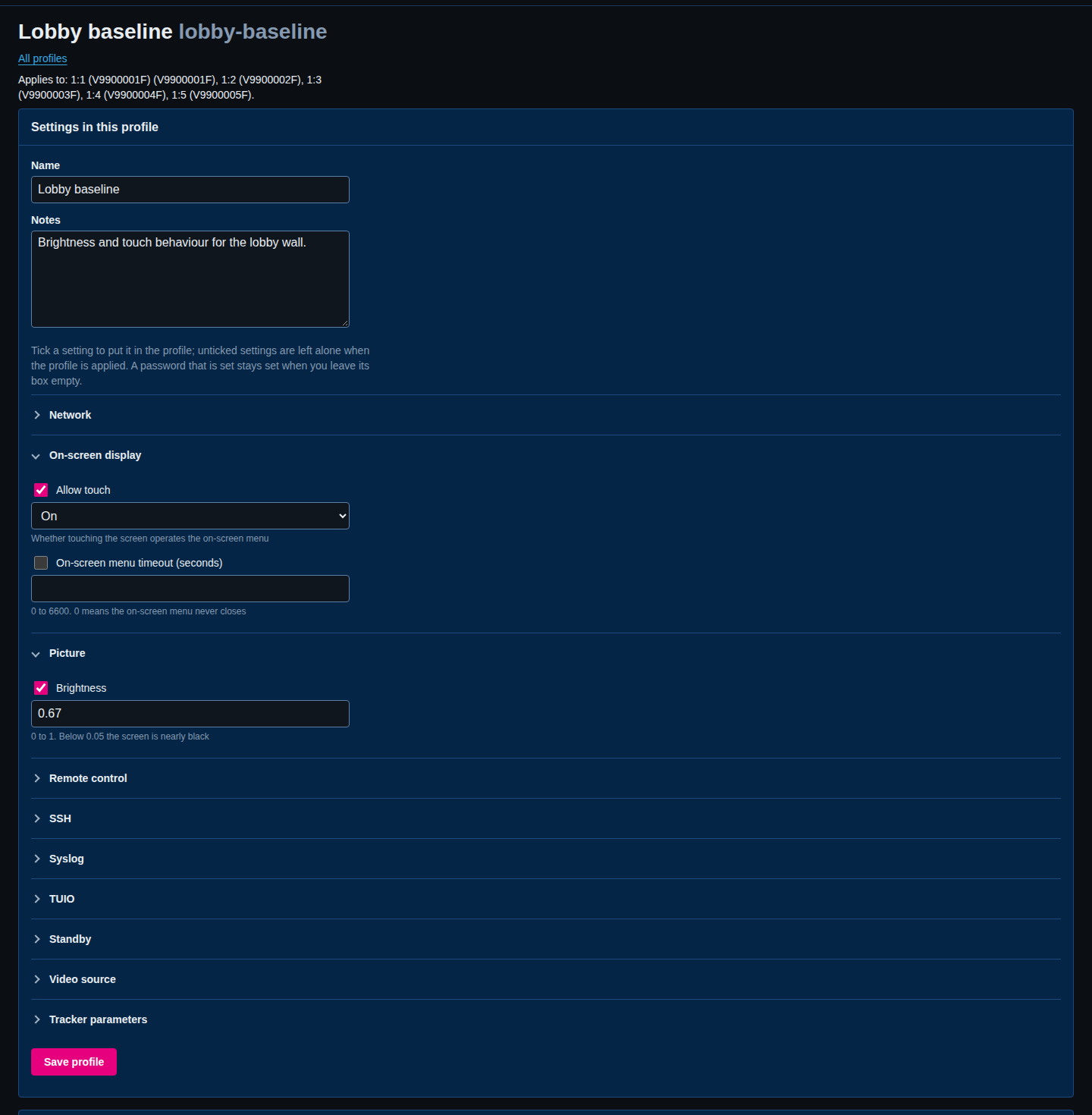
Create and edit a profile
- Under New profile, enter an Id and a Name, then select Create profile. The id can contain letters, digits, dots, dashes and underscores, up to 64 characters. You can also write Notes on the profile page.
- Open the profile. Under each group of settings, tick the settings you want in the profile and enter their values. Settings that are not ticked are left alone when the profile is applied.
- To include tracker parameters, enter one per row, as
Extension/parameterand a value, for exampleFingers/edge-limit. - Select Save profile. A profile can hold at most 512 values. A profile with no values, or one that is not given to any managed display, cannot be applied.
A profile can hold any setting that Settings can change, except a display's network address, netmask and address configuration. Putting one value for these on many displays would give them all the same address.
A profile cannot hold an operator PIN or the orientation of the on-screen menu either. Each belongs to one display, so the profile page, the API and a profile file all refuse them, and applying a profile never sets or removes a PIN. A drift check ignores the orientation. The menu trigger hold time is an ordinary setting: a profile can hold it and a drift check compares it. See Set an operator PIN and Set the orientation.
A profile can hold a secret, such as a proxy password. SiteManager stores it, never shows it again, and keeps the stored value when you leave the box empty. Viewers and bundles see it as hidden.
Give a profile to displays
- On a display page, choose the Profile and select Use profile.
- On a wall page, choose the Profile for the whole wall and select Use profile.
A display uses its own profile if it has one, otherwise the profile of its wall. You can delete a profile only when nothing uses it.
Apply a profile
On the profile page, under Apply, select Apply to N display(s). The number is how many displays the profile is given to.
- SiteManager writes only the values that differ from what the display holds now.
- Save the settings on the displays afterwards is ticked by default, and saves the changes on each display. Untick it to leave the changes unsaved on the displays. The apply refuses to save on a display that already holds other unsaved changes.
- Applying is a job. If the profile sets the video source, standby or a network setting, the job waits on Standby and you press Go. See the idle-wall check.
From the command line, use sitemanager profiles apply. See Command reference.
Drift
Drift is a difference between what a display or a file holds now and what it should hold. SiteManager checks two things:
- each display that has a profile, against that profile;
- the Cornerstone files on this computer, against what SiteManager would generate from the site.
A check only reads. It never writes to a display or to a file. A viewer can run one too.
Open Drift in the menu.
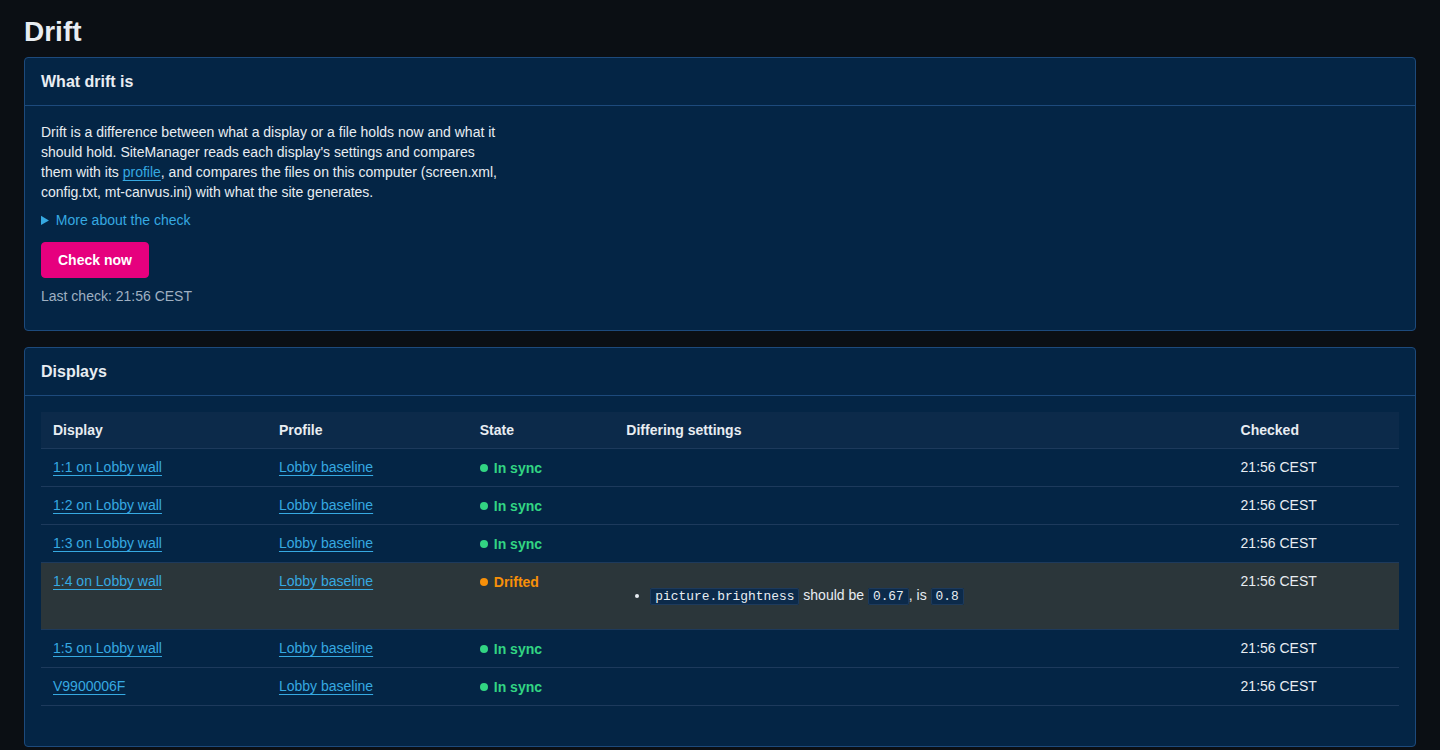
A check runs every 15 minutes. Select Check now to run one at once. You can change the interval with the --drift-every option of the service, or turn it off with 0. After the service restarts, the page shows no result until the next check, so select Check now.
Displays
A display is in one of these states. The Drift page lists every display, with its profile and its state. A display on a wall is named by its label and its wall, for example 1:1 on Lobby wall, so two displays with the same position on different walls can be told apart.
- in-sync: Every setting in the profile matches.
- drifted: At least one setting differs. The page lists each one, with the value it should have and the value it has.
- unknown: SiteManager could not tell. The reason is shown: the display was offline, busy in a job, answered as another display, or has a setting that could not be compared. An unknown display is never counted as in sync.
- no-profile: The display has no profile.
A password that differs is reported as differing, with the value hidden on both sides, even to administrators. Numbers count as equal when they are the same value or the same as a 32-bit decimal number, because displays report values such as a brightness of 0.67 as 0.6700000166893005.
When you edit or reassign a profile, the earlier verdict stops counting. The display reads unknown with the reason profile changed since the last check until the next check.
Cornerstone files
Each file is in one of these states:
- same: The file on the computer is what SiteManager would generate.
- differs: The file has other content. Compare and write it on the Cornerstone files page.
- missing: The file does not exist.
- unreadable: SiteManager could not read the file.
- not-generated: There is nothing to compare: the layout has errors, or the site generates no such file. The note says why.
- unavailable: This service has no writer for the Cornerstone files.
Alerts from drift
Drift raises the profile-drift and config-drift alerts. They clear by themselves when the next check finds the display or the file right again. A display that could not be read (offline, busy in a job, or answering as another display) neither raises nor clears an alert. A display that was read in full, and whose only unknown settings are ones SiteManager cannot compare, clears its alert when every setting it did compare matches. A display that no longer has a profile also clears its alert.
From the command line, use sitemanager drift. Its exit code tells a script whether everything is in sync. See Command reference.