Video Streams
You can play video streams on the canvas. For example, you can display video from an IP camera or a stream served by another computer on the network.
Each video stream widget plays one stream URL. You can type a new URL at any time, and keep a list of stream bookmarks for the canvas so that anyone can switch between streams quickly.
Note
Do not confuse incoming video streams with video outputs, which send canvas content to a display.
Sharing streams with other clients
From Canvus 26.4.0, live video that one client shares with the others (video streams, screen shares, video inputs, browsers and remote desktops) travels between clients as WebRTC with H.264. This replaced the streaming transport of earlier releases.
- Encoding is in software. From Canvus 26.6.4, the client that shares a stream encodes it in software (OpenH264) on every platform. Hardware encoders are not used, because hardware H.264 encoding could crash when a broadcast started on NVIDIA systems.
- Sites without the relay service still work. From Canvus 26.6.4, if the optional video relay service is not available, for example at a site that allows only TCP, Canvus falls back to its built-in streaming path automatically.
No configuration is required. Existing video stream URLs and workflows continue to work.
To share a video stream widget with the other clients on the canvas, tap more... in the widget's sidebar, then Start streaming. Tap the same button (Stop streaming) to stop.
Supported protocols for decoding video streams
Canvus supports HTTP, HTTPS, HLS, RTSP, RTP and UDP video streams. It decodes them with the FFmpeg libraries that are installed with Canvus. For details about FFmpeg and its formats, see ffmpeg.org.
HTTPS streams on Ubuntu
From Canvus 26.11.2, https:// stream addresses, including HTTPS HLS streams, play on Windows and on Ubuntu. In Canvus 26.11.1 and earlier, the FFmpeg installed on Ubuntu has no TLS support, so an https:// stream fails with "Protocol not found". On those versions, use an http://, RTSP, RTP or UDP address on Ubuntu, or upgrade Canvus.
To list the formats and codecs that the installed FFmpeg can decode, run ffprobe from the Canvus installation. On Ubuntu:
/opt/mt-canvus/bin/ffprobe -hide_banner -decoders
On Windows, run this in a Command Prompt:
"C:\Program Files\MT Canvus\bin\ffprobe.exe" -hide_banner -decoders
Use -demuxers instead of -decoders to list the containers, and -protocols to list the stream protocols.
The [video-stream] settings in mt-canvus.ini apply to capture devices only. They do not change how IP streams are decoded.
Add a new video stream
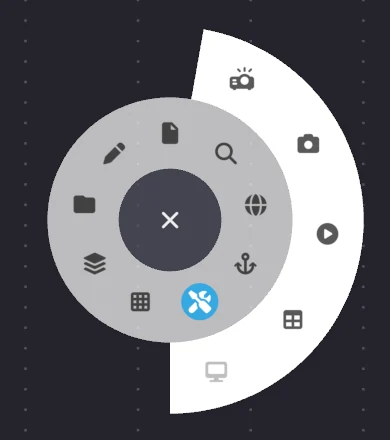
- Press and hold an empty area of the canvas to open the finger menu.
- Tap Toolbox.
-
Tap Connect to video stream (the play button). A video stream widget opens.
-
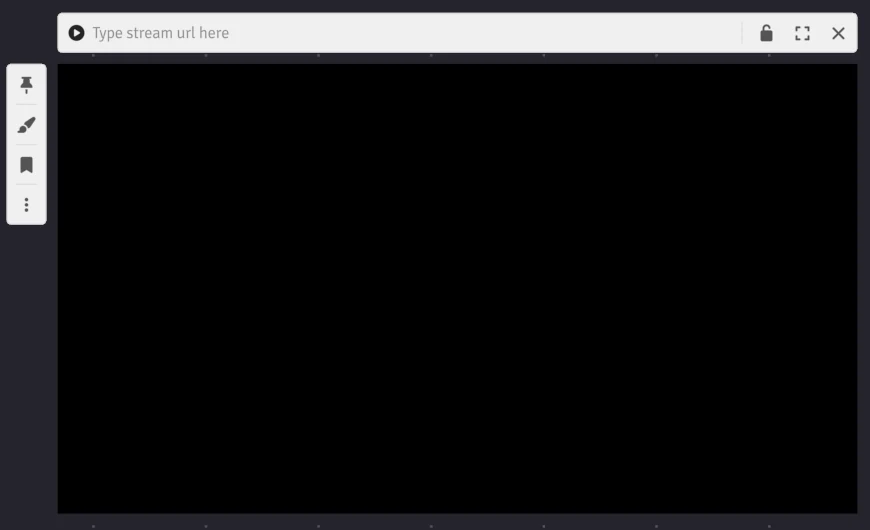
Tap the address field in the widget's title bar ("Type stream url here") and type the stream URL. If the title bar is not visible, tap the widget.
-
Press Enter to start playing the stream.
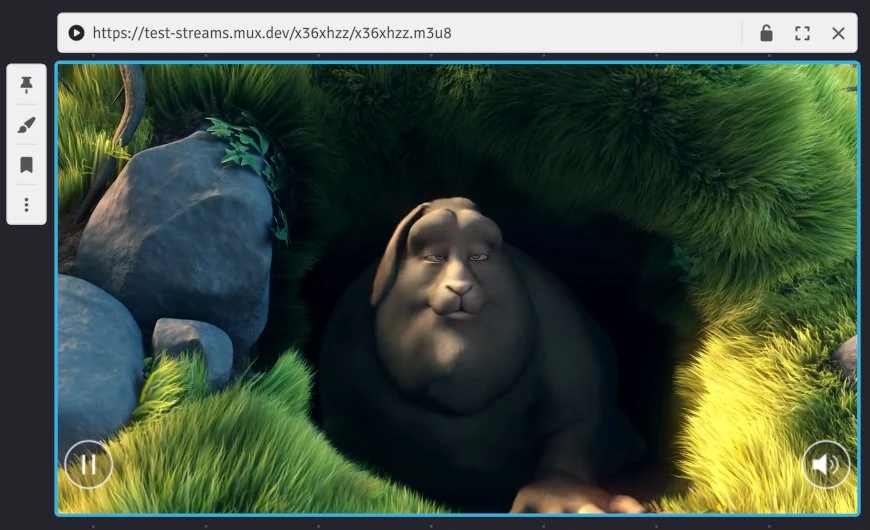
The widget has a pause button and a volume button at the bottom of the video. Its sidebar holds the pin, annotation, bookmark and more... buttons.
For example, this URL is for an RTSP stream served by a computer on the network:
rtsp://192.0.2.10:8554/presentations
Where:
rtspspecifies an RTSP video stream. The Real Time Streaming Protocol (RTSP) is designed for controlling streaming media servers.192.0.2.10is the IP address of the computer hosting the video streaming server.8554is the port used to deliver the video stream.presentationsis the path of the stream on that server.
Bookmark a video stream
Stream bookmarks are stored with the canvas, so every client that opens the canvas sees the same list.
- Tap the bookmark button in the widget's sidebar to open the bookmark list.
- Tap Add to bookmarks (the + button) to add the stream that is playing. It is added as "Video stream".
When the stream that is playing is in the list, the bookmark button turns green (tooltip "Bookmarked").
Edit a video stream
- Open the bookmark list from the widget's sidebar.
- Tap Edit (the pencil button) next to the bookmark to change its name or URL, then tap Save. To remove the bookmark, tap Delete (the X button).
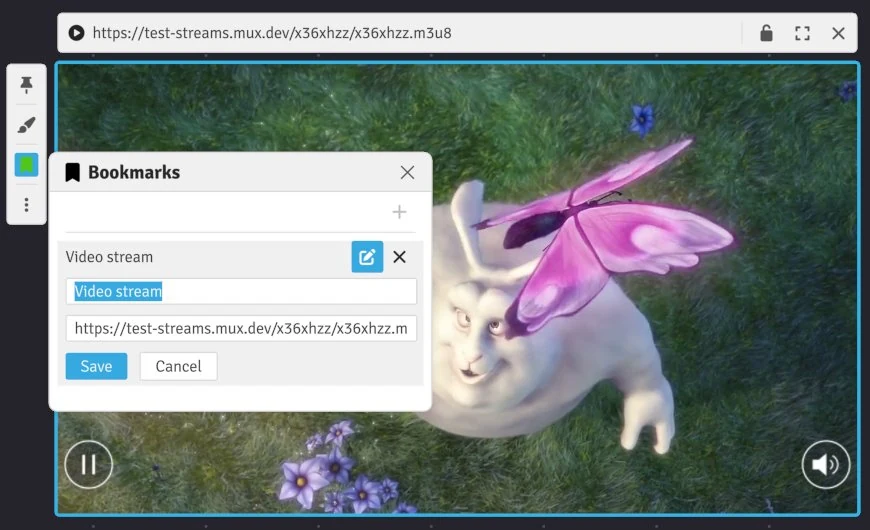
To change the stream a widget plays without using bookmarks, edit the URL in the widget's title bar and press Enter.
Switch to a different video stream
- Open the bookmark list from the widget's sidebar.
- Tap the stream you want. The widget now plays the selected stream.
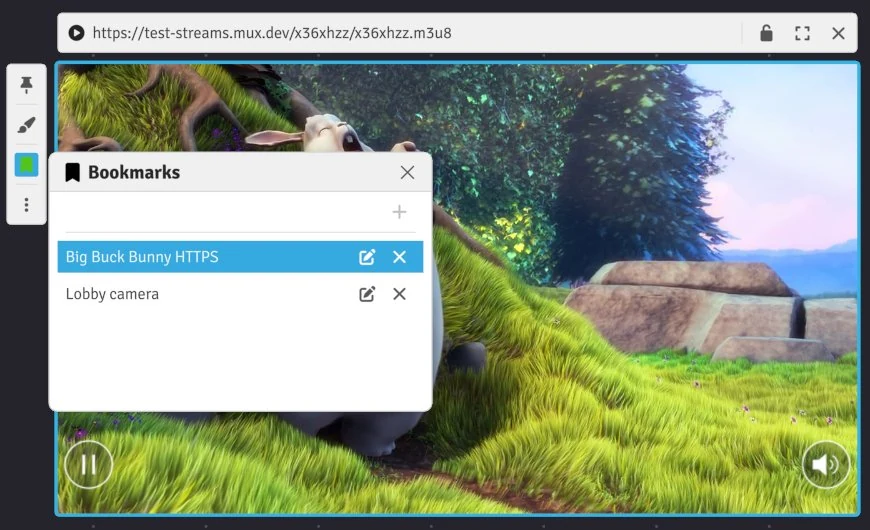
The screenshots on this page show Big Buck Bunny, © Blender Foundation, CC BY 3.0, played from the public test stream https://test-streams.mux.dev/x36xhzz/x36xhzz.m3u8.