MT Screencast
MT Screencast lets visitors put their own screen on a MultiTaction Canvus or Showcase wall. They do not need an account, a cable or a login.
A small program, the companion, runs on the wall computer. It receives the cast and shows it as a camera called MT Cast. Canvus and Showcase list MT Cast next to their other video inputs, so a cast works like any other video source. You can move it, scale it and annotate around it, and remote sites see it too.
How visitors cast
When you place MT Cast on a canvas, the wall shows a card with the room name and the ways to connect.
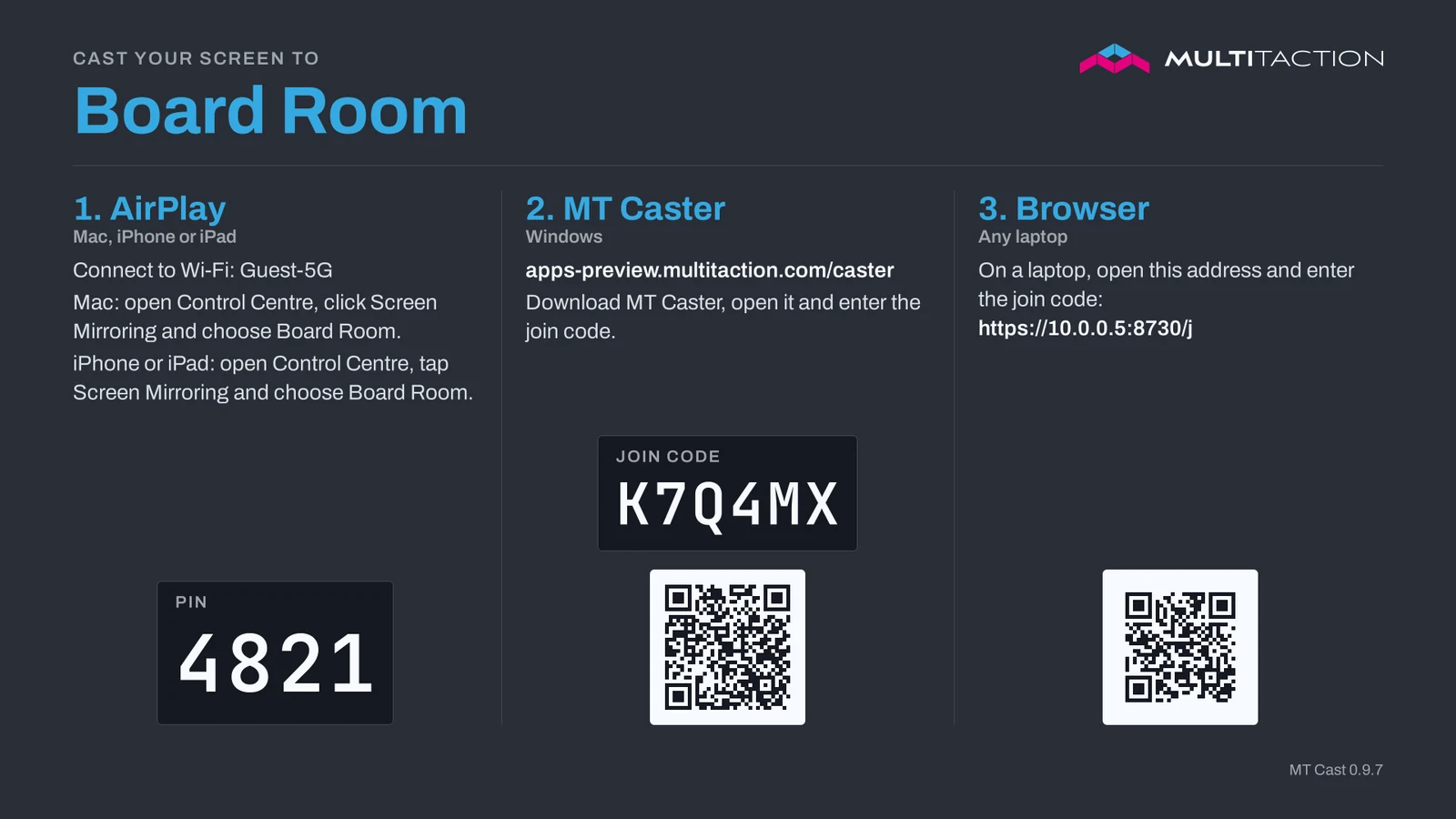
- From a Mac, iPhone or iPad. Use AirPlay screen mirroring. Choose the room name and type the PIN shown on the card. Nothing to install.
- From a Windows laptop. Get MT Caster from the link or QR code on the card (or ahead of time), type the join code from the card, then share a screen, a window or an area. MT Caster finds the room by itself. A wall without internet offers its own copy of MT Caster instead.
- From Chrome, Edge or Firefox on a laptop. Scan the browser QR code (the join code is filled in for you) or open the address on the card, enter the join code and share. See Casting from a browser.
One person casts at a time. If a second person connects, the new cast replaces the first.
What you need
- A wall computer running Canvus or Showcase on Ubuntu 24.04 or Windows 11.
- A network that visitors can reach the wall computer on. See Network and firewall.
- An add-on licence per wall. See Licensing.
Documentation
- MT Screencast manual: installation, settings, how each kind of visitor casts, network requirements and troubleshooting.
For release history and downloads, see the links below.