Licensing
The MT Showcase client needs a valid license to run. The license defines the scope of your deployment, for example the maximum screen size, whether Codice support is enabled, and the expiry date.
You license MT Showcase with a 16-character activation key from your MultiTaction representative. You need a key for a new installation, and a new key to renew an expiring license.
There are two ways to use the key:
- Online activation, if the application computer can reach the internet. See Activate online with the license wizard or from the command line.
- Offline activation, if it cannot. See Request a license while offline.
How MT Showcase checks the license
Each time the MT Showcase client starts, it checks the license:
- No valid license. The license wizard opens, and the client cannot run until you activate a license.
- License expires within 7 days. The client shows a warning with the expiry date, then runs normally.
- License expired less than 14 days ago. MT Showcase is in its grace period. The license wizard opens so you can activate a new license, and you can click Skip to keep running for now.
- License expired more than 14 days ago. As for no valid license.
Activate online with the license wizard
The application computer must be connected to the internet.
The license wizard is the recommended way to activate MT Showcase.
-
Start the MT Showcase client directly, not from MT Launcher; see Start and stop MT Showcase.
Do not use MT Launcher for an unlicensed client
MT Launcher starts MT Showcase with the license wizard turned off, so an unlicensed client exits instead of showing the wizard.
-
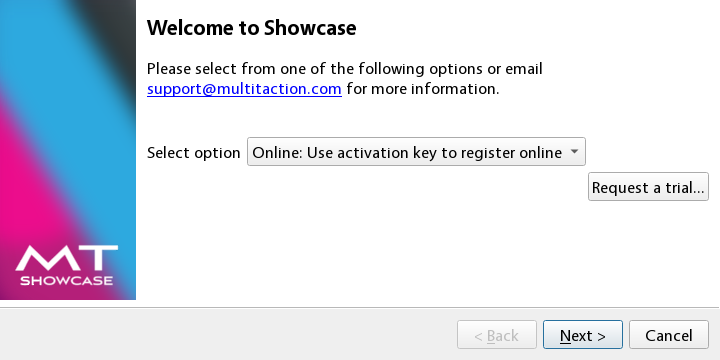
The license wizard opens. From the drop-down list, choose Online: Use activation key to register online, then click Next.
-
Enter your activation key, then click Next.
-
Wait while the license downloads, then click Finish. MT Showcase starts.
Activate online from the command line
The application computer must be connected to the internet.
Use this method on a computer where nobody can complete the wizard, for example in a scripted deployment. The command activates a license and exits without starting MT Showcase. It also works on a computer that already has a license, so you can use it to renew.
Enter the key with hyphens between each group of four characters.
Ubuntu:
mt-showcase --activate ABCD-AC2D-HGF6-HVD2
mt-showcase points at the installed version. If the command is not found, use /opt/mt-showcase/bin/showcase instead.
Windows (Command Prompt):
"C:\Program Files\MT Showcase\bin\showcase.exe" --activate ABCD-AC2D-HGF6-HVD2
macOS (Terminal):
"/Applications/MT Showcase.app/Contents/MacOS/mt-showcase" --activate ABCD-AC2D-HGF6-HVD2
On macOS the result is written to ~/.mt-showcase/showcase.log rather than to the terminal. This command also starts the MT Showcase server if it is not already running.
Then start the MT Showcase client; see Start and stop MT Showcase.
Suppressing the wizard
On a headless or unattended computer, start MT Showcase with --disable-license-wizard. If there is no valid license, MT Showcase then logs that no valid license was found and exits, instead of waiting for someone to complete the wizard. MT Launcher uses this option.
Request a license while offline
If the application computer cannot connect to the internet, create a license request file, send it to MultiTaction Support, and activate the license file they send back.
-
Create the request file. Either:
- start the MT Showcase client; when the license wizard opens, choose Offline: Create license request, enter your activation key, click Next and save the request file, for example to a USB drive; or
- run the client with
--create-license-request <key>, using the same command form as--activateabove. This writesMT-Showcase-offline-request.htmlto your home folder (your Documents folder on Windows) and exits.
-
Send the request file to support@multitaction.com.
The request file expires
A license request file is valid for seven days after it is created. If more than a week passes before it is processed, create a new request file.
-
MultiTaction Support sends you a license file, for example
MT-Showcase.cslicense. Save it anywhere on the application computer. -
Start the MT Showcase client. When the license wizard opens, choose Offline: Activate license, click Next, select the license file, and click Next again.
-
When activation completes, click Finish. MT Showcase starts.
Renew your license
Your license is valid until midnight on its expiry date. MT Showcase warns you from 7 days before that date. To renew, get a new activation key from your MultiTaction representative, then:
- Online: run
--activatewith the new key; see Activate online from the command line. You can do this at any time before the license expires. Alternatively, wait until the grace period starts; the license wizard then opens at startup and you can activate the new key there. - Offline: create a request file with
--create-license-request <new key>and send it to MultiTaction Support, as described above. When you receive the new license file, either copy it into the per-user license folder of the user who runs MT Showcase (see License folders) before the current license expires, or activate it in the license wizard, which opens at startup during the 14-day grace period. MT Showcase reads every license file in its license folders when it starts and uses the one that is valid the longest.
License folders
Where the license is stored depends on the operating system; see File locations.
Next step
Set up network, HTTPS and email.