Import and Export
Use the Import & Export page to move apps between MT Showcase servers, for example from a laptop where you build apps to the computer that runs the wall, or to keep a copy of an app before you change it.
You can export whole apps, or pick individual structures, themes and service sets. An export can also include the app schedule, the Codice DB and media library files. The result is a single .showcase file that you import on the same or another server.
Tip
To back up a whole server, including users and settings, use a server backup instead. See Backup and Restore. To bring content across from MT Showcase 1.x, see Upgrade.
Export
- Click Import & Export in the left navigation.
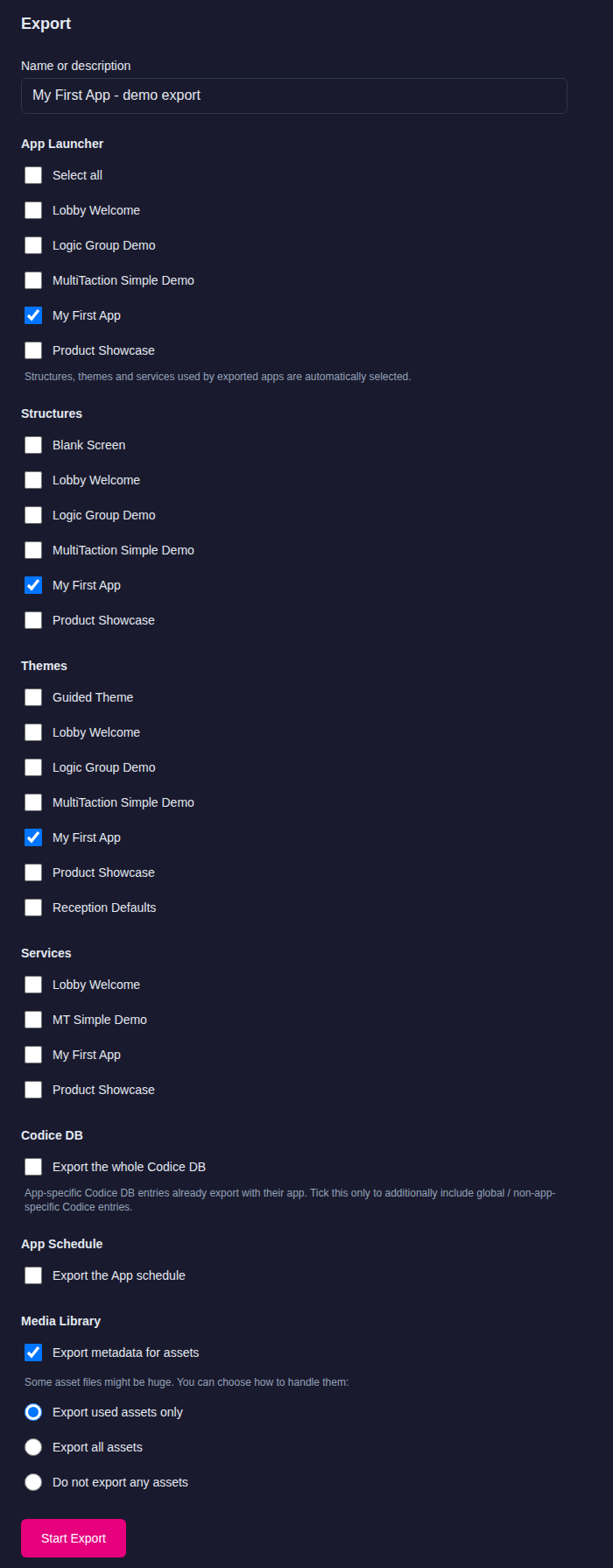
- Under Export, optionally enter a Name or description. It becomes the start of the file name.
- Choose what to export:
- App Launcher: tick the apps to export, or Select all. Selecting an app also selects the structure, theme and services it uses, and unticking it unticks them again unless another selected app uses them.
- Structures, Themes and Services: tick any others you want, for example a theme you want to reuse on another server.
- Codice DB: codes that belong to an exported app are always included. Tick Export the whole Codice DB to also include global codes that belong to no particular app.
- App Schedule: tick Export the App schedule to include the scheduled app events. See Schedules.
- Media Library: Export metadata for assets (on by default) includes the files' Asset Metadata and tags from the media library. Then choose which files to include:
- Export used assets only: only the files the exported items use.
- Export all assets: every file in the media library.
- Do not export any assets: no files. Use this when the other server already has the same files.
- Click Start Export.
When the export finishes, the Editor shows Export complete! and your browser downloads the file. The file is named after the name you entered followed by a number, for example MyExport-1758800000000.showcase. Without a name, it starts with export.
If the exported items use a media file that could not be included, for example because it is no longer in the media library, the Editor lists each such file and the reason under Export complete!. The import report names them again when the file is imported. Add the missing files to the media library and export again, or copy them to the other server separately.
Tip
Media files can make an export very large. If your media library is big, consider keeping a separate copy of the files, for example in a backup folder on your network, and exporting without assets.
Import
- Click Import & Export in the left navigation.
- Under Import, choose where the content comes from:
- From File: click Select Import File and choose a
.showcasefile..zipand.7zarchives are also accepted. - Demo Apps: lists the demo apps that MultiTaction publishes. Click Import next to the one you want. The server downloads it, so it needs internet access. If the server cannot reach the demo apps site, the tab says so. This list is available to administrators.
- From File: click Select Import File and choose a
-
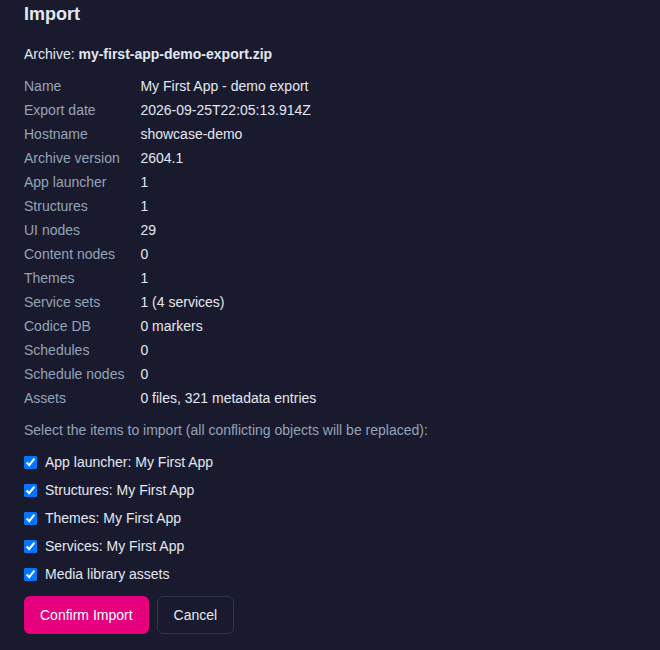
The Editor uploads and checks the file, then lists what it contains: apps, structures, themes, services, schedules, media library assets and Codice DB markers. Untick anything you don't want.
Warning
Items that already exist on this server are replaced by the imported versions. See How an import replaces what is already there.
-
Click Confirm Import.
When the import finishes, the Editor shows Import complete!. Imported apps appear in the App Launcher, ready to run from the Dashboard.
The import report lists anything you should check, such as replaced or kept items, settings that were changed to fit their range, service types this version no longer has, and media files that were missing from the archive or could not be copied into the media library.
If an imported Codice code number is already used on this server, the imported code gets a new number, and the Editor lists the renumbered codes with a link to each one so you can fix them in the Codice DB. Imported codes that are identical to existing ones are merged into them. See Codice Cards.
How an import replaces what is already there
An import matches items by name. When this server already has an item with the same name as an imported one:
- Apps, themes, services and schedules are replaced by the imported versions.
- Structures and content sets are replaced too, from MT Showcase 26.10.0. If something else on this server still uses the old one, for example another app, structure or content set, a theme, a schedule, a Codice code or a personal space, the old one is kept so that nothing breaks, and the imported one is named with the date, such as Lobby (imported 2026-10-05). The import report says which items were kept. Importing the same app again later replaces that dated copy instead of adding another. Before 26.10.0, every import added new copies of the structures and content sets, so importing the same app twice left duplicates behind.
After the import:
- App Launcher hotspots and scheduled app events open the imported apps. Those already on this server that opened a replaced app, and Codice codes that belonged to it, now point at the imported app. A launcher whose app was not in the import is set to None, and the import report lists it.
- Settings outside their allowed range, for example a Particles effect with 20,000 particles from an older version, are brought into the range, and the import report lists each change. See Particles limits.
- Services whose type this version no longer has, such as
twitter-servicefrom an older showcase, are imported but do nothing. The import report names them, and the Services page shows their type as (retired), with only Delete. See Service Sets.
An import that reports errors does not replace any structures or content sets that are already on this server.