Projector rooms
A projector room is an installation where projectors, not display walls, make the picture. SiteManager holds the layout of the room and writes the matching screen.xml from it. The Cornerstone files page previews and applies it like any other layout. See Write the Cornerstone files.
For step-by-step help, see Set up a projector room, and Walls, rooms and the Cornerstone files for when to use a room instead of a wall.
A room is described in surface pixels. It has:
- surfaces: the projection surfaces, each placed in graphics space and covered by a grid of projectors;
- projectors: one raster each, with the window and slot it renders into;
- overlap bands: the zones where neighbouring projectors overlap, blended with a fade;
- masks: regions of a projector's raster that are blacked out.
The list of rooms
Open Rooms in the menu. To make a room, enter an Id, a Name, the number of projector columns and rows (1 to 8 each), the raster size of one projector, and the overlap across and down in pixels. Select Create room. SiteManager proposes values to start from. Check the result in the preview.
The room designer
Select a room to open its designer. It has the same shape as the wall designer: a title with chips, Undo, Redo, Export, Import and Review and apply files, a canvas with a toolbar, an inspector under Selected, and tabs.
Surfaces
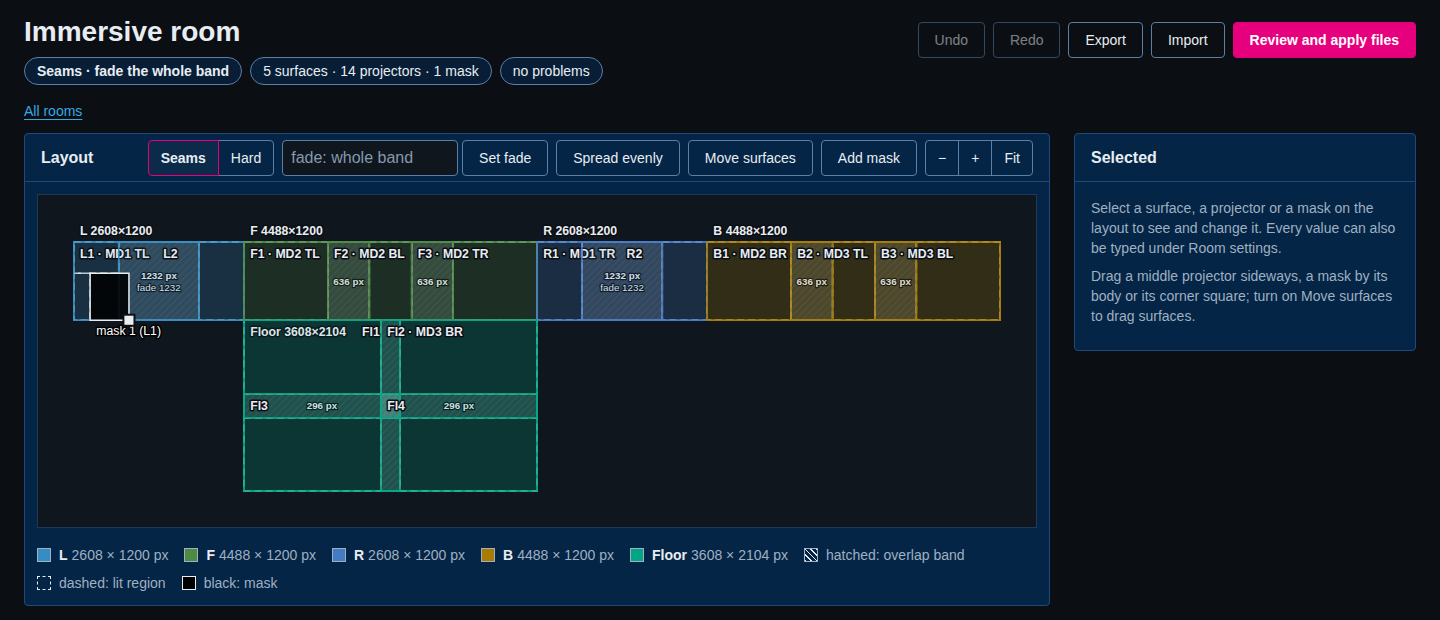
Each surface has its own colour on the canvas. The legend under the canvas, the projector list and the inspector use the same colour. A surface label shows its name and size, for example F 4488×1200.
Select Move surfaces on the toolbar to drag a surface in graphics space. Its edges snap to the edges of the other surfaces when they are within 30 pixels. You can also type a surface's graphics X and Y in the inspector or under Room settings.
Overlap bands
Where two projectors overlap, the canvas draws a hatched band. Its label gives the numbers SiteManager works with:
- the overlap, the width of the band in pixels;
- the fade, the width faded across, in pixels;
- the crop, the pixels each of the two projectors gives up. A label such as
crop 0 | 0means neither gives up any.
A line such as 1232 px overlap, fade 1232, crop 0 | 0 reads the same way. sitemanager rooms show ID prints these lines for every band.
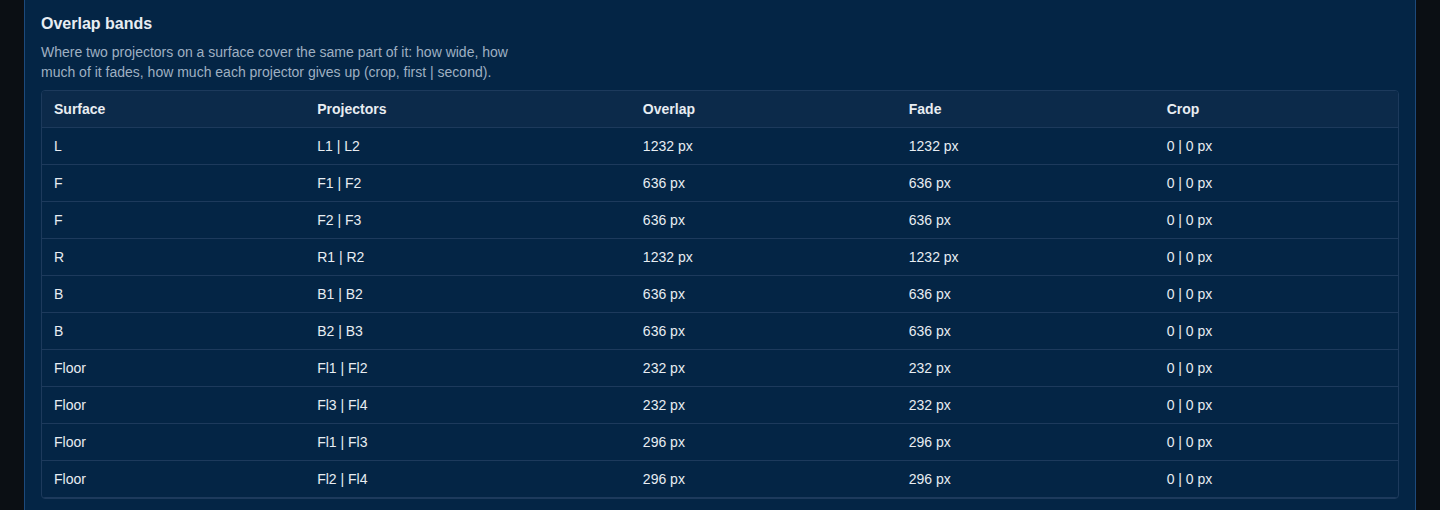
The label is shortened, or left out, when it does not fit at the current zoom. Hover over a band to see its full text. The full numbers are also in the Overlap bands table on the Projectors tab, and in the inspector when you select a projector.
The toolbar sets how the bands are made.
- Seams and Hard choose the blend mode. In Seams, every projector renders its whole raster and the seams define the blend zone, which Luminous blends at scan-out. In Hard, every projector renders only its share of each overlap, as a butt joint. Use Hard as a geometry check.
- Set fade sets the fade width in pixels. Leave the box empty to fade the whole band. It is available in Seams mode only.
- Spread evenly spaces the projectors of every surface evenly across it.
While you drag a projector, the readout labels the crop and the fade of the bands next to it in pixels. Only a projector with a neighbour on both sides slides. A projector on the edge of its surface is fixed. Its position is shown, and you can type it in the inspector.
Masks
Add mask adds a mask to the room. A mask moves when you drag its body and resizes when you drag its corner square. You can also type its X, Y, width and height in the inspector, in the projector's own raster pixels. A mask is drawn in black.
Projectors, windows and slots
Each projector has a Window and a Slot: the Mosaic window and quadrant it renders into. Pick them in the inspector, or in the Projectors tab, which lists every projector. The picker names the window's slots (quadrants). A change applies at once. If another projector already holds the slot, the two are swapped. The row:column label, counting from 1, appears only in the projector's Place label.
Snapping and dragging
Dragging works on a wide screen with a mouse. On a phone or a touch screen the canvas pans and zooms, and you type values in the inspector and under Room settings.
The tabs
- Problems lists what the generator found. It shows warning or error findings, or No problems found in this room. An error blocks applying.
- Projectors lists every projector with its window and slot. Under it, the Overlap bands table gives each band's surface, the two projectors, the overlap, the fade and the crop.
- Blend ramp is a chart of how brightness fades across an overlap.
- screen.xml shows this room's
screen.xml, generated from the site as it is now, with the problems the generator found. - Desktop map shows this room's windows on the desktop, named Room Name · GPUn. The wall page shows the windows of the whole site. A room's windows are dotted. Windows that cover each other on one X screen are listed in words.
- Room settings holds every value as a form: the room's name and mode, the fade width, the blend power, the gamma and black level, and each surface, projector, window and mask. It also has Delete this room.
The screen.xml and Desktop map tabs follow each change without reading the disk.
Undo, export and import
Every change to a room in the designer is a step that Undo takes back, 50 steps deep. The history is kept in memory, so a restart clears it. Export downloads the room as a file. Import reads a file onto the room, keeping its id and name, and starts as a check that saves nothing.
From the command line, use sitemanager rooms. See Command reference.