Codice Cards
A Codice is a square 2D marker with a unique code number. A Codice card is a Codice printed on paper or card. When someone holds a card against the screen, MT Showcase reads the code and does whatever that code is set up to do: open a personal space, launch content, erase annotations, change the volume, and more.
Codice markers also work under physical objects. On touch tables, a marker is often attached to the underside of an object, such as a plastic block or a glass, so the object becomes a tangible controller.
You set up codes on the Codice DB page.
Tip
You do not need printed cards to test your setup. The player can simulate markers with the keyboard and mouse. See Test Codice Cards Without Printed Markers.
The Codice DB page
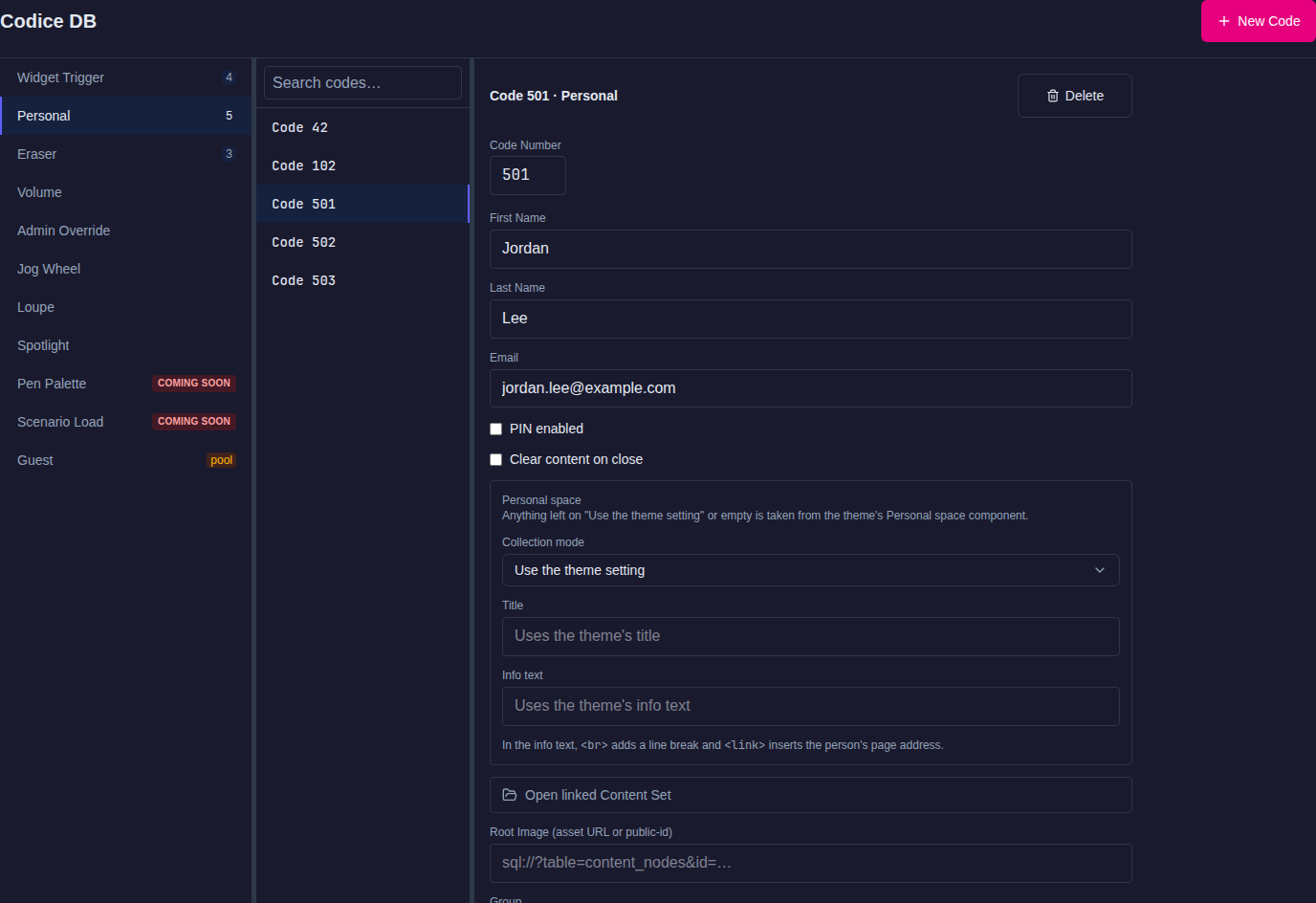
Click Codice DB in the left navigation. The page has three parts:
- Types, on the left: the ten code types, each with the number of codes of that type, plus Guest for the guest pool settings. Types that are not yet available are marked Coming Soon.
- Codes: the codes of the selected type, with a Search codes… box.
- Details: the settings of the selected code. Edit them and click Save.
Code types
| Type | What the card does |
|---|---|
| Widget Trigger | Launches content that you design, such as an image, a video, a menu or a web page. This is sometimes called Codice content. See Widget Trigger codes. |
| Personal | Belongs to one person. Opens their personal space, where they can collect items and send them to themselves. See Personal codes. |
| Eraser | Erases pen and finger annotations. See Eraser codes. |
| Volume | Controls volume: turn the card to turn the volume up or down. On a widget, it changes that widget's volume; on the background, the app's master volume. |
| Admin Override | While the card is on a widget, the widget shows a full toolbar and title bar, even if the app normally hides them. Staff can use it to pin, maximize or close content in a locked-down app. The extra controls disappear when the card is lifted. |
| Jog Wheel | Controls video playback on the widget under the card: turn the card to change playback speed, and move it sideways to move through the timeline. |
| Loupe | Shows a magnifying lens at the card. Turn the card to zoom. |
| Spotlight | Darkens the screen except for a bright circle around the card. Turn the card to change the size of the circle. |
| Pen Palette | Coming soon. Will set the annotation pen color by turning and moving the card. |
| Scenario Load | Coming soon. Will switch each player to a chosen app when the card is placed. |
Volume, Admin Override, Jog Wheel, Loupe and Spotlight codes work in every app. You do not need to add anything to the app's structure.
Find a card's code number
To set up a code, you need the card's code number. The easiest way to read it is with the Input visualizer widget:
- Click Structures and select the app's structure.
- On the Overlay layer row, open the … menu, choose Add Widget, and add Input visualizer.
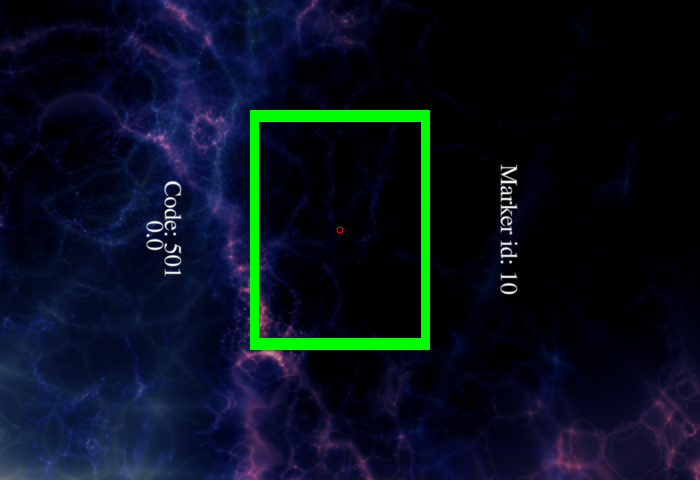
- Hold the card against the screen anywhere. The Input visualizer outlines the card and writes labels along its sides. The code number is the one labeled Code:, for example Code: 501. The separate Marker id label is a tracking number for that touch, not the card's code, so do not use it when you set up the card.
- When you have noted your codes, delete the Input visualizer: open its … menu in the tree and choose Delete.
In the Overlay layer, the Input visualizer covers the whole screen and needs no setup. In the Main layer, it is an ordinary widget that you must position and pin before use.
Create a code
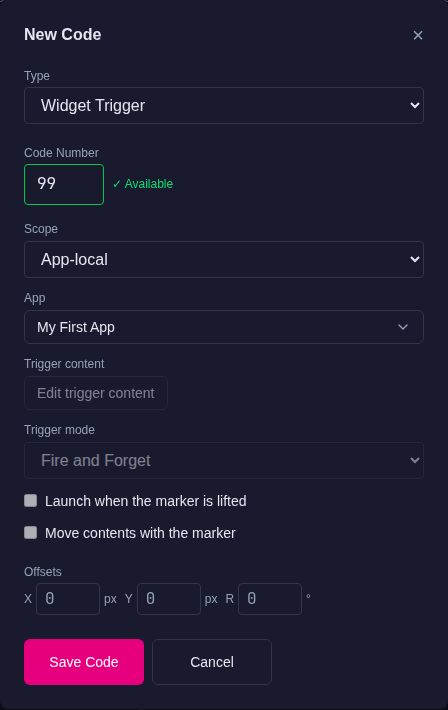
- On the Codice DB page, click New Code.
- Choose the Type.
- Enter the Code Number. The Editor checks the number when you leave the field. If another code already uses it, the Editor tells you, and → Go to that code opens the existing code.
- Fill in the settings for the type. They are described in the sections below.
- Optionally, set Offsets. They apply to Volume, Admin Override, Jog Wheel, Loupe and Spotlight cards. X and Y (in pixels) move the point the card acts on away from the marker's center, for example when the marker sits off-center under an object. R (in degrees) corrects the card's angle, for example for a marker printed or attached at a slant.
- Click Save Code.
Print the card and hand it out. See Create your own Codice cards.
Name a code
A code number alone says little about what a card is for. Give each code a name, such as Bean bag video or Lobby volume:
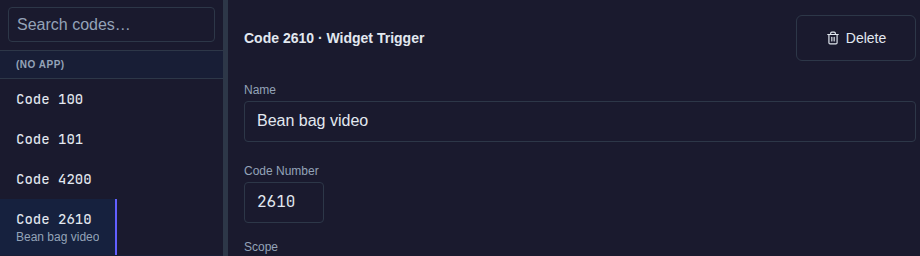
- On the Codice DB page, select the code's type, then the code.
- In the details, enter the Name.
- Click Save.
The name appears under the code number in the list, and the Search codes… box finds codes by name as well as by number. A personal code without a name of its own shows its person's name.
Names are kept when you export and import the Codice DB. When an imported 1.14 personal marker becomes a Widget Trigger, the person's name becomes the code's name. The player does not use names; a card is still recognized by its number. Names need MT Showcase 26.10.0 or later.
Widget Trigger codes
A Widget Trigger code launches content that you design when someone places the card. Anyone with a card of that code number can use it.
| Setting | What it does |
|---|---|
| Scope | Global: the code works in every app. App-local: the code works only in the app you choose in App. App-local codes let the same card do different things in different apps. |
| Trigger content | Click Edit trigger content to design what the card launches. It becomes available after you save the code. |
| Trigger mode | Fire and Forget: the content opens when the card is placed and stays open. Hold — closes when the marker lifts: the content is open only while the card is on the screen. |
| Launch when the marker is lifted | Reverses the behavior: the content opens when the card is lifted instead of when it is placed. |
| Move contents with the marker | The content follows the card as it moves and turns. A menu launched this way can be steered by turning the card. |
Design the trigger content
Edit trigger content opens the code's Codice content in the structure editor. It has two slots:
- Widgets launched around codice marker: each widget's Location is measured from the card. Use this slot for content that opens next to the card.
- Widgets launched at absolute screen locations: each widget's Location is measured from the top-left corner of the screen. Use this slot for content that always opens in the same place.
Add widgets to the slots the same way as anywhere else: open the slot's … menu and choose Add Widget. You can launch almost anything that goes in the Main or Menu layer: viewers, a finger menu, a web page, an app switcher, and so on. You usually launch one widget, but you can launch several.
The Codice content itself also has Content opening animation duration, which sets how quickly the launched content fades in.
The detail panel summarizes what the code launches, for example 1 around the marker · 0 at fixed positions.
Personal codes
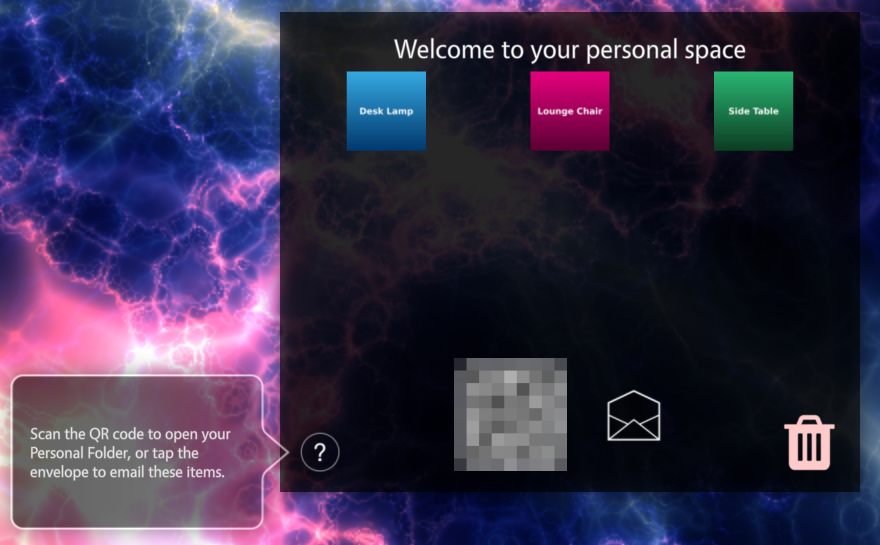
A Personal code belongs to one person. When they place their card, their personal space opens. They can drag items from the app into it and then send the items to themselves by email, or open them on their phone through a QR code. A personal code works in every app on the server.
To create one, set Type to Personal in New Code and fill in First Name, Last Name and Email. For the full procedure, the person's Personal Folder page and its Access QR, see Create a Personal Folder with an Access QR.
Personal codes also have these settings:
| Setting | What it does |
|---|---|
| PIN enabled | The person must enter a PIN to open their personal space. Reset PIN clears a forgotten PIN. |
| Clear content on close | When the personal space is closed on the wall, the items it opened close too. |
| Personal space: Collection mode, Title, Info text | Override the theme's personal space settings for this person only. Leave them on Use the theme setting or empty to follow the theme. |
| Group | Codes in the same group share a group content set, named Group 1, Group 2 and so on. Its items appear in every member's personal space and Personal Folder page, after the person's own items. Choose an existing group, or New group… to start a new one; None removes the code from its group. After saving, Open group Content Set opens the group's content set. |
| Open linked Content Set | Opens the content set that holds the items in this person's personal space. |
| External IDs | Links this code to identifiers from connected systems, such as a badge ID from a visitor registration system. Shown only when integrations are enabled. See Audience Integrations. |
Add a Codice detector to the app
Personal cards only open a personal space in apps that have a Codice detector. Without one, placing a personal card does nothing. To add one, open the app's structure, open the … menu on the Main layer row, choose Add Widget, and add Codice detector. By default it covers the whole wall. Its main attributes:
- Allow unregistered Codice markers?: when on, a card that isn't registered opens a temporary personal space. The visitor can collect items, type an email address and send the items. They can also register the card permanently. Off by default.
- Collect widgets with Codice: what happens when someone places their card on a widget: Disabled, Add to personal space, Email with confirmation (the default) or Direct email.
- Valid Codices: optionally, the codes this detector accepts, for example
5,20,50-75. Leave it empty to accept every code. Cards not on the list launch the detector's Content for invalid Codices, if you set it; otherwise they are ignored. - Size and Location: the area in which the detector reacts to cards.
- Rotate personal space towards Codice and Codice rotation offset: for touch tables. See Table Mode.
Personal space settings
The look and behavior of the personal space come from the Personal space component of the app's theme. Click Defaults, open the theme, and go to Components > Personal space:
- Personal space collection mode:
- Email contents to user: the personal space has an envelope button that emails the collected items to the person's address.
- Show Personal Folder access QR: the personal space shows a QR code that opens the person's Personal Folder page on their phone.
- Show QR and email envelope both: both.
- Personal space title: for example Welcome to your personal space.
- Personal space info text: guidance for the visitor. It is not printed inside the space: visitors tap the ? button on the space to see it as a tooltip.
<link>inserts the person's email address or Personal Folder address, depending on the mode, and<br>adds a line break. - Toolbar: optional. A toolbar with Pin button and Close button is often convenient.
In every mode, the personal space also has a trash button. Visitors drag an item onto it to remove the item from their space, and confirm the removal.
For large videos and PDFs, you can give the media library item a Codice URL. Emails then contain the link instead of the file. See Media library.
Eraser codes
Eraser cards rub out pen and finger annotations. Any card with an eraser code works for anyone.
Codes 611, 612 and 613 are built-in global erasers on every server, so you can print any of them as an eraser card straight away. To make more eraser codes, create a code with Type Eraser. Eraser settings:
- Mode: Rectangle (set Width (px) and Height (px)) or Circle (set Radius (px)). This is the size of the area the card erases.
Eraser cards always work. They do not need a Codice detector in the app.
Other card types
| Type | Settings |
|---|---|
| Volume | Degrees per % volume: how far the card must be turned to change the volume by one percent. |
| Admin Override | None. |
| Jog Wheel | Min Playback Speed (%), Max Playback Speed (%), Max Speed Angle (°) (how far to turn for maximum speed), Scrub Sensitivity, Reverse rotation and Invert scrubbing. |
| Loupe | Lens Diameter (px) and Zoom Sensitivity. |
| Spotlight | Dim Level (%) (how dark the rest of the screen gets), Default Diameter (px), Min Diameter (px) and Max Diameter (px). |
Guest pool
Click Guest in the type list to set up the guest pool: a range of codes set aside as guest cards, such as a stack of unassigned cards at an event's front desk.
- Enter the Pool Expression: a range or list of codes, such as
900-999or1,2,5,10-100. The Editor shows how many codes the expression contains. - Optionally, turn on Unknown codes trigger guest registration.
- Click Save Pool Config.
Note
In the current release the guest pool settings are saved but not yet used on the wall: a code in the pool behaves like any other code that is not registered in the Codice DB.
What an unregistered card does on the wall depends on the app's Codice detector. When Allow unregistered Codice markers? is on, any card that is not registered in the Codice DB opens a temporary personal space where the visitor can send items to an email address and register the card. See Add a Codice detector to the app.
Create your own Codice cards
You can download ready-made sets of Codice markers as PDFs, or generate your own markers as PNG files with the MultiTaction MarkerFactory application. Print them on paper or card and hand them out. For printing guidelines and downloads, see Codice Markers.
Related pages
- Codice input services: use USB or serial scanners to read codes from badges.
- Table Mode: turn content towards the card on touch tables.
- Import and Export: export the Codice DB to move it to another server.