Canvas call
See also: Canvas call administration for the switches, network needs and privacy notes, and Presenting for following other people.
The canvas call lets everyone who has the same canvas open talk to each other and see each other, without a separate calling app. Opening a canvas puts you in its call, and leaving the canvas takes you out. There is nothing to join and no link to send.
The canvas call needs Canvus 26.11.3 or later and Canvus Server 26.11.2 or later. It works in the Canvus desktop client. The web client does not take part yet.
What you see
The canvas call lives in the avatar list near the bottom-right corner of your workspace. Each avatar stands for one workspace that has the canvas open. A person who is signed in on two workspaces has two avatars.
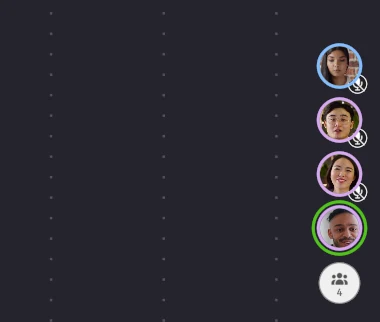
- Head shot. When someone turns their camera on, a small live picture of them replaces the initials in their avatar. The picture is cut to a circle that they position themselves.
- Microphone indicator. A microphone with a slash on an avatar means that person is muted. When someone is unmuted and talking, their avatar shows no slash.
- Speaking ring. A green ring appears around the avatar of whoever is speaking, including you.
- Your mute toggle. On your own avatar, the microphone indicator is a button at the bottom right of the avatar. Tap it to mute or unmute yourself. A microphone with a slash means you are muted. A green microphone means you are live. Three dots mean the microphone is opening.
The user list shows the same microphone indicator on each row for everyone in the call. See Following users for the avatar list and the user list.
Tapping another person's avatar still follows them, as before. Tapping your own avatar opens the set-up panel when the canvas call is available.
Who you hear and who you see
You hear everyone who is unmuted, whether or not their avatar is on screen. Head shots are different. By default the avatar list shows up to 10 avatars, fewer on a short screen, and Canvus decodes head shots only for those. When someone you cannot see starts to speak, their avatar moves into the list, and it stays there for 8 s after they stop. There is no limit on how many people can be in the call.
Mute and silence
Mute stops your microphone from being sent to the call. You still hear everyone else.
Silence stops your workspace from playing the call at all. Silencing also mutes you.
Your microphone starts muted every time you open a canvas, on every workspace, whatever you did last time. Canvus never remembers that you were unmuted. While you are muted, Canvus keeps the microphone closed, so your computer shows no "microphone in use" indicator for people who are not talking.
To silence the call, open the set-up panel and turn on Silence the call. While the call is silenced, the mute toggle on your avatar stays at muted. Tap it and Canvus tells you to turn off Silence the call first. Canvus does not remember the silence switch for the next start.
Set up your camera and microphone
Tap your own avatar to open the Canvas call panel. Everything you choose here is remembered for you on this workspace. See What Canvus remembers.
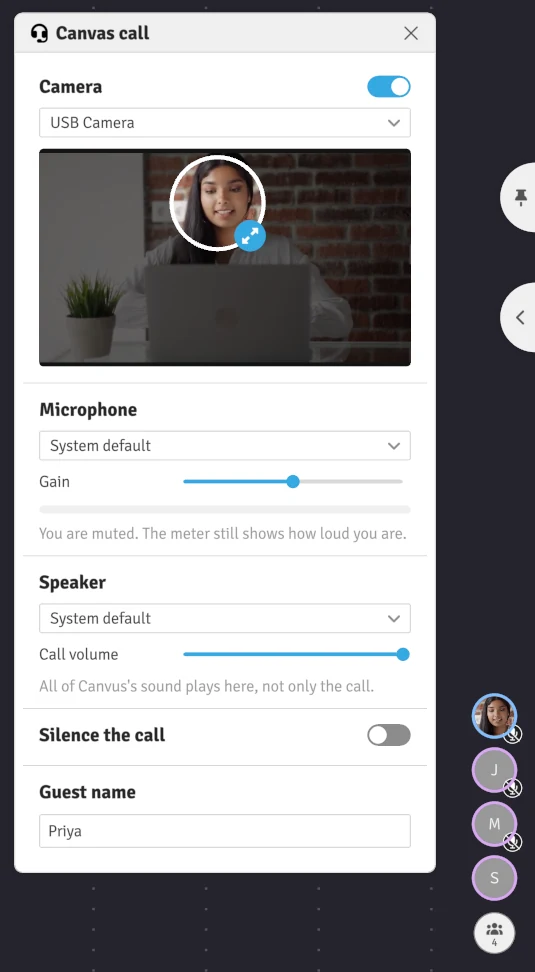
Camera
- Turn on the Camera switch.
- Choose your camera from the list if you have more than one.
- Position the circle. The panel shows the whole camera image, mirrored as in a mirror, with everything outside the circle shaded. Drag the circle with one finger, pinch it with two fingers to make it larger or smaller, or drag its handle to resize it.
Your head shot is the part of the picture inside the circle. Other people see it small, about 160 px square, at a low frame rate. Your own head shot is mirrored.
Your camera resumes as you left it. If the camera was on when you left the canvas, it turns on again when you open a canvas. The first time you use the canvas call, the camera is off. Canvus never turns the camera on by itself on a first run.
Microphone
- Choose your microphone from the list. System default uses the computer's default microphone.
- Move the Gain slider to make your voice louder or quieter. The middle of the slider is no change.
- Speak and watch the level meter. The meter works while you are muted, so you can check the microphone before you unmute. The panel tells you "You are muted. The meter still shows how loud you are."
Canvus removes the echo of the call from your microphone, so people do not hear themselves come back when the call plays on loudspeakers. It also reduces steady background noise, such as fans and air conditioning. Both are always on. Echo removal needs a few seconds to adjust after you start speaking, change your microphone or change your speaker. A headset still gives the clearest sound.
Speaker
The Speaker section shows where the call plays and has a Call volume slider.
You can choose which speaker or headset plays the call from the list in the Speaker section. System default uses the output Canvus started on, which is the computer's default output unless your administrator set another. Until you choose one, the call plays there.
Note
The speaker you choose plays everything Canvus plays on this installation, not only the call. That includes videos, web browsers and remote desktops, in every workspace.
Silence the call
The Silence the call switch at the bottom of the panel stops this workspace from playing the call, and mutes you. See Mute and silence.
If a device is missing
The panel tells you what is wrong in plain words:
- "No camera is connected." or "No microphone is connected." Connect a device. The panel updates when Canvus sees it.
- "The camera is switched off on this installation." or "The microphone is switched off on this installation." Your administrator turned that half of the call off. See Canvas call administration.
- "The camera stopped." Check the cable, and turn the Camera switch off and on again.
If the device you chose last time is not connected, Canvus uses the default device and keeps your choice. When the device comes back, Canvus uses it again.
Guest names
If you open a canvas as a guest, the panel has a Guest name section. Type the name you want other people to see. Canvus shows it wherever it shows a person's name: on your avatar, in the user list, in follow messages and on remote interaction labels.
A guest name is a label, not an identity. Two guests can use the same name, and a name gives no access to anything. It is one line of plain text, up to 40 characters, and Canvus removes extra spaces. If you leave it empty, other people see "Guest".
Whether Canvus remembers a guest name depends on how the computer is set up:
- On a single-user installation, such as a personal computer, Canvus remembers your guest name for next time.
- On a multi-user installation, such as a shared wall where many people use the guest account, Canvus forgets the guest name when the workspace closes the canvas or opens another one. The next guest starts without a name. If the connection drops and Canvus reopens the same canvas by itself, the name stays.
A guest's camera and microphone choices are remembered on a single-user installation. On a multi-user installation they are kept until Canvus restarts, so the next guest on that workspace finds the same devices. A signed-in person always shows their account name, which a guest name cannot change.
What Canvus remembers
Canvus remembers these choices for each signed-in person, on each workspace, on each server:
- the camera and the circle for the head shot,
- whether the camera was on when you left,
- the microphone and its gain,
- the speaker and the call volume.
Canvus does not remember whether you were muted or silenced. It remembers guest choices only on a single-user installation, as described in Guest names.
Walls and shared computers
On a video wall, each workspace has its own avatar and its own camera, circle and microphone choices. Canvus remembers them for each signed-in person who uses that workspace.
When two workspaces on the same computer have the same canvas open, Canvus plays the call once, not once per workspace. The first workspace that is not silenced plays it, and the next one takes over when that workspace is silenced or leaves the canvas. Each workspace still sends its own microphone and head shot.
An installation can switch the camera, the microphone or the whole call off. If the panel does not open when you tap your avatar, or a section is missing, ask your administrator. See Canvas call administration.
Good to know
- The call is designed for a local network and for good wide-area links. On a link with heavy packet loss, voice can stall and then catch up, and Canvus drops audio that arrives too late. See network needs.
- Camera pictures and voice do not stay in sync.
- There is no per-person volume and no way to mute one other person. Silence the call is all or nothing.
- Your administrator can read the call. See privacy.