Sounds
Sounds give visitors feedback and add atmosphere. For example, a short click when a widget closes confirms the action, and a soundtrack can reinforce your branding.
MT Showcase apps can play a sound (a WAV file) when a widget opens or closes, and when a visitor touches a widget with a finger or an infrared pen. Apps can also loop sounds while a widget is open, or for as long as the app runs.
Sounds come from two shared widgets:
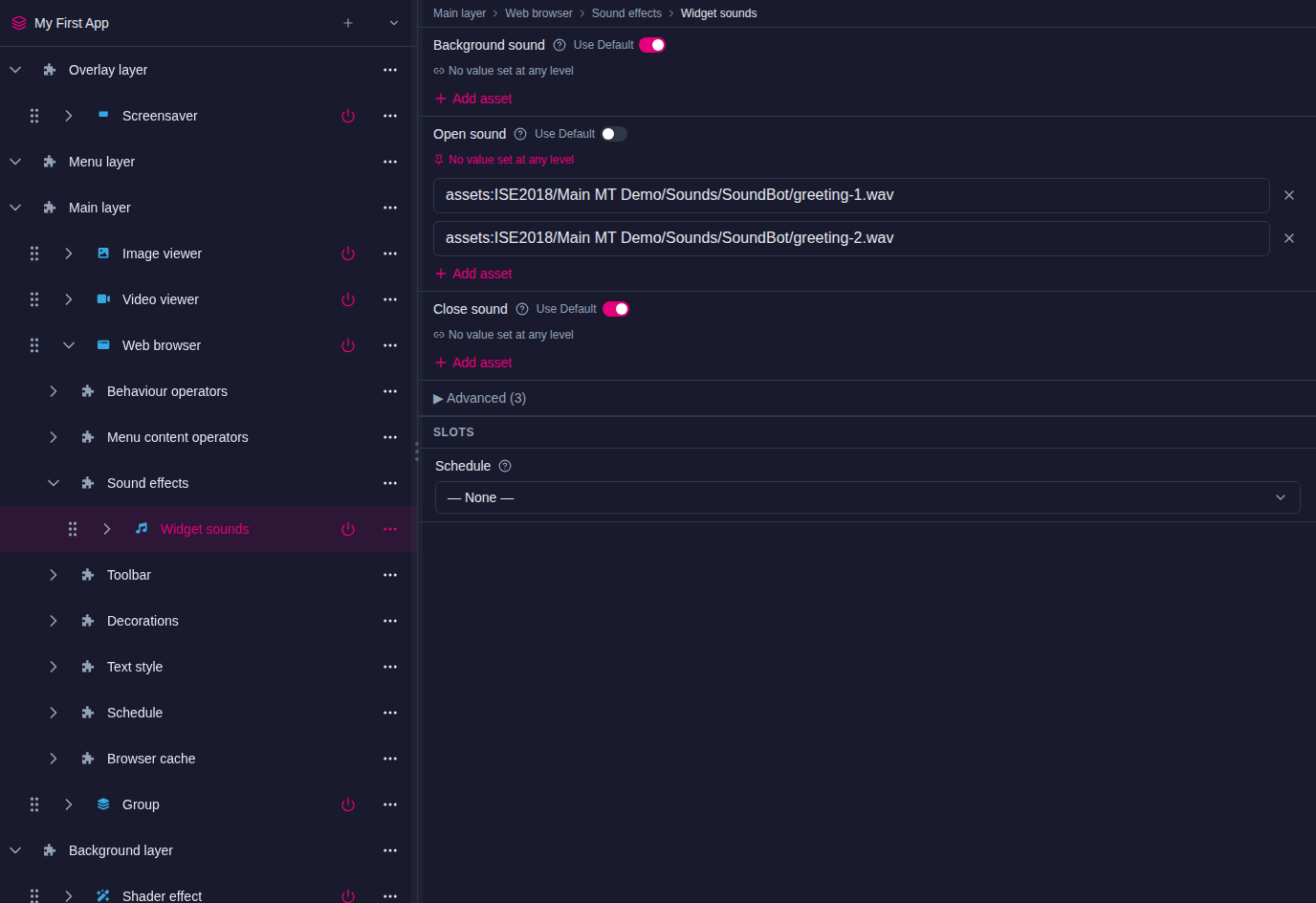
- Widget sounds: sounds that play when a widget opens (Open sound) or closes (Close sound), and a Background sound that loops while the widget is open. If you add several open or close sounds, one is chosen at random each time.
- Interaction sounds: sounds that play when a visitor touches a widget with a finger (Touch sound) or an infrared pen (Pen sound). If you add several, one is chosen at random each time.
Both have a Sound volume and a Use positional audio setting.
Guidelines
- Use sounds sparingly. Too many sounds, especially looping ones, quickly become tiring or distracting.
- Keep touch, open and close sounds very short, under one second. Make them non-verbal, at a moderate volume, and pleasant rather than jarring: subtle clicks and beeps work well.
- Widgets play no sounds unless you give them sounds, either on the widget itself or through the app's theme.
Add sound files to the media library
Upload your WAV files to the Media Library panel before you use them. Drag them from your computer onto the panel's upload area.
Note
Use WAV files. If your sounds are in another format, such as MP3, convert them to WAV first.
Add sounds to a widget
Each widget has a Sound effects slot that holds its Widget sounds and Interaction sounds. For example, to add sounds to a web browser:
- Click Structures and select the structure.
- In the structure tree, expand the Web browser and find its Sound effects row.
- Open the row's … menu and choose Add Widget.
- In the Add Widget to Sound effects dialog:
- On the New Widget tab, choose Widget sounds or Interaction sounds to create new sounds.
- On the From Library tab, choose sounds you have already saved to the Widget Library.
- Select the new sounds in the tree and set their attributes:
- Widget sounds: drag WAV files from the Media Library panel into Open sound, Close sound and, for a loop, Background sound. A new empty field appears each time you add a file, so you can add several.
- Interaction sounds: drag WAV files into Touch sound and Pen sound.
- If you need them, open Advanced and set:
- Sound volume: a multiplier for the file's own loudness. 0 is silent, 1 (the default) is the file's normal volume, and values above 1 play louder: 1.5 is 50% louder.
- Use positional audio: sends the sound to the speaker closest to the widget. Turn it on only if your wall is set up for positional audio.
Repeat from step 3 to add the other kind of sound.
Note
The volume visitors hear also depends on the volume settings of the application computer and the speakers.
To reuse the same sounds on other widgets, open their … menu in the tree and choose Add to Library. They then appear on the From Library tab.
Loop sounds continuously
The Background sound attribute of Widget sounds loops sounds instead of playing them once:
- While a widget is open: add the Widget sounds to the widget's Sound effects slot, as described above, and add files to Background sound. The sounds loop while the widget is open.
- While the app is running: add Widget sounds directly to the app's Background layer. On the Background layer row, open the … menu and choose Add Widget, then choose Widget sounds. Add files to Background sound and leave Open sound and Close sound empty. The sounds loop for as long as the app runs.
If you add several background sounds, they play one after another in random order. To play them in the order they are listed, open Advanced and turn off Shuffle background sounds.
Default sounds from a theme
A theme can give sounds to every widget of a type, for example to every Menu bubbles item, or to all widgets through the Widget behavior theme defaults. Sound defaults in a theme appear in the theme editor as Sound effects entries in the component's section, where you can choose a different shared widget.
A widget that has its own sounds in its Sound effects slot uses those instead. See Themes for how theme values are inherited.
Remove sounds from a widget
- Click Structures and select the structure.
- In the structure tree, expand the widget and its Sound effects row.
- Open the … menu of the Widget sounds or Interaction sounds and choose Delete (or Remove from slot, when the menu offers it).