App Navigation
These widgets and settings control how visitors move between apps and leave MT Showcase:
- The App switcher switches to another app, or to the welcome screen.
- The Exit Showcase widget quits MT Showcase.
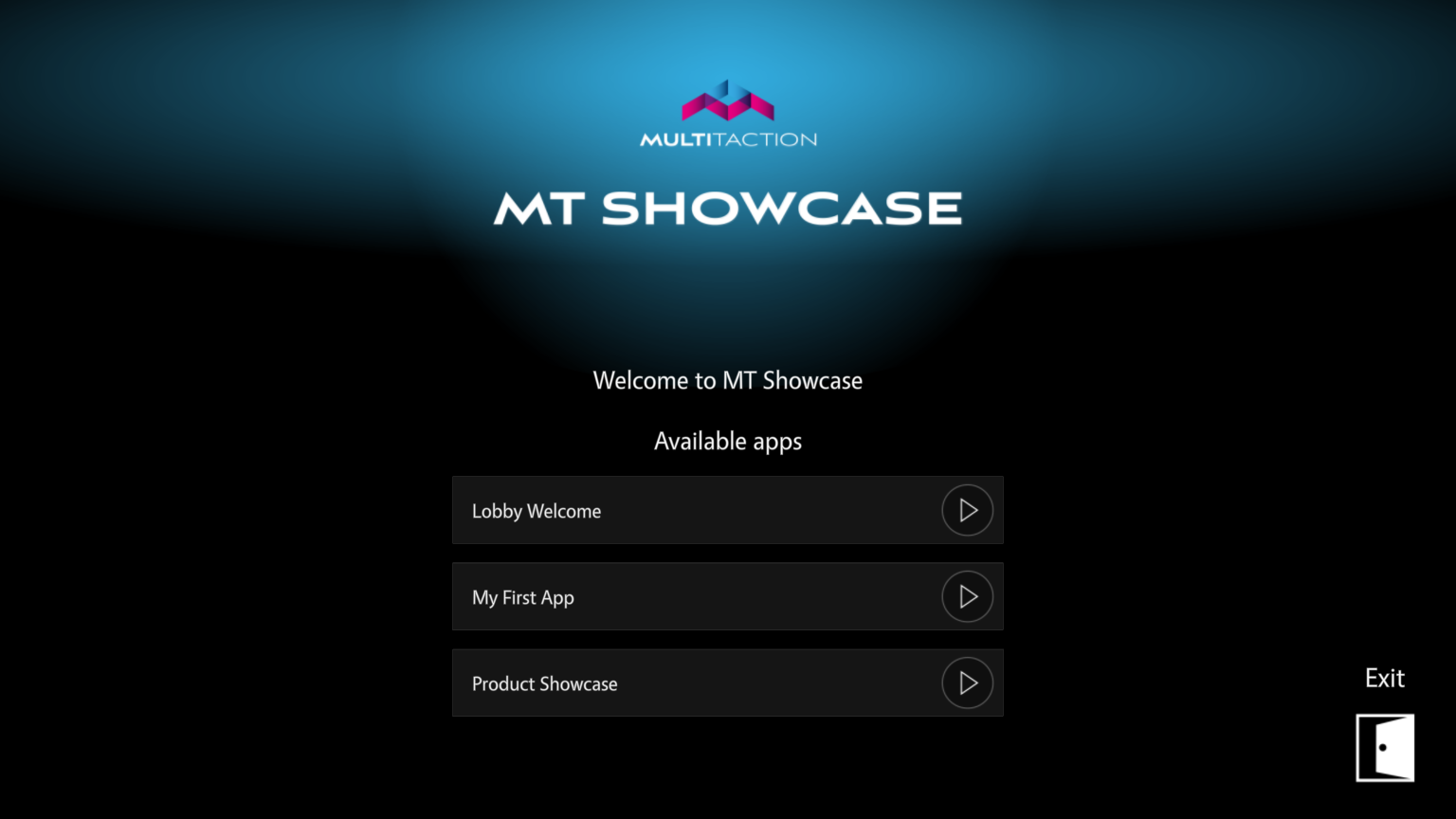
- The welcome screen lists the available apps.
Staff can also choose which app a player runs from the Editor's Dashboard. See Getting Started.
Where to put the widgets
The App switcher and Exit Showcase widgets do their job when they open. Put them wherever visitors (or staff) should be able to open them. They cannot be added to a content set, so they cannot be menu items:
| Place | How to add it |
|---|---|
| A hotspot, for example a small corner hotspot | In the structure, add a Content hotspot to the Main layer. On its Widgets launched from hotspot around tap location slot, open the … menu, choose Add Widget, and add the widget. |
| A Codice card | Create a Widget Trigger code, click Edit trigger content, and add the widget to one of its slots. See Codice Cards. |
A discreet staff corner
For a staff-only exit, use a small hotspot, for example 100 × 100 pixels, in a screen corner. Set its Hotspot location, Hotspot size and Background color, and rename it in the tree (… > Rename) so it is easy to find later.
App switcher
The App switcher switches the player to another app. Its attributes:
- Target app: the app to switch to. Leave it empty to return to the welcome screen instead, so visitors can choose.
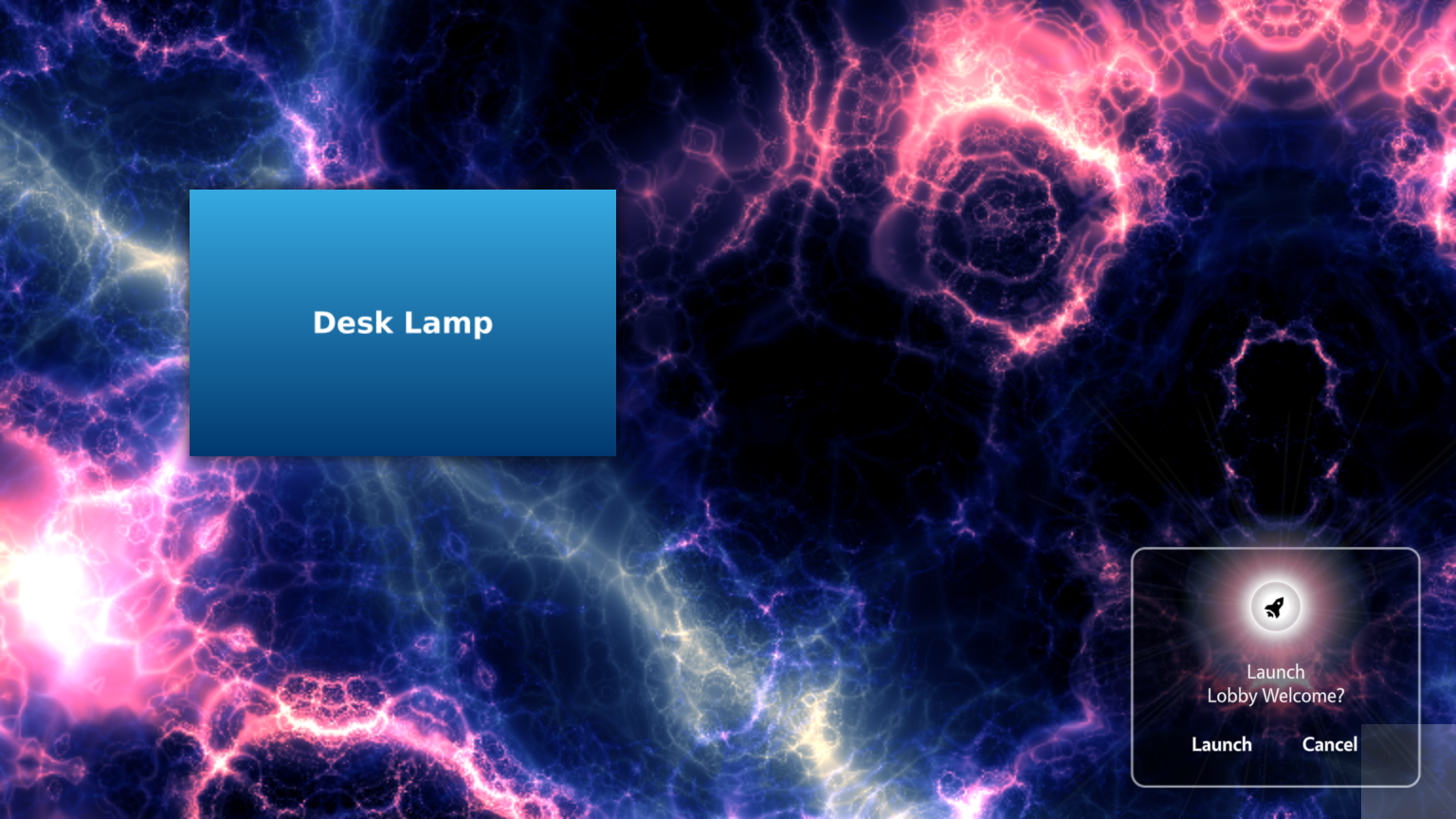
- Show confirmation before switch: on by default. Visitors see a dialog that asks "Launch app name?" (or "Launch Welcome screen?" when there is no target app) with Launch and Cancel buttons. Turn it off to switch immediately.
- Show loading overlay?: shows a full-screen loading screen while the new app loads. Large apps load gradually, so this hides the layout settling in.
The App switcher can also be used as screensaver content, so an idle wall returns to a chosen app by itself.
Link apps together
App switchers let you build a collection of linked apps. For example, a main app has a finger menu of app switchers, one per topic app. Each topic app has a corner hotspot with an app switcher back to the main app.
For a simpler alternative, list the apps on the welcome screen and let visitors choose.
Exit Showcase
The Exit Showcase widget quits MT Showcase, for example back to MT Launcher.
- Show confirmation before exit: on by default, so visitors confirm or cancel. Turn it off to exit immediately.
Welcome screen
The welcome screen is where MT Showcase goes when it has no app to show. It lists the available apps. It also has an Exit button, but only when MT Showcase was started with the --show-exit option; MT Launcher's standard MT Showcase entry starts it this way. See Start and Stop.
Visitors can reach the welcome screen:
- By accident: for example, an MT Launcher tile opens an app that no longer exists. Listing the apps gives visitors a way on.
- On purpose: an App switcher with no Target app opens the welcome screen. Staff can also choose — App Selector — for a player on the Dashboard. An MT Launcher tile can open the welcome screen directly; see Launch the Showcase welcome screen.
Hide an app from the welcome screen
Every app is listed on the welcome screen unless you hide it:
- Click App Launcher.
- Open the app's … menu and choose Edit.
- Clear the Public checkbox.
- Click the ✓ (Save) button on the row.