Introduction
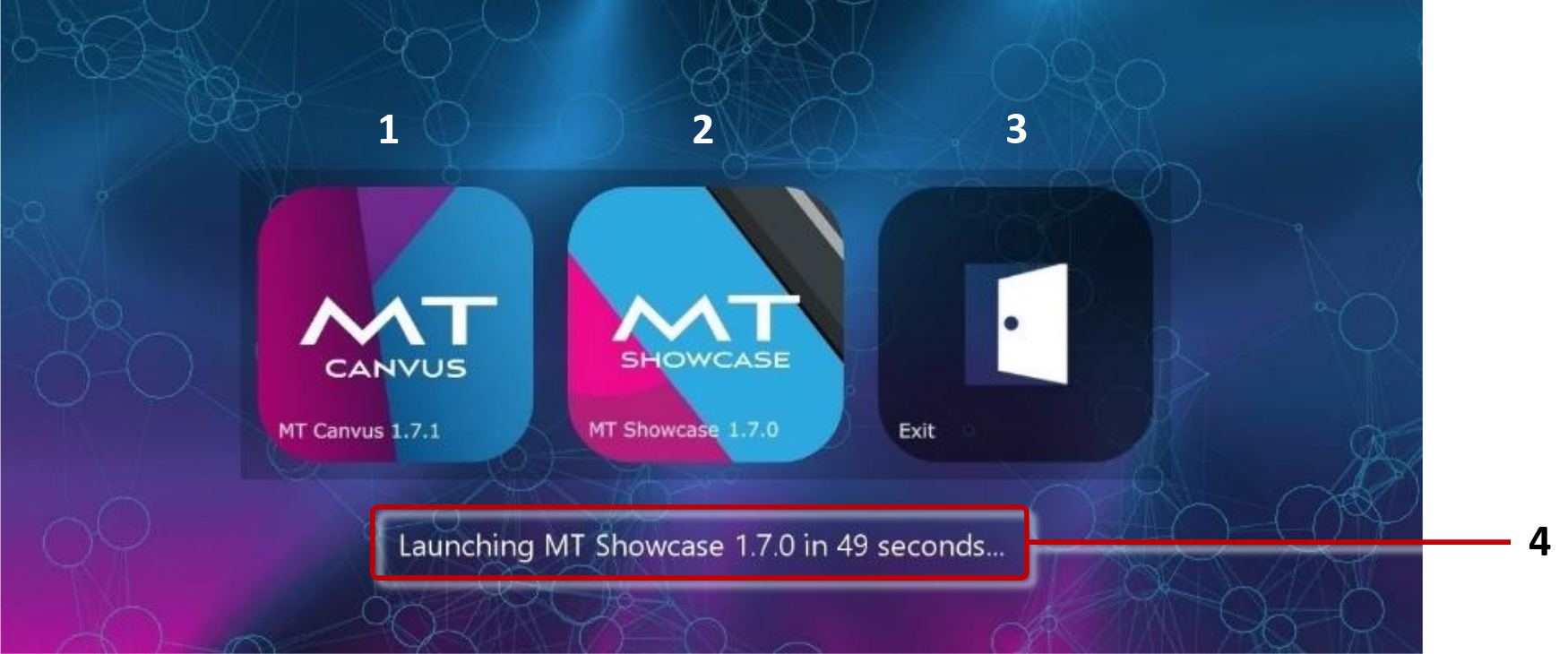
Launcher is a tool for launching products such as Canvus and Showcase. It displays as a menu on your video wall and comprises a series of tiles that users can tap to launch the required product.
When used in conjunction with features such as the Exit Showcase widget in MT Showcase, Launcher provides a quick and easy method for switching between MultiTaction products. It also provides logging functional ity and monitors product processes, restarting them if they crash.
Launcher is included in the MultiTaction base image . Other customers must install Launcher manually. You must then configure Launcher plus any pipelines that you want to include.
Note
The Exit tile is displayed by default. However, you can hide this tile, if required. (Launcher is designed to provide end-users with a simple method for launching products. You may not want to provide end-users with a simple button to exit to the desktop from Launcher.)
What is a pipeline?
A pipeline refers to the set of processes that are collectively required to launch a MultiTaction product such as Showcase or Canvus. These MultiTaction products now have built-in compatibility with Launcher and ship with the configuration files required by Launcher.
Deployment summary
Deploying Launcher involves:
-
Install Launcher
On Ubuntu application computers, you can install Launcher from an installation package or by using the apt utility. On Windows application computers, you must download and run the Launcher installer. See install-mt-launcher.
-
Configure Launcher
Launcher is designed to operate out-of-the-box, with minimal configuration. But if you want to customize features or behavior, you can configure Launcher by editing custom versions of the main configuration file, launcher.ini, and the pipeline configuration files for individual products. See configure-mt-launcher.
-
Restart Launcher
You must restart Launcher for the configuration changes to take effect. See restart-mt-launcher.
Features introduced in 26.4.0
Auto-detection of installed MT applications
MT Launcher 26.4.0 automatically detects installed MultiTaction applications (Canvus, Showcase, SiteManager) and generates launcher tiles for them. No manual pipeline configuration is needed for standard MT application deployments.
Auto-detected applications appear as tiles alongside any manually configured pipelines.
License activation via Launcher
If an auto-detected application is unlicensed, an "Activate License" button appears on its tile. Clicking it relaunches the application in license activation mode. Wall and kiosk installations automatically enter license activation mode on relaunch if the license is invalid.
Pipeline configuration file extension
Pipeline configuration files now use the .pipeline extension (formerly .ini).
Existing .ini files continue to work as a legacy fallback.
MultiTaction support
If you need technical assistance, please contact MultiTaction Support: https://www.multitaction.com/support-request/