Licensing
Screen casting is sold per wall computer. It is an add-on to the Canvus or Showcase licence the wall already has. Each wall computer needs its own screen casting licence.
The wall shows no prices. The price appears on the checkout page when you buy, or ask MultiTaction sales. See The licence page.
The 30-day trial
A wall computer runs a full trial for 30 days from the first time MT Cast starts. Everything works. A small tile at the bottom left of the MT Cast picture shows the days left.

In the last 7 days the tile reads "Trial ends in N days".
During the trial the card on the wall also shows one line at the bottom with the days left and the wall's licence page address, where you can buy or activate.
The trial is tied to the wall computer, not to the install. Removing the package or deleting its folders does not start a new trial. See Where the files are.
When the trial ends
MT Cast shows a "not licensed" card instead of casts. The card names the reason, the wall's licence page address and a QR code for it.
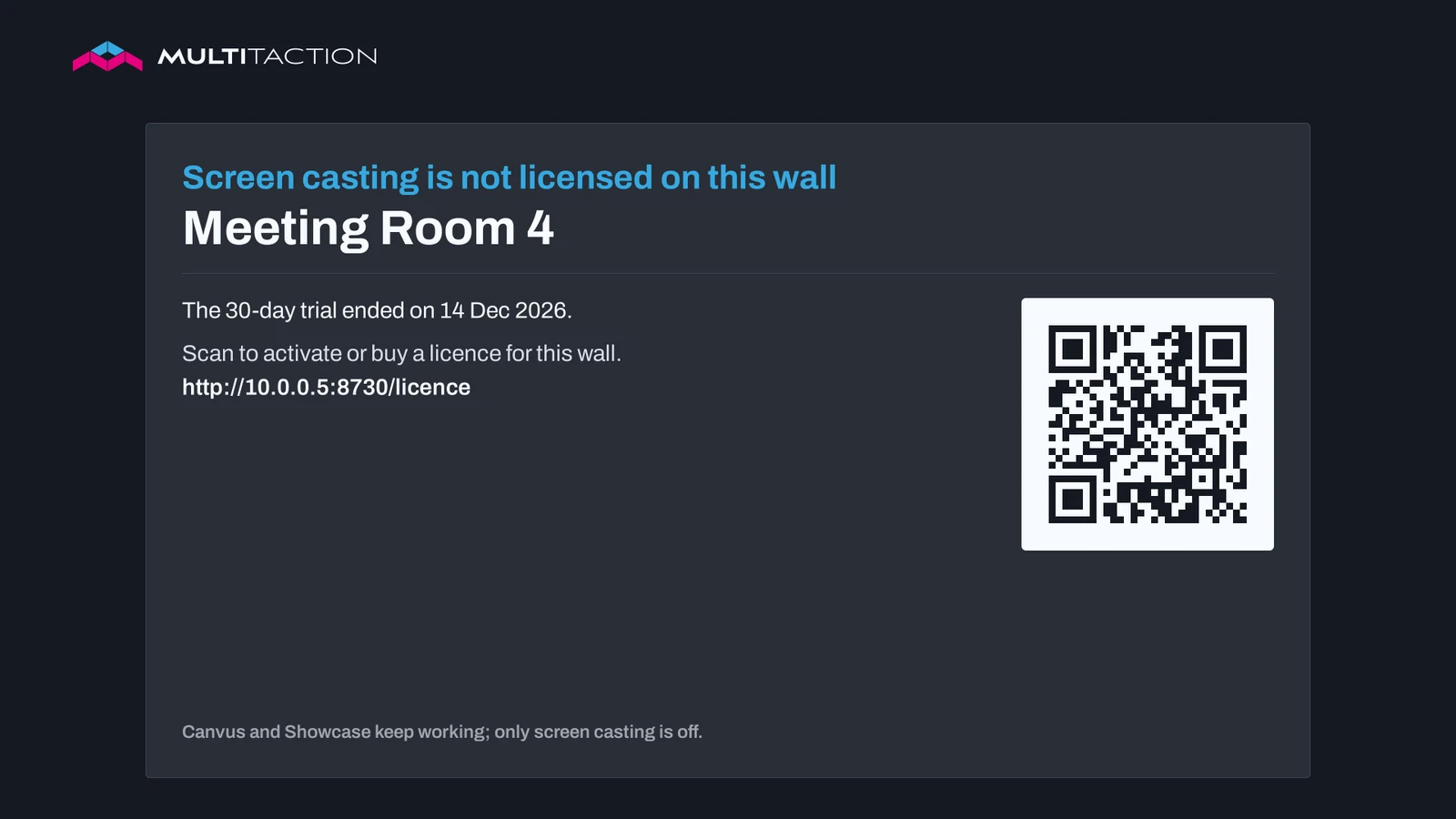
While the card shows:
- AirPlay is not advertised, and a cast that is running ends.
- MT Caster and browsers cannot start a cast. MT Caster tells the visitor that the wall's licence has ended.
- Canvus and Showcase keep working. Only screen casting is off.
The card gives a different reason for each case: the trial ended, the licence expired, the licence was revoked or suspended, the licence is for another computer, or the computer's date and time are wrong.
If the card says the date and time are wrong, fix the clock on the wall computer or connect it to the internet. Then the card goes away.
If [web] listen=localhost, the QR code opens the MultiTaction shop page directly, because the licence page is not reachable from the network. Ask your IT team to activate the wall in that case.
The licence page
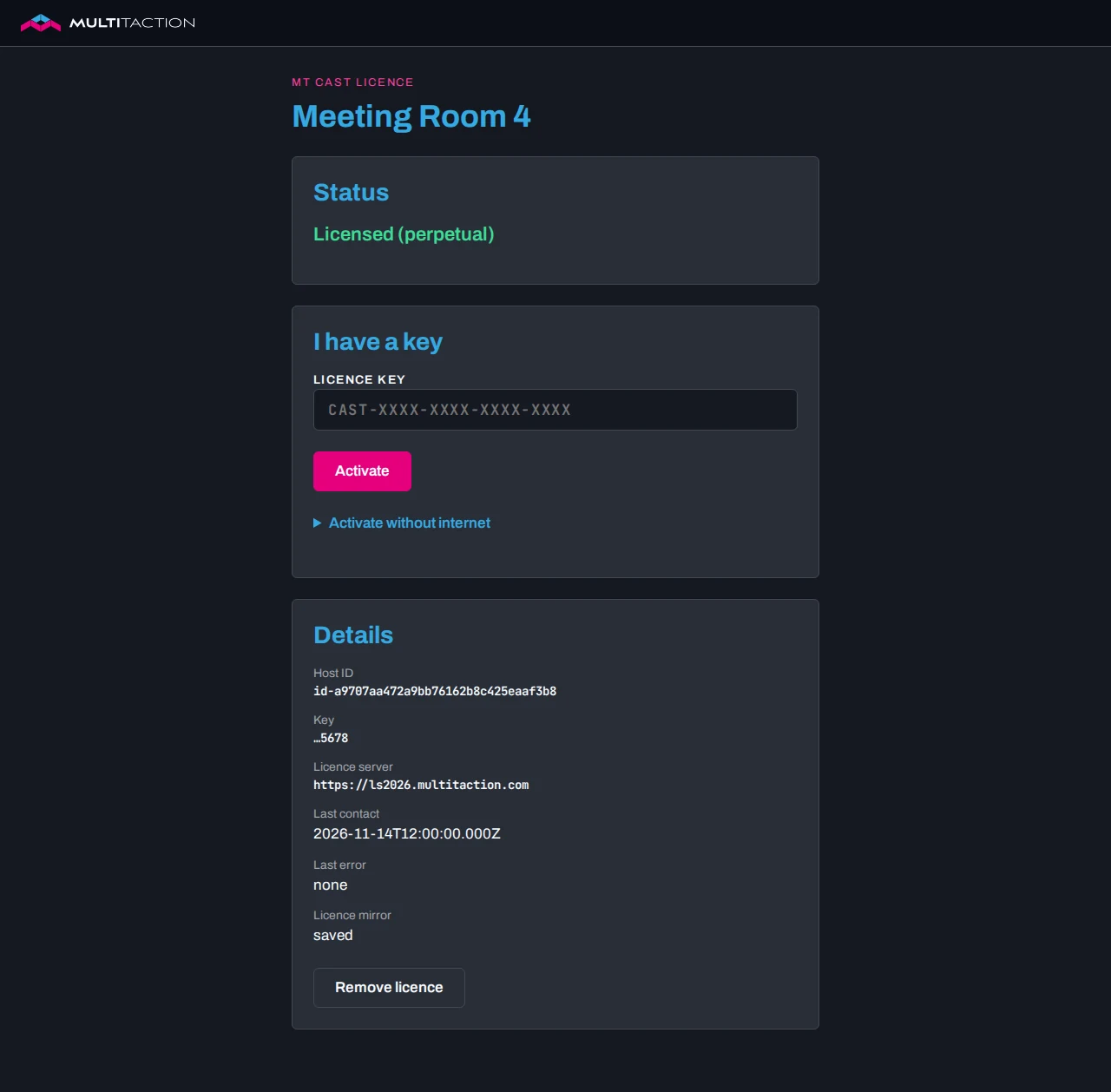
Every wall has a licence page at https://<wall computer>:8730/licence (http:// when [web] https=false). The status page links to it, and the QR code on the card opens it.
The page shows the licence status and has three parts:
- Buy a licence for this wall, with a Buy now button.
- I have a key, to type a key or to activate without internet.
- Details, with the host ID, the licence server and the last contact. This part needs the settings page: open it first on the wall PC, or sign in with the network access password from another computer.
The page only answers to the wall computer's own names: localhost, the computer name, <name>.local, [web] public-host and its IP addresses. A different DNS name gets an error. To use another name, set it as public-host. See Settings.
While the wall is not licensed, anyone on the network can open the page, buy and activate. Once the wall is licensed, changing or removing the licence needs the settings page: open it first on the wall PC, or sign in with the network access password from another computer. See Settings password.
Buy a licence from a phone
- Scan the QR code on the card with a phone on the room's network. The licence page opens.
- Choose Annual or Perpetual.
- Tap Buy now. The MultiTaction shop page opens. It shows the price on Stripe's secure checkout page.
- Continue to payment. Stripe takes the payment.
- When the payment is done, the shop shows a page with your licence key.
An annual licence runs for one year and renews each year until you cancel. A perpetual licence has no end date and covers all future versions.
If the wall is online, it picks up the paid licence by itself. Nobody needs to type the key. The wall checks every 30 seconds for the first 30 minutes after someone taps Buy now, and then every 15 minutes for 7 days. The licence page shows "Waiting for payment" while it waits.
The purchase email links to the page that shows the key. The email never contains the key itself. The key also stays in your MultiTaction customer account.
If the wall has no internet but the phone has, buy as above. On the shop page, choose Download the licence or Install on the wall, or use the key as described next.
Type a key
Use this when you have a key, for example from a sales order or from the shop page.
- Open the licence page.
- Type the key into Licence key. It looks like
CAST-XXXX-XXXX-XXXX-XXXX. - Select Activate.
The wall needs internet for this. Without internet, use the next section.
A key works for one wall computer.
Walls without internet
Activate with files, as for Canvus.
- Open the licence page. Open Activate without internet and type the key.
- Select Download request file.
- On any device with internet, open
https://ls2026.multitaction.com/screencast/offlineand upload the request file. The page gives you a licence file. - On the wall's licence page, select Upload licence file and choose that file.
The wall checks the file and is licensed at once.
A phone on the room's network can do all of this. It reaches both the wall's page and the internet.
Renewal and cancelling
An online wall renews by itself. It checks the licence once a day. It fetches the renewed licence when the licence is within 14 days of its end or when the server shows a later end date.
If the licence still runs out, MT Cast keeps casting for at least 14 days. During this time the tile reads "Licence expired: renew within N days".

After the grace period, the wall shows the not-licensed card.
A wall without internet needs the offline steps once a year. Repeat them with the same key to get a renewed licence file.
To cancel an annual licence, follow the cancel link in your purchase email, or ask MultiTaction support. The licence keeps working until its end date plus the grace period.
Move a licence to a new wall
A licence is bound to one wall computer. To move it, contact MultiTaction support and say which wall the licence leaves and which wall it goes to. The new wall then activates with the key as above.
A full refund suspends the key. The wall shows the not-licensed card after its next check.
Pilot and preview walls
A wall that already has a preview or pilot version gets its 30-day trial when you upgrade to the licensed version. For a free key, ask MultiTaction. You type it in the same way.
For IT
The wall contacts https://ls2026.multitaction.com to register its trial, activate keys, pick up a paid licence and check the licence once a day.
- Allow outbound HTTPS, TCP 443, from the wall computer to
ls2026.multitaction.com. - A proxy: set
proxy=http://host:portunder[licence]incompanion.ini. It applies to licence calls only. - No internet allowed: set
online=falseunder[licence]. The wall never contacts the server. The trial and offline activation still work. - Changes to
[licence]apply at the next start of the service.
[licence]
server-url=
online=true
proxy=
Leave server-url empty. Release builds then use https://ls2026.multitaction.com.
A licence file is signed. The wall trusts only the MultiTaction signing key built into the program. A wrong server or a proxy that changes replies cannot grant a licence.
A phone that buys a licence needs to reach the shop on the internet and the wall's licence page on the local network. For the wall's ports, see Network and firewall.
Where the files are
The licence and the trial record are kept so that a reinstall neither resets the trial nor loses the licence. Removing the package, or purging it on Ubuntu, leaves them in place.
| System | Licence | Trial and mirror |
|---|---|---|
| Ubuntu | /var/lib/mt-screencast/licence/ |
/var/lib/MultiTaction/screencast/ and /etc/MultiTaction/Licenses/.screencast-trial |
| Windows | C:\ProgramData\MultiTaction\ScreenCast\licence\ |
C:\ProgramData\MultiTaction\Licenses\ and the registry key HKLM\SOFTWARE\MultiTaction\Licensing |
The licence file in the licence folder is screencast-licence.html. You can open it in a browser.
To see the state from a terminal on Ubuntu, run:
sudo -u mt-screencast mt-screencast --licence-status