Make Showcase reachable from phones
Do this once on each Showcase server before using an Access QR, audience upload QR, or Hosted Site outside the server itself.
You need: a Showcase administrator account and, for internet access, a DNS name controlled by your organization.
1. Open Network & Public Access
- Sign in to the Showcase Editor.
- In the left menu, open Network & Public Access. It is in the administrator-only group at the bottom of the menu, next to Users, Invites, SSO, Security and Audit Log.
- Review the detected network addresses. These help identify the server, but they are not saved automatically as its public address.
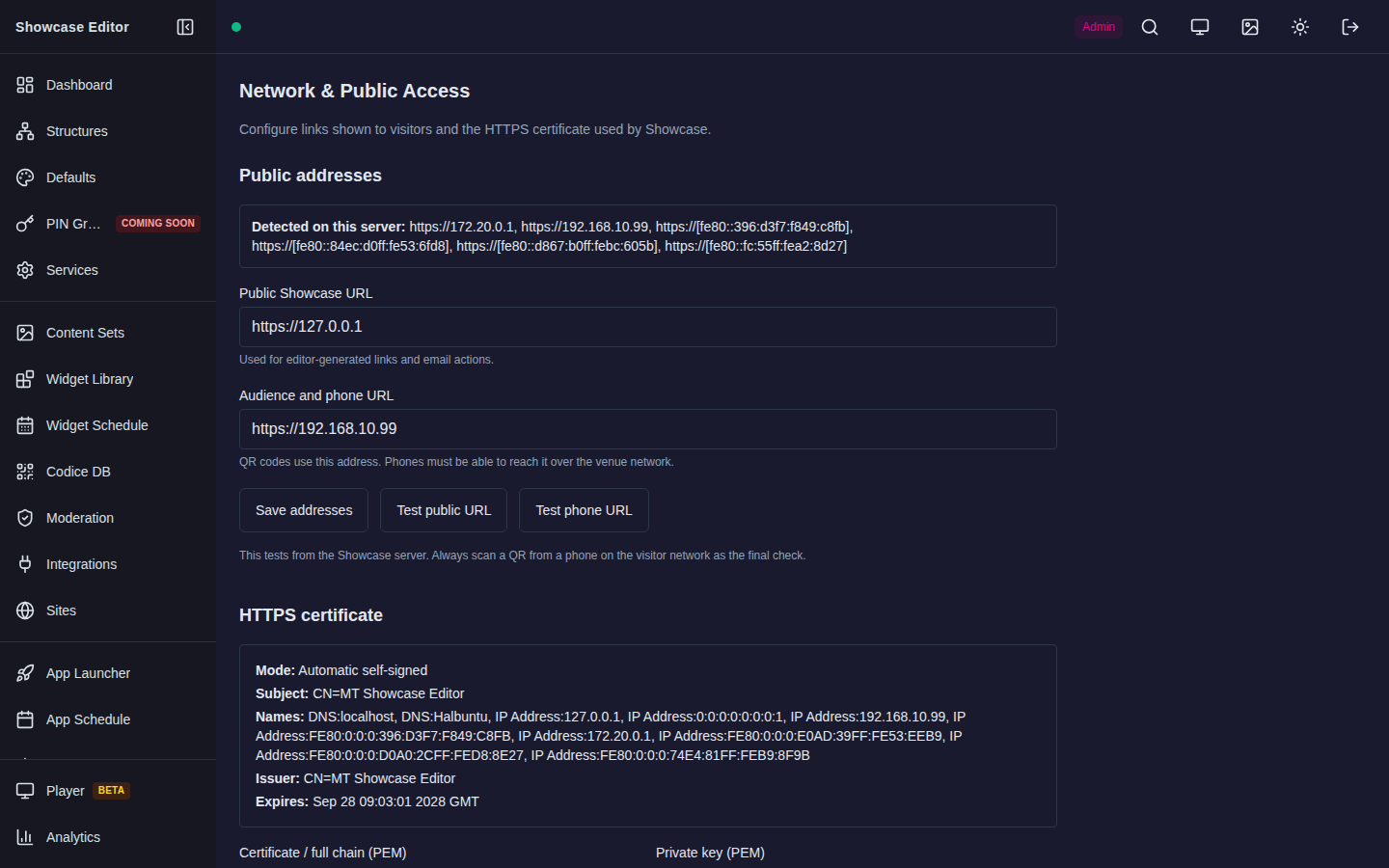
2. Enter the address phones should use
- In Public Showcase URL, enter the editor/server address, for example
https://showcase.example.com. Showcase uses it for editor-generated links and email actions. - In Audience and phone URL, enter the address that Access and upload QRs should contain. Phones must be able to reach it over the venue network. If it is the same as the public URL, you can leave it empty and Showcase uses the public URL.
- Do not add a trailing
/or page path. - Select Save addresses.
- Use Test public URL and Test phone URL. This checks from the server; the phone test in step 4 remains necessary.
For an isolated demonstration on one Wi-Fi network, an address such as https://192.168.1.40 can work. For a production or internet-facing system, use a DNS name and a certificate issued for that name.
3. Choose a certificate
Recommended: upload your organization's certificate
- Under HTTPS certificate, choose the PEM certificate/full chain file.
- Choose its matching PEM private-key file.
- Select Install certificate.
- Check the displayed subject, issuer, names, and expiry date.
- Restart Showcase Server when the page asks you to. The old certificate remains active until the restart, so saving cannot interrupt the current session halfway through.
The private key is stored with restricted permissions and is never displayed again.
Local trial: use the Showcase self-signed certificate
Select Use self-signed certificate, then restart when prompted. Phones will normally show a trust warning unless your organization has installed the Showcase certificate authority on them. This is expected for a self-signed local trial and is not suitable for a public deployment.
4. Test from the device that matters
- Put a phone on the visitor network.
- Open the Audience and phone URL (or the public URL, if you left it empty) in its browser.
- Confirm the page loads and the browser reports the expected certificate.
- Create a test Access QR using Create a Personal Folder with an Access QR, then scan it.
A successful test from the server itself is not enough: guest Wi-Fi isolation, firewalls, DNS, and certificates can behave differently on the phone.
Troubleshooting
| Symptom | Most likely cause | What to check |
|---|---|---|
| Phone times out | Routing or firewall | Phone and server network, TCP port, guest-network isolation |
| Name not found | DNS | The public name resolves on the phone's network |
| Certificate warning | Wrong name, expired chain, or self-signed certificate | Certificate names and expiry shown in the app |
| QR opens the wrong host | Audience and phone URL is stale | Correct it in Network & Public Access, then reopen the QR on the wall or in Codice DB |
| Installed certificate is not active | Restart still required | Restart Showcase Server during an approved maintenance window |
Settings in the configuration file
This workflow needs no configuration-file or command-line editing. If the server configuration file (production_users.yaml) also sets addresses or a certificate, the values saved on this page take precedence. Use self-signed certificate only removes a certificate installed on this page: if the configuration file names its own certificate (see Use your own TLS certificate), Showcase uses that certificate after the restart.