Groups and Logic
Groups let an app react to how visitors interact with several things, not just to a single tap. A Group collects widgets, watches their signals, and reveals content when a condition you choose is met. Examples:
- Reveal a reward only after visitors have touched all the hotspots on a product.
- Build a set of radio buttons, where choosing one option deselects the others.
- Make a puzzle that visitors must solve by tapping hotspots in the right order.
- Count visits to an exhibit and launch bonus content on the fifth one.
You build all of this in the Editor with no code. This page explains the building blocks. For step-by-step recipes, see Logic Examples.
Signals: the idea behind the logic
Some widgets carry a signal, which is either HIGH (active) or LOW (inactive):
- Content hotspots: the signal changes when a visitor taps or holds the hotspot.
- Counters: the signal goes HIGH when the count reaches its threshold.
- Groups: the signal goes HIGH when the group's logic condition is met.
A group combines the signals of the widgets in its Triggers slot into one group signal. While the group signal is HIGH, the widgets in its Outputs slot are visible. While it is LOW, they are hidden.
Because a group has a signal of its own, you can place a group inside another group's Triggers slot. The inner group's result then feeds the outer group, which lets you build compound conditions such as "(A and B) or C".
Trigger modes
How a hotspot's signal behaves when it is touched is set by its Trigger mode attribute. Counters and groups have the same attribute, but their signals are driven by their count and their logic.
| Trigger mode | What a tap does to the signal |
|---|---|
| Fire and forget (default) | Pulses the signal briefly and launches the hotspot's content every time. Never closes content. |
| Momentary (fire once) | Pulses the signal HIGH, then straight back to LOW. |
| Toggle (on/off) | Each tap switches the signal between HIGH and LOW. |
| Hold (while pressed) | The signal is HIGH while a finger stays on the hotspot. |
| Timed (auto-off) | The signal goes HIGH and returns to LOW by itself after Timed duration (seconds) (0.1 to 60 seconds, default 5). |
Which mode to use in a group
AND, OR, Exclusive and Latch groups look at signals that stay HIGH, so give their triggers Toggle, Hold or Timed. A Fire and forget or Momentary trigger is HIGH for only an instant, so it cannot hold an AND or OR condition. A Sequence group reacts to each press, so any mode works there.
The Group component
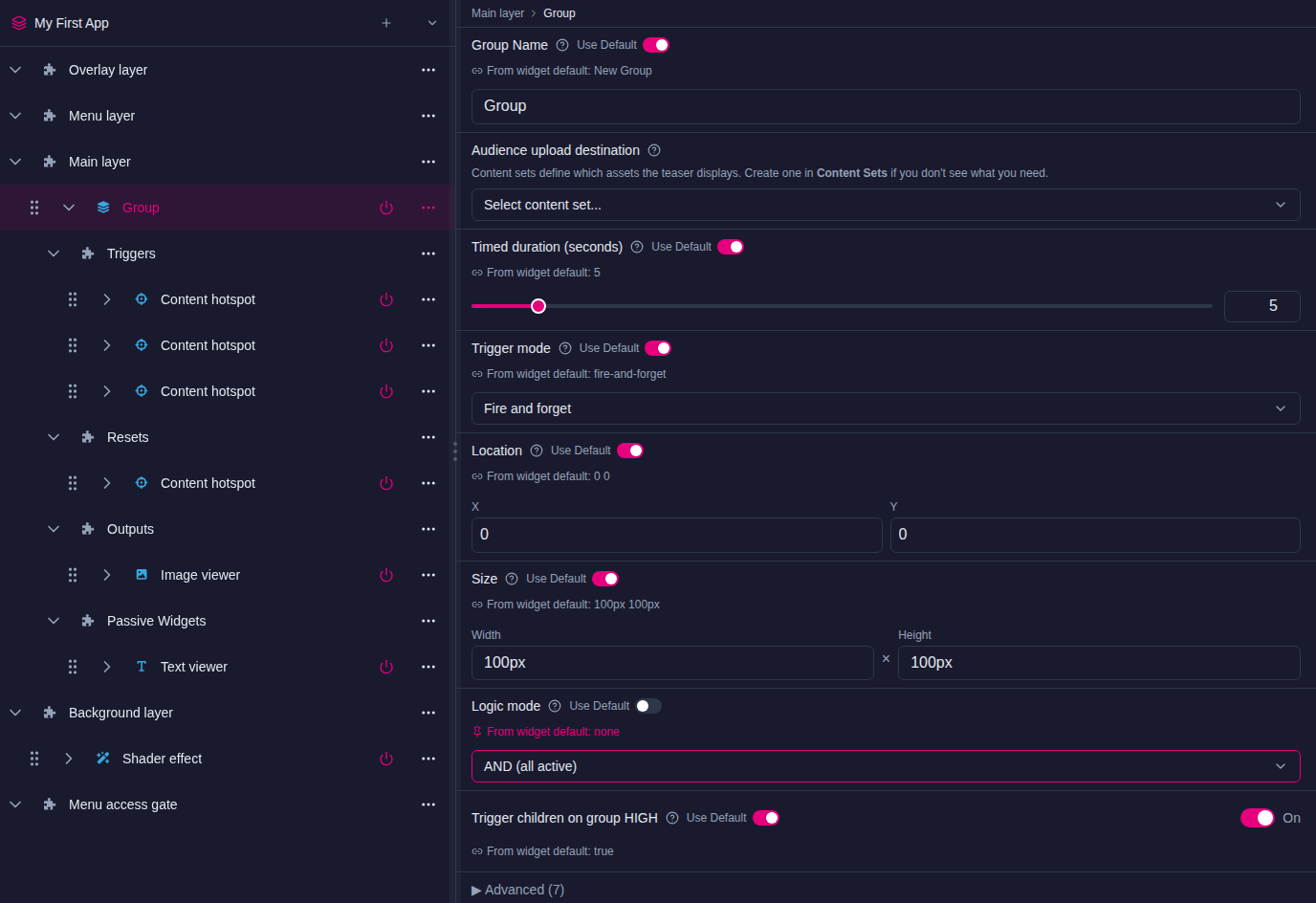
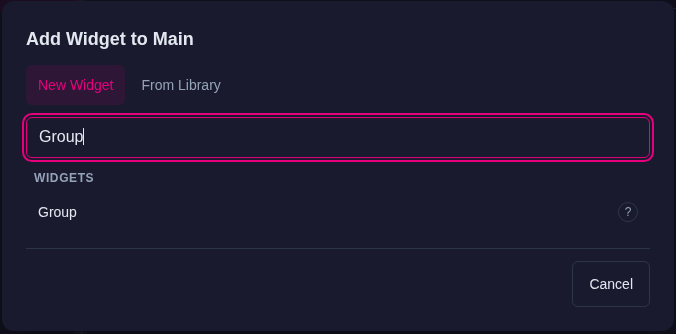
In the Add Widget dialog, the component is called Group. You can add a group to the Main layer, the Background layer or the Overlay layer, to the launch slots of hotspots and menus, to a content set, or inside another group.
A group is a transparent container: it draws nothing of its own. What visitors see is the widgets you put in its slots.
The four slots
| Slot | What goes here | Visible |
|---|---|---|
| Triggers | The widgets whose signals the group evaluates. Only widgets in this slot take part in the logic: AND/OR membership, Exclusive selection and Sequence order. Usually content hotspots, counters or other groups. | Always |
| Resets | Widgets that clear a latched or part-completed group when activated, for example a "Start over" hotspot. They take no part in the logic. | Always |
| Outputs | The widgets revealed when the group signal goes HIGH: an image, a video, a menu, a text panel and so on. They take no part in the logic. | Only while the group is HIGH |
| Passive Widgets | Widgets that are always drawn, whatever state the group is in: a title, a frame, a backdrop, instructions. They take no part in the logic. The widgets offered are the ones the group's own layer accepts. | Always |
Note
Put titles, frames and other decoration in Passive Widgets, not in Triggers. A widget in Triggers becomes part of the logic. In a Sequence group it would become a step, and in an AND group it would have to be active too.
Positions inside a group
The group's Location is its top-left corner on screen, and its Size is its bounding box. The Location of a widget in the group's slots is measured from the group's top-left corner. Moving the group therefore moves everything in it.
The exception is content that a hotspot launches. Content in a hotspot's Widgets launched from hotspot at absolute screen locations slot is still placed in screen coordinates.
Group attributes
| Attribute | What it does |
|---|---|
| Location, Size | Position and bounding box of the group. |
| Group Name | The group's label in the structure tree. It is not shown on screen. |
| Logic mode | How the group combines its triggers. See Logic modes. |
| Trigger children on group HIGH | Whether the group also activates its triggers' own content when it goes HIGH. On by default. See Trigger children on group HIGH. |
| Default tint for children (Advanced) | The glow color applied to a trigger while it is active, so visitors can see which options are on. The default is a translucent MultiTaction blue, rgba(52,180,228,0.19), which is subtle over bright images; raise the alpha, for example to 0.5, to make it easier to see. A trigger's own Active tint overrides it. |
| Trigger mode, Signal name and the other signal attributes (Advanced) | The group's own signal. Give the group a Signal name when another widget needs to check or count it. See Connecting widgets by name. |
Logic modes
The Logic mode attribute sets how a group turns its triggers' signals into the group signal.
None (folder only)
The group applies no logic. The triggers behave exactly as they would outside a group, and the group has no signal of its own.
Use it to keep related widgets together in the structure tree and move them as one block, without changing how they behave.
Exclusive (radio)
Only one trigger can be HIGH at a time. When a visitor activates a trigger, the group switches every other trigger LOW, and the group signal goes HIGH. When the active trigger is released and no trigger is HIGH, the group goes LOW.
Use it for radio buttons: a row of options where choosing one deselects the others, such as language or product selectors. Use Toggle triggers.
AND (all active)
The group is HIGH only while every trigger is HIGH. As soon as any trigger goes LOW, the group goes LOW.
Use it to require several actions before revealing content: "touch all three features to unlock the video", or "two visitors hold both buttons at once".
OR (any active)
The group is HIGH while any trigger is HIGH, and goes LOW only when every trigger is LOW.
Use it when several hotspots should each keep the same output visible. For example, three hotspots around a product that all open the same detail panel.
Sequence (in order)
Visitors must activate the triggers one at a time, in their order in the structure tree (top to bottom). When the last trigger in the sequence is activated, the group goes HIGH. Activating a trigger out of order starts the sequence again and switches every trigger LOW.
Once completed, the group stays HIGH until a visitor taps a trigger again or a Resets widget is activated. Use it for puzzles, guided tours and training steps.
Latch (first locks)
As soon as any trigger goes HIGH, the group locks: every trigger is switched HIGH and the group goes HIGH. It stays latched until all the triggers are LOW again, or until a widget in Resets is activated.
Use it when the first interaction should commit the whole group, such as a "Begin" hotspot that starts an experience and keeps it open. Add a reset hotspot so visitors or staff can close it again.
Changing the sequence order
The order of a Sequence group comes from the order of its triggers in the structure tree, not from where they sit on screen. Drag the trigger rows in the tree to change the order.
Trigger children on group HIGH
A trigger can have content of its own. For example, a content hotspot can launch an image from its own slots. Trigger children on group HIGH decides whether the group also activates that per-trigger content:
- On (default): when the group goes HIGH, it activates its triggers, so each trigger's own content appears too. When the group goes LOW, that content closes again. In Exclusive mode, only the active trigger is activated.
- Off: the group's Outputs still follow the group signal, but each trigger's own content follows only that trigger's own signal.
Turn it off when triggers have their own content that should not depend on the group.
This attribute has no effect in None mode.
Connecting widgets by name
Signals can also connect widgets that are not in the same group. Each of these attributes is under Advanced on content hotspots, counters and groups:
| Attribute | What it does |
|---|---|
| Signal name | A name for this widget's signal, such as tour-complete. Other widgets refer to it by this name. |
| Condition signal | The Signal name of another widget. This widget only reacts to touches while that signal is in the required state. |
| Condition requires | Signal HIGH (active) or Signal LOW (inactive): the state the condition signal must be in. |
| Counter target | The Signal name of a counter. Every time this widget's signal goes HIGH, it adds one to that counter. |
| Active tint | The glow color shown while this widget is active. In a group, it overrides the group's Default tint for children. |
| Default state is HIGH | Inverts when the widget counts as active and shows its tint. Use it for buttons that should glow at rest and stop glowing when pressed. |
For example, give an AND group the Signal name all-found. A "Claim your prize" hotspot elsewhere on screen, with Condition signal all-found and Condition requires set to Signal HIGH (active), does nothing until the group is complete.
Note
Signal names must be unique within an app. If two widgets share a name, references to it may reach the wrong widget.
Counters
A Counter counts activations and launches content when the count reaches a threshold. It shows its progress on screen as, for example, 2 / 5.
To feed a counter, give it a Signal name (under Advanced). Then set the Counter target of each hotspot, group or other widget that should count toward it to that name. Every time one of those widgets' signals goes HIGH, the counter goes up by one.
| Attribute | What it does |
|---|---|
| Counter location | Where the counter sits on screen. Content launched relative to the counter is placed from here. |
| Counter name | The counter's label in the structure tree. |
| Activation threshold | How many activations are needed before the counter goes HIGH and launches its content. Default 1. |
| Reset signal (Advanced) | The Signal name of a widget that resets the count to zero when its signal goes HIGH, for example a "Start over" hotspot. |
A counter has three slots for the content it launches:
- Widgets launched at counter location: placed relative to the counter.
- Widgets launched at screen location: placed at absolute screen coordinates.
- Widgets launched at counter position: placed at the counter's position, the same way a hotspot places content at its own position.
If you put a counter in a group's Triggers slot (with any logic mode except None), the counter's HIGH signal feeds the group's logic, and the group decides what to show.
Add a group to your app
- Click Structures and select your app's structure.
- In the structure tree, open the … menu on the Main layer row (or another layer) and choose Add Widget.
- In the Add Widget to Main layer dialog, search for Group and select it.
- Select the new group in the tree and set its attributes on the right:
- Location and Size: cover the area where the triggers will be.
- Group Name: for example Product features.
- Logic mode: choose the behavior you want.
- Expand the group. For each slot you need, open the slot's … menu, choose Add Widget, and add the widgets:
- Triggers: content hotspots (set each one's Trigger mode), counters or other groups.
- Outputs: what to reveal.
- Resets and Passive Widgets: optional.
Changes save automatically. If the app is running on a player, the wall updates as you edit.
Tips and troubleshooting
- Outputs never appear. Check that the triggers are in the Triggers slot, not in Passive Widgets. Check that the Logic mode is not None. Check that AND/OR/Exclusive/Latch triggers use Toggle, Hold or Timed.
- A Sequence group never completes. Every widget in Triggers is a step. Move titles and decoration to Passive Widgets, and check the trigger order in the tree.
- A Latch group stays on. That is what a latch does. Add a hotspot to Resets, or give the triggers Timed mode so they release by themselves.
- A counter never fires. The Counter target must exactly match the counter's Signal name, not its Counter name.
- Try it on a player, not only in the Editor. Logic runs on the wall. Keep a player running the app while you build.