Clouds
The cloud widget shows a collection of items (previews of images, videos, PDFs or web pages) clustered together in a rotating ball. Visitors spin and resize the ball to find the item they want.
When visitors see an item they like, they tap it and drag it out of the cloud. They can then move and resize it as usual. The cloud restores itself: when a detached item has not been touched for a while, it drifts back to rejoin the cloud.
Items in the cloud show no toolbar. An item dragged out of the cloud shows its toolbar, as set in the theme or on the item, with Maximize and Close turned off: the item still belongs to the cloud and returns to it. Its toolbar goes again when it returns. Visitors who want to keep an item, maximize it or close it use the clone button to take a standalone copy. Toolbars on dragged-out items need MT Showcase 26.10.0 or later.
When a visitor taps an item in the cloud, a clone button appears just outside its top-left corner. Tapping it creates a standalone copy of the item in the Main layer, which does not move or close with the cloud. There, visitors can use it like any other widget: follow links in a web page, annotate an image or save it to their personal space.
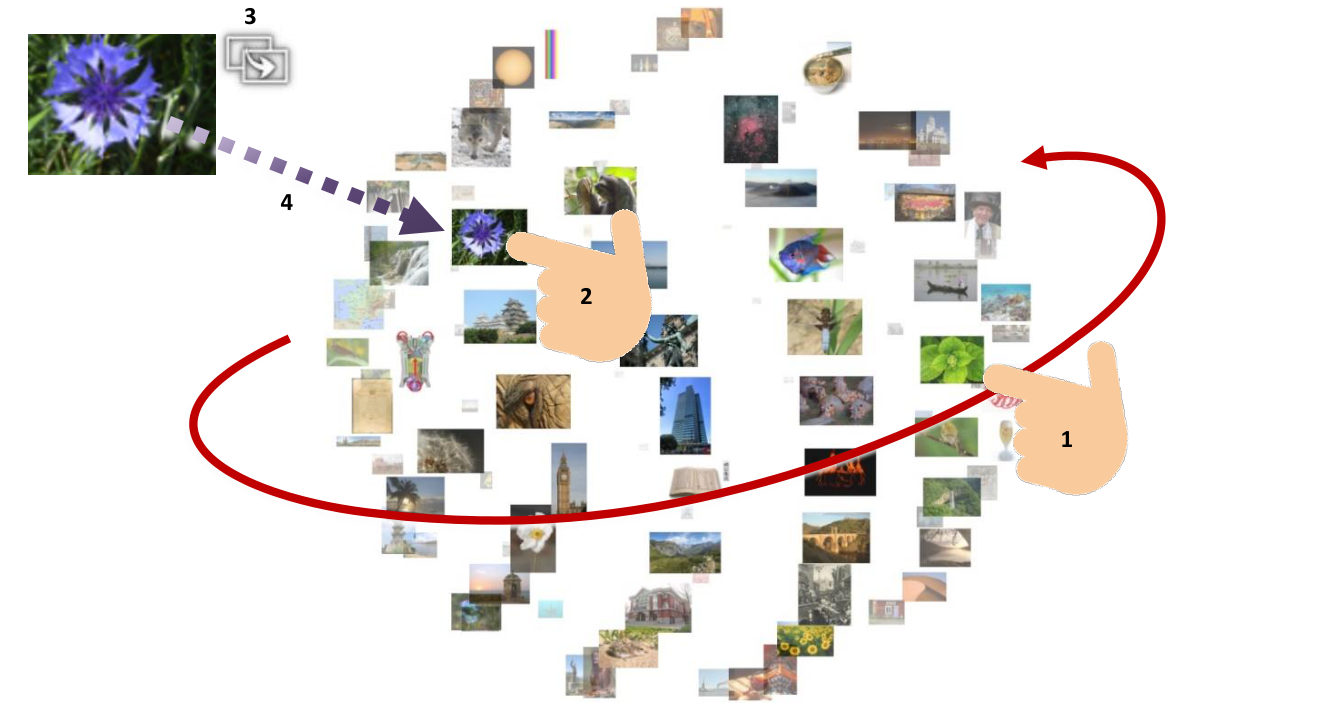
Cloud size
The cloud suits large content sets, of about 20 items or more, and can handle over 100. A very large cloud works well when visitors should browse a big collection of images. When they need to find specific items quickly, keep the cloud smaller. Below ten or twelve items, the rotating effect adds little.
Step 1: Create the content set
- Upload the images, videos or PDFs to the Media Library panel, if they are not there yet.
- Click Content Sets, click New Content Set, enter a name such as Content for Cloud, and confirm.
- Open the content set and drag the items from the Media Library panel into it. You can drag a whole folder at once. Web addresses from the URL Library can be added the same way. A cloud shows files and web addresses only, not widget items.
Each item opens in the widget that matches its type, as set by the app's theme: images in an Image viewer, videos in a Video viewer, PDFs in a PDF book, and web addresses in a Web browser. See Content Sets.
Step 2: Add the cloud
- Click Structures and select the app's structure.
- On the Main layer row, open the … menu and choose Add Widget, then select Cloud widget.
- With the cloud selected, set its Content slot to Content for Cloud.
- Set its attributes:
- Size and Cloud location: the cloud's size and the position of its top-left corner. Make the cloud at least 1000 × 1000 pixels.
- Pin the widget when it opens?: turn this on. A cloud must be pinned before visitors can spin the ball and select items.
- Timeout for detached items: how many seconds an idle detached item waits before returning. The default is 10.
- Return velocity: how fast returning items float back, in pixels per second.
Note
A pinned cloud cannot be moved or resized. To let visitors do that, give the cloud a toolbar with a Pin button so they can unpin it. See Toolbars.
Build a cloud from a folder in one step
Drag a media library folder onto the Main layer row. The Editor asks what to build; choose Item Cloud for a new content set shown by a cloud.
More cloud settings
| Setting | What it does |
|---|---|
| Item scaling | Enlarges or reduces the items in the cloud. The default is 1; enter 1.5 to make them 50% larger. |
| Allow cloning widgets from cloud | Shows the clone button on tapped items. On by default. |
| In-cloud decorations | Decorations shown on every item while it is in the cloud, such as a title bar with the item's name. An item's own decorations are not shown inside the cloud. |
| Expanded decorations | Decorations shown on an item after a visitor drags it out of the cloud, until it returns. |
Test the cloud
The cloud appears on the wall as soon as you add it; there is no need to restart the app.
- Spin the ball with your fingers to find an item.
- Tap the item, then drag it out of the cloud.
- Leave it alone. When Timeout for detached items expires, it drifts back into the cloud.