Presentations
You can create presentations for a slideshow-like experience navigating your canvas. In presentation mode, navigation buttons at the edge of the screen let you move backwards and forwards through the slides.
Open the Presentations window from the main menu and create a new presentation list. You can add content to presentation lists using two different methods:
- Anchors: use anchors to create a slideshow. Open the presentation window and anchor menu side by side, then click and drag the anchor onto the presentation to insert that anchor area into the presentation list.
- Slides: when the presentation list window is open, tap any widget to reveal a + icon on the bottom left of that widget. Tap the + icon to add that widget as a 'slide' in your presentation.
Presentations using slides
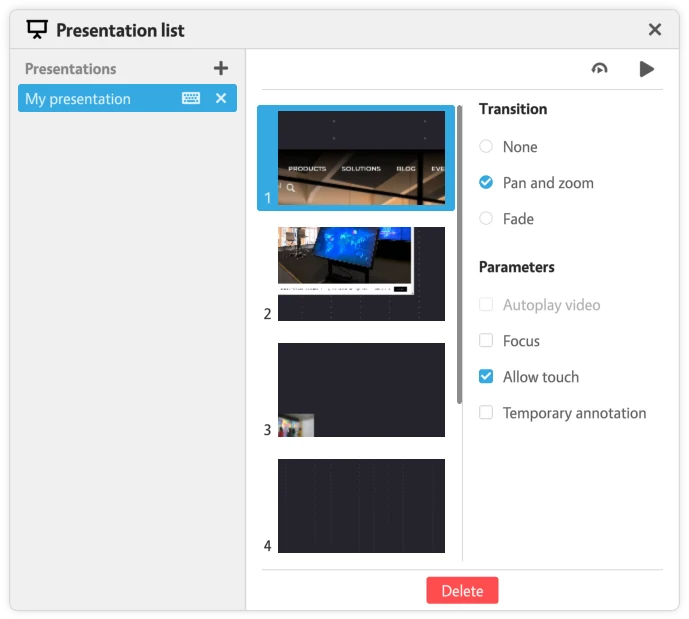
The presentation list provides tools to create interactive slideshows using content on your canvas. You can create multiple presentations for each canvas. The presentations are stored with the canvas and are included when you copy or move the canvas or export and import it.
You can access the presentation list from the canvas menu. You can create one or more presentations, name them, add slides to them and define transitions between slides.
Slide settings
Each slide has its own transition and parameters:
| Setting | Options | Default | What it does |
|---|---|---|---|
| Transition | None, Pan and zoom, Fade | Pan and zoom | How the view moves to this slide. |
| Autoplay video | on or off | off | Starts the video when the slide opens. Available only when the slide is a video. |
| Focus | on or off | on | Adds black bars around the slide so that only the slide's area shows. |
| Allow touch | on or off | on | When off, touches on the content are blocked while this slide is shown. |
| Temporary annotation | on or off | off | Lets presenters draw over the slide. These annotations are not saved to the canvas. Canvus shows "Annotations are temporary" when you start drawing, and clears them when the presentation starts again. |
Presentation controls
The presentation controls at the edge of the screen hide after 30 s without interaction. An administrator can change this time with presentation-control-timeout-seconds in the [system] section of mt-canvus.ini. See the configuration file reference.
Presentations using anchors
Tip
The options for creating presentations using anchors are limited. Try presentations using slides instead.
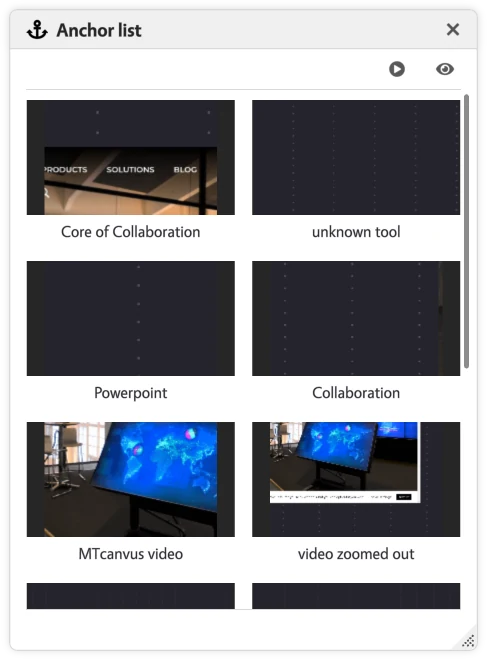
You can make a presentation based on a list of anchor areas defined in the current canvas. See Anchors and zones for how to create anchors. When the presentation starts, buttons at the edge of the screen let you glide backwards and forwards through the slides (ie, the anchor areas). Each slide resizes automatically to fit the screen. You can define the order in which anchors appear in the presentation:
The anchor sequence is defined by the order of anchors in the Anchor list widget. To change the sequence, drag the anchors into the order you want. If you don't want an anchor in your slideshow, delete it or you can skip it.
To launch a presentation using anchors:
- Open the Anchor list widget
- Press the presentation button to launch a presentation
- Navigation buttons appear on the left and right sides of the workspace. Use these buttons to move from anchor to anchor. To skip an anchor, re-open the Anchor list widget and tap the anchor you want to restart from.
- Tap the Close button to quit the presentation.
Following users
It is possible to follow other users working on the same canvas. This way, you can switch between different areas of the canvas and follow what other participants are doing.
To follow someone, click on the avatar of a particular user on the avatar list near the bottom-right corner of your workspace. To stop following someone, move or zoom your viewport.
When the person you follow starts a presentation, your workspace follows it too: it shows the same slide, and moves on when they change slides. When they show an item full screen, your workspace shows the same item full screen.
When the canvas call is on, avatars also show live head shots, a microphone indicator and a ring around whoever is speaking, and tapping your own avatar opens the call set-up panel.
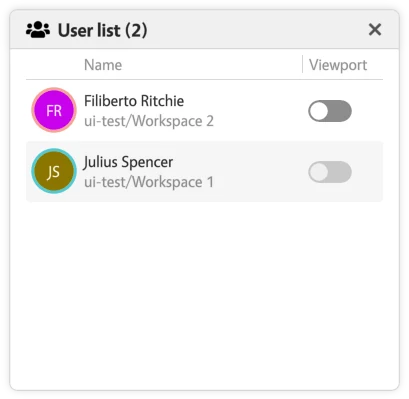
You can also toggle the visualization of other users' viewports. Open the user list by tapping on the Open user list button in the avatar list.