Canvas settings
Settings related to the currently opened canvas can be found by tapping on Canvas on the left panel in the settings menu. The Canvas section has these pages: Background, Grid, Password, Demo canvas, Codice and, on canvases you can edit, Reset colours.
The Canvas section is not shown when the open canvas is view-only.
Customize the canvas background
You can change the canvas background to a static color, an image, a video or an animated effect. The Background type menu has three choices: Color, Image / Video and Haze.
Hint
Custom background uses RGB (red, green, blue) color system for displaying a desired color. Red, green, and blue can be combined in various proportions to obtain the desired color.
Backgrounds are canvas-specific, which means each canvas has its own customized background. To modify the background of a canvas, open Settings menu > Canvas > Background
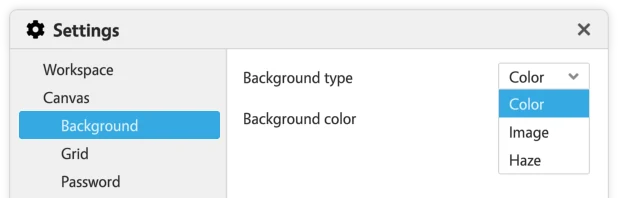
Static color
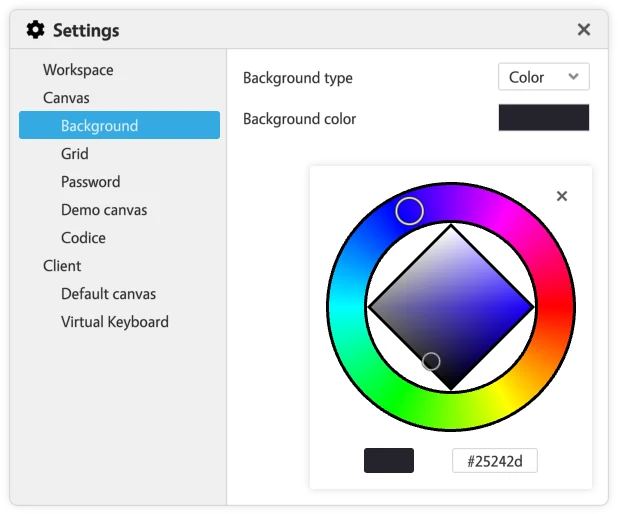
To choose a static color as the canvas background, set the Background type to Color and tap the colored rectangle under it to open a color picker. Any changes made are saved instantly. The chosen color is always applied as a solid, fully opaque background.
Image
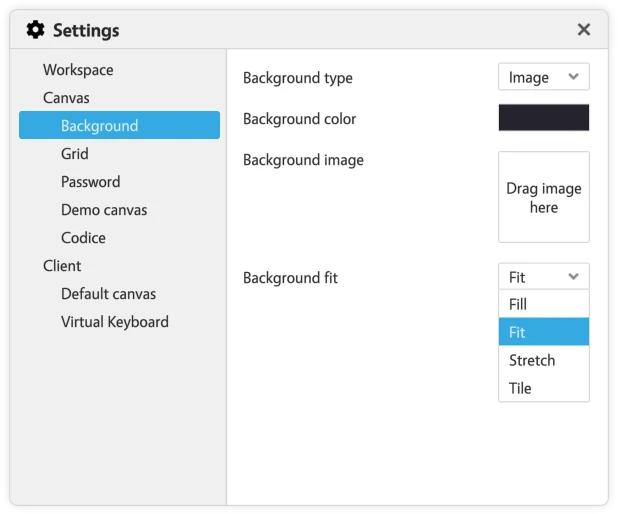
To choose an image as the canvas background, set the Background type to Image / Video and choose the desired options to customize it further. Any changes made are saved instantly.
- Background color - Choose a color to be used behind your selected background image. It will be visible in case the background image contains transparent parts or it doesn't cover the entire canvas.
- Background image - Drag and drop an image into the preview box.
- Background fit - Choose how the background image is placed on the canvas:
- Fill (Img Only): the image covers the whole canvas, keeping its shape. Parts of the image may be cut off.
- Fit: the whole image is visible, keeping its shape. The background color shows around it.
- Stretch: the image is stretched to the canvas size.
- Tile (Img Only): the image repeats across the canvas.
- Background video - An optional video that plays over the image. See Video.
Video
From Canvus 26.09.4, a canvas background can be a video. It needs Canvus Server 26.08.6 or later.
- Set the Background type to Image / Video.
- Drop a video file onto the Background video tile. You can also drag a video straight off the canvas onto the tile.
- The tile shows "Importing..." with a percentage while Canvus prepares the video. When it is done, the video starts playing behind your content.
To remove the video, tap the small cross on the tile.
How a background video behaves:
- It loops and is always silent.
- Everyone sees the same frame. The playback position follows the server's clock, so two people who open the canvas an hour apart see the same moment of the video.
- Canvus prepares the file once. A video that is already in a suitable format is repackaged without re-encoding. Anything else is converted. Only the prepared file is stored with the canvas, so every client receives the same file.
- The image stays underneath. The background image, or the background color when there is no image, shows whenever the video cannot play: while it is still downloading, on a computer that cannot decode it, or on a Canvus version older than 26.09.4.
- Fit applies to the video too. Fill and Tile work only for images. A video set to either is shown as Fit.
By default Canvus converts background videos to at most 3840 x 2160 px, 30 fps and 20 Mbit/s. To prepare smaller files, for example when the canvas is mostly opened on laptops, an administrator can lower these limits with the background-video-max-width, background-video-max-height, background-video-max-fps and background-video-bitrate settings in the [system] section of mt-canvus.ini. See the configuration file reference.
Haze
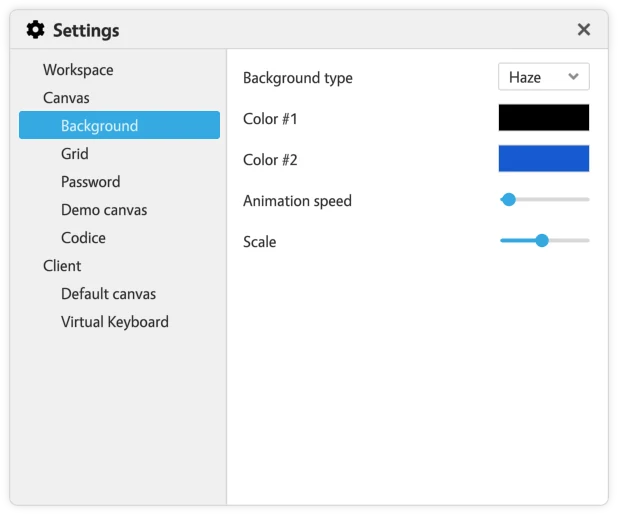
This background type will use an animated effect as the canvas background. You can customize the colors, the animation speed and scale. Any changes made are saved instantly.
- Color #1 - Pick a desired color. This color is mostly displayed at the background.
- Color #2 - Pick a desired color. This color is mostly displayed at the foreground.
- Animation speed - Try out various animation speeds to achieve the desired outcome.
- Scale - Try out different scale levels to achieve the desired outcome.
Customize the grid
The vertical grid lines visible on the canvas background can be hidden from the settings menu. It is also possible to change the color of the grid. Any changes made are saved instantly.
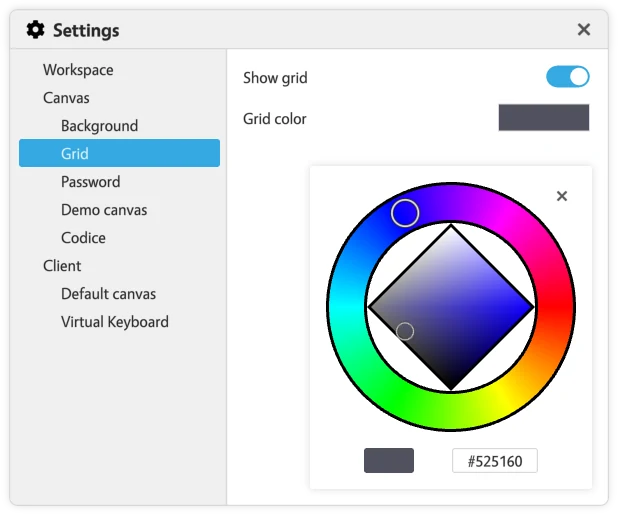
Show or hide the grid
To show or hide the grid, tap the Canvas button on the Settings menu, navigate to Grid and use the toggle switch next to Show grid.
Grid color
To change the color of the grid, tap the colored rectangle beside Grid color and choose a desired color from the color picker.
Canvas passwords
You can protect a local canvas with passwords. Open Settings menu > Canvas > Password. The page shows whether the canvas is password protected.
- Owner password controls access to canvas admin tasks, such as changing or removing the canvas passwords, renaming the canvas or converting it to or from a demo canvas. Tap Set password to add one, Change password to change it, or Remove password to remove it. Changing or removing it asks for the current owner password.
- Access password allows users to open a protected canvas. You can set it only after the canvas has an owner password.
When someone opens a protected canvas, Canvus asks for a password: "Enter the owner or access password to continue". Admin tasks ask for the owner password only.
The rules a new password must meet (minimum length and the number of lowercase, uppercase, numeric and symbol characters) come from the [password-security] section of mt-canvus.ini. To require a password on every new local canvas, an administrator sets enforce-canvas-password=true in the [system] section; Canvus then asks for a password when a local canvas is created. The older name of this setting, enforce-protected-canvas, still works. See the configuration file reference.
Note
Canvases on Canvus Server do not use canvas passwords. The Password page says "Remote canvases don't use passwords. Use user and group -based access control instead." See Sharing canvases.
Reset colours
Each canvas has its own pen, note and connector colour palettes. Settings menu > Canvas > Reset colours resets the palettes on this canvas to the defaults configured on the server that hosts it. Tap Reset to server defaults, then tap again to confirm.
This page appears only on canvases you can edit.
Default colours for new canvases
Settings menu > Client > Default colours sets the pen and note colour palettes for new canvases created on this computer. Tap a palette to edit it. Changes apply to canvases created after the next restart of Canvus. The values are saved as default-pen-color-presets and default-note-background-color-presets in the [canvas] section of mt-canvus.ini.
Workspace settings
Settings menu > Workspace > General has three switches for the current workspace:
- Show info panel: shows or hides the workspace info panel.
- Always allow web browser popups: when on, browser widgets in this workspace may open every popup a web page requests. When off, the browser's default popup rules apply.
- Snap to canvas items: turns snapping on or off.
See also Workspaces.