Set the orientation
A display can be mounted turned on its side or upside down. The orientation setting tells the display how it is turned, so its on-screen menu is the right way up and the right corners open it. This page also covers how long to hold the opening gesture. The Settings section of the Displays reference lists every field.
Only displays whose firmware supports these settings have them. For any other display, the On-screen display tab and the command line say so, and SiteManager sends it nothing.
What orientation means
The orientation is 0, 90, 180 or 270. It is the number of degrees the panel is turned clockwise from landscape, seen from the front.
- 0: the panel is in landscape, the normal way up.
- 90: the panel is turned a quarter turn clockwise. This is a portrait display.
- 180: the panel is upside down.
- 270: the panel is turned a quarter turn the other way.
It does two things:
- it turns the on-screen menu to match;
- it decides which two corners are the bottom corners, which are the corners that open the menu (see below).
A display that never had it set reads 0.
Set the orientation
The orientation describes how one panel is mounted, so you set it for one display at a time.
- Choose one display under Select displays, then open Settings and the On-screen display tab.
- Choose the Orientation (degrees).
- Select Apply settings to 1 display, then Save to the displays.
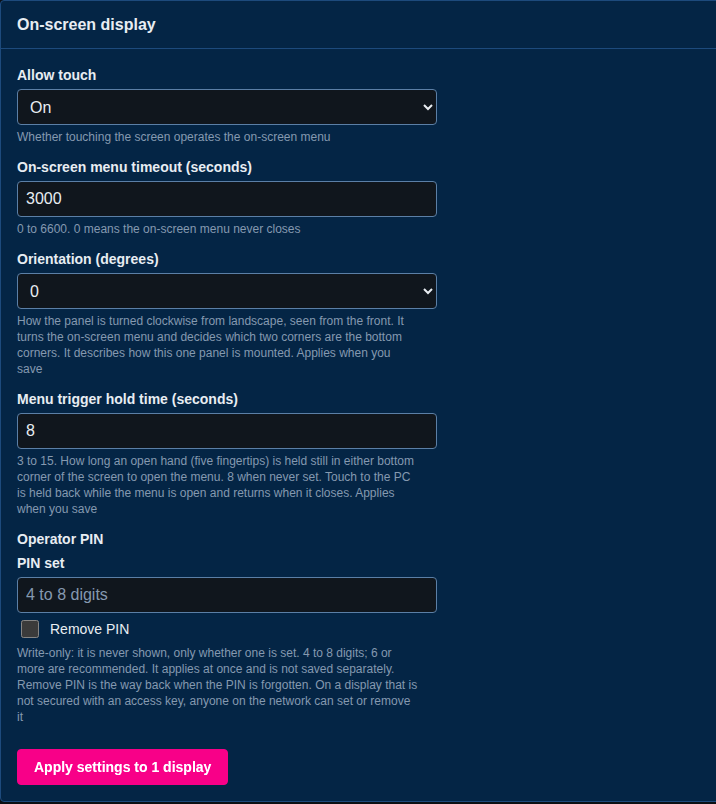
Like the menu timeout, the orientation takes effect when you save. Until then it is pending on the display (see Settings).
sitemanager settings set --displays R0000001A --settings.osd.orientation 90
sitemanager settings save --displays R0000001A
You can also set it at the display. The on-screen menu has an orientation control in its top bar: a row of four person icons, one for each way of mounting. The highlighted, upright figure is the way the menu faces now. Tap another figure to turn the menu. A change made at the display is saved at once. SiteManager shows whatever the display holds the next time it reads its settings.
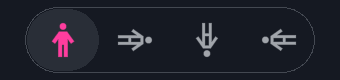
The control sits in the middle of the menu's top bar. The Menu and access line in the settings list shows whether a PIN is set and the hold time.
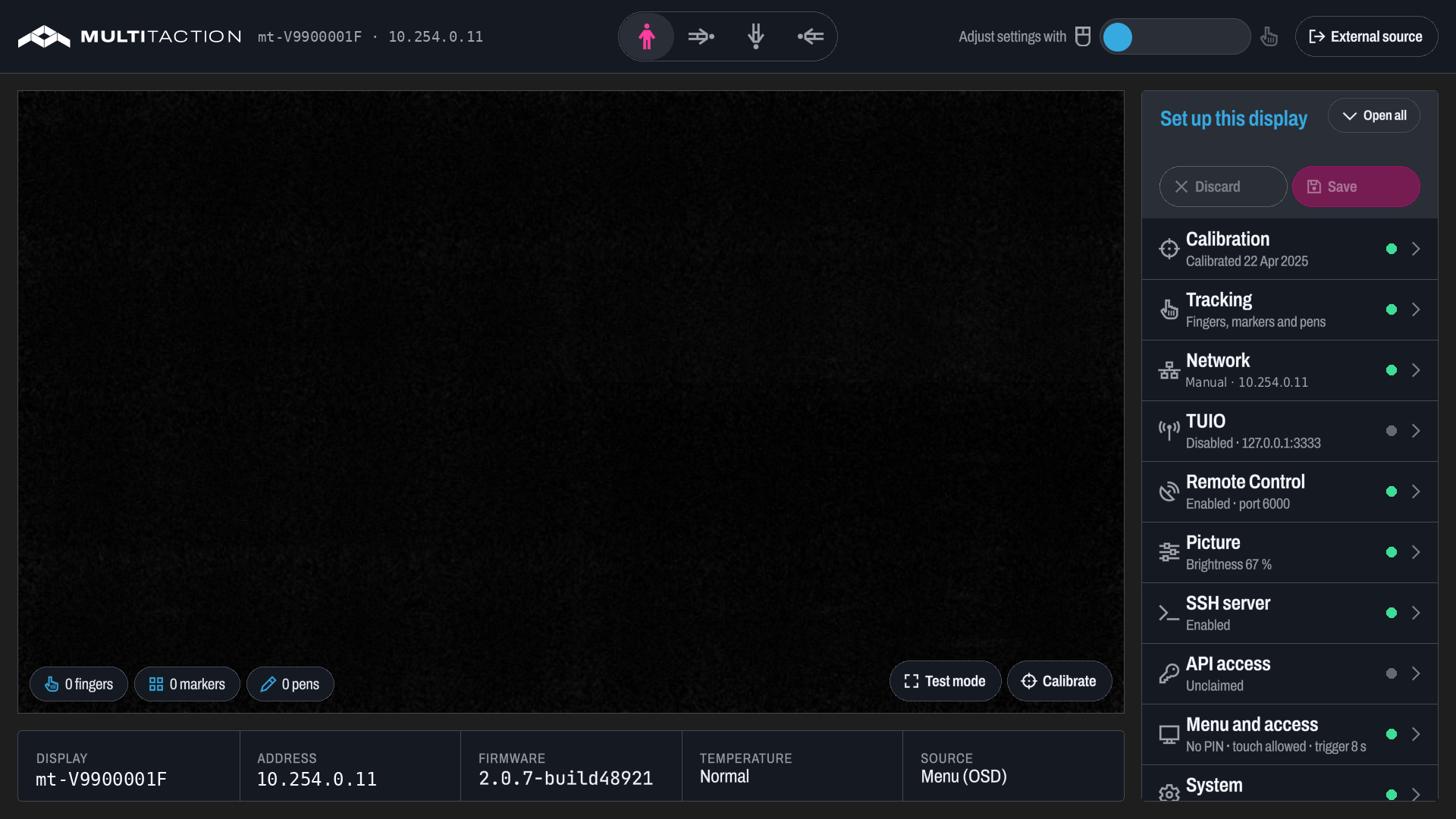
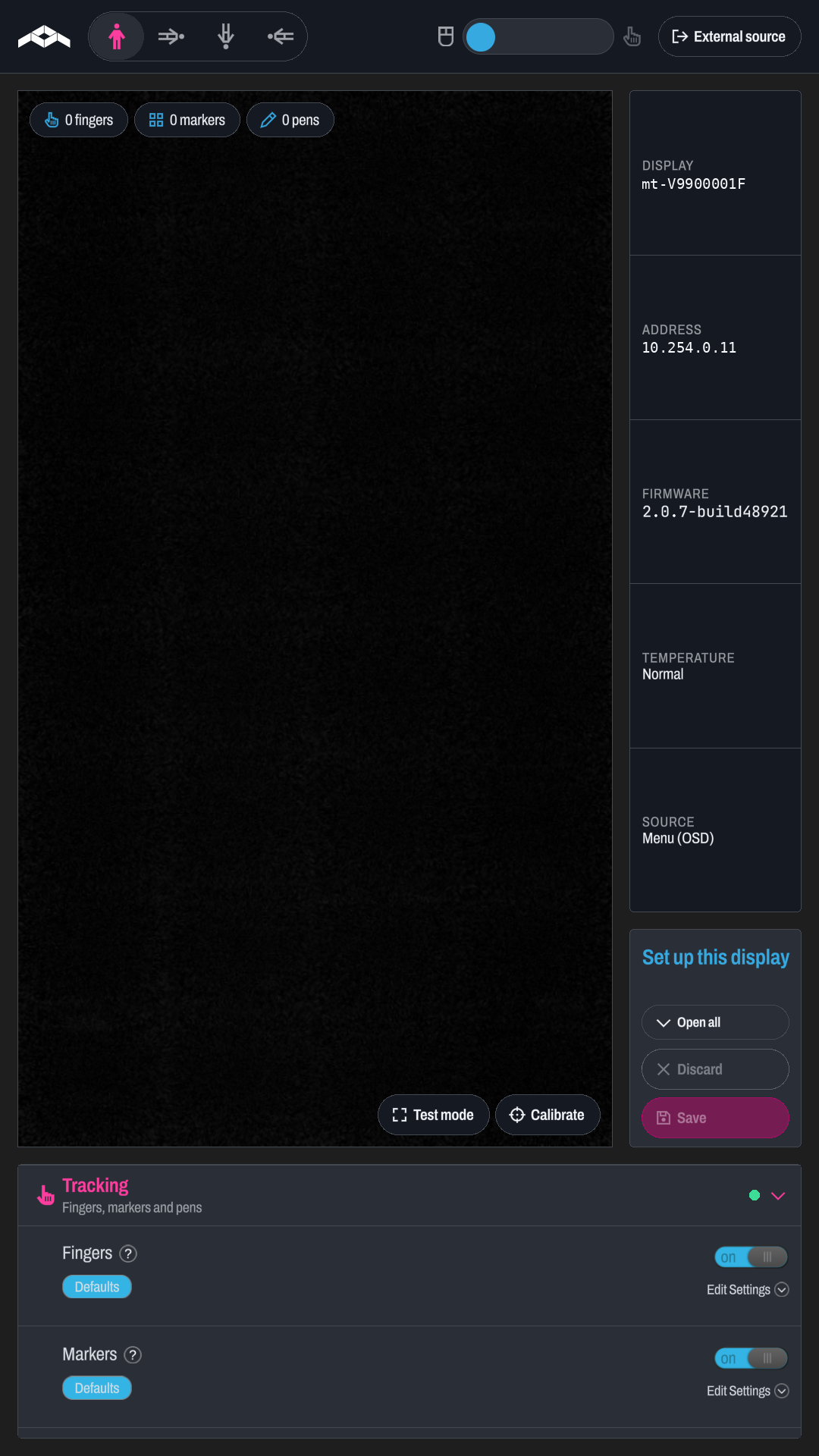
At 90 the menu is upright on a portrait display. The camera view is on top, and the settings run across the full width below it.
The orientation stays with the display:
- A profile cannot hold it. The profile page and the command line refuse it with a plain message.
- A drift check ignores it.
- Nothing copies it from one display to another.
How to open the menu, and the hold time
To open the on-screen menu at the screen, hold an open hand (all five fingertips) still in either bottom corner. Hold it until the menu appears. The orientation decides which corners are the bottom ones.
The Menu trigger hold time (seconds) is how long to hold still. It is 3 to 15 seconds, and 8 if it was never set. A longer time means fewer opens by accident.
Unlike the orientation, the hold time is an ordinary setting. You can set it for several displays at once, put it in a profile and check it for drift. It takes effect when you save.
sitemanager settings set --wall lobby-wall --settings.osd.trigger-hold-seconds 10
sitemanager settings save --wall lobby-wall
While the menu is open, the display sends no touch to the computer. Touch comes back as soon as the menu closes. Touch is not held back while a display is in standby, because the menu cannot be opened then.
If the display has an operator PIN, the menu asks for it first. See Set an operator PIN.
If something goes wrong
- The value is refused. The orientation must be 0, 90, 180 or 270 and the hold time 3 to 15. SiteManager says so before it sends anything.
- A profile refuses the orientation. This is on purpose. Set it on the display.
- The setting is missing from the tab. None of the selected displays has firmware that supports it. Update the firmware (see Update display firmware).
- The menu opens in the wrong corners. The orientation does not match how the panel is mounted. Set it again for that display and save.