Action widgets
Canvus 26.11.4 and later
Action widgets need Canvus Client 26.11.4 and Canvus Server 26.11.5 or later.
An action widget is an image, video or PDF that runs actions when you touch it, or when something happens to it, such as a video ending or a PDF page being shown. The actions can zoom the view to other content, pin or unpin widgets, open another canvas and more. Use action widgets to build guided demos, kiosks and visitor displays that run without the Canvus menus.
Every action is something Canvus already does from a button. An action widget runs the same code the button runs.
Set up an action widget
- Add an image, video or PDF to the canvas. You need edit rights on the canvas.
- Tap the widget to show its sidebar, then tap Actions. The action editor opens.
- Add a trigger, then add a step to it. See The action editor.
- Close the editor and pin the widget. The widget is now armed.
Tap the widget to try it.
Arming by pinning
An action widget fires only while it is pinned. This is called being armed.
- An unpinned widget behaves as it does today, and nothing fires, including event triggers.
- A touch gesture that has no steps behaves as it does today: it shows the widget's title bar and sidebar.
- A drag on an armed widget shows the widget's own title bar and sidebar with its pin flashing. Tap the pin to unpin the widget. This works whatever gestures you assigned, except while the interface is hidden. See Hiding the interface.
- Canvus draws a marker on armed widgets only while the action editor is open. When the editor is closed, the widget looks as you made it. Make the widget look like a button, or make the action obvious.
Note
Only finger touches fire touch triggers. A pen draws on the widget and fires only the Annotated trigger.
Triggers
A trigger is a touch or an event on the widget. Each trigger has a list of steps that run when it fires.
Touch triggers
These are available on images, videos and PDFs, and are always listed in the editor.
- Tap. A quick touch. On a video, a tap with steps replaces tap to play and pause.
- Hold. Press and hold. A ring shows on the widget while you hold. The hold fires when the finger menu would open, and the finger menu does not open at that finger.
- Double tap. Two taps close together: the second finger must come down within 0.3 seconds of the first tap and within 50 px of it. When a widget has double tap steps, its tap steps wait for that time to pass before they fire. A widget with no double tap steps fires tap at once.
A touch trigger counts only if it has steps. While any of the three has steps, a touch on the widget does not show its menu by itself. The menu appears when the touch turns out to be a gesture without steps, which is later than on an ordinary pinned widget.
Event triggers
Add these in the editor with Events.
| Trigger | Images | Videos | PDFs | Value |
|---|---|---|---|---|
| Annotated | yes | yes | yes | |
| Maximised | yes | yes | yes | |
| Minimised | yes | yes | yes | |
| Played | yes | |||
| Paused | yes | |||
| Ended | yes | |||
| Reached timecode | yes | seconds | ||
| Looped | yes | number of loops | ||
| Page turned forward | yes | |||
| Page turned back | yes | |||
| Page shown | yes | page number |
- Annotated fires when someone completes a pen stroke of more than one point on the widget. Only the screen that was drawn on sees it.
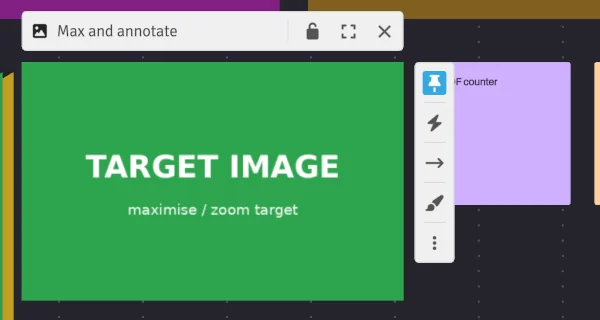
- Maximised and Minimised fire when the widget enters or leaves the single-widget full-screen view. Minimised means leaving that view. Only the screen that did it sees it, and it runs its view actions whatever its follow setting says.
- Played and Paused fire when the video changes state. A pause within the last second of a video counts as the end, so it fires Ended, not Paused.
- Ended fires when the video reaches its end. It does not fire while looping is on, because a looping video never ends.
- Reached timecode fires when playback moves from before the time to the time or past it. On a looping video it fires on every lap. A seek or a jump that lands on or past the time does not fire it; the video must play through it. A playback that starts at the beginning reaches 0:00.
- Looped fires when the video comes back to its start for the number of times you chose. A pause and play, or a seek, starts the count again.
- Page shown fires when the displayed page becomes the page you chose. A page counts as shown once it has stayed on screen for 0.4 seconds, so pages passed on a long swipe fire nothing. Page turned forward and Page turned back compare the page shown with the one shown before it, so a swipe over three pages is one turn.
- Nothing fires for the state a widget is in when the canvas opens, when you pin the widget or when you add the trigger. Only later changes count.
- Event triggers still fire while the action editor is open, so you can play a video to try a trigger. Only touch triggers stop.
A trigger with a value can appear more than once on a widget, each time with a different value. A widget cannot have two triggers of the same type and value.
Who runs what
Actions are of two kinds:
- A canvas action changes data that every viewer of the canvas shares, such as pinning a widget. The server runs it once, however many clients saw the trigger.
- A view action changes only what one screen shows, such as zooming. Each client runs its own.
When a trigger fires:
- A touch is seen only by the client that was touched, so only that screen runs the view actions.
- An event on shared state, such as a video ending, is seen by every client with the canvas open, so every client runs the view actions.
- A trigger fired through the REST API is seen by every client.
- All steps of a trigger fire together. There is no order between a view action and a canvas action. For event-based sequencing, chain triggers: an action can cause an event on another widget.
- The same trigger on the same widget fires at most once a second. The server drops a faster firing for canvas actions and logs a warning that names the widget. Each client applies a one-second limit to its own view actions. A server administrator can change the server's interval with
minimum-fire-intervalin the[action-widgets]section ofmt-canvus-server.ini: seconds, fractions allowed,0for no limit. The server reads it at start. - If a step's target no longer exists, the step skips that target. When none is left, the step does nothing. The editor marks it as missing.
Anyone who can see the canvas can fire triggers by touch, including view-only users.
Chain triggers
Use an event on one widget to start the next action. For example, make an image button play a video, then zoom to a PDF when the video ends:
- Prepare the image, video and PDF on the canvas. Turn looping off on the video and leave it stopped at the start.
- Open Actions on the image. Under Tap, add a Play step targeting the video.
- Open Actions on the video. From Events, add Ended, then add a Zoom to widget step targeting the PDF.
- Pin both the image and the video to arm their triggers, then close the editor. The PDF does not need to be pinned for this action.
- Tap the image. The video plays; its Ended event triggers the zoom. On other screens, the zoom depends on their follow setting.
The editor calls the playback-ended trigger Ended. It does not fire while looping is on; a pause within the video's last second also counts as Ended. See Event triggers.
This is event-based sequencing, not an arbitrary delay timer. The second trigger responds to the video's event, not to completion of all steps in the first trigger. Steps within each trigger still fire together, and the per-trigger rate limits still apply. Play resumes a paused video; prepare its starting position before trying the example rather than adding a simultaneous Jump to a time step and expecting it to run first.
Actions
A step applies one action to one or more targets, or to the canvas or screen when the action needs no target. The editor lists every action, in groups. You choose the action first and pick the targets after. A target of a type the action does not take cannot be picked.
The tables follow the groups of the action list. Runs says who runs the action: see Who runs what.
Move the view (needs a widget)
| Action | Runs | Notes |
|---|---|---|
| Move to widget | view | Centres the widget. The zoom is unchanged. |
| Zoom to widget | view | Centres the widget and zooms until it meets an edge of the view. |
| Maximise widget | view | With several targets, zooms to cover all of them. With one target, raises it on this screen only. |
Move to widget and Zoom to widget do not raise the widget; add Bring to front for that. A view action that moves the view first leaves a widget that is shown full screen. A presentation from the presentations list or from the anchors keeps running and the view moves under it. To end a presentation, use Stop the presentation.
Move the view (no widget)
| Action | Runs | Notes |
|---|---|---|
| Exit maximised mode | view | Leaves a widget shown full screen. A presentation keeps running. |
| Zoom to anchor | view | You choose the anchor in the editor. The anchor is not raised. |
| Zoom to show all content | view |
Widget
These take any widget.
| Action | Runs | Notes |
|---|---|---|
| Bring to front | canvas | Puts the widget above the widgets it overlaps, as touching it does, for everyone. Several targets keep their order. A widget already on top is left alone. |
| Pin widget | canvas | |
| Unpin widget | canvas |
Video
| Action | Runs | Notes |
|---|---|---|
| Play | canvas | Plays on from where the video is, or from the start if it was stopped. |
| Pause | canvas | Keeps the position. |
| Jump to a time | canvas | A stopped video pauses on that frame. A playing video keeps playing. |
| Loop | canvas | |
| Mute | canvas |
Browser
| Action | Runs | Notes |
|---|---|---|
| Load a bookmark | canvas | Choose a bookmark of the canvas or type an address. Only http and https addresses work. The step keeps the address, so it still works if the bookmark is deleted. |
| Refresh | view | |
| Transparent mode | canvas |
3D model
| Action | Runs | Notes |
|---|---|---|
| Auto-rotate | view | Auto-rotate is not shared, so each screen rotates its own copy. |
| Backdrop color | canvas |
Note
| Action | Runs | Notes |
|---|---|---|
| Background color | canvas | |
| Text color | canvas | Turns off the note's automatic text colour, so the colour no longer follows the background. |
| Font | canvas | The Default font is a choice. |
| Action | Runs | Notes |
|---|---|---|
| Go to a page | canvas |
Table
| Action | Runs | Notes |
|---|---|---|
| Zoom to the widget in a cell | view | Type the cell as B3: column B, row 3. A table with no widget in that cell is skipped. |
Presentations
| Action | Runs | Notes |
|---|---|---|
| Start the anchor presentation | view | Starts the presentation of the canvas's anchors. |
| Start a presentation | view | You choose the presentation in the editor. |
| Stop the presentation | view | Leaves presentation mode on this screen, as the presentation's own exit does. It has no settings. |
Canvas
| Action | Runs | Notes |
|---|---|---|
| Open another canvas | view | See Open another canvas. |
| Pin the canvas (stop panning and zooming) | view | Applies to this workspace only. |
| Canvas background color | canvas | Also makes the background a plain colour. |
| Canvas background haze | canvas | Switches to the haze with the canvas's haze colours. |
| Canvas background grid | canvas | Also offers Turn on and Turn off. |
Screen and outputs
| Action | Runs | Notes |
|---|---|---|
| Hide interface | view | See Hiding the interface. |
| Show interface | view | Brings back what a Hide interface step hid. |
| Broadcast widget to a video output | view | Needs a widget, of any type. You choose the output in the editor. Each client that has an output with that name shows the first target that still exists. A client without that output does nothing. An output that already shows the widget is left alone. |
| Stop broadcasting | view | You choose the output in the editor, or type its name. It turns that output off. |
Canvas housekeeping
| Action | Runs | Notes |
|---|---|---|
| Save a copy of the canvas | canvas | The copy goes in the same folder with the same owner. Its name is the canvas name plus the server's local date and time, such as Lobby 2026-11-19 14:03:07. Action widgets in the copy keep working. A copy of a demo canvas is an ordinary canvas that keeps what visitors did. Any visitor who fires the trigger can make a copy, up to once a second. |
| Reset the demo canvas | canvas | Does what Reset does in the canvas list, and only on a demo canvas. On any other canvas it does nothing and the server logs a warning. See Demo canvas. |
Switches (loop, mute, transparent mode, auto-rotate, canvas background grid and pin the canvas) offer Toggle, Turn on and Turn off. A kiosk usually wants Turn on, so a second touch does not undo the first.
Warning
Any visitor can fire a trigger. A trigger that runs a drastic action, such as Reset the demo canvas, runs whenever a visitor touches the widget. Build such triggers with that in mind.
Open another canvas
Open another canvas loads a canvas in the workspace of each client that runs the step.
- You choose the canvas in the editor with the canvas list, as you would to open one. The list shows the canvas's server, then users, then canvases. The canvas that holds the action widget cannot be chosen.
- Turn on Ask first to show a confirmation dialog before the canvas loads. The dialog goes away after 20 seconds without an answer.
- The canvas must be on a server the client already has: the server of the canvas that holds the action widget, a server in the client's configuration, or a server the workspace is connected to. For any other server the client skips the step and writes one warning to its log.
- Local canvases of one PC cannot be chosen for a step on a server canvas, because other clients could not reach them.
The action editor
Open the editor with Actions, the second entry in the sidebar of an image, video or PDF after the pin. Canvus shows the entry only to users with edit rights, and only when the canvas's server supports action widgets.
The editor is a panel that stays on top and that you can move. There is one panel per workspace. Choosing Actions on another widget switches the open panel to that widget.
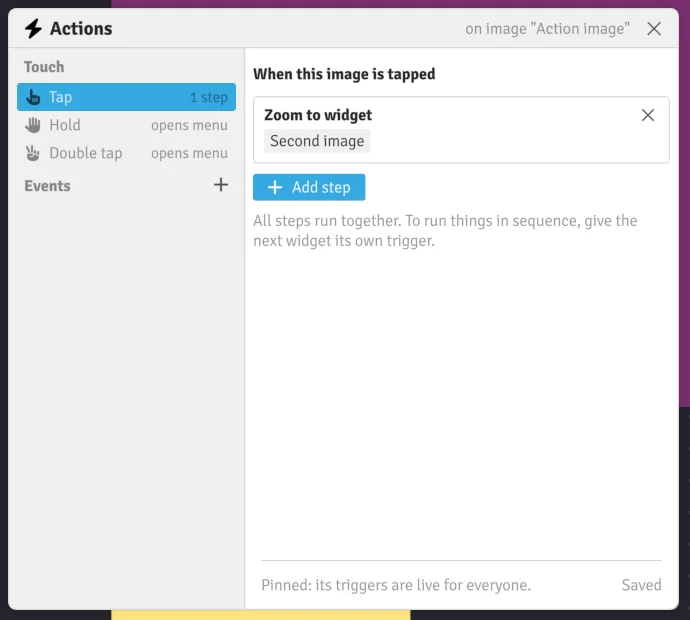
The panel lists the widget's triggers. Under each trigger are its steps, and each step shows its action and its targets.
- Tap, hold and double tap are always listed. Add event triggers from Events.
- A trigger with a value is added with the first free value. Change the value in the trigger's header and press enter. Type a timecode as
42,0:42or1:02:03. - A touch trigger without steps is not saved. Removing its last step removes it from storage, but its row stays in the editor. An event trigger without steps is saved.
Add a step
- Under a trigger, tap Add step. The action list opens, grouped by purpose.
- Tap an action. The other actions disappear: the chosen action stays on the left, beside its settings and targets.
- Fill in any settings, such as an anchor, time or bookmark address. For actions that need widgets, picking starts immediately — there is no extra Pick widgets button to press. The settings stay visible while you pick.
- Tap compatible widgets on the canvas. You can pick before finishing the settings, and pan or zoom to reach targets. A finger tap picks a widget instead of showing its menu or playing a video. A tap inside another widget, such as a table cell, picks the inner widget. Input-locked widgets cannot be picked.
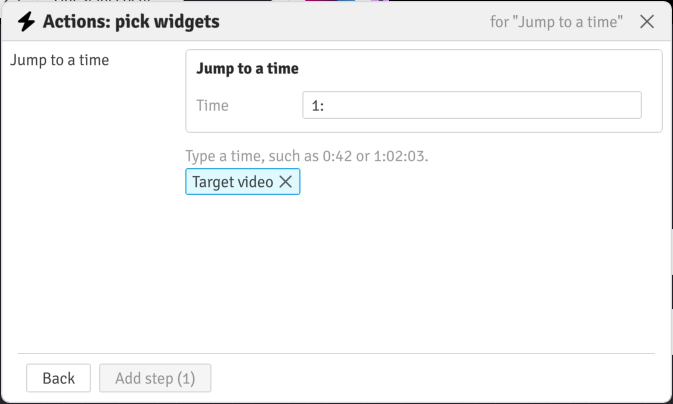
- Tap Add step (n), where n is the target count. It becomes available only when the required settings are valid and at least one compatible target is selected. For actions that need no widgets, Add step needs only valid settings; no picking instructions appear.
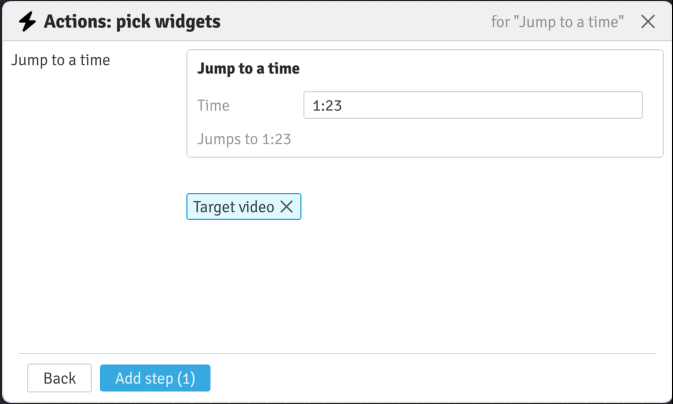
Hints explain what is missing and update as you type or change targets. An incomplete time such as 1: does not prevent picking a video, but it keeps Add step disabled. Picking or removing a target keeps the text you have typed, even before you press Enter. Remove a selected target with the cross on its chip.
Canvus refuses incompatible widgets and explains which type the action needs, such as videos for Play.
From focused action settings, including actions that need no widget targets, tap Back to return to the action list while preserving your draft. Choose a different action there; Canvus drops targets the new action cannot take. Back from the action list cancels the draft and returns to the trigger overview.
The panel adapts when the application window becomes narrower or expands. Scroll the action list or settings when needed; the title, close control and bottom buttons remain reachable. Resizing does not reframe the canvas.
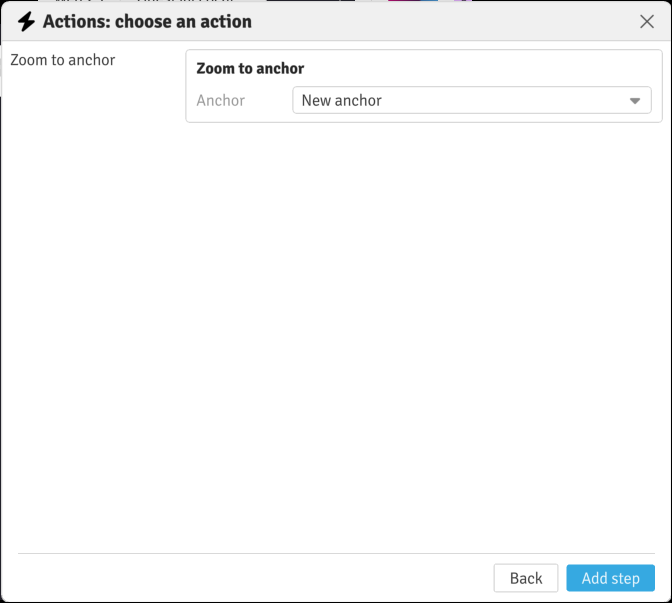
You cannot change a step in place. To change one, remove it and add it again.
If you remove the last target of a step, Canvus removes the step, because it could never run.
While the editor is open
- Armed widgets show a marker, and no trigger fires from touches on that client. Tapping a pinned widget selects it.
- Changes save as you make them. The footer shows Saving... and then Saved.
- The footer says This widget is pinned: its triggers are live for everyone. when the widget is armed.
- A presentation closes the editor.
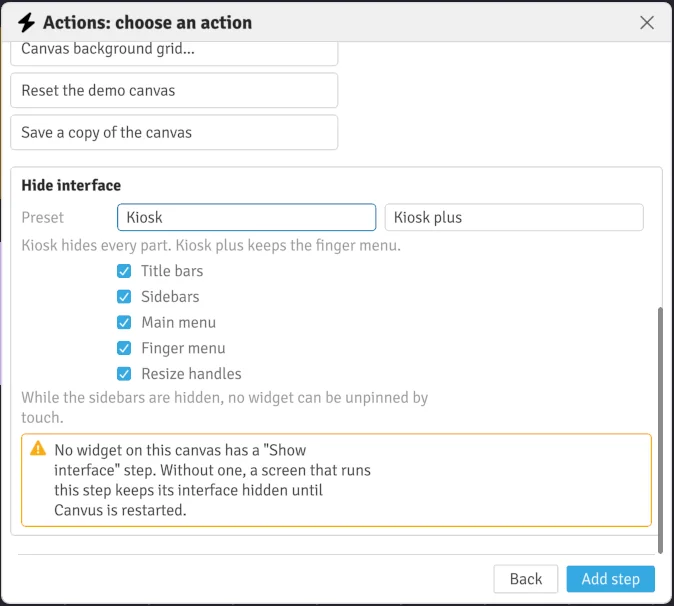
- The editor warns about a missing widget. It also warns when a canvas has a Hide interface step and no Show interface step. The warning shows under each Hide interface step until some widget on the canvas has a Show interface step.
Every save writes the whole list of triggers. If two people edit the same widget at the same time, one change is lost. The editor tells the person whose save arrived second to check their last change.
A definition that this version of Canvus cannot read, for example one written by a newer version, is shown but not edited, and Canvus writes nothing over it.
Duplicating action widgets
A copy of an action widget acts on the copies of its targets where they were copied with it, and on itself where the original acted on itself. A target that was not copied with it stays a target. Saving a copy of a canvas keeps the definitions, because a canvas copy keeps widget IDs.
Hiding the interface
Hide interface hides the parts of the Canvus interface that you choose, so a visitor sees only your content. It is the on-the-fly version of the interface options of the kiosk setting in the configuration file.
- Choose the parts in the editor: title bars, resize handles, sidebar, main menu and finger menu. Two presets are offered. Kiosk hides all five. Kiosk plus hides all except the finger menu, which leaves the finger, pen and eraser switcher. Note that the configuration file's
kioskvalue keeps the finger menu, so it matches Kiosk plus, not Kiosk. - Show interface brings back everything that an action hid.
- Both are view actions. They apply to the whole client, in all its workspaces.
- The effect is temporary. It lasts until a Show interface step runs or the client restarts. An action never writes the configuration file.
- A second Hide interface step with other parts hides those too. Nothing comes back until a Show interface step runs.
- Parts hidden by the configuration file stay hidden. Show interface does not undo them.
- A widget's pin is part of its sidebar, so you cannot reach it while the sidebar is hidden. Visitors cannot unpin an armed widget until the interface is shown again. The Actions entry is in the sidebar too, so you cannot open the editor either.
- With Kiosk plus, one route to unpinning is left: Unpin all in the macros submenu of the finger menu. Kiosk hides the finger menu, so use it when nothing may be unpinned.
Warning
If you hide the interface without a widget that shows it, the client must be restarted to bring it back. Always add a Show interface step to a widget that stays reachable. The editor warns when a canvas has a Hide interface step and no Show interface step.
Options to stop widgets being moved or scaled are not part of action widgets.
The follow setting
Each client has a follow action widgets setting. It is on by default.
When it is off, the client runs no view actions from the shared events (video and PDF events) or from the REST API. A touch on that client's own screen still runs them, and so do the events that happen on its own screen: Annotated, Maximised and Minimised. Use it on a screen that must not move when something happens elsewhere.
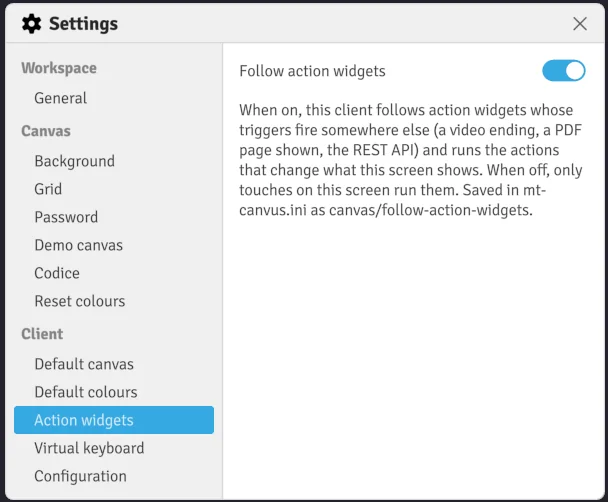
Set it in the settings menu under Client > Action widgets. The change applies at once. If the configuration is locked, the menu refuses the change and says why. Or fix it in the configuration file:
[canvas]
follow-action-widgets=false
Permissions
- Anyone who can see the canvas can fire triggers by touch, including view-only users.
- Only users with edit rights can create or change definitions, in the editor or through the REST API.
- Firing a trigger through the REST API needs edit rights on the canvas.
Older clients and servers
- A client older than 26.11.4 ignores the definitions. A tap on a pinned widget shows its menu as before. It still sees the results of canvas actions.
- Against a server older than 26.11.5, a new client hides the Actions entry and fires nothing.
- A definition written by a newer version is kept when an older editor or the REST API saves the widget, and never fires there.
- The browser client sees the results of canvas actions and does nothing else.
Limits
- 32 triggers per widget.
- 32 steps per trigger.
- 64 targets per step.
- 64 KiB for all the triggers of a widget.
What action widgets do not do
- Create new widgets. This was consciously excluded from this design after testing. Creating media widgets required giving users access to the underlying filesystem through an onscreen file chooser, with no simple way to restrict navigation once it was open and no advance knowledge of where their desired content would be. Placement was also difficult for users to determine because the trigger widget could be unpinned and moved. Prepare content on the canvas first, then use actions to control it.
- Wait. There is no wait step or arbitrary delay timer. For sequencing based on an event, see Chain triggers, including a button that plays a video whose Ended trigger runs the next action.
REST API
You can read and write definitions and fire a trigger through the REST API. See Action widgets in the REST API reference. The REST API does not serve local canvases.