Table Mode
MT Showcase can run on touchscreen tables. In table mode, MT Showcase detects which side of the table a visitor is on when they tap a widget, open a menu or place a Codice card on the screen, and turns the content to face them.
Table mode works with the content widgets (including the image, PDF, video and web browser widgets), finger menus, rotating menus, content hotspots, clouds and several other widgets.
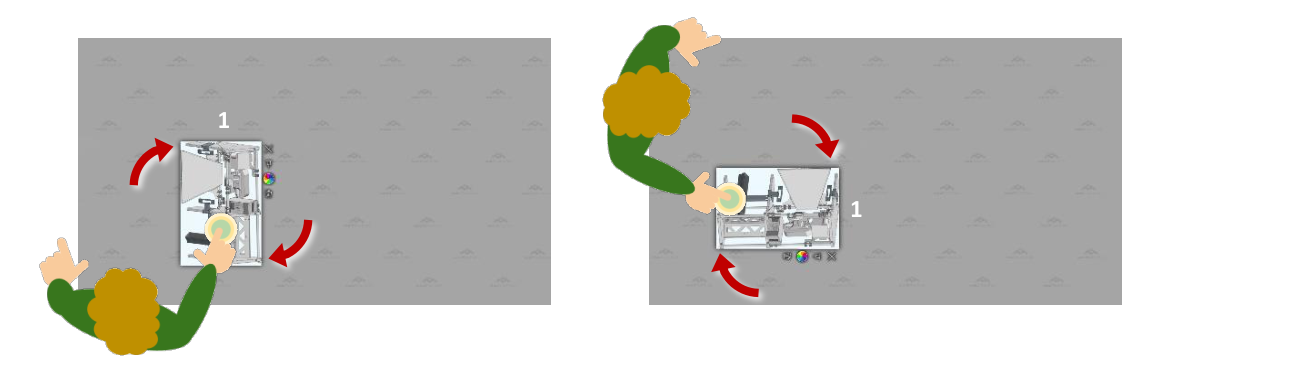
Turn on table mode for a whole app
The quickest way is to turn it on in the app's theme, so every widget follows it:
- Click Defaults and open the app's theme.
- Under Theme defaults, go to Table mode.
- Turn on Rotate widget or menu towards hand.
Changes save automatically. See Themes.
Turn on table mode for one widget
- Click Structures and select the structure.
- Select the widget in the structure tree.
- Turn on its Rotate widget towards hand attribute. For finger menus and rotating menus, the attribute is Rotate menu towards hand, and for content hotspots it is Rotate contents towards hand.
When you change the value, Use Default switches off and the widget no longer follows the theme for this attribute. Turn Use Default back on to follow the theme again.
Codice cards on a table
You can also set how Codice content behaves on a table. Codice content is the widgets that open when a visitor places a Codice card on the screen.
In the app's theme, go to Theme defaults > Table mode and set:
- Move contents with the Codice: widgets opened by a Codice card turn and move with the card, so they face the visitor holding it.
- Dismiss contents when Codice is lifted: widgets opened by a Codice card close when the visitor lifts the card from the screen.
- Codice rotation offset: corrects the orientation of Codice markers that were printed upside down on cards or attached the wrong way round to objects. Change it only if Codice content appears at the wrong angle, or if MultiTaction support asks you to.
For personal spaces, go to Components > Codice detector in the theme and set:
- Rotate personal space towards Codice: the visitor's personal space turns to face them.
- Codice rotation offset: the same correction, for personal spaces. For example, set it to 180 for markers printed upside down.
See Codice Cards.