Import and Export Apps
You can export or import apps using the MT Showcase Editor. You may want to do this for backup purposes or to import apps onto a different video wall.
You can export apps in their entirety, or you can selectively export structures, themes, service sets, Codice data, and media library assets. You can subsequently re-import files that you exported previously.
You need the author role
Importing and exporting requires the author role or higher. If the Import & Export menu entry is not available to you, ask an administrator to raise your role.
An export is a single file named <name>-<timestamp>.showcase, where <name> is the short name you provide and <timestamp> is the time of the export. A .showcase file is a ZIP archive.
Check your free disk space
Both exporting and importing stage the data on disk before writing or reading the archive. Allow roughly twice the size of the archive in free space on the server, and the same again on the computer you download to or upload from. Exports that include the whole media library can be large.
Exporting Data from MT Showcase
You can export any combination of data from your MT Showcase server. Exported data is downloaded as a showcase file to your local computer. You must also provide a short name or description for your file.
Apps are always exported in their entirety with their associated structure, theme, and service set. If you do not want to export an entire app, you can selectively export its structure, theme or service set.
In addition, you can export the Codice database. This contains details about all registered Codices (personal markers, erasers and markers for banning tweets in a Twitter feed).
Finally, you can export the media library. You can choose to export all items (\'assets\') or only items that are currently used by a structure, theme or content set.
Tip
If your media library is very large, it may be more practical to maintain separate copies of library items (for example, in a backup folder on your network), instead of exporting all items to a showcase file.
Importing Data into MT Showcase
You can re-import files of MT Showcase data that you exported previously.
When you select the showcase file, you can specify which components you want to import. You can import an app in its entirety, or you can selectively import the structure, theme, and service set. You can also optionally re-import the Codice database and any media library items that you previously exported.
Full export and import instructions are in the MT Showcase Editor Manual. Registered users can download this manual from: https://cornerstone.multitouch.fi/mt-showcase-manuals
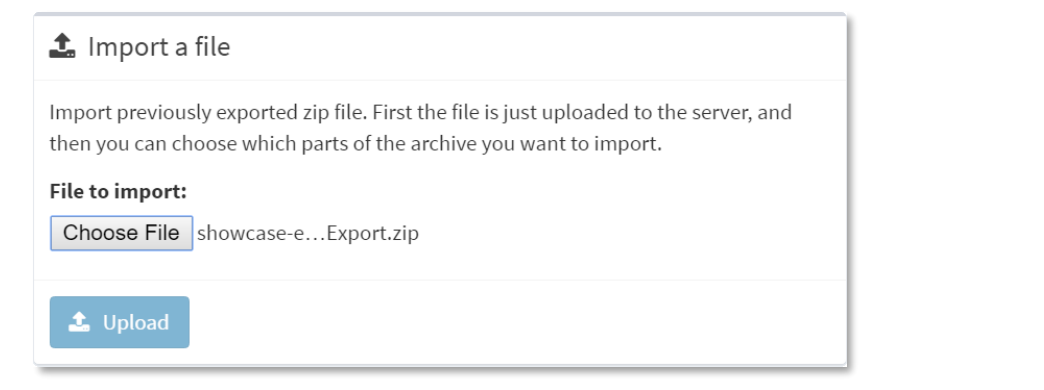
Import Data into MT Showcase
You can re-import files of MT Showcase data that you exported previously.
Follow these steps:
- Click Import & Export in the left-hand menu.
- Go to the Import a File section.
- Click the Choose File button and browse to the showcase file you want.
- Click the Upload button.
Upgrade MT Showcase
To upgrade to a newer version of MT Showcase, simply install the newer version over the existing version.
Upgrading on Ubuntu Systems
Simply follow the instructions in the installation section and install the new version of MT Showcase over the existing version.
Upgrading on Windows Systems
Simply follow the instructions in the installation section and install the new version of MT Showcase over the existing version.
Automatic Backup on Upgrade
(Applies to Ubuntu application computers only.)
On Ubuntu, MT Showcase automatically saves a backup of existing data before it is upgraded. See the backup-restore section for details on creating and restoring backups. You can use this automatic backup to downgrade MT Showcase if needed.
Windows: back up before you upgrade
The Windows installer does not take a backup before it upgrades MT Showcase. On Windows application computers, create a backup yourself before you run the installer; see backup-restore. Without one you have nothing to restore from and nothing to downgrade to.
Downgrade MT Showcase
You can downgrade to an earlier version of MT Showcase if you have a backup of MT Showcase data taken from or before that version. It is not possible to downgrade existing MT Showcase data: a database that a newer version has already upgraded cannot be handed back to an older version.
To downgrade MT Showcase, follow these steps:
- Ensure you have a backup from the version you wish to downgrade to.
- Install the desired version of MT Showcase, following the instructions in the installation section for Ubuntu or Windows.
- Use
mt-showcase-ctlutility tool to restore MT Showcase data from the backup; see the backup-restore section for details.