Authentication
MT Showcase 26.04.0 uses a JWT-based authentication system for the Showcase Editor. All user management is handled through the web UI or the server CLI.
Signing in
Navigate to the Showcase Editor at http://<your-server>/editor. If you are not signed in you will be redirected to the sign-in page.
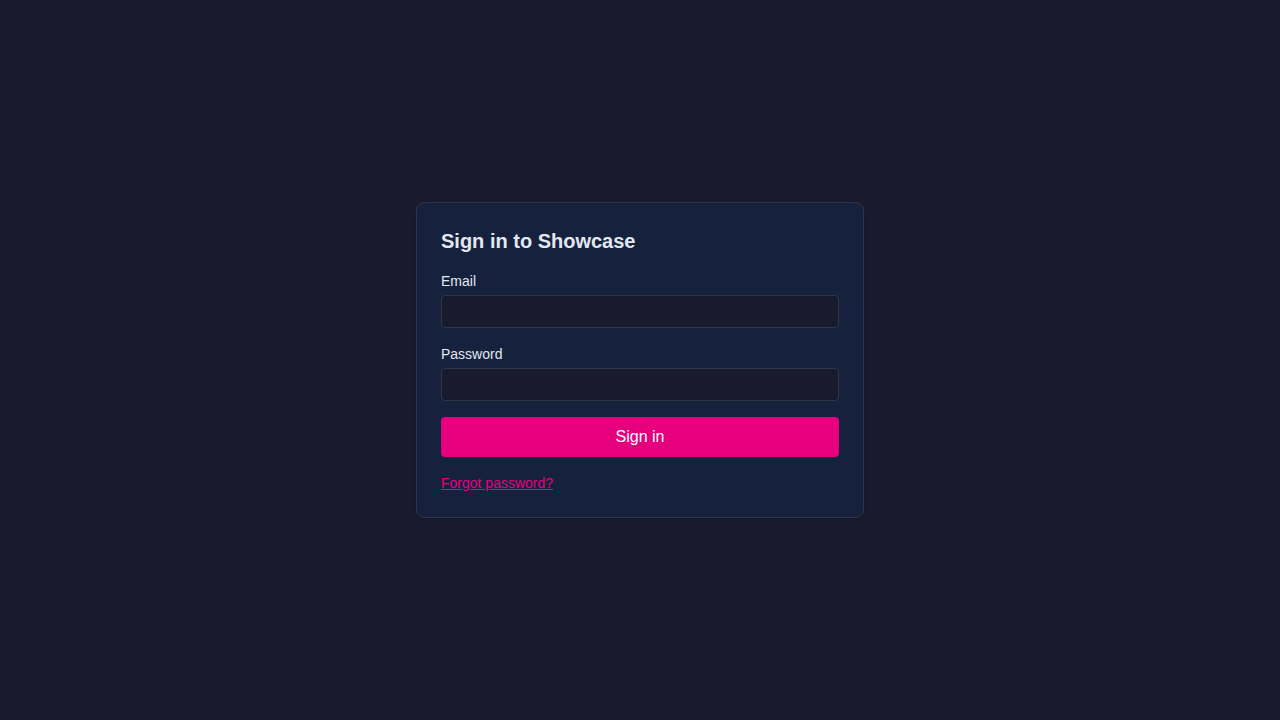
Enter your email address and password, then click Sign in.
Forgot password
If you have forgotten your password, click Forgot password? on the sign-in page.
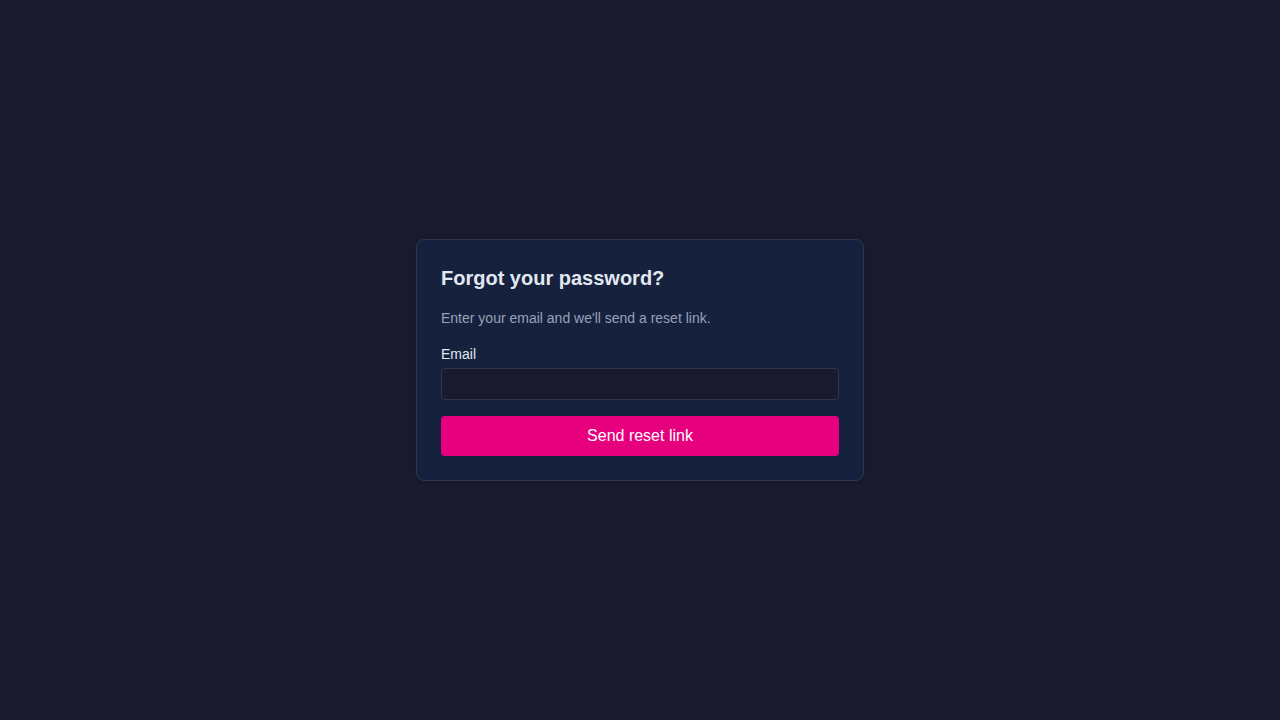
Enter your email address and click Send reset link. The server will send a password reset email if SMTP is configured and the address matches an active account.
Note
If SMTP is not configured, use the server CLI to reset passwords directly. See CLI management below.
Two-factor authentication (TOTP)
If an administrator has enabled Require TOTP in Security settings, users without an enrolled authenticator app are redirected to /totp/enrol on their next login. Follow the on-screen instructions to scan the QR code with an authenticator app (e.g. Google Authenticator, Authy) and confirm the 6-digit code to complete enrollment. TOTP cannot be self-disabled once the policy is active; an administrator must disable the setting server-wide.
SSO login
If SSO providers are configured, an additional Sign in with \<Provider> button appears on the login page. Clicking it redirects you to the identity provider. On successful authentication you are returned to the Editor. If Auto-provision new users is enabled for the provider, an account is created automatically on first SSO login.
CLI management
The server binary includes operator subcommands for user management without the web UI. Run these on the server host in the installation directory:
# Create the initial admin account (first-run only)
node /opt/mt-showcase-<version>/server/api/dist/index.js users:create-admin

# Reset a user's password
node /opt/mt-showcase-<version>/server/api/dist/index.js users:reset-password <email>

# Manage account state
node /opt/mt-showcase-<version>/server/api/dist/index.js users:disable <email>
node /opt/mt-showcase-<version>/server/api/dist/index.js users:enable  <email>
node /opt/mt-showcase-<version>/server/api/dist/index.js users:unlock  <email>

# Rotate JWT signing keys — invalidates all active sessions
node /opt/mt-showcase-<version>/server/api/dist/index.js keys:rotate-signing
Tip
Stop the server before running CLI commands that modify the database, then restart it afterwards.
Migration from adminPassword
Deprecated: adminPassword
The adminPassword key in production_users.yaml is deprecated and will be removed in a future release.
If you previously used adminPassword, your existing configuration continues to function. To migrate:
- Start the server — if no admin account exists, the setup wizard runs automatically.
- Alternatively, run
users:create-adminto create an admin account without the wizard. - Remove
adminPasswordfromproduction_users.yamlonce the admin account is confirmed.