Concepts
Apps
An app is an individual MT Showcase application. An app defines the actual content available to users on your video wall (images, videos, PDFs, and so on), plus the appearance and behavior of screen items such as finger menus, content hotspots, and the screen background.
To create an app, you must define a structure. Typically, you also assign a theme and service set to your app, although these are not mandatory.
The structure defines the combination of widgets used in each layer of the app; see Create A Structure.
A theme is a collection of attribute values for MT Showcase widgets. If your app uses a theme, widgets inherit their attribute values from the theme; see Themes.
A service set defines a specific administrative setup for an MT Showcase app.
A single MT Showcase installation can support multiple apps. You run apps and create new apps in the App launcher screen. You can also edit and save apps in this screen, assigning a name, structure, theme, and service set.
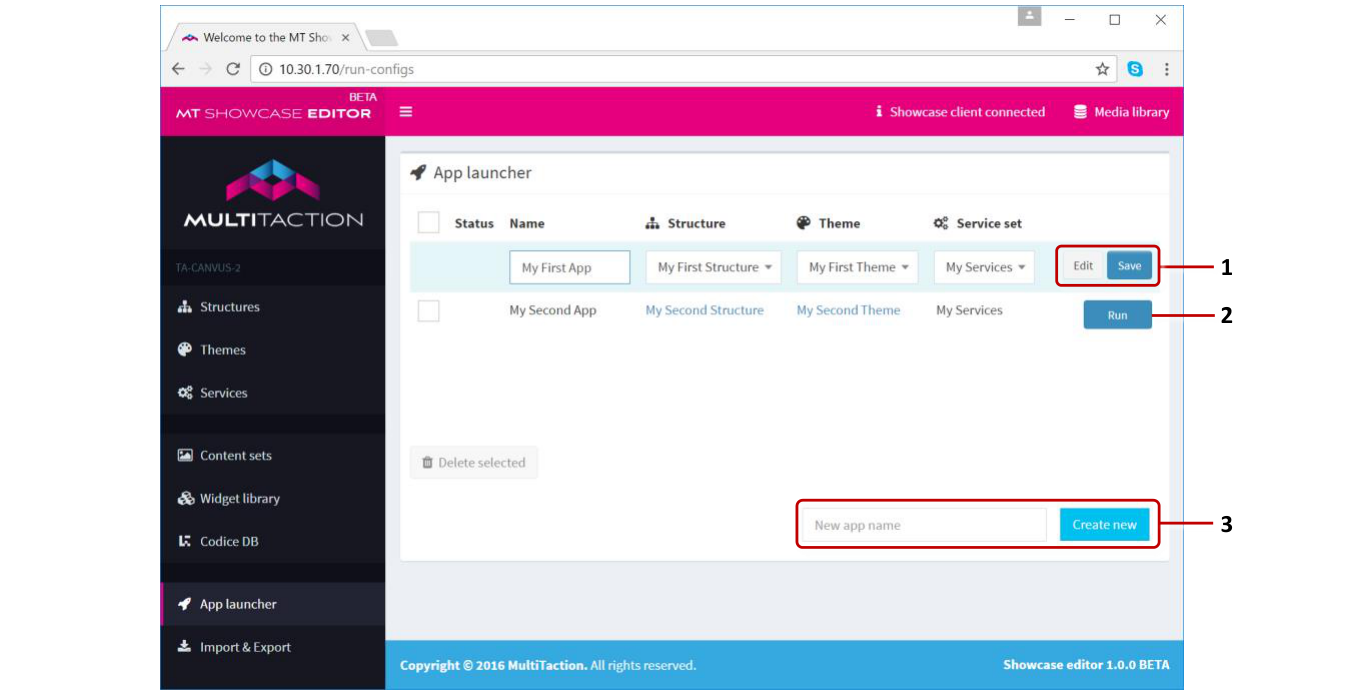
App launcher screen. 1 Edit and Save buttons. 2 Run button. 3 'New app name' input box and 'Create new app' button.
Widgets and attributes
A widget is simply a component in an MT Showcase app. A widget's attributes, such as its size, behavior and appearance, can be defined in the Showcase Editor.
Content widgets
There are several types of widget in MT Showcase. But as an MT Showcase app designer, you will mainly focus on widgets that display content directly (such as the image viewer) and widgets that open or launch content (such as menus and hotspots).
The following widgets display content directly. They contain the text, images and video content that you want to show on your video wall.
Image viewer: Displays image files, including PNG, JPEG, BMP and TIF files.
Image movie: Plays a sequence of images as an animation or movie.
Video viewer: Plays a video. The video source can be a video file (e.g., an MP4 movie), a video stream, or a video capture device (e.g., a web cam).
Web browser: Displays web pages and HTML files, but can also display images, videos, text files and PDFs.
PDF Book: Displays PDF documents as open books. It uses a realistic page-flip animation when paging through a document.
PDF Flow: Displays PDF documents as a stack of pages. It uses a carousel-like animation when paging through a document.
Text viewer: Displays custom text content and text files.
Cloud: Displays a rotating collection of items (images, movies, browsers, and so on), clustered together in a ball. Users rotate the cloud to find the item they want.
See Content Widgets for more details about content widgets.
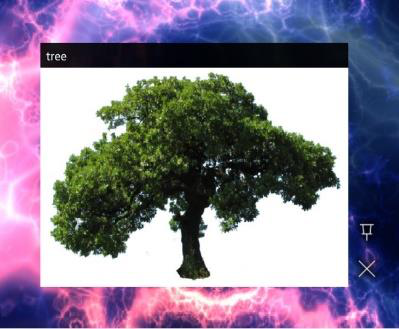
Image viewer |
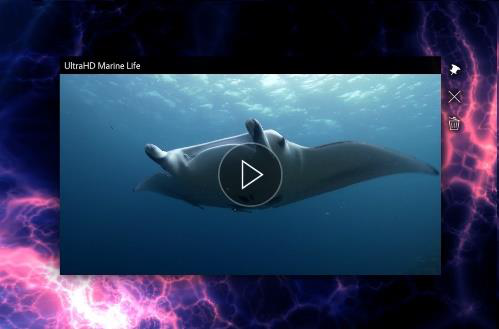
Video viewer |
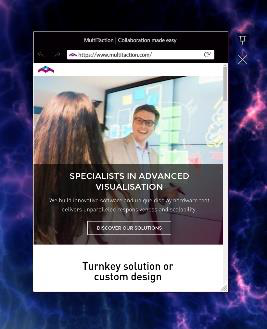
Web browser |
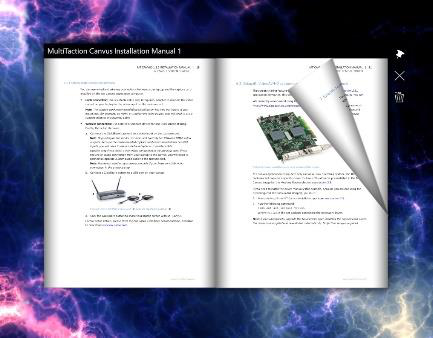
PDF Book |
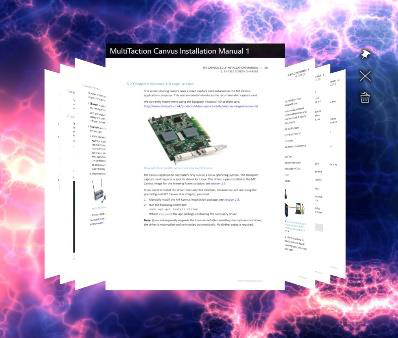
PDF Flow |
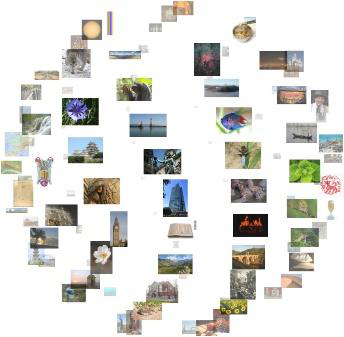
Cloud widget |
Menu and hotspot widgets
These widgets display menus or activate screen hotspots.
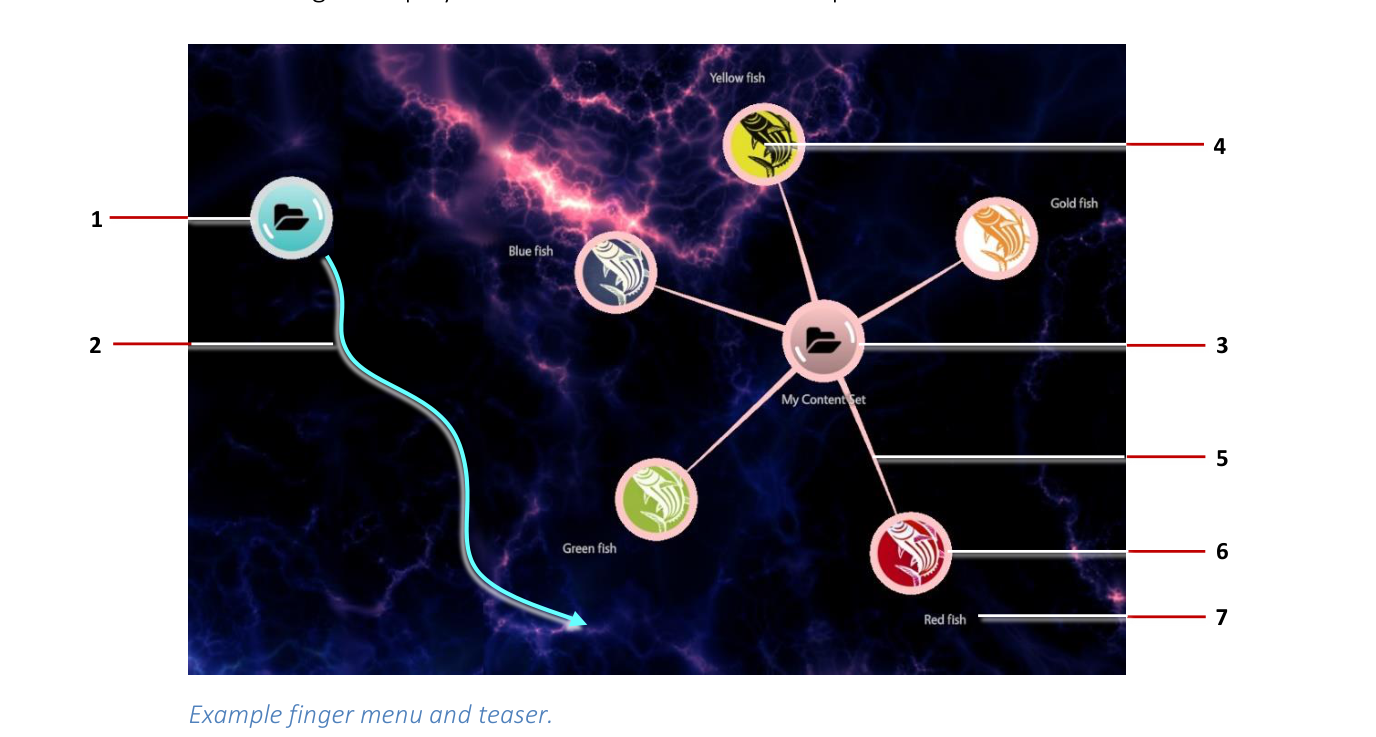
Example finger menu and teaser. Teaser: 1 Teaser bubble. Tap the bubble to open a finger menu. 2 Teaser movement. Finger menu: 3 Central bubble. 4 Child bubble. In this example, the bubbles display thumbnails (or 'preview images') of the menu items. Tap any child bubble to display the menu item. 5 Bubble connector. 6 Bubble background color. 7 Bubble visible name.
Finger menus: These display when a user taps and holds an empty area of the screen. They can also be launched from content hotspots or with a Codice card. A finger menu is a circular animated menu, with child bubbles radiating from a central bubble. Child bubbles represent individual menu items and can display thumbnail images. Separate widgets control the appearance and behavior of the individual bubbles and the connectors that radiate out from the central bubble to the child bubbles. You can also replace bubbles with nodes (either cubes or custom images).
Rotating menus: These display when a user taps and holds an empty area of the screen. They can also be launched from content hotspots or with a Codice card. A rotating menu is an oval animated menu, with items orbiting a central node. The effect is similar to satellites orbiting a planet. Users can tap an orbiting item to open a submenu of items such as images, videos and PDFs. Rotating menus are a direct alternative to finger menus. A separate widget controls the appearance of the menu items. By default, the central node, orbiting items and submenu items are all shown as bubbles, like the ones in finger menus, but you can display them as nodes (cubes or custom images).
Teasers: These are menu launchers. They can be a single bubble drifting slowly across the screen, 'wobbling' briefly at regular intervals to attract users' attention, or a single bubble that fades in and out, reappearing at random screen locations. In both cases, users can tap the teaser to open a regular finger menu or rotating menu. For greater impact, you can specify multiple instances of a teaser drifting across the screen at the same time, and you can use a custom image or video instead of a bubble. (A separate widget controls the behavior of the teaser menu, including its speed, direction and animation properties.)
Content hotspots: These are special areas of the screen that support custom interactions. When users tap a hotspot, menus or other widgets such as images or videos are displayed. The app designer specifies the number of hotspots, their size and location. They can also assign images or videos as hotspot background.
Other types of widget include games (Pong and Missile Command) and Codice detectors. (A Codice is a 2D barcode or marker printed on paper or card.)
Most widgets mentioned above are interactive. Users can move, resize, rotate, pin and close these widgets, if permitted. As the app designer, you determine what actions are permitted for each widget in the app. For example, you may include an image with a fixed size and position in your app, but superimpose a hotspot above this image so that, when a user taps the image, MT Showcase opens a menu of secondary items (such as images, videos, or PDFs) that users can move and resize as they like.
Attributes
A widget has attributes that define its size, location, appearance or behavior. Some widgets have many attributes. Others may only have one or two attributes. And some widgets have none.
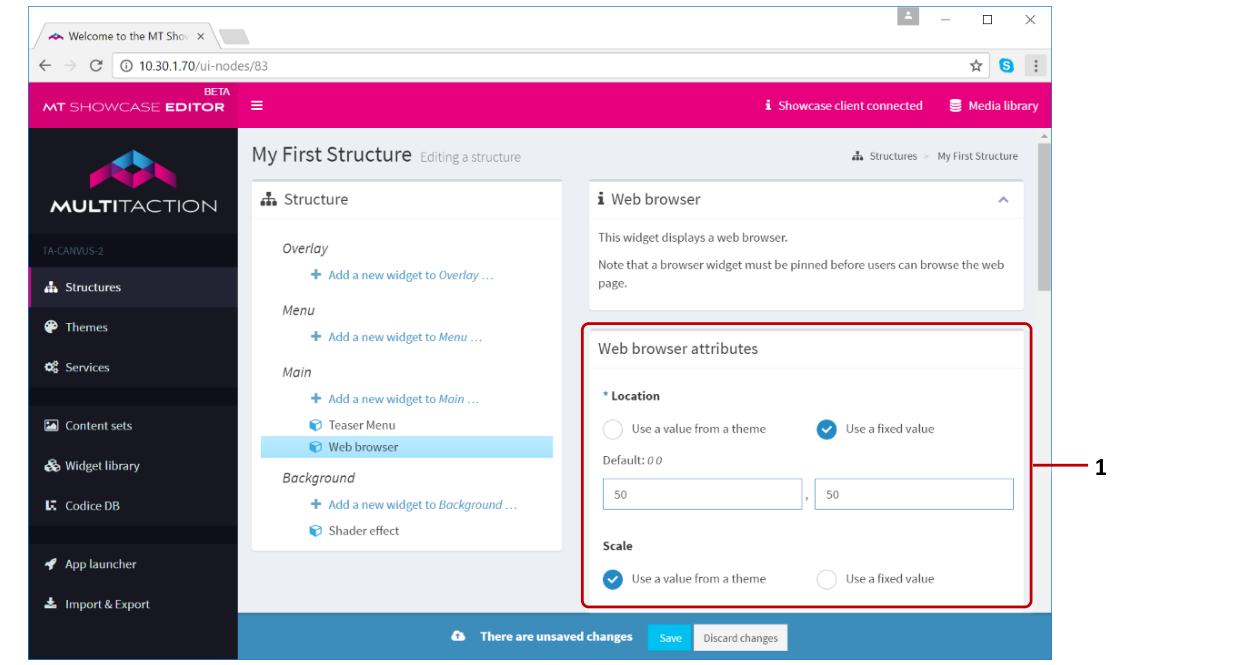
Editing a structure screen. 1 Example widget attributes pane.
Most widget attributes either have numeric values (such as height and width, screen coordinates, or snap to angle increments) or an Enabled check box (the attribute can be enabled or not enabled).
But some attributes take different values. For some, you must specify the path and filename of an asset in the media library (such as a Book widget's PDF file). For others, you choose from a drop-down list of values (for example, the toolbar attribute lets you choose from a list of existing toolbars or create a new one).
Widget library
The widget library is a repository of shared widgets that you can re-use in any MT Showcase apps on your MT Showcase server.
What is a shared widget? These are specific types of widgets that you have created and named. As soon as you create a shared widget, it appears in the widget library. You can quickly edit or rename any shared widgets in the widget library.
The most common types of shared widget include:
Menu bubbles: Items in finger menus are shown as bubbles, radiating from a central bubble. This widget sets the bubble size, color, image and label.
Note
By default, finger menus render menu items as circular bubbles. But if you prefer, you can use any image you want. For example, you can set up a finger menu to use your corporate logo instead of bubbles.
Bubble connectors: In a finger menu, connectors attach child bubbles to the central bubble. This widget sets the connector color and length and how much they bend when a user drags the menu.
Toolbars: Before you can assign a toolbar to, say, an image viewer, you must create and name a toolbar widget. For example, you may want to create a toolbar named 'Pin and Close Toolbar'. You can then assign this toolbar to any image viewer in your app. In fact, you can assign this toolbar to any content widget in your app (for example, video viewers, PDF viewers and browsers).
Teaser operator: Before you can add a teaser to your MT Showcase app, you must create a teaser operator widget. This widget controls how a teaser behaves. Two behaviors are supported:
Floating content behavior: The teaser floats slowly across the screen, animating briefly at regular intervals.
Fading content behavior: The teaser pulses rhythmically, fading in and out at random screen locations.
Opening animations: Many widgets can play an animation when they open. For example, finger menus can open with a circular progress bar or a spinning spiral of small stars. You can create and name widgets to control the properties of these animations, such as their color and speed (such as 'White star spiral').
Close after idle: If a user stops interacting with a widget (for example, a menu item or an item opened from a hotspot), the widget fades and closes automatically. 'Close after idle' specifies the timeout and fade duration for idle widgets. You can create separate versions of this widget. For example, you may want two versions of this widget ('30 second timeout' and '60 second timeout') to enable you to assign different timeouts to, say, videos and PDFs.
Snap to angle: You can constrain the incremental rotation of widgets so they automatically re-adjust themselves to a fixed angle of rotation. The effect is similar to a boat righting itself after keeling over. The snap to angle widget sets the incremental rotation for other widgets.
Text style: You can customize how text in different widgets is displayed by adding a custom Text style to a widget or theme in your Showcase app. For example, you can change the color of Finger menu item names or use a custom font to add branding to your app.
Structures
A structure defines the framework of an MT Showcase app. Specifically, it defines the combination of widgets -- their types, size and location on screen -- used in each layer of the app. Instructions for creating a structure are in Create A Structure.
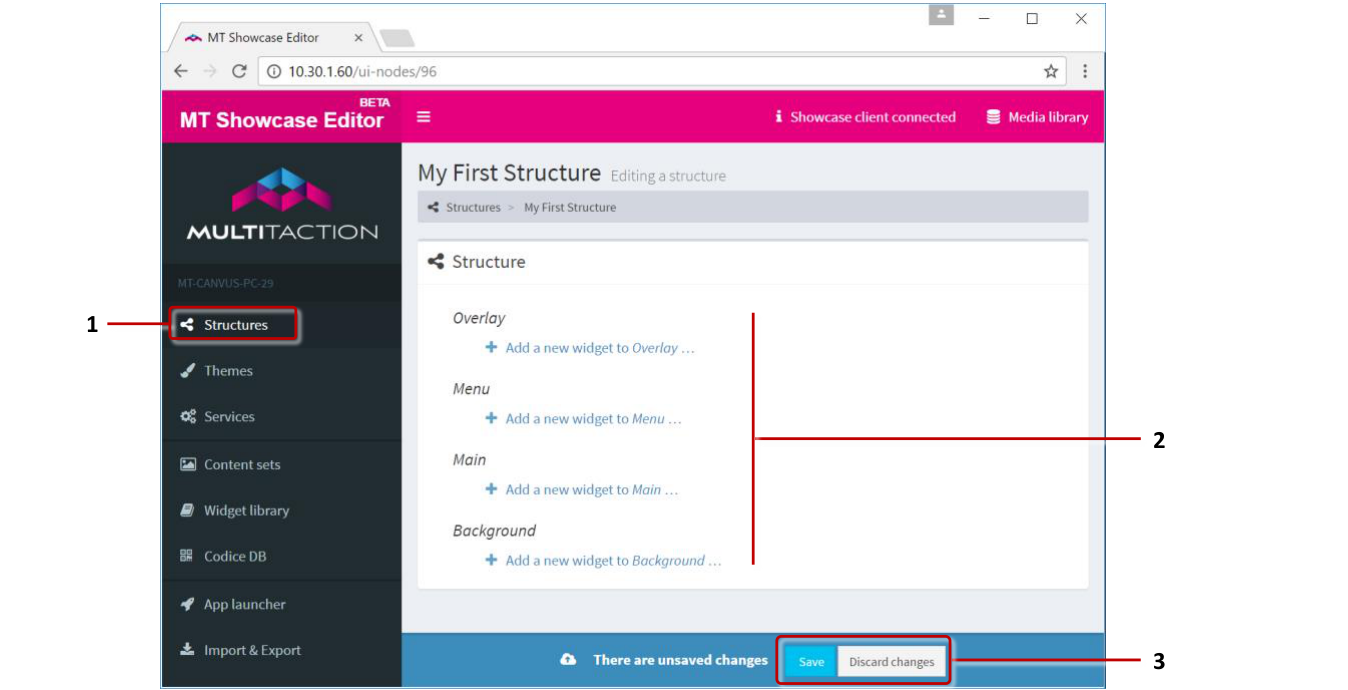
MT Showcase Editor, 'Editing a structure' screen. 1 Structures menu. 2 Overlay, Menu, Main and Background layers. 3 Save button and Discard Changes button.
Overlay
This is the topmost layer in an MT Showcase app. Widgets in this layer operate above any screen content in the main layer. There are six overlay widgets:
Animated content: The animated content widget applies animation to image and video widgets. There are two types of animation. You can configure images or videos to float slowly across the screen. Or you can configure them to pulse rhythmically, fading in and out at random screen locations.
Note
Animated content is also available in the background layer. If added to the overlay layer, content appears above items in the main layer. If added to the background layer, content appears underneath items in the main layer.
Champagne, Particles and Ripple: These widgets are purely cosmetic and superimpose animation effects above the main app layer (streams of rising bubbles, floating circles and wavelets emanating outwards from a finger, respectively).
Note
These effects are also available in the background layer. When added to the overlay layer, the effects appear to be above items in the main layer. When added to the background layer, they appear to be underneath items in the main layer.
Input Visualizer: This widget is provided for administrative purposes. It shows visualizations of touch events for fingers, hands, Codice cards, and infrared pens. It also provides a quick mechanism for identifying Codice code numbers.
Maximization area: This widget defines an area (or areas) on the screen where maximized widgets are displayed. When a widget is maximized (for example, when a user taps the Maximize toolbar button), it floats to the nearest maximization area and scales up to fill the area.
Screensaver: A screensaver widget can display a background such as Awesome or Shader effect, an image or movie, or animated content. The screensaver is displayed when the app has been idle for a specified time. To clear the screensaver and return to the app, the user taps the screen.
Main layer
This layer includes the content widgets that users see when they use the app. It can include any combination of image, video, browser, PDF and cloud widgets.
This layer can also contain content hotspots, teasers, games (Pong and Missile Command) and Codice detectors.
Background layer
This layer defines the screen background. It can include:
Animated content. This widget applies animation to image and video widgets. You can configure images or videos to float slowly across the screen. Or you can configure them to pulse rhythmically, fading in and out at random screen locations.
Note
Animated content is also available in the overlay layer.
An animated background. The following backgrounds are available:
Awesome: A background of drifting clouds, similar in effect to the Aurora Borealis. You can customize the colors and animation speed.
Shader Effect: A background that resembles the night sky, with dramatic purple and magenta nebulae drifting across the screen, punctuated with cores of bright white light. However, you can use a custom shader file if required.
Animation effects superimposed on the screen background. These widgets are interactive and respond to touches, emanating outwards from the user's fingers.
Champagne: Displays streams of rising bubbles, like in a glass of sparkling wine.
Particles: Displays small floating circles, randomly connecting to nearby circles.
Ripple: Displays wavelets, like ripples on a pond.
Sparkles: Displays swirls of particles. Its effect is like dragging your hand through a sparkling fluid.
Note
These effects (not Sparkles) are also available in the overlay layer.
Images and movies. These widgets occupy fixed positions on the screen and are not interactive. For example, you may want a video looping continuously in the background or you may want to use a background image as wallpaper. However, you can position hotspots in the Main layer directly above areas in your background image to make the image appear to be interactive.
An annotation widget. This defines the color and timeout for annotations drawn on the screen with an infrared pen.
Themes
A theme is a collection of attribute values for MT Showcase widgets. If your app uses a theme, all widgets in the app will inherit their attribute values from this theme by default. Instructions for creating a theme are in Themes.
Why use a theme? Themes provide consistent widget appearance and behavior across an app. They also simplify the process of creating apps, because the same theme can be used by one or more apps.
Consider an image viewer widget. By default, an image viewer has no toolbar or title bar. But if you want the images in your app to have title bars and toolbars, you can create a theme that includes an image viewer widget with these features enabled. If you then assign this theme to your app, all image viewer widgets in your app will automatically inherit a toolbar and title bar. This approach is far quicker than individually configuring each image viewer.

Before a theme is applied to the app, this Image Viewer widget has no title bar or toolbar.

After a theme is applied, the widget inherits the title bar and toolbar defined in the theme.
Of course, there may be occasions when you do not want a widget to use a theme. (For example, you may want to suppress title bars and toolbars for videos playing in the background layer.) If so, you can always override the theme and apply custom attribute values to any widget in your app. To override the theme, you edit widgets directly in the app's structure or content set.
Note
If an app does not use a theme, or no custom attributes are defined in the app structure, widgets use hard-coded default values.
Service sets
A service set defines a specific administrative setup for an MT Showcase app. Each MT Showcase installation can support multiple service sets. This allows MT Showcase designers to create multiple versions of an app, all with the same content and theme but each with a unique service set. For example, you may want to deploy the same app in your London and Paris offices but with a different service set in each location that specifies the local SMTP server.
In the current version of MT Showcase, service sets can include the following services. Later versions of MT Showcase may include additional services.
Email Sending service: Used for sending screen content from MT Showcase to a specified email account. When you add the email sending service to a service set, you must define such attributes as the SMTP host, credentials for an SMTP user, the sender's email address and the email subject.
Note
An alternative method for saving screen content, and one that does not require email addresses, is provided by the Media Server service.
Data Gathering service: Collects content usage data that can be imported into third party data visualization tools such as Tableau Desktop. Usage data is stored in a PostgreSQL database as event records. Example events include hand and finger touches, opening or closing a widget, playing a video, viewing a PDF, browsing to a URL, adding items to a personal space, and emailing items from a personal space.
Twitter Connection service: Allows you to add Twitter feeds to your apps, with tweets displayed either in a cloud widget or finger menu. When you add a Twitter feed to a content set in your app, you can specify search terms to filter the tweets.
Media Server service: Used for saving screen content from MT Showcase to a personal web page. This service is an alternative to the Email Sending service and has the advantage that it does not require a user's email address. From the end-user's viewpoint, they can drag screen content into their personal space in MT Showcase and then use a QR code reader on their mobile device to download this content. When you add the Media server service to a service set, you must specify which web server you want to use. You must also specify the personal space collection mode.
Content sets
A content set is a collection of items (images, videos and PDFs). Content sets can also include special items such as the Exit Showcase widget and the Twitter Feed widget. Content sets supply the items that are displayed by finger menus, teasers and clouds.
To create a content set, you simply drag items from the MT Showcase media library. Detailed instructions for setting up a content set are in Finger Menus.
Note
You cannot add items directly from, say, your laptop to a content set. You must first drag the items into the MT Showcase media library.
You can define multiple content sets for use by different widgets. For example, your app may include multiple teasers, each of which launches a unique collection of images. You can also use the same content set across multiple apps.
Items in a content set can be organized in a flat structure, or you can organize them hierarchically to reflect the menus and submenus that you want in your app. If your MT Showcase media library already contains items organized into the correct folders and subfolders, simply drag the folder directly into your content set to automatically create a corresponding menu structure.
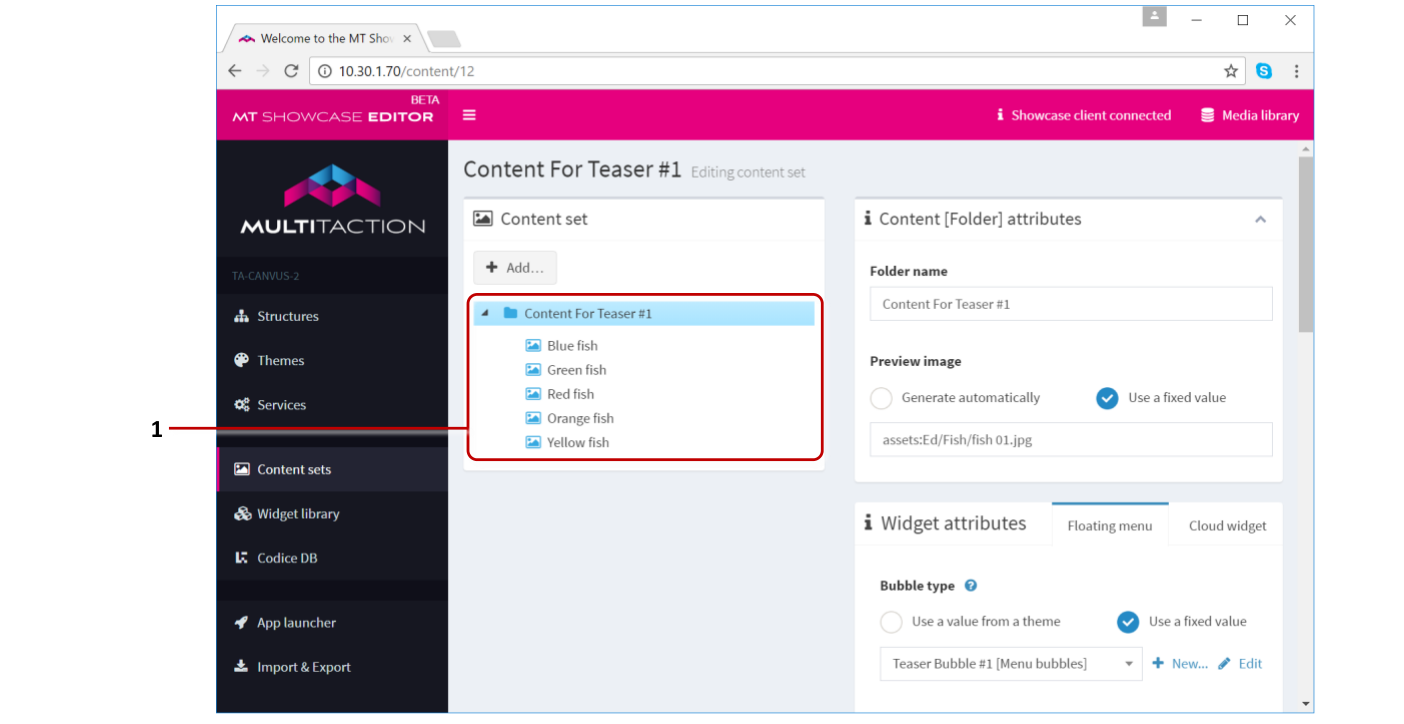
MT Showcase Editor, Content Set screen. 1 Items in content set. Also referred to as 'assets'.
Media Library
The media library is a collection of images, videos, and PDFs stored on your MT Showcase server. If you want to include these items in your MT Showcase app, you must first add them to your media library. Crucially, the media library is the source for items in content sets.
To add items to the media library, you simply drag them from Windows Explorer (or from equivalent applications on Apple or Linux computers). You can then organize items in the media library into folders and subfolders as required.
When you click an item in the media library, tabs at the bottom of the screen provide information about the item:
Preview: Shows a preview of the image, video or PDF
Description: Provides an input box for you to add a description of the item and copyright details. (This description is for your reference only.)
Codice URL: Provides an input box for you to add a URL for the item. For example, if a video in the media library is also available on your corporate website or YouTube, you can include its URL here. The purpose of this feature is to avoid sending very large videos as email attachments. If a user sends this item from their personal space in MT Showcase, this URL is included in the email instead of the actual .mp4 file.
Details: Shows the file size, date last modified and MIME type.
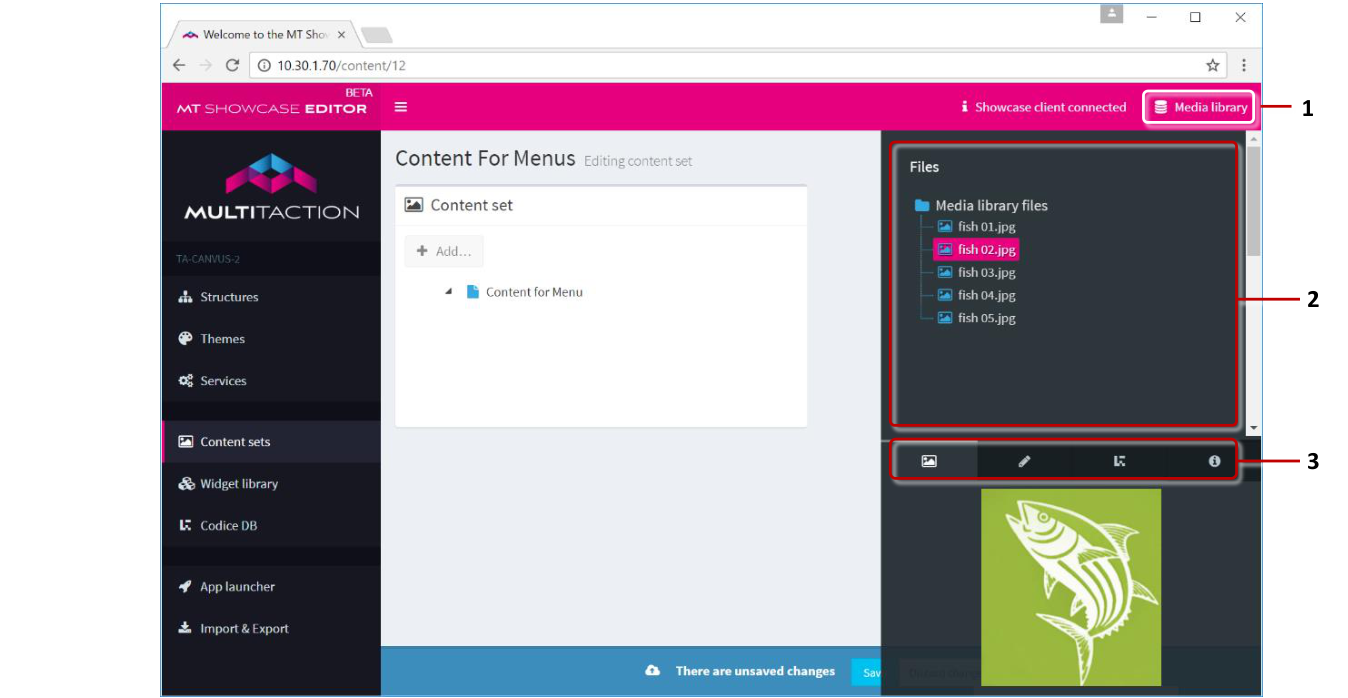
MT Showcase Editor. 1 Media library button. Click to show or hide the media library. 2 Media library. 3 Tabs showing information about currently selected item.
Codice database
You register and configure Codices in the Codice DB screen.
Codices are square 2D barcodes, or markers, each with a unique code. A Codice card is simply a Codice printed on paper or card. You can assign a Codice card to an individual user (a 'personal Codice'). You can also configure Codice cards to display specific content, ban proscribed tweets in a Twitter feed, or act as an eraser; you can make these cards available to all users (a 'utility Codice').
For example, a user can use their own Codice card to access their personal space. This Codice card is their personal marker. The user simply presents their card, i.e., holds it against the screen to open their personal space. They can then drag items into the folder from the MT Showcase app and send them to their registered email address, providing a simple method for exporting screen content out of MT Showcase.
Codice cards can also be used to open Codice content. This refers to the item that opens automatically when a user presents a specific Codice card. This item could be an image, video or even a browser. This content is available to anyone who presents the correct card (i.e., any card with the correct Codice code).
You can also designate a Codice as an eraser or tweet blocker. Any user can use an eraser card to erase pen or finger annotations from an MT Showcase app. Likewise, any user can use a tweet blocker to permanently remove specific tweets from a Twitter cloud or menu.
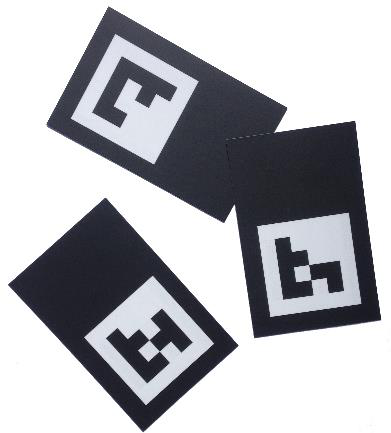
Example Codice cards
Welcome screen
Usually when MT Showcase starts, it automatically displays an app. For example, administrators can set up an MT Launcher tile that automatically launches a specific app.
However, there may be occasions when users are directed to the MT Showcase welcome screen. This may be intentional. For example, you can add an app switcher widget to return users to the welcome screen. Or it may be unintentional. For example, if a user taps an MT Launcher tile to open an MT Showcase app that no longer exists, the user is taken instead to the welcome screen.
In either case, you can customize the welcome screen to include:
A list of available apps. You also need to provide users with a method of getting to the welcome screen.
An Exit button, allowing users to quit back to MT Launcher.

Welcome screen. 1 Available apps. 2 Exit button.